
In an age dominated by digital content, streaming services have become an indispensable part of our daily lives, offering unparalleled access to a vast library of movies, TV shows, and original programming. Among the titans of this industry stands Amazon Video, a robust platform that caters to a diverse global audience. If you’ve ever found yourself wondering, “How do I watch Amazon Video?” you’re not alone. This guide aims to demystify the process, providing a comprehensive, insightful, and step-by-step tutorial designed to get you from curiosity to content consumption with ease.
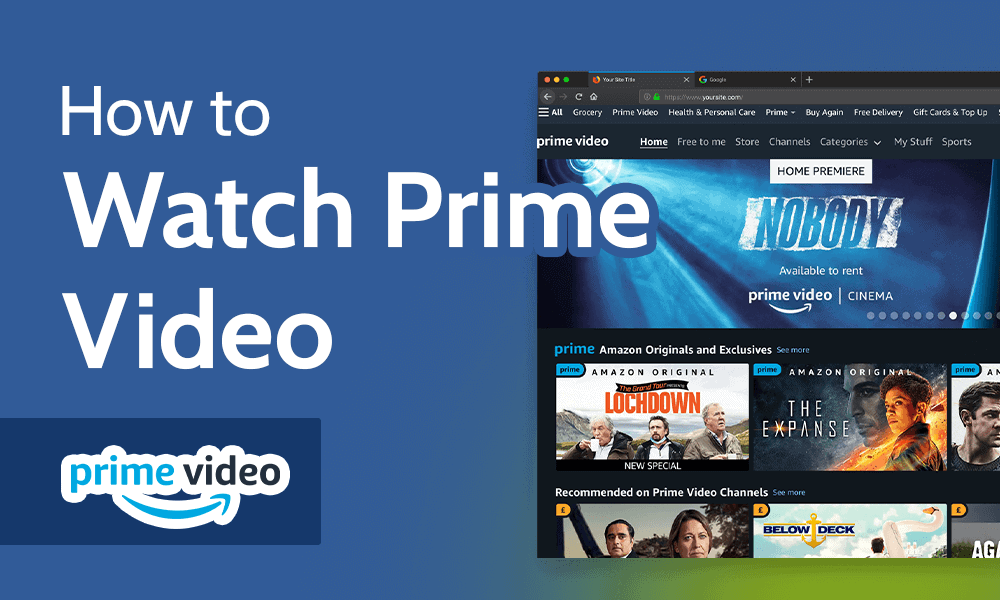
Amazon Video, often synonymous with Amazon Prime Video, is more than just a streaming service; it’s a dynamic digital ecosystem providing access to an expansive range of entertainment. From critically acclaimed Amazon Originals to blockbuster movies and classic TV series, understanding how to navigate this platform is key to unlocking a world of cinematic and episodic enjoyment. We’ll delve into the necessary technical setup, explore the diverse range of compatible devices, and guide you through optimizing your viewing experience, ensuring you harness the full potential of Amazon’s video offerings.
Understanding the Amazon Video Ecosystem
Before diving into the specifics of how to watch, it’s crucial to grasp the foundational structure of Amazon’s video services. This understanding will empower you to make informed decisions about your content access and subscription choices. Amazon’s offering isn’t a monolithic entity but rather a multi-tiered system designed to provide flexibility for various user needs.
Amazon Prime Video vs. Rent/Buy
The most common point of confusion for new users revolves around the distinction between Amazon Prime Video and the option to rent or buy content.
Amazon Prime Video is a subscription service that comes as a benefit of an Amazon Prime membership. With a Prime subscription, members gain unlimited access to a curated library of thousands of movies and TV shows, including all Amazon Originals. This library is constantly updated, with new titles added and some rotating out. It’s essentially an “all-you-can-stream” model for the content included within the Prime Video catalog. Key benefits include ad-free viewing for most content (though some live events or specific channels might have ads), offline downloads for mobile viewing, and access to exclusive content.
On the other hand, the Rent or Buy model operates independently of a Prime membership. This allows any Amazon customer, Prime member or not, to pay a one-time fee to rent a movie for a limited period (typically 48 hours once started) or purchase it digitally for indefinite access. This option is typically used for new release films, popular TV seasons that aren’t included in Prime, or older titles not part of the Prime Video library. When you rent or buy, the content is added to your digital library within Amazon Video, accessible from any compatible device linked to your account. This transactional video-on-demand (TVOD) service offers immediate access to a much broader range of content beyond the Prime subscription.
Understanding this duality is fundamental. While a Prime membership offers a vast array of included content, it does not automatically grant free access to every title listed on Amazon Video. Newer releases or specific premium content will often require an additional rental or purchase.
Supported Devices and Platforms
One of Amazon Video’s greatest strengths is its widespread compatibility, making it accessible across a plethora of devices. This ubiquity ensures that you can enjoy your content wherever and whenever you choose, offering a seamless viewing experience across different screens.
The core platforms include:
-
Amazon Devices: Foremost among these are the Fire TV Stick and Fire TV Cube, which are dedicated streaming media players designed to integrate seamlessly with Amazon’s services. Also included are Fire Tablets and Echo Show devices, providing portable and interactive viewing options.
-
Smart TVs: Most modern smart televisions from manufacturers like Samsung, LG, Sony, Vizio, and others come with the Prime Video app pre-installed or available for download from their respective app stores.
-
Gaming Consoles: Popular consoles such as PlayStation (PS4, PS5) and Xbox (Xbox One, Xbox Series X/S) feature the Prime Video app, turning your gaming setup into a comprehensive entertainment hub.
-
Mobile Devices: The Prime Video app is available for both iOS (iPhones, iPads) and Android smartphones and tablets. These apps are highly functional, offering features like offline downloads and casting capabilities.
-
Computers: You can access Amazon Video directly through a web browser on Windows PCs, macOS computers, and Linux machines. Simply navigate to the Amazon Prime Video website.
-
Streaming Media Players: Other popular streaming devices like Roku players, Apple TV, and Chromecast (via casting from a mobile device or web browser) also support the Prime Video app.
-
Blu-ray Players: Certain smart Blu-ray players from various brands also include the Prime Video app.
This extensive list ensures that regardless of your preferred viewing method, Amazon Video likely has a solution. The consistency of the user interface across these platforms is also a key design consideration, making the transition between devices relatively smooth.
Regional Availability and Content Libraries
Amazon Video’s content library varies significantly by geographical region due to licensing agreements and distribution rights. While Amazon Originals are generally available worldwide, the selection of third-party movies and TV shows included with Prime, or available for rent/purchase, can differ dramatically from one country to another.
When you sign up for Amazon Video, your account is tied to your Amazon marketplace (e.g., amazon.com for the US, amazon.co.uk for the UK, amazon.de for Germany). The content you see and can access will correspond to that region. If you travel, you might find that your access to certain content is restricted, or the available library changes based on your physical location. Amazon employs geo-blocking technology to enforce these regional restrictions. In some cases, a limited selection of previously purchased or downloaded content might still be available while abroad, but streaming new Prime content or renting/buying new titles usually requires you to be within your account’s registered region. This is an important technical consideration for frequent travelers or expatriates.
Getting Started: Accessing Amazon Video
Once you understand the landscape, the next step is straightforward: getting logged in and ready to stream. This process is designed to be user-friendly, catering to both existing Amazon customers and new users.
Creating or Logging into Your Amazon Account
The gateway to Amazon Video is your Amazon account.
-
Existing Amazon Customers: If you’ve ever purchased anything from Amazon.com (or your regional Amazon site), you already have an account. Simply use your existing email address and password to log in. If you’re an Amazon Prime member, logging in will automatically grant you access to the Prime Video library.
-
New Users: If you’re new to Amazon, you’ll need to create an account. Visit the Amazon website or open the Prime Video app and select the “Create Account” option. You’ll be prompted to provide your name, email address, and create a password. Once your account is set up, you can then sign up for an Amazon Prime membership (which usually includes a free trial) to access Prime Video content, or simply use your new account to rent or purchase titles.
It’s crucial to keep your login credentials secure, as your Amazon account is linked to your payment information and access to all Amazon services.
Downloading the Prime Video App
For mobile devices, smart TVs, gaming consoles, and streaming sticks, the primary method of access is through the dedicated Prime Video app.
-
Smart TVs & Streaming Devices: Navigate to your device’s app store (e.g., LG Content Store, Samsung Smart Hub, Roku Channel Store, Apple App Store, Google Play Store on Android TV). Search for “Prime Video” or “Amazon Prime Video” and select to download and install.
-
Mobile Devices: Open the App Store on iOS (iPhone/iPad) or the Google Play Store on Android. Search for “Amazon Prime Video” and tap “Install” or “Get.”
-
Gaming Consoles: Go to the console’s store (e.g., PlayStation Store, Xbox Store), search for “Prime Video,” and download.
Once installed, open the app. You’ll typically be presented with an option to “Sign In” or “Register Your Device.” Many apps offer a convenient method to register by visiting a specific URL (like amazon.com/mytv) on a separate device (computer or phone) and entering a short code displayed on your TV screen. This avoids typing long passwords with a remote control. Alternatively, you can directly enter your Amazon email and password.
Accessing Via Web Browser
For computer users, no app download is necessary. Simply open your preferred web browser (Chrome, Firefox, Edge, Safari, etc.) and navigate to primevideo.com.
On the website, you’ll find a “Sign In” button, usually located in the top right corner. Click it and enter your Amazon account credentials. Once logged in, you’ll have full access to browse and stream content directly from your browser. Ensure your browser is up to date for optimal performance and compatibility with Amazon’s streaming technology.
Navigating the Prime Video Interface
With your account active and the app or website open, you’re ready to explore. Amazon’s interface is designed for discovery, but understanding its layout will enhance your experience.
Discovering Content: Search, Browse, and Recommendations
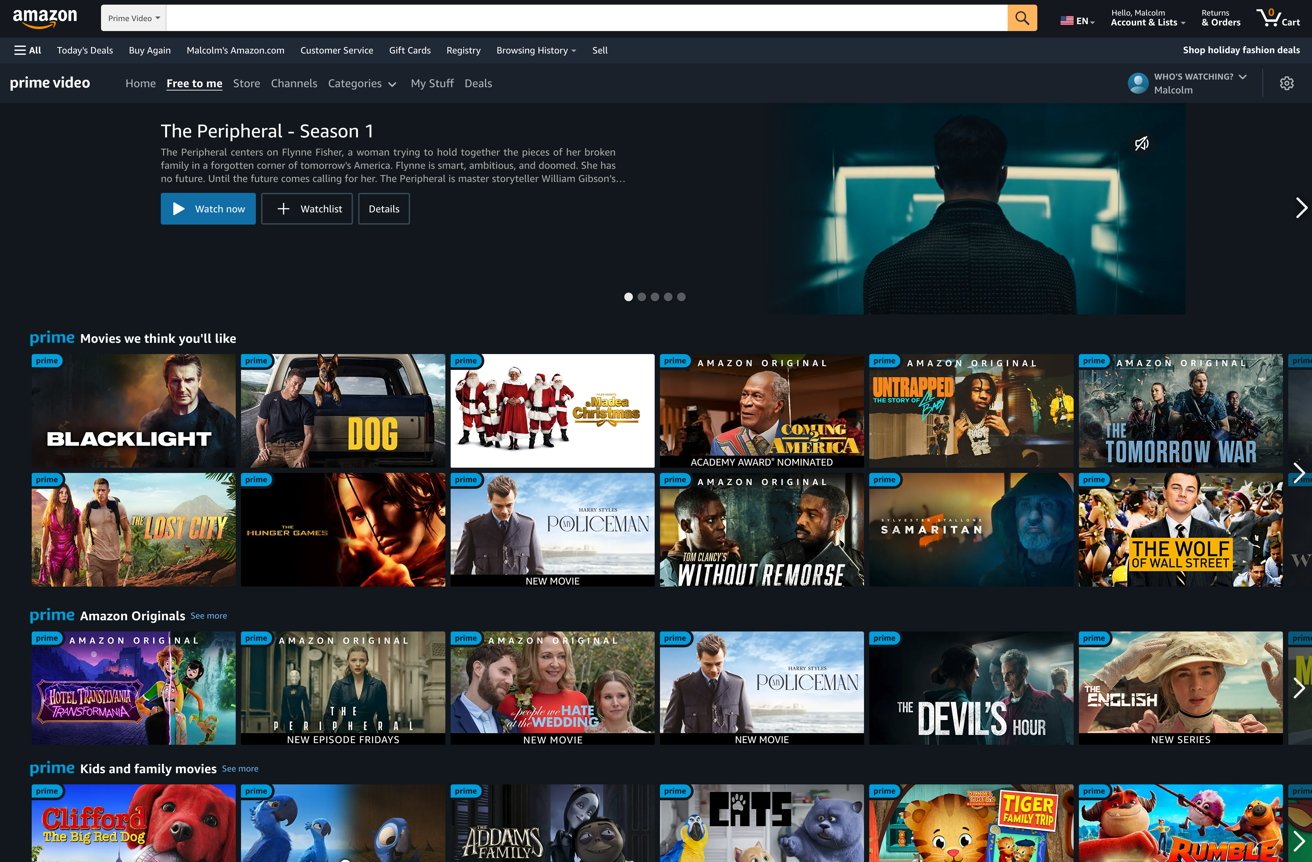
The Prime Video interface prioritizes content discovery through several intuitive methods:
-
Home Screen/Dashboard: This is where you’ll find featured content, new releases, and popular titles, often categorized by genre or theme (e.g., “Award-Winning Movies,” “Trending TV,” “New to Prime”).
-
Categories/Genres: Most interfaces offer a “Browse” or “Categories” section, allowing you to filter content by specific genres like Action, Comedy, Drama, Sci-Fi, Kids & Family, Documentaries, etc. This is useful when you have a general idea of what you want to watch but no specific title in mind.
-
Search Function: If you know exactly what you’re looking for, the “Search” icon (often represented by a magnifying glass) is your best friend. Type in the title of a movie or show, an actor’s name, or a director, and the platform will quickly return relevant results.
-
Personalized Recommendations: Amazon’s algorithms are constantly working in the background, analyzing your viewing history and ratings to suggest content you might enjoy. These recommendations are usually found on the home screen or in a dedicated “Recommended For You” section and become more accurate the more you watch.
Managing Your Watchlist and Library
Organizing your viewing queue is simple with Amazon Video’s management tools:
-
Watchlist: This feature allows you to save titles you’re interested in watching later. When browsing content, you’ll typically see an option to “Add to Watchlist” (often a plus icon or similar). This creates a convenient queue of movies and shows that you can access from your “Watchlist” section across all your devices, ensuring you never forget a title you wanted to see.
-
Your Library/Purchases & Rentals: This is where all the content you have explicitly rented or purchased is stored. It acts as your personal digital collection, providing indefinite access to purchased titles and access to rented titles for their validity period. You can easily sort and view your owned content here, independent of the Prime Video subscription.
Understanding X-Ray and Bonus Features
Amazon Prime Video offers several unique technical features that enhance the viewing experience:
-
X-Ray: Powered by IMDb (which Amazon owns), X-Ray is an innovative feature that provides instant, on-screen information about the actors, music, trivia, and more, related to the scene you are watching. Simply pause the video or tap the screen on mobile devices, and a pop-up window will appear with relevant details. This is particularly insightful for movie buffs and those curious about the talent behind the scenes.
-
Behind the Scenes/Bonus Content: For many titles, especially Amazon Originals, Prime Video includes bonus features such as deleted scenes, bloopers, making-of documentaries, and cast interviews. These can often be found on the title’s detail page or within a dedicated “Extras” section.
-
User Reviews and Ratings: Each title page includes user ratings and reviews, offering peer insights into the quality and suitability of the content, helping you decide what to watch next.
Optimizing Your Viewing Experience
Beyond simply playing a video, Amazon Video provides several settings and features to customize and enhance your streaming quality and accessibility.
Adjusting Streaming Quality and Data Usage
The quality of your stream depends heavily on your internet connection speed and device capabilities. Amazon Video typically defaults to the highest quality your connection can support, but you can manually adjust this:
-
Automatic: The service dynamically adjusts quality based on your internet speed, minimizing buffering.
-
Good/Better/Best/Data Saver: In the Prime Video app settings (often found under “Stream & Download” or “Settings”), you can choose a preferred streaming quality. Lower quality settings consume less data, which is crucial for mobile users on limited data plans or those with slower internet connections. Higher quality settings (HD, 4K UHD) require faster speeds and consume more data.
-
Downloads: For mobile devices, you can pre-download content in various quality settings (Good, Better, Best) over Wi-Fi, allowing for offline viewing without using mobile data.
For 4K UHD content, you will need a 4K compatible TV or monitor, an HDMI 2.0 or higher cable, and a stable internet connection speed of at least 15-25 Mbps. HDR content further enhances visual depth and requires HDR-compatible devices.
Subtitles, Audio Tracks, and Accessibility Features
Amazon Video is designed to be accessible to a wide audience:
-
Subtitles and Closed Captions (CC): Most titles offer multiple subtitle options, including various languages and closed captions for the hearing impaired. During playback, look for a “Speech Bubble” or “CC” icon (usually in the bottom right corner of the player) to select your preferred option. You can often customize the appearance of subtitles (font size, color, background) in the app’s settings.
-
Audio Tracks: Many movies and shows are available with multiple audio tracks, allowing you to switch between different languages or choose an audio description track for the visually impaired. This option is usually found alongside the subtitle selection.
-
Audio Description: This feature provides narrated descriptions of key visual elements of a program (actions, settings, body language) for blind or visually impaired viewers.
Parental Controls and Account Security
Managing access for younger viewers and securing your account is crucial:
-
Parental Controls: Amazon Prime Video offers robust parental controls. These can be set up in your Amazon account settings on the website or within the Prime Video app. You can:
-
Set Viewing Restrictions: Block content based on age ratings (e.g., G, PG, PG-13, R) for specific devices.
-
Require a PIN for Purchases: Prevent accidental or unauthorized purchases of movies or shows.
-
Require a PIN for Viewing: Mandate a PIN to watch any content above a certain rating, even if it’s included with Prime.
-
-
Account PIN: It’s highly recommended to set a Prime Video PIN to protect your settings and purchases.
-
Two-Factor Authentication (2FA): For overall Amazon account security, enable Two-Factor Authentication. This adds an extra layer of security, requiring a code from your phone in addition to your password when logging in from a new device.
These technical safeguards empower you to control who watches what and prevent unauthorized transactions.
Troubleshooting Common Issues
While Amazon Video is generally reliable, occasional technical glitches can occur. Knowing how to troubleshoot common problems can quickly get you back to your entertainment.
Connectivity Problems
The most frequent culprit for streaming issues is a poor internet connection.
-
Check Your Internet Connection: Ensure your Wi-Fi or wired connection is active and stable. Try restarting your modem and router.
-
Run a Speed Test: Use an online speed test tool to verify your internet speed. For HD streaming, you typically need at least 5 Mbps, and for 4K UHD, 15-25 Mbps is recommended.
-
Move Closer to Router/Use Ethernet: If using Wi-Fi, try moving your device closer to your router or connect via an Ethernet cable for a more stable connection.
-
Reduce Network Congestion: If multiple devices are using your home network for high-bandwidth activities (gaming, large downloads), pause them temporarily.
App Glitches and Updates
Sometimes, the app itself might be the source of the problem.
-
Restart the App: Close the Prime Video app completely and reopen it.
-
Restart Your Device: A simple reboot of your smart TV, streaming stick, phone, or computer can resolve many temporary software issues.
-
Check for App Updates: Ensure your Prime Video app is running the latest version. Outdated apps can lead to compatibility issues and bugs. Visit your device’s app store to check for and install updates.
-
Clear Cache/Data: On some devices (especially Android phones and Fire devices), you can clear the app’s cache or data in the device’s application settings. This can resolve corrupted data issues, but it will log you out of the app.
-
Reinstall the App: As a last resort, uninstall the Prime Video app and then reinstall it.
Payment and Subscription Queries
If you’re facing issues accessing Prime content or making purchases:
-
Check Your Prime Membership Status: Log into your Amazon account on the website and verify that your Prime membership is active and up to date.
-
Verify Payment Method: Ensure your default payment method on Amazon is valid, hasn’t expired, and has sufficient funds if you’re attempting a rental or purchase.
-
Regional Restrictions: As mentioned earlier, if you’re traveling, content availability might be limited due to regional licensing. Ensure your Amazon account is set to the correct region.
-
Contact Amazon Support: If all else fails, Amazon’s customer support is available to assist with account-specific or technical issues.

Conclusion: Unlock a World of Entertainment
Watching Amazon Video, whether through a Prime subscription or by renting/purchasing individual titles, is a seamless and rewarding experience once you understand the underlying technology and navigation. From the initial login to fine-tuning your streaming quality and troubleshooting minor hiccups, Amazon has designed its platform to be accessible and feature-rich across an impressive array of devices.
By understanding the difference between Prime Video and transactional content, leveraging the intuitive interface, taking advantage of features like X-Ray, and knowing how to optimize your settings, you’re now fully equipped to dive into Amazon’s vast library. So, sit back, relax, and let this comprehensive guide be your gateway to endless hours of high-quality digital entertainment. The answer to “how do I watch Amazon Video?” is not just a simple explanation, but a journey into a sophisticated streaming ecosystem designed for your enjoyment.
aViewFromTheCave is a participant in the Amazon Services LLC Associates Program, an affiliate advertising program designed to provide a means for sites to earn advertising fees by advertising and linking to Amazon.com. Amazon, the Amazon logo, AmazonSupply, and the AmazonSupply logo are trademarks of Amazon.com, Inc. or its affiliates. As an Amazon Associate we earn affiliate commissions from qualifying purchases.