
In the era of digital entertainment, streaming services have become indispensable, offering a vast library of content at our fingertips. Among the giants of this industry, Amazon Prime Video stands out, not just for its extensive collection of movies and TV shows, but also as a key benefit of the broader Amazon Prime subscription. However, for many, navigating the various pathways to access and optimize their Prime Video experience can be a technical puzzle. This guide aims to demystify the process, providing a thorough, tech-focused explanation on how to watch Amazon Prime, ensuring you can enjoy your favorite content effortlessly across all your devices.
1. Understanding the Gateway to Amazon Prime Video
Before diving into the specifics of device compatibility and app usage, it’s crucial to grasp the fundamental concepts of what Amazon Prime Video is and what is required to access it. This foundational understanding will serve as your roadmap to a smooth streaming journey.
What is Amazon Prime Video?
Amazon Prime Video is a subscription-based on-demand streaming service that offers a vast library of movies, TV shows, Amazon Originals (critically acclaimed series and films produced by Amazon Studios), and live sports. It operates primarily as a benefit included with an Amazon Prime membership, but can also be subscribed to as a standalone service in some regions. Technically, it functions as a digital platform, hosting multimedia content that is streamed over the internet to compatible devices. Its sophisticated infrastructure allows for adaptive bitrate streaming, meaning the video quality adjusts dynamically based on your internet connection speed to minimize buffering and optimize viewing.
Prerequisites for Accessing Prime Video
Accessing Amazon Prime Video is straightforward, but there are a few essential technical and account prerequisites you must meet:
- An Amazon Account: This is the bedrock of your Amazon ecosystem. You need a registered Amazon account, which serves as your digital identity across all Amazon services.
- An Active Amazon Prime Membership: While Prime Video can sometimes be purchased as a standalone subscription, its most common access point is through a full Amazon Prime membership. This membership grants you access to Prime Video, along with other benefits like free expedited shipping, Amazon Music, and Prime Gaming. Ensure your membership is current and valid.
- A Stable Internet Connection: As a streaming service, Prime Video requires a consistent and sufficiently fast internet connection. The recommended speeds vary based on the desired video quality:
- Standard Definition (SD): 1-2 Mbps
- High Definition (HD): 3-5 Mbps
- 4K Ultra HD (UHD): 15-25 Mbps
- A Compatible Device: Prime Video is designed for broad accessibility, supporting a wide array of devices, from smart TVs to mobile phones. We’ll delve into these specifics in the following sections.
The Digital Hub: primevideo.com and the Prime Video App
At its core, Amazon Prime Video is accessed through two primary digital interfaces:
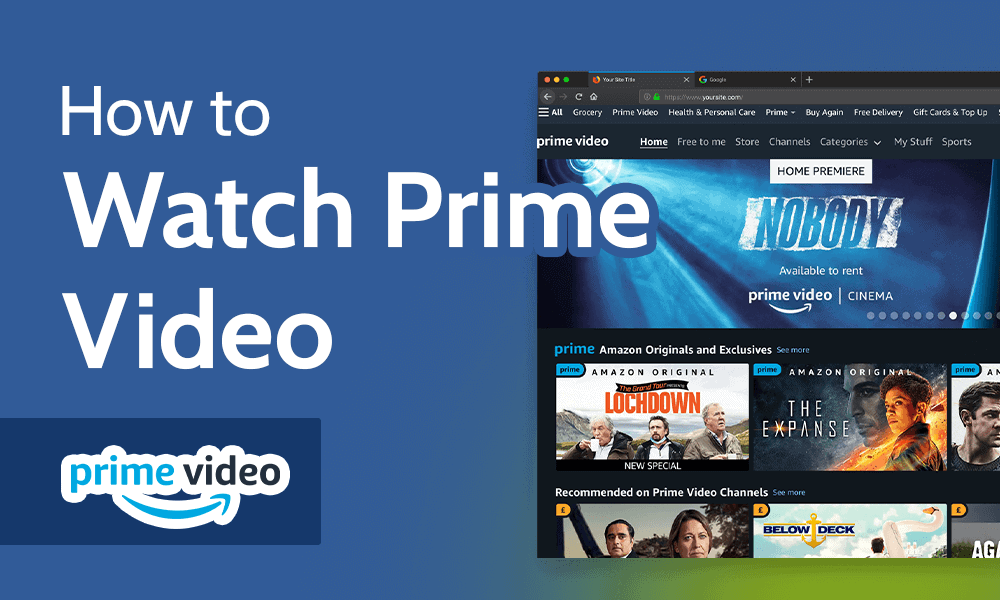
- primevideo.com: This is the web-based portal, accessible via any standard web browser (Chrome, Firefox, Edge, Safari, etc.) on a computer or laptop. It offers the full functionality of the service, including browsing, watching, managing your account, and accessing settings.
- The Amazon Prime Video App: Available across a multitude of platforms, this dedicated application provides an optimized user experience for specific devices. It’s engineered to integrate seamlessly with the device’s operating system, leveraging hardware capabilities for better playback and sometimes offering exclusive features like offline downloads.
Understanding these fundamental access points is the first step in leveraging the full potential of your Prime Video subscription.
2. Streaming on Smart TVs and Dedicated Devices
For many, the ultimate viewing experience comes on the big screen. Amazon Prime Video is extensively integrated into the home entertainment ecosystem, offering multiple avenues to stream content directly to your television.
Smart TVs: Integrated Access
Most modern smart TVs (from brands like Samsung, LG, Sony, Vizio, TCL, etc.) come with the Amazon Prime Video app pre-installed or readily available for download from their respective app stores. The process is typically straightforward:
- Connect Your Smart TV to the Internet: Ensure your TV is connected to your home Wi-Fi network or via an Ethernet cable.
- Locate the Prime Video App: Look for the Prime Video icon on your TV’s home screen or within its app menu. If not present, search your TV’s app store for “Amazon Prime Video” and install it.
- Log In: Open the app and you will be prompted to log in using your Amazon account credentials. This usually involves entering your email and password directly on the TV or, more conveniently, using a short activation code on a web browser on another device (e.g., primevideo.com/mytv).
Amazon Fire TV Devices: The Native Experience
Amazon’s own line of Fire TV devices offers the most native and integrated Prime Video experience. These devices are designed to prioritize Amazon content and services, often featuring dedicated Prime Video buttons on their remote controls.
- Fire TV Stick (Lite, 4K, 4K Max): These HDMI dongles plug directly into your TV, transforming any HDMI-enabled display into a smart TV with full Prime Video access.
- Fire TV Cube: A more powerful streaming media player combined with an Echo smart speaker, offering hands-free voice control for Prime Video.
- Amazon Fire TV Omni/4-Series TVs: Amazon’s own branded smart TVs come with Fire TV OS built-in, providing a deeply integrated Prime Video experience from the moment you power them on.
Setup involves plugging the device in, connecting to Wi-Fi, and logging into your Amazon account. The user interface is intuitive, making content discovery and playback seamless.
Other Streaming Sticks and Boxes
Beyond Amazon’s own hardware, Prime Video is universally available on virtually all popular third-party streaming devices:
- Roku Devices (Roku Express, Streaming Stick, Ultra, Streambar): The Prime Video channel is a staple on Roku. Search for it in the Roku Channel Store.
- Apple TV (HD, 4K): Download the Prime Video app from the App Store on your Apple TV.
- Google Chromecast: While Chromecast itself doesn’t host apps, you can “cast” content from the Prime Video app on your smartphone or computer directly to your TV via the Chromecast device.
- Gaming Consoles (PlayStation 4/5, Xbox One/Series X/S): The Prime Video app can be downloaded from the respective console’s digital store.
Setting Up and Logging In on TV Devices
The general procedure for setting up Prime Video on any TV-connected device involves:
- Power On and Connect to Internet: Ensure the device is powered and connected to your network.
- Install the Prime Video App: Navigate to the device’s app store or home screen and search for/select the Prime Video application.
- Activate or Log In: Upon opening the app for the first time, you’ll typically be presented with two login options:
- Direct Login: Enter your Amazon account email and password using the on-screen keyboard (often cumbersome with a remote).
- Device Activation Code: A unique alphanumeric code will appear on your TV screen. Go to
primevideo.com/mytvon a computer or smartphone web browser, log into your Amazon account there, and enter the code. This links your device to your account instantly and securely.
Once logged in, your device will remember your credentials, providing quick access for future viewing sessions.
3. Prime Video on Mobile Devices and Computers
The flexibility to watch Prime Video on personal devices, whether for on-the-go entertainment or private viewing, is a significant technical advantage. Amazon has optimized its platform for both mobile and desktop environments.
Mobile Freedom: The Prime Video App for Smartphones and Tablets
The Prime Video app for iOS (Apple iPhones and iPads) and Android devices (smartphones and tablets) is a robust and feature-rich application designed for touch interfaces and portable viewing.
- Download and Installation: Search for “Amazon Prime Video” in the Apple App Store (iOS) or Google Play Store (Android). Download and install the app, ensuring you have sufficient storage space.
- Interface and Navigation: The mobile app features a user-friendly interface optimized for smaller screens, with intuitive navigation menus, search functions, and personalized recommendations.
- Key Mobile Features:
- Offline Downloads: One of the standout features for mobile users is the ability to download selected movies and TV show episodes for offline viewing. This is invaluable for travel, areas with poor internet connectivity, or saving mobile data.
- Picture-in-Picture (PiP): On supported devices and operating systems, you can continue watching content in a small, floating window while using other apps.
- Casting: Integrated casting functionality allows you to wirelessly stream content from your mobile device to compatible smart TVs or casting devices (like Chromecast or Fire TV).
Logging in follows the same process as other devices, requiring your Amazon account credentials. The app intelligently optimizes video quality for your device’s screen resolution and network conditions.
Desktop Dominance: Watching on Web Browsers
For those who prefer a larger screen without a dedicated streaming device or smart TV, watching Prime Video on a computer or laptop via a web browser is a popular choice.
- Accessing primevideo.com: Simply open your preferred web browser (Google Chrome, Mozilla Firefox, Microsoft Edge, Apple Safari, Opera, etc.) and navigate to
primevideo.com. - Logging In: Enter your Amazon account email and password to log in. Your browser may offer to save these credentials for quicker access in the future.
- Browser Requirements: Ensure your browser is up-to-date to support the latest web technologies for video streaming (e.g., HTML5 video playback, DRM encryption). Obsolete browsers might encounter playback issues or be restricted to lower video quality.
- Features: The web interface offers the full Prime Video library, viewing history, watchlists, and account management. While it doesn’t offer offline downloads directly, some web browsers might support extensions for casting to compatible devices.
Offline Viewing: Downloading Content for On-the-Go
The technological backbone of offline viewing involves a sophisticated process. When you select a title for download on the Prime Video app (mobile or tablet), the app encrypts and stores a copy of the video file directly onto your device’s internal storage or SD card.
- Storage Management: Downloads consume significant storage space. The app often allows you to choose the download quality (Good, Better, Best) which directly impacts file size. Regularly manage your downloads to free up space.
- Expiration and Playback Restrictions: Downloaded content typically has an expiration period, usually 30 days once downloaded, or 48 hours once you start watching it. Not all content is available for download due to licensing restrictions.
- Accessing Downloads: All downloaded content is managed within the “Downloads” section of the Prime Video app, where you can play, pause, or delete titles even without an internet connection.
This feature highlights Amazon’s commitment to providing flexible access, leveraging device storage and encryption technologies to extend entertainment beyond constant connectivity.
4. Enhancing Your Prime Video Streaming Experience
Beyond simply accessing Prime Video, there are several technical considerations and settings you can adjust to significantly improve your viewing quality and overall enjoyment.
Optimizing Internet Connection and Bandwidth
The quality of your internet connection is paramount for a smooth streaming experience.
- Wi-Fi vs. Ethernet: For stationary devices like smart TVs or gaming consoles, an Ethernet (wired) connection is almost always superior to Wi-Fi. It offers more stable speeds, lower latency, and less interference, reducing buffering. If Wi-Fi is your only option, ensure your router is placed optimally, and consider a Wi-Fi 6 router for better performance with multiple devices.
- Bandwidth Allocation: If multiple devices are using your home network simultaneously (e.g., gaming, video calls, other streaming), your Prime Video stream might suffer. Some modern routers offer Quality of Service (QoS) settings, allowing you to prioritize bandwidth for streaming devices.
- Reducing Network Congestion: Disconnect unused devices from your Wi-Fi, or pause large downloads on other devices during your viewing session.
Understanding Picture Quality Settings
Prime Video offers content in various resolutions, from Standard Definition (SD) to High Definition (HD) and even stunning 4K Ultra HD (UHD) with High Dynamic Range (HDR).
- Automatic Adjustment: By default, Prime Video attempts to stream at the highest possible quality your internet connection and device support.
- Manual Adjustment: In the Prime Video app settings (or during playback on some devices), you can often manually select a preferred video quality. If you’re experiencing buffering, lowering the quality to HD or even SD can provide a smoother experience. Conversely, if you have a 4K TV and fast internet, ensure your settings are configured for 4K UHD.
- Checking Resolution: Most smart TVs and streaming devices will display the current resolution being played. For 4K/HDR content, look for “UHD” or “HDR” badges on the content details page or during playback.
Audio Preferences: Surround Sound and Subtitles
Sound is half the experience, and Prime Video supports advanced audio formats.
- Surround Sound: Many Amazon Originals and other titles are available with Dolby Digital 5.1 surround sound or even more advanced formats like Dolby Atmos. To experience this, you need a compatible sound system (soundbar, AV receiver with multiple speakers) connected to your TV or streaming device. Ensure your device’s audio output settings are configured for passthrough or the correct surround sound format.
- Subtitles and Closed Captions: Prime Video offers a wide range of subtitle and caption options. During playback, usually by pressing an “up” or “menu” button on your remote, you can access an audio and subtitles menu to select languages, enable/disable captions, and sometimes even customize their appearance (font size, color) through device or app settings.
Managing Profiles and Parental Controls
For households with multiple viewers, managing profiles and parental controls is a crucial technical feature for personalized and safe viewing.
- User Profiles: Prime Video allows the creation of multiple user profiles under a single Amazon account. Each profile maintains its own watch history, recommendations, and watchlists, providing a tailored experience for each family member. This feature is typically accessed through the main menu of the Prime Video app.
- Parental Controls: Amazon offers robust parental control options. You can set viewing restrictions based on content ratings (e.g., G, PG, R) and block purchases within Prime Video. These controls can be PIN-protected, preventing children from accessing age-inappropriate content or making accidental purchases. Settings for parental controls are usually found within the Prime Video app’s settings menu or on the Prime Video website under account settings.
Utilizing X-Ray for Deeper Insights
X-Ray is an innovative technical feature integrated with Prime Video, powered by IMDb (which is also owned by Amazon).
- Real-Time Information: While watching a movie or show, X-Ray provides real-time contextual information about the actors on screen, the music playing, trivia, and behind-the-scenes facts.
- Accessing X-Ray: On most devices, simply pausing the video or tapping the screen (on mobile) will bring up the X-Ray overlay. On Fire TV devices, you might see X-Ray info pop up automatically or by pressing the “up” button on your remote. This feature significantly enhances the interactive viewing experience, bridging the gap between passive consumption and active exploration of content details.
5. Troubleshooting Common Technical Issues
Even with the best setup, technical glitches can occasionally occur. Knowing how to diagnose and resolve common Prime Video issues can save you time and frustration.
Resolving Playback Errors and Buffering
These are the most frequent complaints and are often network-related:
- Restart Everything: The classic tech support advice for a reason. Restart your streaming device, your Wi-Fi router, and your modem. This can often clear temporary network congestion or device glitches.
- Check Internet Speed: Use an online speed test (e.g., speedtest.net) on a device connected to the same network to verify your internet speed meets Prime Video’s recommendations for your desired quality.
- Close Other Apps/Devices: Ensure no other applications are consuming significant bandwidth on your network.
- Clear App Cache/Data: On smart TVs or mobile devices, clearing the cache or data for the Prime Video app (via device settings) can resolve issues caused by corrupted temporary files. You might need to log in again after this.
- Update the App: Ensure your Prime Video app is updated to the latest version. Developers frequently release updates to fix bugs and improve performance.
Account and Login Challenges
Issues accessing your account can stem from various sources:
- Incorrect Credentials: Double-check your Amazon email and password. Case sensitivity is important.
- Password Reset: If you’ve forgotten your password, use Amazon’s “Forgot Password” link on the login page to initiate a password reset.
- Membership Status: Verify that your Amazon Prime membership is active and hasn’t expired or been canceled. You can check this in your Amazon account settings on the website.
- Two-Factor Authentication (2FA): If you have 2FA enabled, ensure you have access to your verification method (e.g., phone for SMS code, authenticator app) to complete the login process.
Device Compatibility and Updates
Hardware and software compatibility are critical for smooth operation.
- Check System Requirements: While Prime Video is widely compatible, very old devices or operating systems might not be fully supported or might lack features. Consult Prime Video’s help pages for minimum system requirements.
- Operating System Updates: Keep your device’s operating system (e.g., Android OS, iOS, Smart TV OS) up to date. These updates often include performance improvements, security patches, and better compatibility with apps.
- App Updates: Regularly check for and install updates for the Prime Video app itself.

Contacting Amazon Support for Technical Assistance
If you’ve exhausted all basic troubleshooting steps and are still facing persistent issues, it’s time to reach out to Amazon’s customer support.
- Access Support: Visit the Amazon Prime Video Help pages (often accessible via a “Help” or “Contact Us” link within the app or on primevideo.com).
- Provide Details: When contacting support, be prepared to provide detailed information about your issue, the device you’re using, any error messages, and the troubleshooting steps you’ve already taken. This will help them diagnose the problem more efficiently.
By understanding the technical nuances of Amazon Prime Video, from initial setup to optimizing settings and troubleshooting common problems, you can ensure a consistently high-quality and enjoyable streaming experience. The platform’s extensive compatibility and robust features are designed to bring a world of entertainment directly to you, on your terms.
aViewFromTheCave is a participant in the Amazon Services LLC Associates Program, an affiliate advertising program designed to provide a means for sites to earn advertising fees by advertising and linking to Amazon.com. Amazon, the Amazon logo, AmazonSupply, and the AmazonSupply logo are trademarks of Amazon.com, Inc. or its affiliates. As an Amazon Associate we earn affiliate commissions from qualifying purchases.