
The Graphics Processing Unit (GPU) is arguably the most critical component in a modern computer system, responsible for rendering every pixel you see on your screen. Whether you are a hardcore gamer, a professional video editor, or someone who relies on high-resolution displays for daily productivity, the GPU is the engine driving your visual experience. However, even the most powerful hardware is only as effective as the software that controls it. Graphics drivers act as the vital bridge between your operating system, your applications, and the physical hardware of the GPU. Keeping these drivers updated is not just a matter of maintenance; it is a fundamental step in ensuring system stability, unlocking new features, and maximizing performance.

Identifying Your Graphics Hardware
Before you can begin the update process, you must accurately identify the hardware residing within your machine. Modern PCs typically utilize one of two types of graphics configurations: integrated graphics or dedicated graphics. Integrated graphics are built directly into the CPU (Central Processing Unit) and are common in laptops and budget-friendly desktops. Dedicated graphics involve a separate, powerful card with its own memory, usually manufactured by NVIDIA or AMD.
Using Windows Device Manager
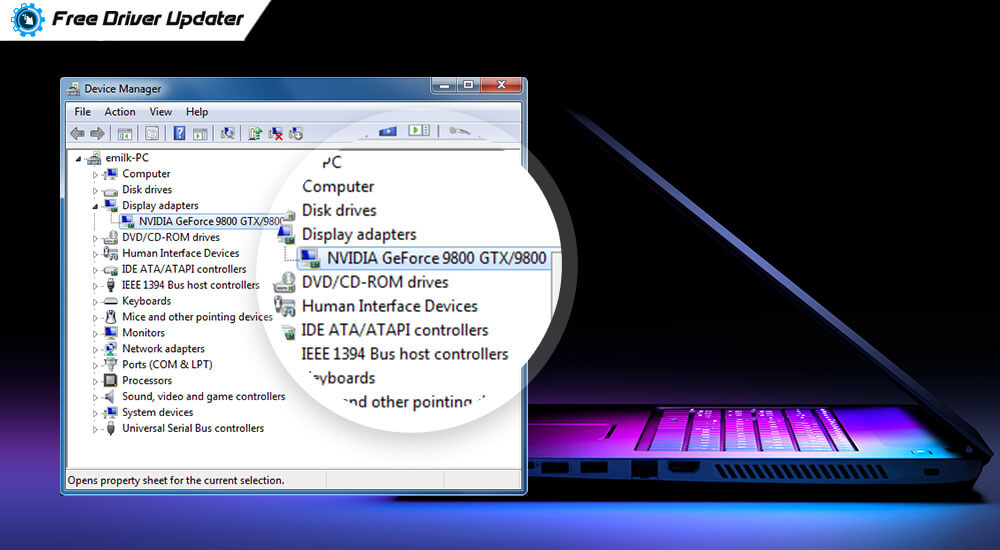
The most direct way to identify your GPU without opening your computer case is through the Windows Device Manager. To access this, right-click on the Start button and select “Device Manager” from the menu. Locate the “Display adapters” section and click the arrow to expand it. Here, you will see the specific model of your graphics card. It might say something like “NVIDIA GeForce RTX 4070,” “AMD Radeon RX 7800 XT,” or “Intel Iris Xe Graphics.” If you see multiple entries, your system likely uses a hybrid setup—common in laptops—where an integrated chip handles low-power tasks and a dedicated card takes over for demanding applications.
Utilizing Third-Party Diagnostic Tools
For users who require more granular information, such as the BIOS version of the GPU, the specific type of video memory (VRAM), or clock speeds, third-party utilities like GPU-Z are invaluable. These lightweight tools provide a comprehensive snapshot of your hardware’s health and specifications. Knowing the exact sub-vendor (such as ASUS, MSI, or EVGA) can also be helpful, though for driver purposes, the chip manufacturer (NVIDIA, AMD, or Intel) is the primary concern.
The “Big Three” Ecosystems: Automatic Updates
The vast majority of the global GPU market is controlled by NVIDIA, AMD, and Intel. Each of these manufacturers provides dedicated software suites designed to simplify the driver update process. Using these official tools is generally the safest and most efficient method for the average user.
NVIDIA GeForce Experience and the App Transition
NVIDIA users have long relied on “GeForce Experience” to manage their drivers. This software automatically scans your system for installed games and offers “Game Ready Drivers,” which are optimized specifically for new releases. To update, you simply open the application, click the “Drivers” tab, and select “Check for Updates.”
It is important to note that NVIDIA is currently transitioning to a unified “NVIDIA App,” which combines the control panel and GeForce Experience into a more modern, streamlined interface. Regardless of which version you use, the software allows you to choose between “Game Ready Drivers” (optimized for the latest gaming titles) and “Studio Drivers” (tested for stability in creative applications like Adobe Premiere or Blender). Selecting the driver type that matches your primary workflow is essential for a tailored computing experience.
AMD Software: Adrenalin Edition
AMD’s approach is integrated into its “Adrenalin Edition” software. This suite is often praised for its comprehensive feature set, allowing users to not only update drivers but also monitor system thermals and overclock their hardware. Within the Adrenalin interface, the “Home” tab usually displays the current driver status. By clicking “Check for Updates,” the software will communicate with AMD’s servers and prompt a download if a newer version is available. AMD also offers an “Auto-Detect and Install” tool on their website for users who prefer not to have the full Adrenalin suite running in the background at all times.
Intel Graphics Command Center and Arc Control
Intel, long the king of integrated graphics, has recently entered the high-end dedicated GPU market with its “Arc” series. For integrated graphics on older processors, the “Intel Driver & Support Assistant” (DSA) is a web-based tool that scans your system and provides a list of necessary updates. For the newer Arc dedicated GPUs, “Intel Arc Control” provides an overlay-style interface that manages driver downloads and provides performance metrics. Intel’s driver team has been particularly aggressive with updates recently, often doubling performance in older DirectX 9 titles through software optimization alone.
Manual Driver Installation and Troubleshooting
While automatic tools are convenient, there are scenarios where a manual installation is necessary. This might happen if the automatic software fails to connect to the internet, if you are working on a clean OS installation, or if you need to roll back to a specific older version of a driver because of a bug in the latest release.

Downloading Directly from Manufacturer Websites
To perform a manual update, you should navigate directly to the support or driver section of the manufacturer’s website. You will be asked to input your product type, product series, product model, and operating system.
It is crucial to avoid third-party “driver updater” websites. These are often laden with adware or may provide modified drivers that can compromise system security. Always source your files directly from:
-
NVIDIA.com/drivers
-
AMD.com/support
-
Intel.com/download-center
Once the executable file (.exe) is downloaded, running it will initiate an installation wizard. Most installers offer an “Express” or “Custom” installation. For a standard update, Express is sufficient.
The Role of Display Driver Uninstaller (DDU)
Occasionally, a driver update can go wrong, resulting in “Blue Screens of Death” (BSOD), flickering screens, or poor performance. In these cases, a simple reinstall might not fix the issue because remnants of the old driver remain in the Windows Registry.
Display Driver Uninstaller (DDU) is a niche but essential tool for tech enthusiasts. It is designed to be run in Windows Safe Mode to completely wipe every trace of a graphics driver from the system. After running DDU, the system behaves as if it has no graphics driver installed at all, allowing for a truly “clean” installation of the latest version. This is also highly recommended when switching brands—for example, when replacing an AMD card with an NVIDIA card.
Why Regular Updates Matter
The frequency of graphics driver updates—often once or twice a month—can seem excessive to some users. However, these updates serve three critical functions: performance optimization, stability, and security.
Performance Gains in Modern Gaming
Modern video games are some of the most complex pieces of software ever written. Developers and GPU manufacturers work closely together during a game’s development. A “day one” driver update can sometimes increase frame rates by 10% to 20% in specific titles by optimizing how the GPU handles the game’s unique shaders and assets. Without these updates, users may experience “stuttering” or visual artifacts that hinder the experience.
Stability and Bug Fixes
Drivers are essentially translators, and sometimes things get lost in translation. A new Windows update might change how the OS handles memory, or a new software API (like DirectX 12 or Vulkan) might introduce a bug. Driver updates frequently include “Hotfixes” for specific crashes or compatibility issues with professional software like CAD programs or video suites. If your computer is crashing during intensive tasks, the graphics driver is often the first place to look for a solution.
Security Vulnerabilities
While less discussed, GPUs are susceptible to security risks. Because the driver operates with high-level permissions within the operating system, a vulnerability in the driver code could allow malicious actors to execute code or gain unauthorized access to data. NVIDIA, AMD, and Intel regularly patch these security holes. Keeping your drivers current is a vital component of a robust digital security strategy.
Best Practices for System Maintenance
Maintaining your graphics drivers should be a part of a broader routine of digital hygiene. To ensure your system remains at peak performance, consider the following best practices:
-
Avoid Beta Drivers Unless Necessary: Manufacturers sometimes release “Beta” or “Optional” drivers. These contain the latest features but haven’t undergone the full suite of stability testing. Unless you are trying to fix a specific bug or need support for a game that just launched today, stick to the “WHQL” (Windows Hardware Quality Labs) certified drivers.
-
Monitor Your Temperatures: An update cannot fix a hardware issue. If you notice performance dropping after an update, use a tool like MSI Afterburner to check if your GPU is overheating. If the card is hitting 85-90°C, it may be “thermal throttling,” regardless of how new the drivers are.
-
Backup Before Major Changes: If your system is your livelihood (e.g., you are a freelance editor), create a System Restore point before updating a driver. If the new driver causes issues with your specific software stack, you can revert your system state in minutes.
-
Don’t Forget the Chipset: While the GPU is vital, it communicates with the CPU via the motherboard’s chipset. Ensuring your chipset drivers are updated alongside your GPU drivers ensures that the data lanes (PCIe) are operating at maximum efficiency.
By understanding the hardware you own and utilizing the official tools provided by manufacturers, you can ensure that your visual computing experience remains fluid, secure, and cutting-edge. Updating your graphics drivers is a small task that pays significant dividends in the longevity and capability of your PC.
aViewFromTheCave is a participant in the Amazon Services LLC Associates Program, an affiliate advertising program designed to provide a means for sites to earn advertising fees by advertising and linking to Amazon.com. Amazon, the Amazon logo, AmazonSupply, and the AmazonSupply logo are trademarks of Amazon.com, Inc. or its affiliates. As an Amazon Associate we earn affiliate commissions from qualifying purchases.