
The digital transformation of the financial landscape has moved rapidly from online banking to the total virtualization of the wallet. At the forefront of this evolution is Google Pay (now integrated deeply within the Google Wallet ecosystem in many regions), a sophisticated software solution that leverages Near Field Communication (NFC) and advanced encryption to facilitate seamless transactions. For users looking to transition away from physical plastic and toward a more integrated tech experience, understanding the nuances of setting up and optimizing Google Pay is essential. This guide provides a deep dive into the technical configuration, security architecture, and functional deployment of Google Pay on modern devices.
1. Understanding the Infrastructure and Device Requirements
Before initiating the software setup, it is crucial to understand the hardware and software prerequisites that allow Google Pay to function. Unlike a simple web-based payment portal, Google Pay relies on a specific interplay between a device’s operating system and its internal radio hardware.
Hardware Compatibility and NFC
The backbone of Google Pay’s “tap-to-pay” functionality is Near Field Communication (NFC). This is a short-range wireless technology that allows two devices—your smartphone and the payment terminal—to communicate when held within a few centimeters of each other. To use Google Pay for in-store purchases, your Android device must be equipped with an NFC chip and it must be turned on in the system settings. While most mid-to-high-end smartphones manufactured in the last five years include NFC, some budget models may lack this hardware component.
Software and OS Standards
Google Pay requires a secure environment to operate. For Android users, the device must be running a relatively modern version of the Android OS (typically Android 7.0 or higher) and must be “Play Protect” certified. This means that devices with modified firmware (rooted devices) or those running uncertified custom ROMs may fail the “SafetyNet” or “Play Integrity” check, preventing Google Pay from functioning. This is a deliberate security feature designed to ensure that the payment environment has not been compromised by malicious software at the kernel level.
The Google Wallet vs. Google Pay Distinction
In recent updates, Google has transitioned much of the Google Pay functionality into the “Google Wallet” app in several regions, including the US and Europe. While the brand “Google Pay” still refers to the actual payment service, the app you will likely download is Google Wallet. This app acts as a digital container not just for credit cards, but for digital keys, transit passes, and vaccination records, representing a move toward a holistic digital identity management system.
2. Step-by-Step Installation and Configuration
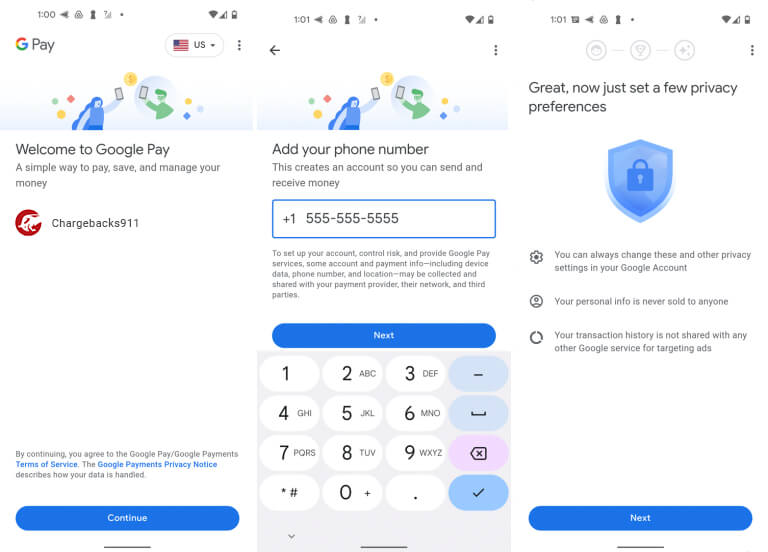
Once you have verified that your hardware is compatible, the process of configuring the software is straightforward but requires attention to detail, particularly regarding verification protocols.
Downloading and Initial Initialization
Begin by navigating to the Google Play Store and searching for “Google Wallet” or “Google Pay.” Once installed, launch the app and sign in with your primary Google Account. It is highly recommended to use an account secured with Two-Factor Authentication (2FA), as this account will now be linked to your financial instruments. Upon first launch, the app will prompt you to set up a screen lock—a non-negotiable requirement for digital payments. Whether you use a PIN, pattern, or biometric data (fingerprint or facial recognition), the device must have a secure lock screen to protect your data.
Adding Payment Instruments
To add a card, tap the “Add to Wallet” button. You will be presented with the option to scan your physical card using the device’s camera or enter the details manually. The software uses Optical Character Recognition (OCR) to extract the card number and expiration date. You will also need to provide the CVV (Card Verification Value) and your billing address.
Google Pay supports a wide array of instruments beyond standard credit and debit cards. Depending on your region, you may be able to link PayPal accounts, virtual cards, and even certain loyalty program cards. However, the most critical phase of this step is bank authorization.
The Verification Loop
To prevent fraud, your financial institution must verify that you are the legitimate owner of the card. After entering your card details, Google Pay will contact your bank. You will typically be offered several verification methods: an SMS code, an email code, or a phone call to the bank’s customer service. Once the code is entered and verified, the card is “provisioned” for use. This process involves the bank sending a digital token to your device, which serves as a proxy for your actual card number.
3. The Security Architecture of Google Pay

One of the primary concerns for users transitioning to mobile payments is the security of their financial data. Google Pay utilizes a multi-layered security stack that is often more secure than using a physical card.
Tokenization and Virtual Account Numbers
The most significant technological advantage of Google Pay is “Tokenization.” When you add a card to the app, Google does not store the actual 16-digit card number on your device, nor is it shared with merchants during a transaction. Instead, the system creates a “Virtual Account Number” or a token. When you tap your phone at a terminal, the terminal receives this one-time-use or device-specific token. Even if a merchant’s database is compromised, the data stolen is useless because it does not represent your actual credit card details.
Biometric Authentication and On-Device Security
Google Pay leverages the Android Keystore system to protect your payment credentials. This ensures that sensitive information is stored in a hardware-backed “Trusted Execution Environment” (TEE), which is isolated from the rest of the operating system. Furthermore, every high-value transaction (and often every transaction) requires biometric authentication. By requiring a fingerprint or facial scan, Google Pay ensures that even if your device is stolen, your digital wallet remains inaccessible to unauthorized users.
Remote Management and Find My Device
Because Google Pay is tied to your Google Account, it benefits from the broader Google security ecosystem. If your phone is lost or stolen, you can use the “Find My Device” web interface to remotely lock the phone, sign out of your Google Account, or perform a factory reset. This immediately deauthorizes the payment tokens stored on the device, providing a level of control that physical wallets simply cannot match.
4. Leveraging Advanced Tech Features for Seamless Use
Setting up Google Pay is about more than just credit cards; it is about centralizing your digital interactions. Once the basic payment setup is complete, you can optimize the app for various use cases.
Managing Loyalty Cards and Transit Passes
Google Pay excels at decluttering the physical wallet by digitizing barcodes. By selecting “Loyalty Card” in the setup menu, you can scan the barcode of your grocery store or gym membership card. The app uses geo-fencing technology to provide a notification when you are near a store where you have a loyalty card, allowing you to pull up the barcode with a single tap. Additionally, many major metropolitan transit systems now allow you to add “Transit Passes” directly to Google Pay, enabling you to use your phone as a ticket at subway turnstiles or on buses.
Integration with Wear OS and Smartwatches
For users with a Wear OS-compatible smartwatch, the setup process extends to the wrist. Once a card is verified on your smartphone, you can easily “push” that card to your watch. This involves a secondary verification step for security, but once completed, it allows for “phone-free” payments. The watch uses its own NFC chip to communicate with terminals, making it a powerful tool for runners or those who want the convenience of leaving their phone in their pocket.
Google Pay for Web and In-App Purchases
Beyond physical terminals, Google Pay is integrated into the Chrome browser and many third-party apps. During the setup, you can choose to enable “Google Pay for the Web.” This allows you to check out on e-commerce sites without re-entering your card details. The browser utilizes your saved profile and verifies the transaction using your device’s biometric sensors or a Google prompt, streamlining the checkout experience while maintaining high security standards.
5. Troubleshooting and Maintaining Digital Hygiene
As with any sophisticated software suite, users may occasionally encounter technical hurdles. Maintaining the “health” of your Google Pay setup is essential for reliability.
Common Connectivity and NFC Issues
If you find that “tap-to-pay” is failing at terminals, the first step is to check the NFC settings. Occasionally, a system update may toggle NFC off. Furthermore, the physical placement of the phone matters; the NFC antenna is usually located near the top of the device or around the camera module. If you use a heavy-duty or metallic phone case, it may interfere with the signal, necessitating a thinner or NFC-compatible case.
Clearing Cache and Resolving App Conflicts
If the app becomes sluggish or fails to load cards, clearing the Google Play Services cache can often resolve the issue. Since Google Pay relies heavily on Play Services for its background architecture, ensuring this system app is up to date is vital. Users should also be aware of “Battery Optimization” settings; if the system aggressively puts the Google Wallet app to sleep, it may cause a delay when trying to pay at a terminal. Adjusting the app’s settings to “Don’t Optimize” ensures it is always ready for a transaction.

Regular Security Audits
Finally, professional digital hygiene dictates that users should periodically review their Google Pay settings. Check your transaction history within the app to identify any unauthorized activity and ensure that any old or expired cards are removed promptly. By maintaining a lean and updated digital wallet, you minimize the “attack surface” and ensure that your mobile payment experience remains both fast and secure.
The transition to Google Pay represents a significant leap in how we interact with the physical and digital world. By understanding the tech-driven requirements, the underlying security protocols, and the optimization techniques available, users can move beyond simple transactions toward a more sophisticated, secure, and integrated digital lifestyle.
aViewFromTheCave is a participant in the Amazon Services LLC Associates Program, an affiliate advertising program designed to provide a means for sites to earn advertising fees by advertising and linking to Amazon.com. Amazon, the Amazon logo, AmazonSupply, and the AmazonSupply logo are trademarks of Amazon.com, Inc. or its affiliates. As an Amazon Associate we earn affiliate commissions from qualifying purchases.