
In an era defined by streaming and on-demand content, YouTube TV has emerged as a formidable contender in the cord-cutting revolution, offering a compelling alternative to traditional cable. With its expansive channel lineup, seamless interface, and multi-device compatibility, it has won over millions. Yet, for many new users, one of the most frequently asked questions revolves around a feature long cherished by cable subscribers: the Digital Video Recorder, or DVR. While YouTube TV offers a cloud-based DVR experience that transcends the limitations of its physical predecessors, understanding its unique mechanics is key to unlocking its full potential.
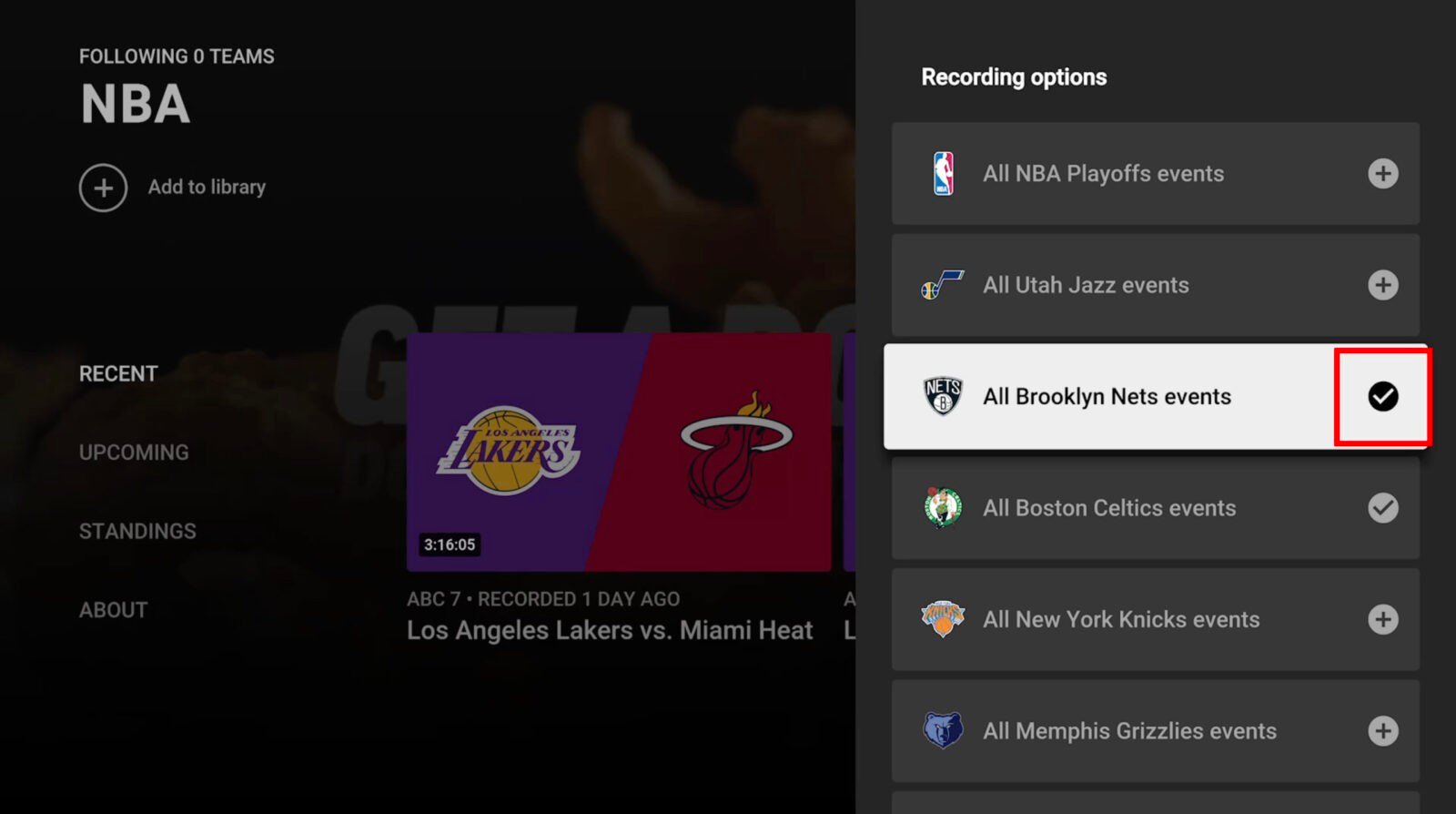
This guide will demystify YouTube TV’s recording capabilities, walking you through every step from adding your favorite shows to your library to optimizing your viewing experience. Say goodbye to missed episodes and conflicting schedules; with YouTube TV’s cloud DVR, your entertainment is truly on your terms.
Understanding YouTube TV’s Cloud DVR Capabilities
Unlike the clunky, physical DVR boxes of yesteryear, YouTube TV leverages the power of cloud computing to offer a modern, flexible, and surprisingly robust recording solution. This fundamental difference shapes how you interact with your recorded content and provides a host of advantages that traditional DVRs simply couldn’t match.
The Basics of YouTube TV’s Digital Video Recorder (DVR)
At its core, YouTube TV’s DVR is a cloud-based service, meaning your recordings aren’t stored on a hard drive in your home but rather on Google’s servers. This offers several immediate benefits. Firstly, you get unlimited storage capacity. There’s no need to delete old recordings to make space for new ones; you can record as many shows, movies, and live events as you wish without ever hitting a limit. This is a game-changer for avid viewers, sports fanatics, and documentary enthusiasts alike.
Secondly, all recordings are typically stored for a generous nine-month period. While not permanent, this ample window ensures you have plenty of time to catch up on even the longest-running series or re-watch a favorite game. Once the nine months are up, the recording automatically expires and is removed from your library. This hands-off approach to storage management means you never have to worry about manually clearing space.
Finally, the cloud DVR virtually eliminates recording conflicts. Because everything is stored in the cloud, YouTube TV supports unlimited simultaneous recordings. This means you can record every show airing across every channel at the same time without any issues. No more agonizing choices between a live sporting event, a new episode of your favorite drama, and a family movie; YouTube TV records them all for you.
Distinguishing Between On-Demand and DVR Content
One common point of confusion for new YouTube TV users is differentiating between content that’s been recorded via the DVR and content that’s available “on-demand” directly from network partners. While both appear in your library, their characteristics can differ significantly, particularly regarding commercial breaks.
DVR Content refers to the specific broadcasts that YouTube TV captured because you added them to your library. When you play a DVR recording, you are typically watching the exact broadcast that aired, with the primary benefit being the ability to fast-forward through commercials. This is often the main draw of DVRs, allowing viewers to skip past ad breaks and get straight back to their show.
On-Demand Content, on the other hand, is provided directly by the networks and studios. These are episodes or movies that the content creators make available for streaming at any time. While convenient, on-demand content often comes with unskippable commercials that are embedded by the network. Even if you’ve added a show to your library, YouTube TV might sometimes default to an on-demand version if it’s deemed “newer” or if the DVR recording has expired or isn’t available for other reasons.
YouTube TV’s interface tries to make this distinction clear, often labeling recordings as “Recorded” and on-demand versions as “VOD” (Video On Demand) or simply showing different air dates. When multiple versions of an episode are available, YouTube TV usually prioritizes your DVR recording if it’s recent, giving you the ad-skipping advantage. However, it’s always good practice to check which version you’re about to watch if commercial-free viewing is a priority.
Step-by-Step Guide to Recording Shows and Movies
Recording on YouTube TV isn’t about hitting a “record” button at a specific time; it’s about adding programs to your “Library.” Once a show, movie, or event is in your Library, YouTube TV automatically records all future airings and often provides access to recent past broadcasts and on-demand versions.
Adding Content to Your Library for Recording
The process of recording starts with finding the content you want to save. YouTube TV offers several intuitive ways to do this:
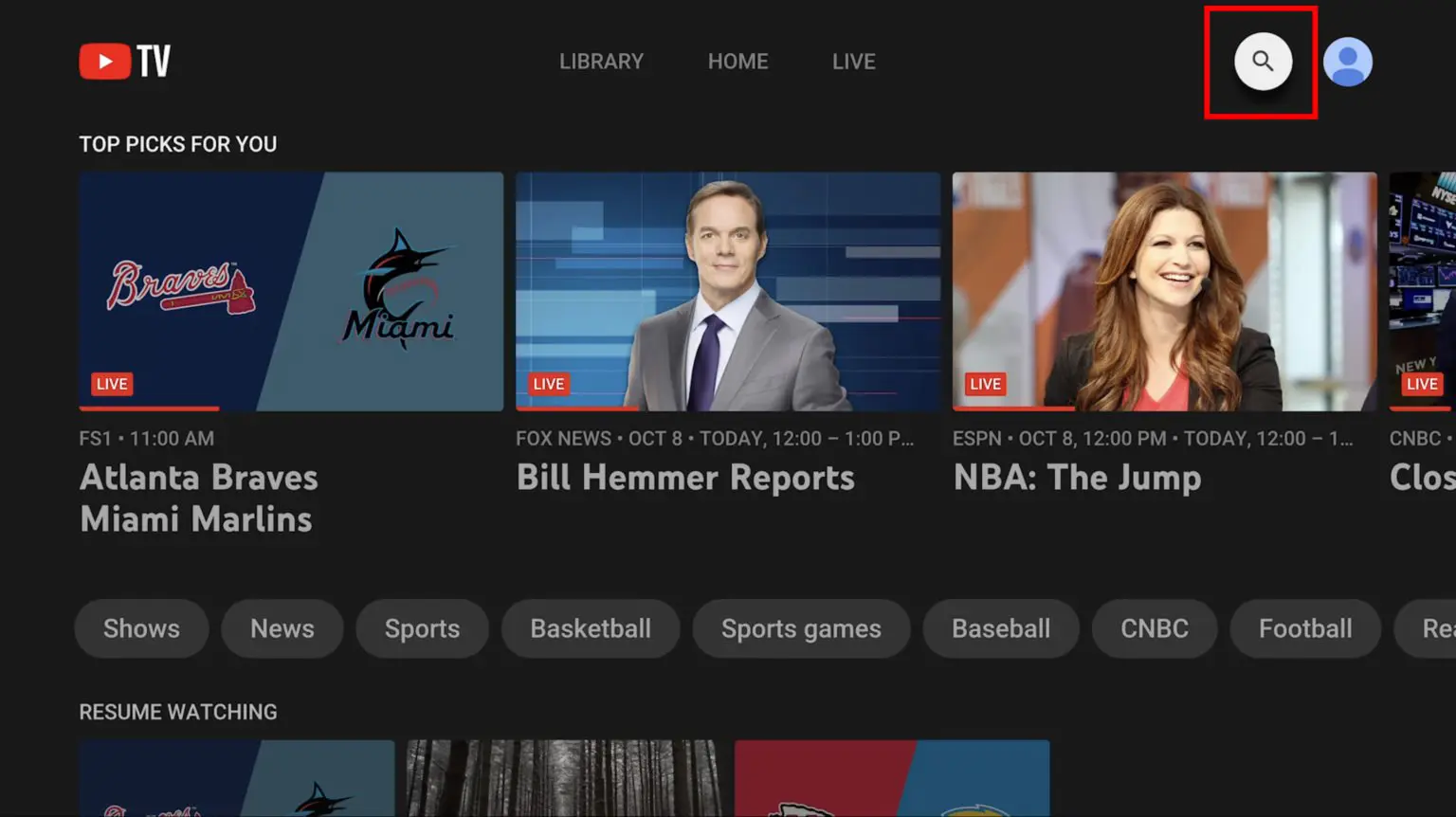
- Search: Use the search bar (magnifying glass icon) at the top of the interface. Type in the name of a show, movie, sports team, or even a specific person.
- Browse: Navigate through the “Live” guide or explore the “Home” tab for recommendations and trending content.
- Channel Pages: Go to a specific channel’s page to see what’s currently airing or coming up.
Once you’ve found the show, movie, or event you wish to record, select it to view its details page. Here, you’ll see a prominent “+” icon (sometimes labeled “Add to Library”). Simply click or tap this icon.
- For TV series: Adding a series to your library tells YouTube TV to record all future airings of that series across all channels you receive. It will also often provide access to recent past episodes (either as DVR recordings or on-demand).
- For Movies or One-Time Events: Adding a movie or a specific event (like a concert or a particular game) means YouTube TV will record that specific broadcast. If it’s a recurring event, like a daily news program, it will record all future broadcasts.
There’s no need to schedule individual recordings or worry about specific air times. Once you’ve added a series to your library, YouTube TV’s cloud DVR intelligence takes over, ensuring that every new episode is captured and saved for you.
Managing Your Recordings in the Library
Your “Library” tab is the central hub for all your recorded content and any shows, movies, or teams you’ve added. It’s designed for easy navigation and organization.
To access your Library:
- Click or tap on the “Library” tab, usually located in the main navigation menu (on web, mobile, or smart TV apps).
Within the Library, you’ll find several categories to help you sort through your content:
- Shows: All TV series you’ve added, typically grouped by show title.
- Movies: All movies you’ve added.
- Sports: Organized by sport or team, featuring games you’ve added or that involve teams you follow.
- Events: Specific one-off events like concerts, awards shows, or documentaries.
- Scheduled: A helpful section showing upcoming recordings for shows in your library.
You can usually sort content within these categories by “most recent” (most recently added or aired episode) or “A-Z” (alphabetical order). To stop recording a show or movie, simply navigate to its detail page in your Library and click the “✓” icon (which was previously the “+” icon). This removes it from your library and stops future recordings.
Recording Live TV and Future Broadcasts
A common misconception is that you need to be watching a show live to hit a “record” button. With YouTube TV, this isn’t the case. As soon as you add a show, movie, or event to your library, YouTube TV begins recording all future airings that match your selection. If a show is currently airing and you add it to your library, YouTube TV will often record it from that point forward and provide an option to start from the beginning if an on-demand version or previous recording is available.
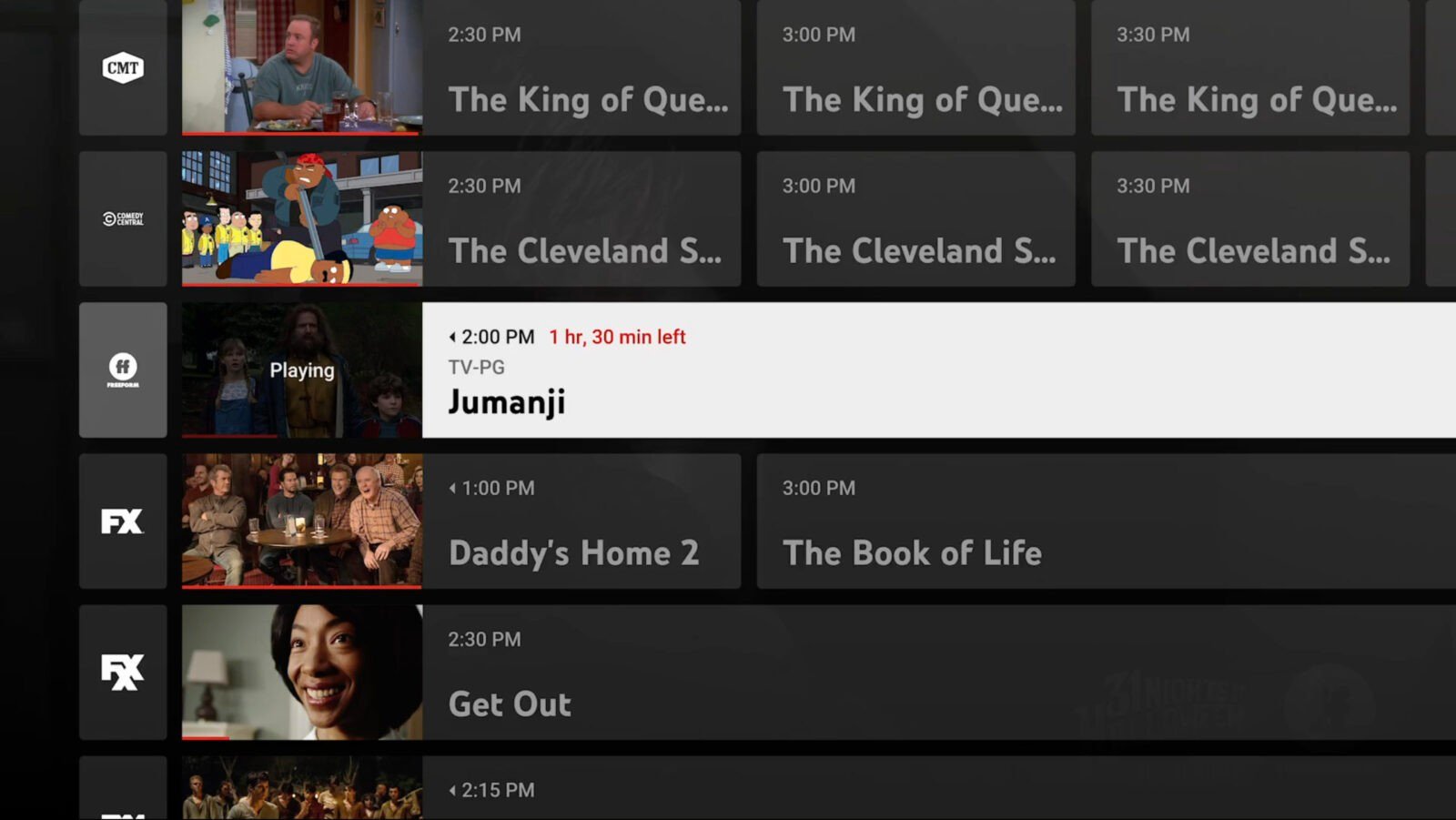
For live sports, adding a team to your library is particularly powerful. YouTube TV will then automatically record all games involving that team that are broadcast on channels within your subscription, ensuring you never miss a match. This proactive, set-it-and-forget-it approach is one of the most significant advantages of a cloud-based DVR system. You simply curate your library once, and YouTube TV handles the rest.
Optimizing Your YouTube TV Recording Experience
Once your shows are safely tucked away in your Library, the real fun begins: watching them on your schedule. YouTube TV provides a seamless playback experience, but knowing a few tips can enhance your enjoyment and navigate potential quirks.
Navigating and Watching Your Recorded Content
Playing back a recording is straightforward. Head to your “Library” tab, select the category (Shows, Movies, etc.), and then choose the specific title. For TV series, you’ll typically see a list of available episodes.
- Playback Controls: Standard controls like play, pause, fast-forward, and rewind are all available. The ability to skip commercials is a major benefit of DVR recordings. You can typically skip forward in 15-second increments or drag the timeline scrubber to jump further.
- Resume Playback: YouTube TV intelligently remembers where you left off, even across different devices. You can start watching on your phone during your commute and pick up exactly where you paused on your smart TV when you get home.
- Multiple Versions: As discussed, you might sometimes see multiple versions of the same episode (e.g., a DVR recording and an on-demand version). YouTube TV usually defaults to the DVR recording to allow ad-skipping, but always check the air date or version label if you have a preference.
Handling Recording Conflicts and Priority
One of the greatest advantages of YouTube TV’s cloud DVR is the effective elimination of traditional recording conflicts. Since you have unlimited storage and simultaneous recordings, you never have to choose between two shows airing at the same time. If you add both to your library, YouTube TV will record both without any issues.
The only “priority” YouTube TV might exercise is in presenting different versions of an episode. For instance, if you have a DVR recording of a show from last week and the network has also provided an on-demand version, YouTube TV will often prioritize displaying your DVR recording first in your library, primarily because it allows for ad-skipping. This isn’t a conflict in recording, but rather a subtle preference in presentation for your viewing convenience. If your DVR recording is old and an on-demand version is newer, YouTube TV might highlight the newer VOD version, sometimes with unskippable ads.
Deleting Recordings and Managing Storage
While the term “unlimited storage” might suggest you never have to think about managing space, there’s a slight nuance. Your recordings automatically expire after nine months. This means there’s no manual “deleting” of individual recordings to free up space, as the system handles expiration automatically.
However, you might want to “delete” a show from your library if you no longer wish to record it or don’t want it cluttering your list. To do this, simply navigate to the show’s detail page within your Library, and click the “✓” icon (which was the “+” icon when you added it). This action removes the show from your Library and prevents YouTube TV from recording any future airings of that program. Any episodes currently in your library will remain until their nine-month expiration date, or if they were on-demand, for as long as the network makes them available. It’s more about managing your active recording preferences and decluttering your view than about managing storage capacity.
Advanced Tips and Troubleshooting for YouTube TV DVR
Even with a user-friendly system, understanding a few advanced tips and knowing how to troubleshoot common issues can significantly enhance your YouTube TV DVR experience.
Accessing Recordings Across Devices
One of the standout features of YouTube TV’s cloud DVR is its ubiquitous accessibility. Because your recordings are stored in the cloud, they are not tied to a single device. You can access your entire Library of recorded content from virtually any device where you can sign into YouTube TV:
- Smart TVs and Streaming Devices: Roku, Amazon Fire TV, Apple TV, Google Chromecast, etc.
- Mobile Devices: Smartphones and tablets (iOS and Android).
- Web Browser: On any computer.
This seamless cross-device compatibility means you can start a show on your TV, pause it, and then pick up exactly where you left off on your phone during your commute, or vice versa. Your personalized viewing history and library are always synchronized, offering unparalleled flexibility.
Common Recording Issues and Solutions
While generally reliable, you might occasionally encounter situations where a show doesn’t appear as expected in your library. Here are some common issues and their solutions:
-
“Why isn’t my show recording?”
- Check if it’s in your Library: Ensure you’ve correctly added the show using the “+” icon.
- Broadcast issues: Sometimes, a network might not broadcast an episode, or there might be an issue on YouTube TV’s end. Check social media or official YouTube TV support for widespread outages.
- Network changes: If a show moved channels, ensure the new channel is part of your YouTube TV subscription.
- It’s already available On-Demand: YouTube TV might prioritize an on-demand version if it’s new, even if your DVR recording is pending.
-
“Why can’t I skip ads?”
- This is almost always because you are watching an on-demand version of the content, which typically has unskippable ads enforced by the network. Check the episode details – if it doesn’t explicitly say “Recorded” or show the specific broadcast date/time, it’s likely VOD. YouTube TV usually tries to prioritize your DVR recording if available.
-
“My show disappeared from my Library!”
- 9-month expiration: The most common reason. DVR recordings are automatically deleted after nine months.
- Removed from platform: Very rarely, content might be removed from YouTube TV entirely due to licensing changes.
- You removed it: Double-check you didn’t accidentally remove the show from your Library, which stops future recordings and eventually removes past ones after their expiration.
For persistent issues, checking the YouTube TV Help Center or contacting their customer support is always a good next step.
Parental Controls and Family Sharing for DVR Content
YouTube TV supports up to six individual accounts within a single family group, each with their own personalized profile. This means each family member can have their own Library, ensuring that recordings and viewing habits are separate.
While recordings themselves aren’t restricted by parental controls (everyone in the family group can technically access the main Library), parental controls primarily focus on content filtering for live TV and on-demand content. If you have a child profile set up, YouTube TV will automatically filter out inappropriate content in the Live guide and VOD sections based on their age restrictions. When they access the Library, they will see all recorded content, but the parental controls may restrict playback based on ratings. It’s essential to manage individual profiles and understand these settings to ensure a safe viewing environment for all family members.
Conclusion
YouTube TV’s cloud DVR is a powerful and intuitive feature that liberates you from the constraints of traditional television schedules. With unlimited storage, seamless simultaneous recording, and widespread device compatibility, it offers a truly modern approach to watching what you want, when you want. By simply adding your favorite shows, movies, and sports teams to your Library, you empower YouTube TV to build a personalized content vault tailored to your viewing preferences.
Gone are the days of setting intricate timers or agonizing over conflicting broadcasts. Embrace the freedom and flexibility of YouTube TV’s DVR, and transform your viewing experience. Dive into your Library, explore your recorded treasures, and discover just how easy and enjoyable cord-cutting can be.
aViewFromTheCave is a participant in the Amazon Services LLC Associates Program, an affiliate advertising program designed to provide a means for sites to earn advertising fees by advertising and linking to Amazon.com. Amazon, the Amazon logo, AmazonSupply, and the AmazonSupply logo are trademarks of Amazon.com, Inc. or its affiliates. As an Amazon Associate we earn affiliate commissions from qualifying purchases.