
The digital landscape is filled with various file extensions, some ubiquitous like .pdf or .jpg, and others highly specialized. Among the most critical yet misunderstood is the .tax file. This specific file extension is a proprietary data format used exclusively by TurboTax, the tax preparation software developed by Intuit. Unlike standard document formats that can be viewed with a simple web browser or text editor, the .tax file is a complex data container that requires specific software environments and version-matching to function correctly.
Whether you are trying to access a return from five years ago or simply transferring data between computers, understanding the technical architecture and the necessary software protocols is essential for successfully opening these files.

Understanding the .tax File Architecture
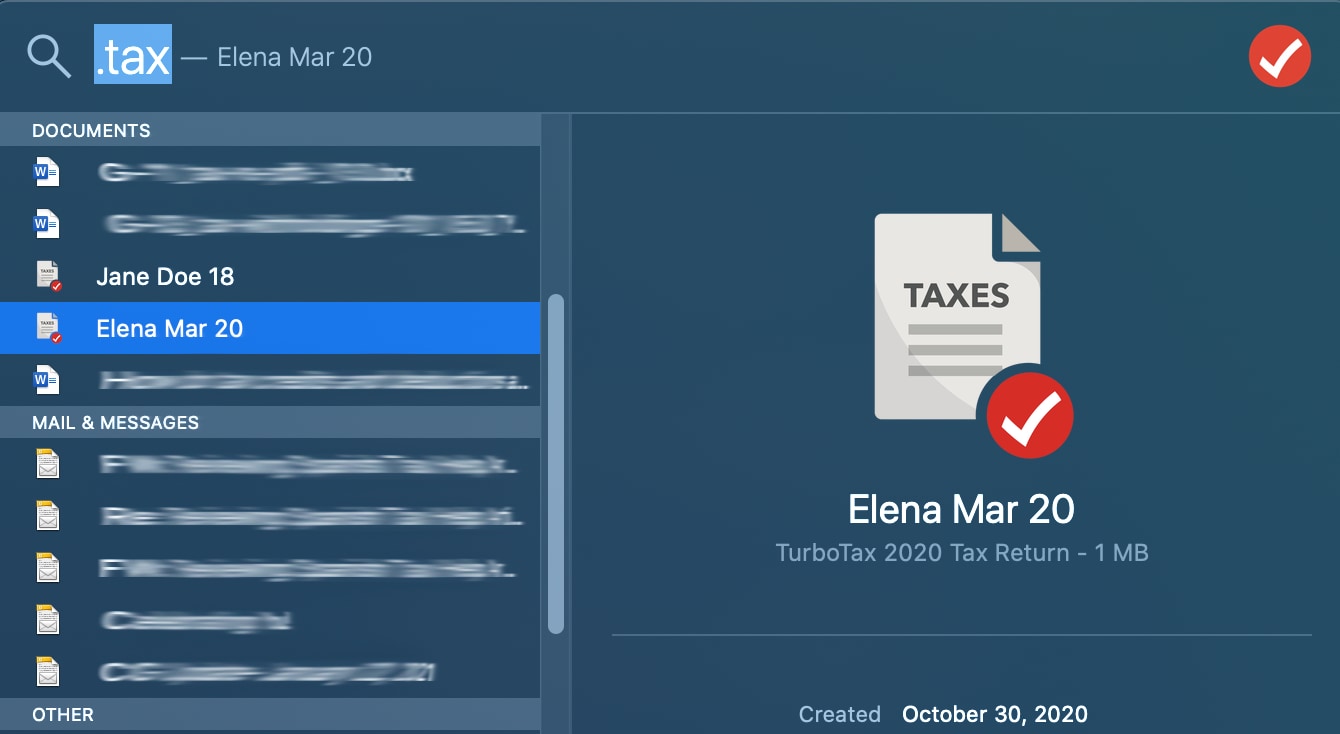
To successfully open a .tax file, one must first understand what it is—and more importantly, what it is not. A .tax file is a data-rich repository that stores every entry, calculation, and form configuration you provided during a specific tax year. It is not a finished legal document; rather, it is a “working” file that acts as the backbone for the TurboTax interface.
The Difference Between .tax and .pdf
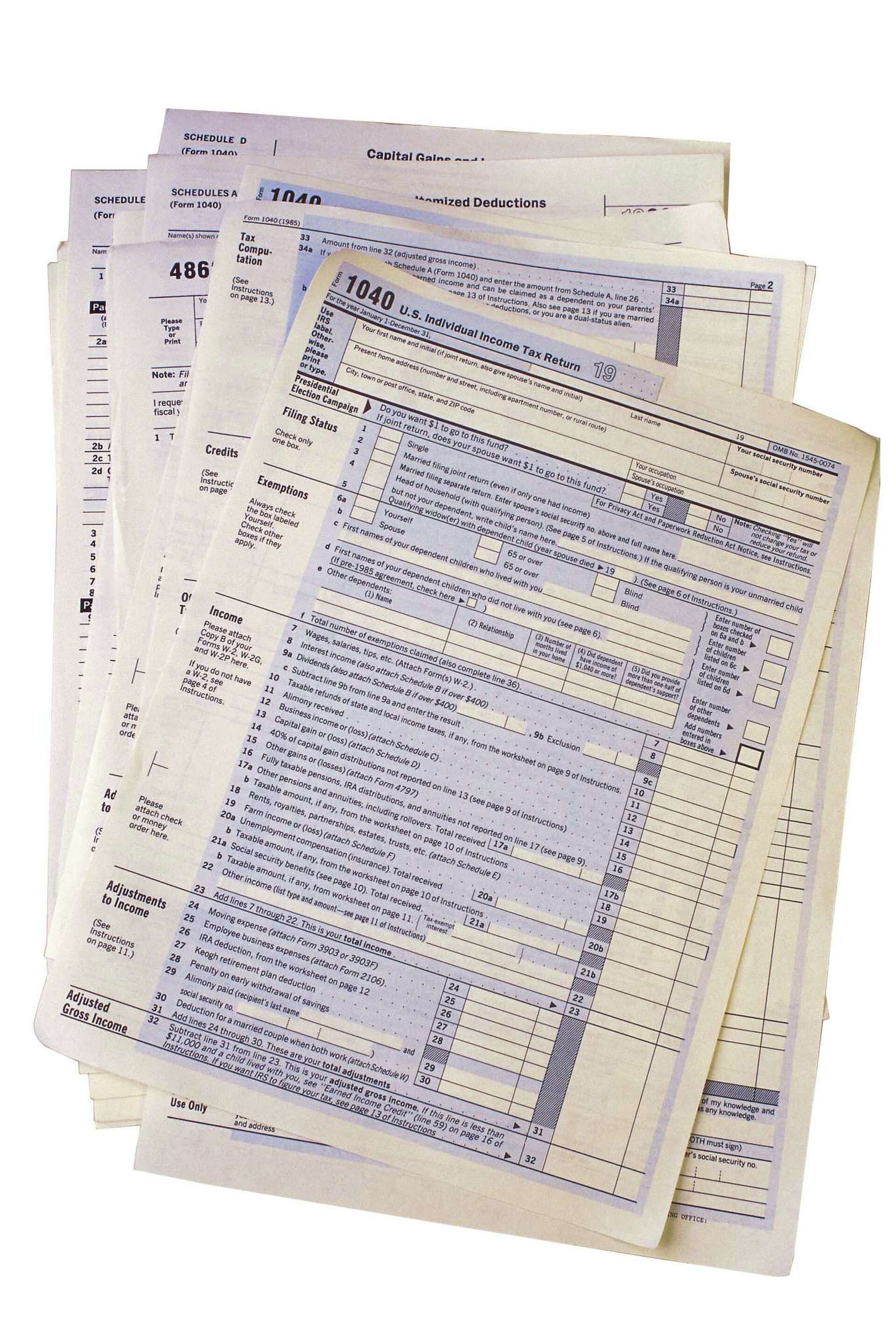
A common point of confusion for many users is the distinction between a .tax file and a .pdf file. While both are related to tax returns, they serve entirely different technical purposes. A .pdf file is a static graphical representation of your tax return. It is “read-only” in the sense that while you can view it and print it, the underlying data is not interactive.
In contrast, the .tax file is dynamic. It contains the logic and variables required for the software to perform calculations. If you open a .tax file within the correct version of TurboTax, you can change a number in a field and watch the software automatically update every related form and schedule. Because of this complexity, .tax files are binary files that are unreadable by standard word processors like Microsoft Word or spreadsheet programs like Excel.
Proprietary Encryption and Data Integrity
Because .tax files contain highly sensitive personal and financial information, they are built with proprietary encryption standards. This means that even if a third-party developer wanted to create a universal “.tax viewer,” they would struggle to bypass the security layers Intuit embeds within the file. This architecture ensures that your Social Security numbers, income statements, and bank details remain protected, but it also necessitates the use of the specific software that created the file.
Software Requirements: The Version-Matching Rule
The most significant technical hurdle in opening a .tax file is the “matching year” requirement. TurboTax releases a new version of its software every year to reflect the latest changes in the tax code. Consequently, the file format is updated annually.
Version Dependency
To open a file with a name like 2022_TaxReturn.tax2022, you must have the 2022 version of TurboTax Desktop installed on your computer. A common misconception is that the newest version of TurboTax (e.g., the 2023 or 2024 version) is backward compatible and can open any older .tax file. In reality, while the new software can import data from a previous year to help you start a new return, it cannot natively “open” and edit a file from a previous year for the purpose of viewing or amending that specific year’s data.
If you need to open a .tax file from 2019, you must find and install the 2019 TurboTax Desktop software. Intuit typically allows users to download previously purchased software from their account dashboard, but they only support downloads for a limited number of years (usually the most recent five to seven years).
Desktop vs. Online Versions
Another critical distinction is the platform used to create the file. If you used TurboTax Online, you do not technically “own” a .tax file on your hard drive unless you specifically chose to download it for your records. The online version stores your data in the cloud. However, if you download that data file from the online portal, it will be in the .tax format. To open this downloaded file, you would still need the corresponding year’s Desktop software. You cannot “upload” a .tax file back into the TurboTax Online interface once a tax season has concluded and the forms have been finalized.
How to Open .tax Files on Windows and macOS
Once you have secured the correct software version, the process of opening the file is straightforward, though it differs slightly based on your operating system’s file management logic.
Opening .tax Files on Windows
On a Windows machine, the .tax file is usually associated with the TurboTax executable during installation.
-
Launch the Software First: The most reliable method is to open the specific year’s TurboTax program first.
-
Navigate to File Menu: Go to the “File” menu in the top-left corner and select “Open Tax Return.”
-
Locate the Directory: By default, TurboTax saves these files in the
DocumentsTurboTaxfolder. -
Select the File: Look for the file ending in the extension that matches the year (e.g., .tax2021).
If you attempt to double-click the file directly from Windows Explorer, the system may fail to find the correct program if you have multiple years of TurboTax installed. Always opening the software first ensures the correct environment is loaded.
Opening .tax Files on macOS
For Mac users, the process is similar but involves the macOS package management system.
-
Compatibility Check: Ensure your version of macOS is compatible with the older version of TurboTax you are trying to run. Apple’s transition from Intel chips to Apple Silicon (M1/M2/M3) and the removal of 32-bit app support in newer macOS versions (like Catalina and later) can make opening very old software versions difficult.
-
The Application Folder: Open the specific TurboTax application from your Applications folder.
-
File Retrieval: Use the
Command + Oshortcut or the “File > Open” menu to browse your directory. -
Permissions: Ensure that TurboTax has “Full Disk Access” in your System Settings if the file is stored in a protected folder like Desktop or Documents.
Troubleshooting Common Opening Errors
Technical glitches are common when dealing with proprietary financial files, especially when moving them between devices or storage mediums.
“File Not Found” or Association Errors
If your computer claims it doesn’t know how to open the file, it usually means the software is not installed or the file association has been corrupted. Reinstalling the software or using the “Open With” command to manually point the system to the TurboTax executable can resolve this.
Corrupted Files and Transfer Issues
.tax files are sensitive to bit-rot and corruption if transferred incorrectly. If you are moving a .tax file from an old computer to a new one, avoid using a direct copy-paste method via email, as some email servers may flag the file or truncate its metadata. Instead, use a USB drive or a trusted cloud storage service (like OneDrive or Dropbox). If the file is corrupted, TurboTax will likely throw an “Error 190” or a “Damaged File” message. In such cases, your only recourse is to find a backup or an autosave file, which TurboTax often creates in the same directory with a .bak or ~ prefix.
Missing Updates
Even if you have the correct year’s software, you might encounter an error if the software is not fully updated. Tax forms are updated frequently during the filing season. If you are trying to open a file created with “Version 1.2” of the software using an unpatched “Version 1.0,” the file may fail to load. Ensure you run the internal “Check for Updates” tool within TurboTax before attempting to open the file.
The Importance of PDF Backups in Digital Asset Management
While the .tax file is essential for the technical process of filing and amending, it is a poor format for long-term record keeping due to its heavy reliance on specific, aging software.
Creating a Sustainable Archive
The hallmark of a good digital security and organization strategy is format redundancy. Every time you finish a tax return, you should perform a two-step save process:
-
Save the .tax file: This is for “active” use, in case you need to file an amendment or import data into next year’s software.
-
Export as PDF: Use the “Print to PDF” or “Save as PDF” function within TurboTax. Choose the “Full Return” option, which includes all worksheets and supporting documents.
Why PDF is the Technical Gold Standard
PDFs are platform-independent and ISO-standardized. You can open a PDF on a smartphone, a Linux machine, or a Windows computer twenty years from now without needing a specific version of a proprietary program. By maintaining a PDF copy, you ensure that even if your version of TurboTax becomes obsolete or incompatible with future operating systems, your financial records remain accessible.
Security Best Practices
Because both .tax and PDF versions of your tax return contain sensitive data, they should never be stored unencrypted. Use an encrypted external drive or a cloud service with zero-knowledge encryption. If you are storing these files on your local hard drive, consider using BitLocker (Windows) or FileVault (Mac) to ensure that the data remains protected even if the hardware is compromised.
Opening a .tax file is ultimately a lesson in software-data synergy. By ensuring you have the correct year’s software, maintaining file integrity during transfers, and understanding the proprietary nature of the format, you can navigate your digital financial history with confidence.
aViewFromTheCave is a participant in the Amazon Services LLC Associates Program, an affiliate advertising program designed to provide a means for sites to earn advertising fees by advertising and linking to Amazon.com. Amazon, the Amazon logo, AmazonSupply, and the AmazonSupply logo are trademarks of Amazon.com, Inc. or its affiliates. As an Amazon Associate we earn affiliate commissions from qualifying purchases.