
In today’s fast-paced digital world, managing your files efficiently and accessing them from anywhere is no longer a luxury, but a necessity. Whether you’re a student, a professional, or a creative, the ability to seamlessly store, sync, and share your documents, photos, and videos across multiple devices is paramount for productivity and peace of mind. This is where cloud storage solutions like Microsoft OneDrive step in, offering a powerful and integrated platform to keep your digital life organized and accessible.
OneDrive, Microsoft’s proprietary cloud storage service, serves as a central hub for all your important files. It’s deeply integrated into the Windows ecosystem, a cornerstone of the Microsoft 365 suite, and readily available across virtually all major operating systems and devices. For anyone looking to enhance their digital workflow, secure their data, and collaborate effortlessly, installing OneDrive is a fundamental step. This comprehensive guide will walk you through the process of installing OneDrive on various platforms, optimize its settings, and truly leverage its capabilities to revolutionize your digital experience.
Understanding OneDrive: More Than Just Storage
Before diving into the installation process, it’s beneficial to grasp what OneDrive truly is and why it has become an indispensable tool for millions. It’s more than just a place to dump your files; it’s a dynamic platform designed for modern digital living.
What is OneDrive?
At its core, OneDrive is a cloud-based storage service that allows you to save your files online and synchronize them across your computers, tablets, and smartphones. This means that a document you start on your desktop can be seamlessly continued on your laptop, or edited on your phone, without the need for manual transfers or worrying about outdated versions.
Beyond simple storage, OneDrive offers robust file sharing capabilities, enabling you to share individual files or entire folders with others, granting them view-only access or full editing permissions. This functionality is crucial for collaborative projects, whether you’re working with colleagues on a business proposal or sharing holiday photos with family. Its integration with Microsoft Office apps (Word, Excel, PowerPoint) allows for real-time co-authoring, transforming how teams and individuals collaborate on documents, directly connecting to the “Tech > Software” and “Tech > Productivity” aspects of our website’s themes.
Why Install OneDrive? Unlocking Productivity and Security
The benefits of integrating OneDrive into your digital toolkit are extensive, touching upon various aspects of technology, security, and even personal finance.
- Universal Accessibility: Once uploaded to OneDrive, your files are accessible from any device with an internet connection. This eliminates the need to carry USB drives or email files to yourself, dramatically boosting your personal productivity and efficiency. You can start a task at home, pick it up during your commute, and finish it at work, all without missing a beat.
- Automatic Backup and Data Security: OneDrive acts as an automatic backup solution for your critical data. In an age where hardware failures, accidental deletions, or even cyber threats can lead to devastating data loss, having your files safely stored in the cloud provides an essential layer of digital security. Microsoft employs robust encryption and security protocols to protect your data, aligning perfectly with our “Tech > Digital Security” focus. Losing precious memories or crucial business documents can be financially and emotionally costly; OneDrive mitigates this risk.
- Enhanced Collaboration: The ability to share files and folders with customizable permissions, coupled with real-time co-authoring in Office apps, transforms the way individuals and teams work together. This fosters seamless collaboration, streamlining workflows and accelerating project completion, a key aspect of “Tech > Productivity” and relevant to “Money > Business Finance” through improved operational efficiency.
- Device Synchronization: OneDrive ensures that the latest version of your files is available on all your synced devices. Any changes made on one device are automatically reflected everywhere else, preventing version control nightmares and ensuring you’re always working with the most current information.
- Cost Efficiency and Storage Management: While free tiers offer a generous starting point, investing in Microsoft 365 plans (which include substantial OneDrive storage) can be a financially savvy move. It consolidates multiple needs—productivity software, ample cloud storage, and advanced security features—into a single, cost-effective subscription, resonating with “Money > Personal Finance” and “Money > Business Finance.” It can save you money by preventing data loss and enhancing operational efficiency.
By understanding these benefits, you can appreciate that installing OneDrive is not just about adding another application, but about integrating a powerful tool that enhances your digital lifestyle, protects your assets, and amplifies your productivity.
Step-by-Step Installation Across Your Devices
The installation process for OneDrive is designed to be straightforward, whether you’re using a desktop computer, a laptop, or a mobile device. Below, we’ll cover the steps for the most common platforms.
Installing OneDrive on Windows
For Windows users, especially those on Windows 10 or 11, OneDrive is often already integrated into the operating system, making installation almost effortless.
-
Check if OneDrive is Pre-installed:
- Windows 11: Click the Start button, type “OneDrive,” and look for the OneDrive app. It should appear in the search results.
- Windows 10: Look for the cloud icon in the notification area (system tray) on the right side of your taskbar. If you see it, OneDrive is already installed. You might need to click the “Show hidden icons” arrow to reveal it.
- If you find the icon, simply click it to open the OneDrive interface, then sign in with your Microsoft account (the same one you use for Outlook, Xbox, or other Microsoft services).
-
If OneDrive is Not Pre-installed or Needs Reinstallation:
- Download from Microsoft: Open your web browser and go to the official OneDrive download page:
https://onedrive.live.com/about/en-us/download/. Click the “Download” button for Windows. - Download from Microsoft Store (Windows 10/11): Alternatively, open the Microsoft Store app, search for “OneDrive,” and click “Get” or “Install.”
- Run the Installer: Once the download is complete, locate the downloaded file (usually named
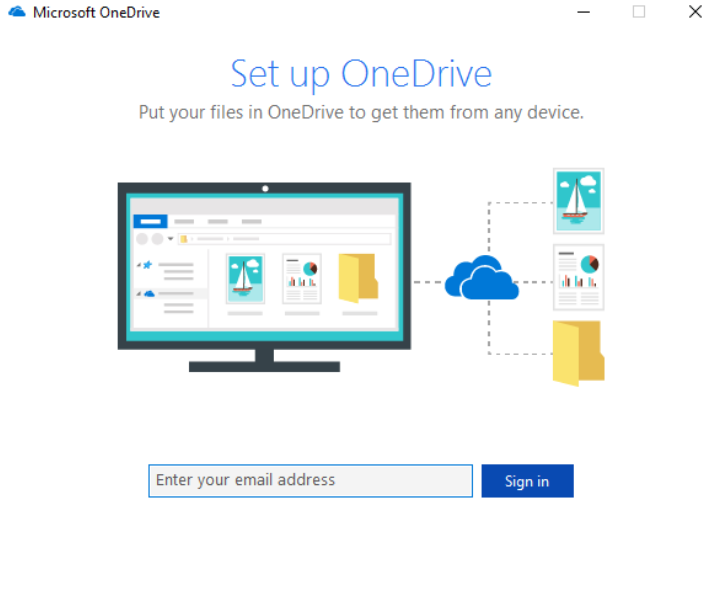
OneDriveSetup.exe) and double-click it to run the installer. The installation process is quick and largely automatic. - Sign In: After installation, a OneDrive setup window will appear. Enter your Microsoft account email address and click “Sign in.” Follow the prompts to enter your password and any two-factor authentication codes.
- Choose Your OneDrive Folder Location: The setup wizard will suggest a default location for your OneDrive folder (e.g.,
C:UsersYourNameOneDrive). You can accept this or click “Change location” to select a different drive or folder. This is where your synced cloud files will reside locally. - Sync Your Files: You’ll be asked which folders from your OneDrive cloud storage you want to sync to your computer. By default, all folders are selected. You can deselect folders you don’t need on your local machine to save space, utilizing “Files On-Demand” which we’ll discuss later. Click “Next.”
- Introduction to Features: OneDrive will then provide a brief tour of its features, such as “Files On-Demand.” Click through these introductory screens.
- Start Using OneDrive: Click “Open my OneDrive folder.” You’ll see your synchronized files and folders. The cloud icon in your taskbar will now indicate its status (syncing, synced, or paused).
- Download from Microsoft: Open your web browser and go to the official OneDrive download page:
Installing OneDrive on macOS
For Apple users, OneDrive integrates seamlessly with macOS, offering similar functionality to its Windows counterpart.
- Download OneDrive for Mac:
- From the App Store: The easiest method is to open the Mac App Store, search for “Microsoft OneDrive,” and click “Get” or “Install.”
- From Microsoft Website: Alternatively, navigate to the official OneDrive download page:
https://onedrive.live.com/about/en-us/download/and click the “Download for Mac” button. - Run the Installer: If downloaded from the website, open the
.pkgfile from your Downloads folder. Follow the on-screen prompts to install the application. You might need to enter your macOS user password to authorize the installation.
- Sign In and Setup:
- Once installed, open OneDrive from your Applications folder or Launchpad.
- Enter your Microsoft account email address and click “Sign in.”
- Provide your password and complete any two-factor authentication.
- Choose Your OneDrive Folder Location: Similar to Windows, you’ll be prompted to choose a location for your OneDrive folder on your Mac. The default is typically
~/OneDrive. You can change this if desired. - Select Folders to Sync: Choose which folders from your cloud OneDrive you wish to sync locally.
- Finish Setup: Click “Next” and then “Open OneDrive Folder.” The OneDrive icon will appear in your Mac’s menu bar (top right) and a OneDrive folder will be created in your Finder sidebar.

Installing OneDrive on Mobile Devices (iOS & Android)
Accessing your files on the go is a core strength of OneDrive. The mobile apps are user-friendly and packed with features.
- Download the App:
- For iPhone/iPad (iOS): Open the App Store, search for “Microsoft OneDrive,” and tap “Get” or the cloud icon to download.
- For Android phones/tablets: Open the Google Play Store, search for “Microsoft OneDrive,” and tap “Install.”
- Open and Sign In:
- Once installed, open the OneDrive app from your home screen or app drawer.
- Tap “Sign in” and enter your Microsoft account email and password. Complete any two-factor authentication.
- Initial Setup and Permissions:
- Camera Upload: The app will typically ask if you want to enable automatic camera upload. This feature automatically backs up photos and videos from your device to OneDrive, a fantastic way to secure your memories and free up device storage. Tap “Turn on” or “Later” based on your preference. This directly addresses “Tech > Digital Security” by protecting your media.
- Notifications: You might be asked to allow notifications. This can be useful for sharing alerts or synchronization status.
- Start Using: You’ll now see your OneDrive files and folders. You can browse, open, share, and even edit documents directly from your mobile device, enhancing productivity anywhere.
Installing OneDrive on the Web (Browser Access)
It’s important to note that OneDrive is always accessible via a web browser, which requires no installation at all. This is particularly useful if you’re on a public computer or a device where you don’t want to install the full application.
- Open Your Browser: Launch any web browser (Chrome, Edge, Firefox, Safari, etc.).
- Go to OneDrive.com: Type
www.onedrive.cominto the address bar and press Enter. - Sign In: Click “Sign in” and enter your Microsoft account credentials.
- Access Your Files: You’ll be presented with your full OneDrive storage, allowing you to upload, download, view, and manage your files directly from the browser interface. While it doesn’t offer the seamless local synchronization of the installed applications, it’s a reliable backup option for accessing your data.
Post-Installation: Optimizing Your OneDrive Experience
Once OneDrive is installed across your devices, taking a few extra steps to configure and optimize its settings can significantly enhance your experience, boost productivity, and manage your storage efficiently.
Initial Configuration & Settings
- Selective Sync (Desktop Apps): On Windows and macOS, you can choose which folders from your OneDrive cloud storage are synchronized and available locally on your computer. This is particularly useful if you have limited local storage or only need specific files offline.
- Windows: Right-click the OneDrive cloud icon in your taskbar > “Settings” > “Account” tab > “Choose folders.”
- macOS: Click the OneDrive cloud icon in the menu bar > “Help & Settings” > “Preferences” > “Account” tab > “Choose Folders.”
- Files On-Demand (Windows): This Windows-specific feature allows you to see all your files in File Explorer without having to download them all. Files can be “online-only” (taking up no local space), “locally available” (downloaded when you open them), or “always keep on this device” (always downloaded and available offline). This is a fantastic space-saving feature.
- To enable/verify: Right-click the OneDrive icon > “Settings” > “Sync and backup” tab > “Advanced settings” > “Files On-Demand.” Ensure it’s turned on.
- Auto-saving in Office Apps: When working with Microsoft Office applications (Word, Excel, PowerPoint), ensure “AutoSave” is turned on. When saving to OneDrive, this feature automatically saves your changes as you work, preventing data loss and facilitating real-time collaboration. This is a powerful productivity booster.
- Bandwidth Settings (Desktop Apps): If OneDrive syncing is consuming too much of your internet bandwidth, you can limit its upload and download rates.
- Right-click OneDrive icon > “Settings” > “Sync and backup” tab > “Advanced settings” > “Network.”
- Personal Vault: OneDrive’s Personal Vault provides an extra layer of security for your most sensitive files. It’s a protected area in OneDrive that you can only access with a strong authentication method or a second step of identity verification, like your fingerprint, face, PIN, or a code from an authenticator app. This feature directly addresses “Tech > Digital Security” by offering enhanced protection for critical documents.
Maximizing Productivity with OneDrive Features
Beyond basic file storage, OneDrive offers several features that can significantly enhance your productivity and collaborative efforts.
- Sharing Files and Folders: Learn to effectively share content. You can generate shareable links with various permissions (view-only, edit), set expiration dates for access, or share directly with specific people via email. This is crucial for teamwork and personal content sharing.
- Version History: OneDrive automatically keeps older versions of your files. If you make a mistake or need to revert to an earlier draft, you can easily access the version history and restore a previous iteration. This feature is a safety net for any creative or professional work.
- Scan Documents (Mobile App): The OneDrive mobile app includes a scanner feature that allows you to use your phone’s camera to scan documents, whiteboards, or business cards directly into OneDrive as PDFs. This digitizes physical documents on the go, making them searchable and shareable, aligning with “Tech > Productivity” and “Tech > Apps.”
- Offline Access (Mobile App): For crucial files you need to access without an internet connection, you can mark them for “offline access” within the mobile app. This downloads a copy to your device, ensuring you’re always prepared.
OneDrive Storage and Financial Considerations
Understanding OneDrive’s storage options and how they align with your financial planning can help you maximize its value.
Free vs. Paid Plans
OneDrive offers a tiered storage system that caters to a range of users, from individuals with minimal needs to businesses requiring extensive cloud infrastructure.
- Free Tier: Every Microsoft account comes with 5 GB of free OneDrive storage. This is suitable for basic document storage, a moderate number of photos, and light personal use. It’s an excellent way to get started and experience the benefits of cloud storage without any initial investment.
- Microsoft 365 Subscriptions: The most popular upgrade path is through a Microsoft 365 subscription (Personal, Family, Business). These subscriptions typically include 1 TB (1000 GB) of OneDrive storage per user, along with full access to premium versions of Office applications (Word, Excel, PowerPoint, Outlook) and advanced security features.
- Financial Value: For individuals or families already using Office applications, a Microsoft 365 subscription represents significant financial value. It consolidates software costs with ample cloud storage and robust security, making it a compelling package. From a “Money > Personal Finance” perspective, it’s an investment in your digital tools that offers high returns in productivity and data security.
- Business Applications: For small businesses or professionals, Microsoft 365 Business plans not only provide vast OneDrive storage but also integrate with SharePoint for enhanced team collaboration, Microsoft Teams for communication, and enterprise-grade security. This directly supports “Money > Business Finance” by providing essential infrastructure for modern, remote-friendly operations and data management.
By choosing the right plan, you can ensure you have adequate storage for all your files, while also benefiting from the full suite of Microsoft’s productivity tools, making it a sound financial decision for your digital life.

Conclusion
Installing OneDrive is a foundational step towards embracing a more organized, productive, and secure digital lifestyle. From its deep integration with Windows to its seamless functionality across macOS and mobile devices, OneDrive offers a versatile platform for managing your essential files. By following the installation steps outlined for your specific devices and taking the time to optimize its settings, you can unlock a world of possibilities for universal accessibility, automatic backups, and effortless collaboration.
Whether you’re safeguarding precious memories with camera roll backup, co-authoring documents in real-time with colleagues, or simply ensuring your most important files are always at your fingertips, OneDrive stands as a robust solution. Its free tier provides an accessible entry point, while Microsoft 365 subscriptions offer expanded storage and premium features that represent a shrewd investment in your personal and professional digital infrastructure. Integrate OneDrive into your daily workflow today and experience the transformative power of intelligent cloud storage.
aViewFromTheCave is a participant in the Amazon Services LLC Associates Program, an affiliate advertising program designed to provide a means for sites to earn advertising fees by advertising and linking to Amazon.com. Amazon, the Amazon logo, AmazonSupply, and the AmazonSupply logo are trademarks of Amazon.com, Inc. or its affiliates. As an Amazon Associate we earn affiliate commissions from qualifying purchases.