
The Amazon Fire Stick has become an incredibly popular device for streaming media, offering a gateway to a vast universe of entertainment. While Amazon’s own ecosystem provides access to Prime Video, Netflix, Hulu, and more, many users seek to expand their streaming capabilities beyond pre-approved apps. This is where Kodi enters the picture. Kodi is a powerful, open-source media center that can transform your Fire Stick into a versatile entertainment hub, capable of playing virtually any media format from local storage, network locations, and, most importantly, the internet through a wide array of add-ons.
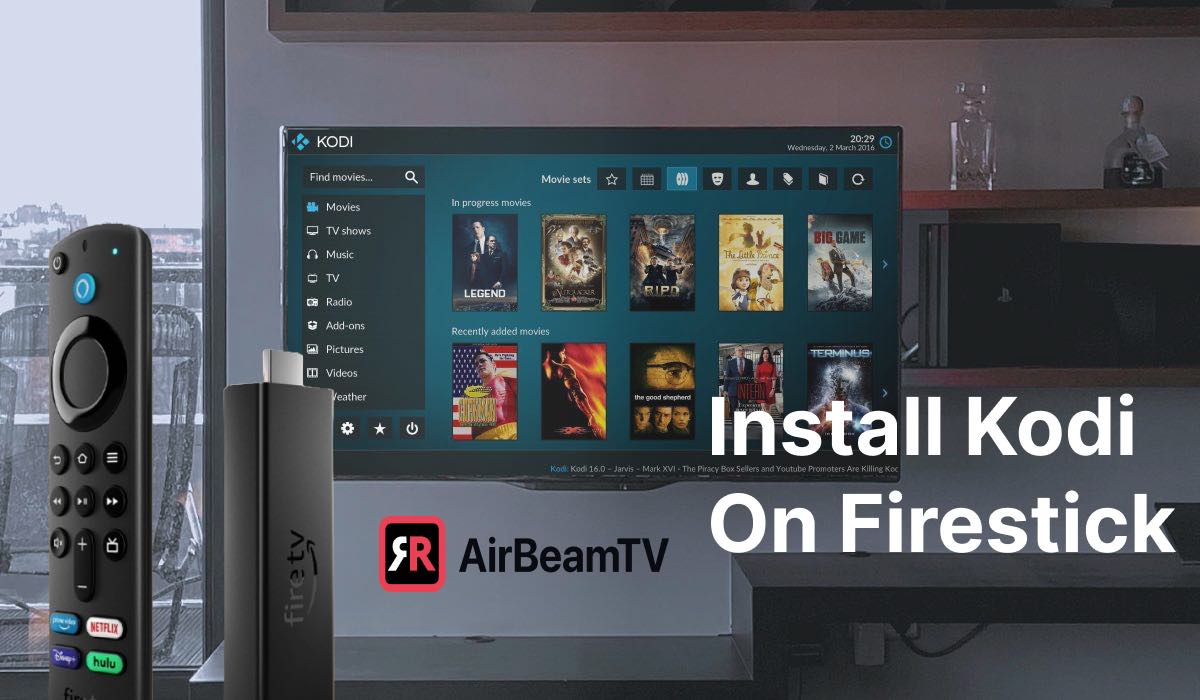
This comprehensive guide will walk you through the process of installing Kodi on your Amazon Fire Stick, addressing the nuances and considerations involved. We’ll explore why you might want to install Kodi, the necessary prerequisites, the step-by-step installation process, and essential tips for getting the most out of your new media powerhouse. Whether you’re a seasoned tech enthusiast or new to the world of streaming customization, this guide will equip you with the knowledge to successfully install and begin enjoying Kodi on your Fire Stick.
Understanding Kodi and Its Potential on Your Fire Stick
Before we dive into the “how,” let’s briefly touch upon the “why.” Kodi is not a streaming service itself; it’s a media player application. Think of it as a sophisticated, highly customizable interface for all your digital media. Its open-source nature means it’s constantly being developed by a global community, leading to continuous improvements and a vast library of add-ons.
Why Install Kodi on a Fire Stick?
- Vast Add-on Ecosystem: This is the primary draw for many. Kodi’s add-ons extend its functionality dramatically. These can range from official add-ons for legitimate content providers (like YouTube, Twitch, and even some paid services) to community-developed add-ons that can access a wide variety of streaming content from different sources.
- Unified Media Library: Kodi excels at organizing your personal media collection (movies, TV shows, music, photos) from various sources into a visually appealing and easily navigable library. It scrapes metadata, such as movie posters, cast information, and plot summaries, to give you a rich viewing experience.
- Customization: Kodi is highly customizable. You can change skins to alter its appearance, configure settings to optimize performance, and tailor its layout to your preferences.
- Playing Diverse Formats: Kodi supports an extensive range of audio and video formats, meaning you can play almost any file you throw at it.
- Alternative to App Stores: While the Amazon Appstore is convenient, it’s curated. Kodi, through its add-ons, opens up access to content that might not be available through official channels, for better or worse.
It’s crucial to understand that while Kodi itself is legal, the legality of the content accessed through certain add-ons is not always clear-cut. Users are responsible for ensuring they comply with copyright laws and terms of service when using Kodi and its associated add-ons.
Preparing Your Amazon Fire Stick for Kodi Installation
Due to the way Amazon’s ecosystem is structured, Kodi is not available directly from the Amazon Appstore. This means we’ll need to enable a specific setting on your Fire Stick to allow installation from “unknown sources” and then use a sideloading method to install the application.
Enabling “Apps from Unknown Sources”
This is a critical step and involves navigating through your Fire Stick’s settings.
- Navigate to Settings: From your Fire Stick’s home screen, go to the “Settings” menu. This is usually represented by a gear icon.
- Select “My Fire TV”: Within the Settings menu, you’ll find an option called “My Fire TV.” Select this.
- Choose “Developer Options”: In the “My Fire TV” menu, locate and select “Developer Options.”
- Enable “Apps from Unknown Sources”: You will see an option labeled “Apps from Unknown Sources.” By default, this is likely “Off.” Select it to turn it “On.”
- Confirm the Warning: A warning message will appear, explaining the risks associated with installing apps from unknown sources. Read it carefully and select “Turn On” to confirm.
Important Note: Enabling this setting opens your Fire Stick to potentially malicious apps if you download from untrusted sources. Always be cautious about where you download apps from, especially when it comes to Kodi add-ons.
Downloading the Kodi APK File
The installation file for Android applications is called an APK. We need to get the correct Kodi APK file for the Amazon Fire Stick’s architecture. The most reliable way to do this is by using a file manager app that can download from URLs.
Recommended Method: Using the “Downloader” App
The Amazon Fire Stick has a built-in app called “Downloader” which is perfect for this task.
-
Find and Install “Downloader”:
- Go back to your Fire Stick’s home screen.
- In the search bar (magnifying glass icon), type “Downloader.”
- Select the “Downloader” app from the search results and click “Get” or “Download” to install it.
-
Open the Downloader App: Once installed, open the “Downloader” app.
-
Enable JavaScript (if prompted): The first time you open Downloader, it might ask you to enable JavaScript. Click “Settings” and then toggle the “Enable JavaScript” option to “On.” This is necessary for some websites to function correctly.
-
Enter the Kodi Download URL: In the “Enter a URL” field within the Downloader app, you will need to input the direct download link for the latest stable version of Kodi for Android (ARM). A reliable source is usually the official Kodi website or a reputable repository.
- Finding the Official URL: The most stable and recommended way is to visit the official Kodi download page on a web browser (e.g., on your computer or another device) and find the Android APK download link. Look for the “Recommended” or “Stable” build. The URL typically looks something like this (though it will change with new versions):
https://mirrors.kodi.tv/releases/android/kodi-xx.x.x-yyy-arm64-v8a.apk(where xx.x.x is the version number). It’s highly recommended to search for “Kodi download Android APK” and navigate to the official Kodi.tv website for the most current and correct link. - Example URL (for demonstration purposes, always get the latest):
https://mirrors.kodi.tv/releases/android/kodi-21.0-Omega-arm64-v8a.apk - Type or Paste the URL Carefully: Using the on-screen keyboard can be tedious. Consider using the Fire TV Remote App on your smartphone for easier URL input.
- Finding the Official URL: The most stable and recommended way is to visit the official Kodi download page on a web browser (e.g., on your computer or another device) and find the Android APK download link. Look for the “Recommended” or “Stable” build. The URL typically looks something like this (though it will change with new versions):
-
Click “Go”: After entering the URL, click the “Go” button. The Downloader app will fetch the APK file.
-
Install Kodi: Once the APK file is downloaded, the Downloader app will usually prompt you to install it. Click “Install.”
-
Wait for Installation: The installation process will begin. This may take a minute or two.
-
Open or Done: After installation, you’ll have options to “Open” Kodi immediately or click “Done.” It’s a good idea to click “Done” and then clean up the downloaded APK file.
-
Delete the APK (Optional but Recommended): Back in the Downloader app, it will ask if you want to delete the downloaded APK file. Select “Delete” to free up space on your Fire Stick.
Accessing and Configuring Kodi on Your Fire Stick
Now that Kodi is installed, let’s get it up and running.
Finding and Launching Kodi
- From Apps & Channels: Go to your Fire Stick’s home screen, then navigate to “Apps & Channels.” You should find Kodi listed there.
- Move to Front (Optional): To make launching Kodi quicker, you can move it to the front of your apps list. While in “Apps & Channels,” highlight Kodi, press the “Options” button on your remote (the one with three horizontal lines), and select “Move to Front.”
- Launch Kodi: Select the Kodi icon and click “Open.”
The first time Kodi launches, it might take a little longer as it sets up its initial configuration. You’ll be greeted by the default Kodi interface.
Initial Kodi Setup and Navigation
Kodi’s interface might seem a bit overwhelming at first, but it’s quite intuitive once you get the hang of it.

- Main Menu: The main menu typically includes sections like Movies, TV Shows, Music, Videos, Add-ons, and Settings.
- Navigation: Use your Fire Stick remote to navigate up, down, left, and right. The center button is for selection (like clicking a mouse). The back button on your remote will take you back a menu or out of a selection.
- Settings: The gear icon (usually in the top-left corner) is your gateway to all configuration options.
Essential First Steps and Recommendations
- Update Kodi: While you’ve installed the latest stable version, it’s always good practice to check for updates within Kodi itself, especially after you start adding repositories. Go to Settings > Add-ons > Install from repository > Kodi Add-on repository > Program add-ons > Updates.
- Clear Cache (After Using Add-ons): As you start using various add-ons, temporary files can accumulate, potentially slowing down Kodi. Regularly clearing the cache is a good habit. Many maintenance add-ons can automate this, or you can find manual options within certain utilities.
- Explore Official Add-ons First: Before diving into third-party add-ons, explore the official Kodi repository. This contains add-ons for services like YouTube, Twitch, Plex, and various internet radio stations and video streaming services. Go to Settings > Add-ons > Install from repository > Kodi Add-on repository.
- Consider a VPN: Many users opt to use a Virtual Private Network (VPN) when using Kodi, especially with third-party add-ons. A VPN can enhance your privacy and security by masking your IP address and encrypting your internet traffic. Some users also use it to bypass geo-restrictions on certain content.
Installing Add-ons and Expanding Functionality
The true power of Kodi lies in its add-ons. These are small software packages that extend Kodi’s capabilities, allowing you to access new content sources, customize your experience, and much more.
Understanding Repositories
Add-ons are typically organized into repositories. A repository is essentially a digital storage location for add-ons. You’ll often install an add-on by first installing its repository.
Installing Add-ons from the Official Kodi Repository
This is the safest and most straightforward way to start.
- Navigate to Add-ons: From the Kodi home screen, go to “Add-ons.”
- Select “Install from repository”:
- Choose “Kodi Add-on repository”: This is the official repository that comes pre-installed.
- Browse Categories: You can then browse through categories like “Video add-ons,” “Music add-ons,” “Program add-ons,” etc.
- Select and Install: Click on an add-on you’re interested in, then click “Install” and follow any on-screen prompts.
Installing Add-ons from Third-Party Repositories
This is where you’ll find a much wider array of content, but also where caution is advised.
- Enable “Unknown Sources” (if not already): Make sure this setting is still enabled (as per the earlier section).
- Find the Repository URL: You’ll need to find the URL for the third-party repository you want to install. This usually involves searching online for specific add-ons or repositories. Be extremely careful to download from reputable sources.
- Install Repository File Manager:
- Go to Settings > Add-ons > Install from zip file.
- If you see a warning about “unknown sources,” click “Yes.”
- Navigate to the location where you downloaded the repository zip file (often you’ll need to use the Downloader app to download the zip file to a specific folder on your Fire Stick first, or you might be able to enter a network path if the repository is hosted on a server).
- Select the zip file to install the repository.
- Install Add-on from Repository:
- Go back to “Install from repository.”
- You should now see the newly installed third-party repository listed. Select it.
- Browse through the add-ons within that repository and install them as desired.
Crucial Warning Regarding Third-Party Add-ons:
- Legality and Copyright: Many third-party add-ons can potentially provide access to copyrighted material without permission. Using such add-ons may infringe on copyright laws in your region. It is your responsibility to understand and comply with the laws in your jurisdiction.
- Security Risks: Unofficial add-ons can sometimes contain malware or be used for malicious purposes. Always vet your sources and be cautious about what you install.
- Stability and Reliability: Third-party add-ons are not officially supported by Kodi. They can be unstable, stop working without notice, or be removed from their repositories.
Popular Add-ons and Their Uses
While we cannot endorse or recommend specific third-party add-ons due to legal and security considerations, it’s worth noting the types of functionality they often provide:
- Live TV: Access to various live television streams.
- Movies and TV Shows: Libraries of on-demand films and series.
- Sports: Streams of sporting events.
- Documentaries and Educational Content: Access to specialized content.
- Music Streaming: Integration with music services.
- Utilities and Maintenance: Tools for optimizing Kodi’s performance and managing add-ons.
Always research any add-on thoroughly before installing it, read reviews if available, and understand the potential risks involved.
Troubleshooting and Maintenance
Even with a successful installation, you might encounter issues. Here are some common problems and how to address them.
Common Issues and Solutions
- Kodi Crashing or Freezing:
- Clear Cache: Use a maintenance add-on or manually clear cache files.
- Update Kodi: Ensure you have the latest version of Kodi.
- Update Add-ons: Outdated add-ons can cause instability.
- Reduce Load: If you have too many add-ons running or too much media scanned, it can strain resources. Try disabling or uninstalling unused add-ons.
- Restart Fire Stick: A simple restart can often resolve temporary glitches.
- Reinstall Kodi: As a last resort, uninstall and reinstall Kodi.
- Add-on Not Working:
- Check Repository: Ensure the repository it belongs to is still active and updated.
- Update Add-on: Look for updates within the repository.
- Check Dependencies: Some add-ons rely on other add-ons (dependencies) to function. Ensure these are also installed and updated.
- Server Issues: The source the add-on is trying to access might be down. Try again later.
- Clear Cache for Specific Add-on: Some add-ons have their own cache that can be cleared.
- Buffering Issues:
- Internet Speed: Ensure you have a stable and fast internet connection.
- VPN: If you’re using a VPN, try disabling it or switching servers. Conversely, sometimes a VPN can improve buffering by rerouting traffic.
- Server Load: The server hosting the content might be overloaded.
- Kodi Settings: Advanced audio and video settings in Kodi can sometimes be tweaked for better performance.

Maintaining Your Kodi Installation
Regular maintenance is key to a smooth Kodi experience.
- Regular Updates: Keep Kodi itself and all your installed add-ons updated.
- Clear Cache: Periodically clear the cache to prevent slowdowns.
- Uninstall Unused Add-ons: Remove anything you don’t use to keep your interface clean and reduce resource usage.
- Manage Storage: Be mindful of the space used by downloaded files and media libraries.
- Backup Configuration (Advanced): For more advanced users, consider backing up your Kodi settings and library. This can be invaluable if you ever need to reinstall or migrate to a new device.
By following these steps, you can successfully install Kodi on your Amazon Fire Stick and unlock a world of customizable entertainment. Remember to proceed with caution when installing third-party add-ons and always prioritize your online security and legal compliance. Enjoy your enhanced streaming experience!
aViewFromTheCave is a participant in the Amazon Services LLC Associates Program, an affiliate advertising program designed to provide a means for sites to earn advertising fees by advertising and linking to Amazon.com. Amazon, the Amazon logo, AmazonSupply, and the AmazonSupply logo are trademarks of Amazon.com, Inc. or its affiliates. As an Amazon Associate we earn affiliate commissions from qualifying purchases.