
Fortnite, the global phenomenon that redefined the battle royale genre, has captivated millions of players across diverse platforms. Its unique blend of fast-paced shooting, creative building mechanics, and a constantly evolving metaverse has cemented its place as a cultural touchstone in the gaming world. If you’re looking to dive into the vibrant, chaotic, and utterly addictive universe of Fortnite, getting started is simpler than you might think. This comprehensive guide will walk you through the entire installation process on every major platform, offering insights into system requirements, troubleshooting tips, and how to optimize your experience, all while contextualizing it within the broader themes of technology, digital security, and the sheer power of a well-executed brand.
Embarking on the Battle Royale Journey: What is Fortnite?
Before we delve into the technicalities of installation, it’s worth understanding why Fortnite has achieved such monumental success and why so many players are eager to install it. It’s more than just a game; it’s a dynamic platform, a social hub, and a masterclass in digital engagement.
The Phenomenon of Fortnite
At its core, Fortnite is a free-to-play battle royale game where 100 players parachute onto an island, scavenge for weapons and resources, and fight to be the last one standing. What sets it apart is its unique building mechanic, allowing players to instantly construct walls, ramps, and forts to gain a tactical advantage. Beyond its flagship mode, Fortnite has expanded significantly, offering “Save the World” (a cooperative player-vs-environment experience), “Creative” mode (where players can design their own islands and games), and more recently, “Fortnite Festival,” “Rocket Racing,” and “LEGO Fortnite,” transforming it into a full-fledged metaverse with diverse experiences.
This evolution showcases a profound understanding of technology trends and software development. Epic Games, the developer, continuously pushes updates, introduces new seasons, and hosts in-game live events that are technological marvels, demonstrating real-time rendering and massive multiplayer interactivity on an unprecedented scale. This constant innovation keeps the player base engaged and ensures the game remains at the forefront of the gaming industry.
Why Installation Matters (User Experience, Digital Security)
The initial act of installation is your gateway into this digital world. A smooth, secure installation process is paramount not just for a good user experience but also for your digital security. In an age where apps and software are ubiquitous, understanding how to safely acquire and set up new programs is a critical tech skill. We’ll emphasize using official channels to download Fortnite, mitigating risks associated with unofficial or pirated software, which can often harbor malware or compromise personal data – a direct concern for your digital security. The reliability of the installation process also reflects on the “Brand” of Fortnite itself; a frustrating installation can tarnish an otherwise stellar game experience.
Preparing for Deployment: System Requirements and Platform Choices
Before you click any download buttons, it’s crucial to ensure your chosen device is ready to handle Fortnite. This involves checking system requirements and understanding the nuances of installing on different gaming ecosystems.
PC System Requirements: The Tech Specs You Need
For PC gamers, understanding your hardware is the first step. Fortnite, while optimized for a wide range of systems, performs best with certain specifications. Epic Games regularly updates these, but here’s a general guideline for optimal performance (as of current trends):
- Minimum Specifications:
- OS: Windows 10/11 64-bit
- Processor: Core i3-3225 3.3 GHz
- Memory: 8 GB RAM
- Video Card: Intel HD 4000 on PC; AMD Radeon Vega 8
- Storage: At least 20-30 GB of free space (this can fluctuate with updates)
- Recommended Specifications:
- OS: Windows 10/11 64-bit
- Processor: Core i5-7300U 3.5 GHz or AMD Ryzen 3 3300U
- Memory: 16 GB RAM
- Video Card: Nvidia GTX 960, AMD R9 280, or equivalent DX11 GPU with 2GB VRAM
- Storage: SSD highly recommended for faster loading times
Meeting or exceeding the recommended specs ensures a smoother gameplay experience, higher frame rates, and better graphical fidelity, which directly impacts your productivity as a gamer, allowing for quicker reactions and a more immersive experience. Modern gaming demands robust hardware, and investing in a capable PC is akin to a financial investment in your digital entertainment.
Understanding Your Gaming Ecosystem (Consoles vs. Mobile vs. PC)
Fortnite’s cross-platform availability is one of its greatest strengths, but installation varies significantly by device.
- PC: Offers the most control over graphics settings and input methods (keyboard/mouse are dominant). Installation is managed via the Epic Games Launcher. This is where the game often receives new updates first and allows for the highest graphical fidelity, showcasing the cutting edge of software and hardware interaction.
- Consoles (PlayStation, Xbox, Switch): These offer a streamlined, “plug-and-play” experience. Installation is handled directly through the console’s respective digital storefront. While graphics and performance are standardized, the convenience is unparalleled.
- Mobile (Android): Provides gaming on the go. Due to the ongoing legal dispute between Epic Games and Apple, Fortnite is not directly available on iOS through the App Store, though cloud streaming options exist. Android installation currently involves direct download from Epic Games or via the Samsung Galaxy Store. This highlights the complexities of app distribution and digital economies (Money theme) in the modern tech landscape.
Choosing your platform often comes down to personal preference, existing hardware, and what kind of gaming experience you prioritize. Each ecosystem offers a different blend of accessibility, performance, and control.
A Note on Digital Security and Official Sources
When installing any software, especially one as popular as Fortnite, always prioritize digital security. Only download the game from official sources: the Epic Games website for PC and Android, and the respective console storefronts (PlayStation Store, Xbox Store, Nintendo eShop). Avoid third-party websites offering “free downloads” or “cracked versions,” as these are often avenues for malware, viruses, or phishing attempts. Protecting your digital identity and your device is a core aspect of digital security, a topic we frequently cover in our ‘Tech’ section.
Your Installation Blueprint: Step-by-Step Guides for Each Platform
Now, let’s get down to the practical steps for installing Fortnite on your preferred device.
Installing Fortnite on PC: The Epic Games Launcher Method
The PC installation is managed exclusively through the Epic Games Launcher, a digital storefront and game library.
-
Creating an Epic Games Account:
- If you don’t already have one, navigate to the official Epic Games website (epicgames.com).
- Click on “Sign In” in the top right corner and then “Sign Up.”
- You can choose to register with an email, or link an existing account from Google, Facebook, PlayStation, Xbox, Nintendo, or Steam for quicker setup. This process of digital identity management is increasingly common across all apps and software.
- Follow the prompts to create your account, ensuring you use a strong, unique password and enable two-factor authentication (2FA) for enhanced digital security. 2FA is a crucial productivity and security tool for safeguarding your online assets.
-
Downloading and Installing the Epic Games Launcher:
- Once your account is ready, go to the Epic Games website.
- Look for the “Get Epic Games” button, usually prominently displayed in the top right or within the main navigation. Click it to download the Launcher installer (.msi or .exe file).
- Locate the downloaded file (typically in your ‘Downloads’ folder) and double-click it to start the installation.
- Follow the on-screen prompts. Choose your installation directory (the default is usually fine unless you have specific reasons to change it) and agree to the terms and conditions. The launcher itself is a piece of software, and like any app, requires proper installation.
-
Finding and Installing Fortnite:
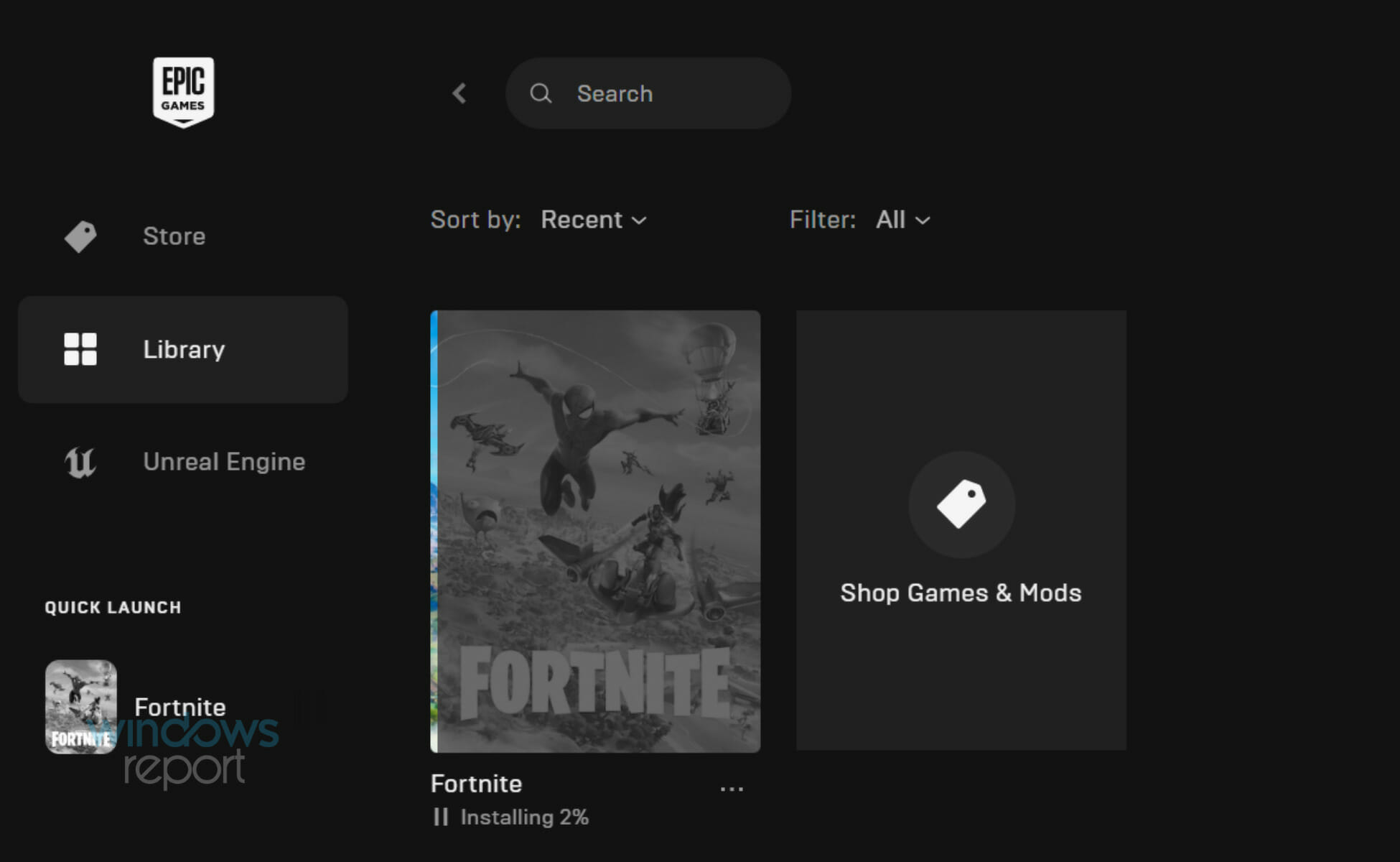
- Once the Epic Games Launcher is installed, open it and log in with your Epic Games account credentials.
- In the Launcher, navigate to the “Store” tab on the left sidebar.
- Use the search bar at the top right to type “Fortnite” and press Enter.
- Click on the Fortnite game tile.
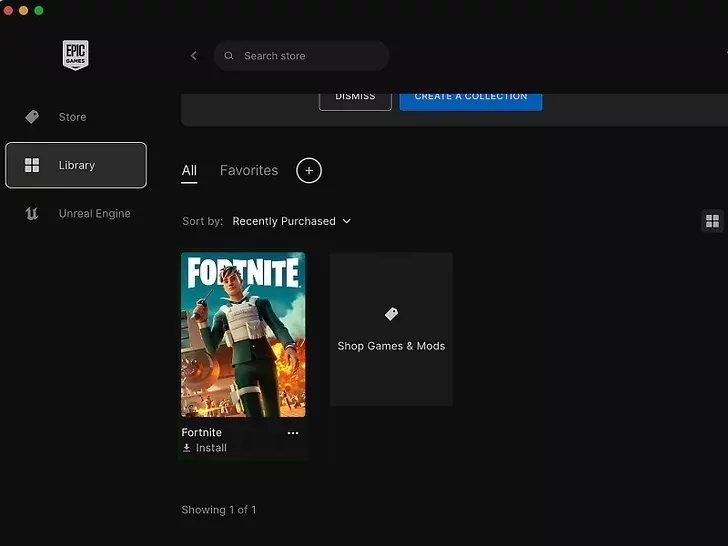
- On the Fortnite game page, click the “Get” or “Install” button. Since Fortnite is free-to-play, it will likely show “Get.”
- The Launcher will ask you to choose an installation directory for Fortnite. Ensure you have enough free disk space (at least 20-30 GB, but check the most current requirements).
- Click “Install.” The download will begin. Download times will vary based on your internet speed and the size of the current game files.
- Once the download and installation are complete, you’ll see a “Launch” button on the Fortnite game page within your “Library” tab. Click it to start your battle royale adventure!
Installing Fortnite on PlayStation (PS4 & PS5)
Console installations are generally more straightforward as the hardware and software environment is standardized.
- Turn on your PlayStation console and ensure it’s connected to the internet.
- Navigate to the PlayStation Store. This is usually an icon that looks like a shopping bag or simply labeled “PlayStation Store” on your home screen.
- Use the search function (magnifying glass icon) and type “Fortnite.”
- Select the official Fortnite game tile from the search results.
- On the game page, select “Download” or “Add to Library.” Since Fortnite is free, you won’t need to purchase it.
- The download will begin automatically. You can monitor its progress from your console’s “Downloads” or “Notifications” section.
- Once downloaded and installed, the Fortnite icon will appear on your home screen or in your game library. Select it to launch the game. You’ll likely need to link or create an Epic Games account the first time you play.
Installing Fortnite on Xbox (Xbox One, Xbox Series X/S)
Similar to PlayStation, Xbox installation is handled via the console’s integrated digital store.
- Power on your Xbox console and ensure it’s connected to the internet.
- Go to the Microsoft Store. This is usually found on your home dashboard or within “My Games & Apps.”
- Use the search bar to look for “Fortnite.”
- Select the official Fortnite game from the search results.
- Choose “Install” or “Get.”
- The game will begin downloading. You can track its progress in your “Queue” or “My Games & Apps” section.
- Once the installation is complete, you’ll find Fortnite in your game library. Launch it and sign in with your Epic Games account or create a new one.
Installing Fortnite on Nintendo Switch
The Nintendo Switch offers a portable battle royale experience.
- Turn on your Nintendo Switch and ensure it has an active internet connection.
- Access the Nintendo eShop. This is the orange shopping bag icon on your home screen.
- Navigate to the “Search” section (magnifying glass icon).
- Type “Fortnite” into the search bar.
- Select the Fortnite game tile from the results.
- Choose “Free Download.”
- Confirm your download, and the game will begin installing. You can check the progress on your home screen.
- After installation, the Fortnite icon will appear on your home screen. Tap it to play and link/create your Epic Games account.
Installing Fortnite on Android Devices
The situation for Android is a bit more complex due to Epic’s strategy of bypassing Google Play.
-
Direct Download from Epic Games (Recommended):
- On your Android device, open a web browser (like Chrome).
- Go to the official Epic Games Fortnite website (fortnite.com/android).
- Tap the “Get it on the Epic Games App” button.
- You may receive a warning about installing apps from unknown sources. You’ll need to grant your browser permission to install apps. This is a crucial digital security step; ensure you only do this for trusted sources like Epic Games.
- Download the Epic Games App (.apk file).
- Open the downloaded .apk file to install the Epic Games App.
- Launch the Epic Games App, find Fortnite, and install it from there. The app acts as a mini-launcher, similar to its PC counterpart.
-
Samsung Galaxy Store (for Samsung users):
- If you own a Samsung Galaxy device, you can directly access the Galaxy Store app.
- Search for “Fortnite.”
- Install it directly from the Galaxy Store. This method is often preferred by Samsung users as it integrates better with their device’s ecosystem.
(A Note on iOS): Due to the ongoing legal dispute between Epic Games and Apple, Fortnite is not directly available on the App Store for iOS devices. While there are cloud streaming options (like Xbox Cloud Gaming or NVIDIA GeForce NOW) that allow iOS users to play Fortnite through a browser, direct installation is currently not possible. This saga is a prime example of the intersection of tech, brand strategy, and massive financial implications in the app economy.
Troubleshooting Common Installation Hurdles and Optimizing Your Experience
Even with the best instructions, you might encounter issues. Here’s how to tackle common problems and refine your Fortnite experience.
Addressing Download and Installation Errors
- Internet Connectivity Checks: A stable internet connection is vital. If your download is stuck or failing, first check your Wi-Fi or wired connection. Restart your router and modem. Temporary network drops can corrupt downloads. This is a basic but essential tech troubleshooting step.
- Disk Space Verification: Ensure you have ample free space. Fortnite and its updates are large. If your drive is nearly full, the installation will fail. For PC, you can free up space by deleting old files or uninstalling unused programs. Consider a solid-state drive (SSD) for better performance and future-proofing, a smart financial decision for any serious gamer.
- Antivirus/Firewall Interference: Sometimes, security software can mistakenly flag game files as threats, preventing installation or launch. Temporarily disable your antivirus/firewall during installation (remember to re-enable it afterward!) or add Fortnite and the Epic Games Launcher to your software’s exception list. This highlights the delicate balance between digital security and software functionality.
- Corrupted Download Files: If issues persist, try deleting the partially downloaded files and restarting the download from scratch. For the Epic Games Launcher, you might find an option to “Verify” installed files, which can fix corruption without a full re-download.
- Run as Administrator (PC): On PC, right-clicking the Epic Games Launcher and selecting “Run as administrator” can resolve permission-related installation issues.
Optimizing Performance Post-Installation
Once Fortnite is installed, a few tweaks can significantly enhance your gameplay:
- Update Graphics Drivers (PC): Always ensure your graphics card drivers are up-to-date. Visit NVIDIA, AMD, or Intel’s official websites to download the latest drivers for your specific GPU. This is a fundamental maintenance task for any PC gamer, ensuring optimal utilization of your hardware.
- Adjust In-Game Settings: In Fortnite’s video settings, experiment with lower graphical presets (e.g., “Medium” or “Low”) if you’re experiencing frame rate drops. Prioritize “View Distance” and “Texture Quality” if your system allows, but reduce “Shadows” and “Post Processing” for quick performance gains. A higher frame rate (FPS) leads to a smoother, more responsive experience, which directly impacts your in-game productivity.
- Background Applications (PC): Close any unnecessary background applications while playing. Programs like web browsers, streaming services, or other launchers can consume valuable RAM and CPU resources. This is a basic productivity hack for maximizing system performance.
Staying Updated: The Importance of Regular Patches
Fortnite is a live-service game, meaning it receives frequent updates, patches, and content additions. These updates are crucial for:
- New Content: Introducing new weapons, items, game modes, and seasonal events.
- Bug Fixes: Addressing glitches, exploits, and performance issues.
- Balance Changes: Adjusting weapon stats and gameplay mechanics to maintain fair play.
- Digital Security: Patches often include critical security fixes, protecting players from vulnerabilities.
Always allow your launcher or console to download and install updates. Staying current ensures you have access to the latest features and benefit from the ongoing improvements Epic Games delivers, reflecting the continuous evolution of software and app development.
Beyond Installation: Diving Deeper into the Fortnite Universe
Installing Fortnite is just the beginning of your journey into a vast and dynamic digital world.
Exploring Game Modes and Customization
Fortnite offers an incredible array of experiences beyond the standard Battle Royale. Explore the various modes: “Zero Build” for pure shooting prowess, “Ranked” for competitive play, “Save the World” for co-op challenges, and the new “LEGO Fortnite,” “Rocket Racing,” and “Fortnite Festival” for entirely different game genres within the same app. Customization is also a huge part of Fortnite’s appeal, with an endless stream of “skins” (outfits), “emotes” (dances), “pickaxes,” and “gliders” available. These cosmetic items are often purchased with “V-Bucks,” the in-game currency. The economy surrounding V-Bucks and cosmetic purchases is a fascinating aspect of the “Money” theme, showcasing how digital goods drive revenue and create an ecosystem of personal branding within the game. For players, V-Bucks represent a micro-investment in their personal expression within the game.
The Evolving Landscape of Gaming and Tech
Fortnite itself is a testament to the rapid evolution of technology. Its ability to host massive live concerts, integrate popular culture icons, and maintain cross-play functionality across vastly different hardware platforms showcases incredible advancements in server infrastructure, real-time rendering, and networking. It’s a living, breathing example of how software and apps are constantly adapting to push the boundaries of what’s possible, influencing future technology trends and setting new standards for digital experiences.
The Brand Power of Fortnite
Fortnite isn’t just a game; it’s a global brand. Its distinct art style, memorable characters, and iconic emotes have transcended the gaming world, permeating pop culture, fashion, and even professional sports. The strategic partnerships Epic Games forms, from Marvel to Travis Scott, demonstrate a sophisticated understanding of brand strategy and marketing. This pervasive brand presence contributes significantly to its continued popularity and the willingness of millions to download and install its software, reinforcing its status as a digital security standard for installation due to its trusted reputation.

Conclusion: Your Adventure Awaits
Installing Fortnite is your first step into a world of endless fun, fierce competition, and continuous innovation. By following these clear, platform-specific instructions, you can ensure a smooth setup process, readying you for the diverse experiences Fortnite has to offer. Remember to prioritize digital security by downloading from official sources, optimize your settings for the best performance, and stay updated to enjoy all the new content and features. Whether you’re a seasoned gamer or a curious newcomer, Fortnite’s accessible yet deep gameplay, combined with Epic Games’ relentless technological development and brilliant brand strategy, promises an engaging adventure. Get ready to drop in, build, fight, and perhaps even achieve that coveted “Victory Royale.” Your journey into the ultimate battle royale experience officially begins now.
aViewFromTheCave is a participant in the Amazon Services LLC Associates Program, an affiliate advertising program designed to provide a means for sites to earn advertising fees by advertising and linking to Amazon.com. Amazon, the Amazon logo, AmazonSupply, and the AmazonSupply logo are trademarks of Amazon.com, Inc. or its affiliates. As an Amazon Associate we earn affiliate commissions from qualifying purchases.