
In today’s digital communication landscape, emojis have become an indispensable part of expressing ourselves. From conveying emotions and reactions to simply adding a splash of color to our messages, emojis have revolutionized the way we interact online. Whether you’re texting a friend, posting on social media, or even drafting a professional email, the ability to seamlessly insert these visual cues can significantly enhance your communication. But what happens when your device, or a specific application, doesn’t readily offer the emoji keyboard you desire? This comprehensive guide will walk you through the process of installing and utilizing emoji keyboards across various platforms, ensuring you’re never left without the perfect little icon to express yourself.
The need to install an emoji keyboard typically arises when the default keyboard on your device either lacks a comprehensive selection of emojis or doesn’t offer them at all. This is particularly common with older operating systems, certain niche applications, or when you’re looking for more advanced or specialized emoji sets. Our journey will cover the fundamental steps, troubleshoot common issues, and explore the exciting world of third-party emoji keyboard applications, all while keeping in mind the broader themes of technology, brand enhancement, and even efficient financial management of your digital tools.
Understanding Your Device’s Built-in Emoji Capabilities
Before diving into installing new keyboards, it’s crucial to understand what your current device offers. Most modern smartphones and tablets, running on contemporary versions of operating systems like iOS and Android, come with a pre-installed emoji keyboard. The process of accessing it can vary slightly, but the core principle is the same: switching to the emoji input method.
Accessing the Emoji Keyboard on Mobile Devices
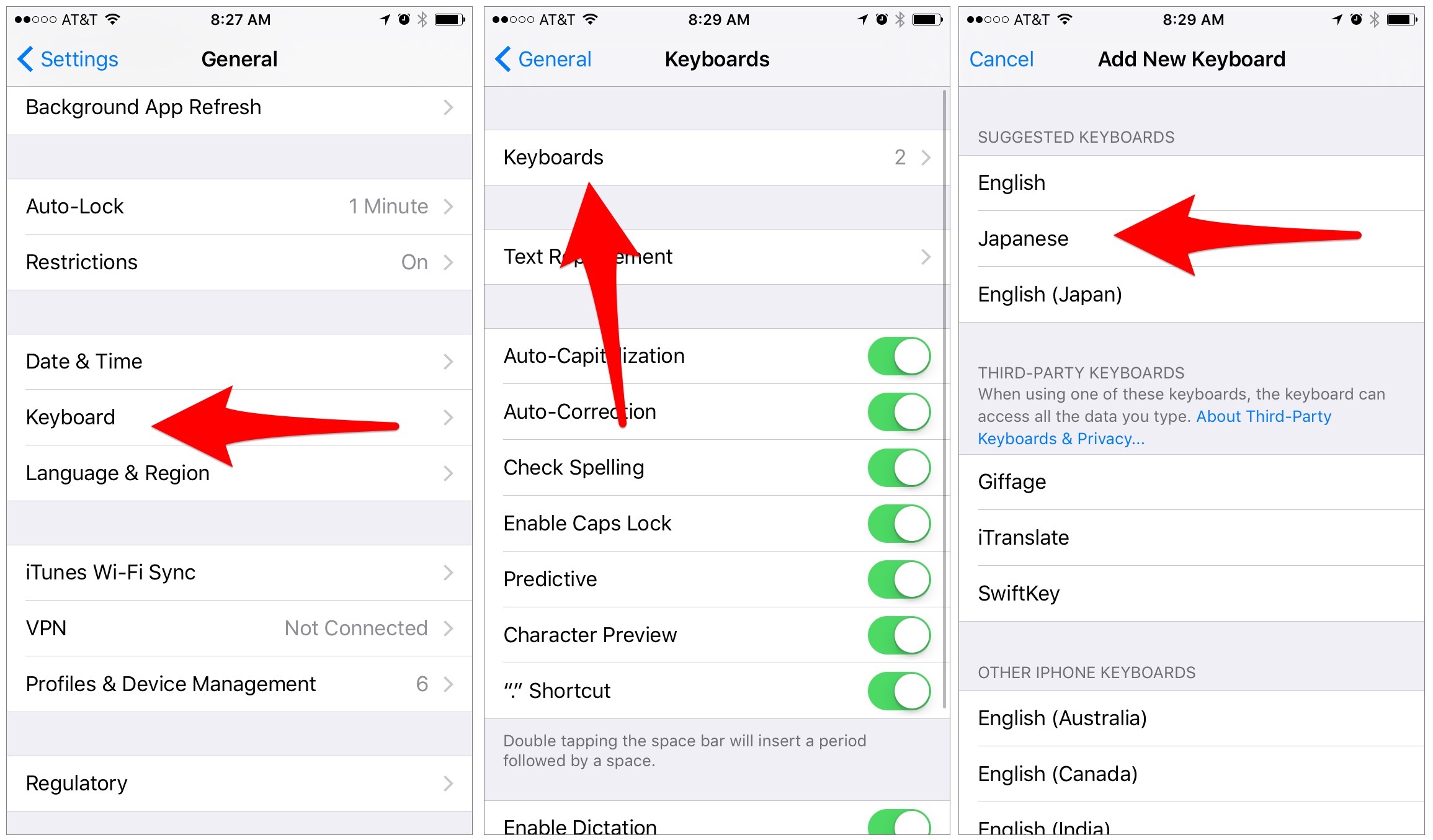
For iOS users, the emoji keyboard is typically integrated directly into the standard keyboard settings.
- Navigate to Settings: Open the “Settings” app on your iPhone or iPad.
- Tap on General: Scroll down and select “General.”
- Select Keyboard: Within the General menu, find and tap on “Keyboard.”
- Go to Keyboards: Tap on “Keyboards” at the top of the screen. You’ll see a list of currently enabled keyboards.
- Add New Keyboard: Tap “Add New Keyboard…”
- Find Emoji: Scroll through the list of available keyboards and select “Emoji.”
Once added, when you’re typing in any application that utilizes the keyboard (like Messages, Notes, or social media apps), you’ll see a globe icon ( ) on your keyboard, usually near the spacebar or the “123” key. Tapping this globe icon will switch your input method to the emoji keyboard. You can then browse through various categories of emojis or use the search bar to find specific ones.
For Android users, the process is remarkably similar, though the exact menu names might differ slightly depending on your device manufacturer and Android version.
- Open Settings: Go to your device’s “Settings” app.
- Find System or General Management: Look for an option like “System,” “General Management,” or “Advanced.”
- Tap on Languages & Input or Keyboard: Within this menu, find “Languages & input” or a similar option related to your keyboard.
- Select On-screen keyboard or Virtual keyboard: This will usually present a list of installed keyboards.
- Choose your default keyboard app: This is typically “Gboard” (Google’s keyboard), “Samsung Keyboard,” or a similar app.
- Tap on Preferences or Emoji, Stickers & GIFs: Within your chosen keyboard’s settings, look for an option related to emoji or advanced features.
- Enable Emojis: Ensure that the emoji feature is toggled on. If it’s not visible, you might need to add it as described in the next section for third-party keyboards.
If you’re using the Gboard on Android, you can usually access emojis by tapping the smiley face icon ( ) on the keyboard itself, often located to the left of the spacebar.
Utilizing the Built-in Emoji Search
Both iOS and Android’s native emoji keyboards offer a powerful search function. Instead of manually scrolling through hundreds of emojis, you can simply type keywords related to what you want to express. For instance, if you’re looking for a clapping emoji, type “clap” or “applause.” If you need a sun, type “sun.” This feature dramatically speeds up the process of finding the right emoji and can be a significant productivity boost, aligning with our “Tech” theme.
Installing Third-Party Emoji Keyboard Apps
Sometimes, the built-in emoji options, while extensive, might not satisfy your specific needs. You might be looking for:
- Unique or Animated Emojis: Some apps offer custom emoji packs, including animated GIFs and stickers that go beyond the standard Unicode characters.
- Emoji Art: Creating elaborate text art using emojis.
- Specialized Icon Sets: Emojis for specific hobbies, professions, or cultural contexts.
- Enhanced Prediction and Autocorrect: Some third-party keyboards offer superior text prediction and autocorrect features that can indirectly improve your emoji usage by making typing faster.
The process of installing these third-party emoji keyboards is generally straightforward and involves downloading an app from your device’s app store.
Steps for Installing on iOS:
- Open the App Store: Find and open the “App Store” on your iPhone or iPad.
- Search for Emoji Keyboards: In the search bar, type “emoji keyboard,” “custom keyboard,” or “sticker keyboard.” You’ll find numerous options.
- Download and Install: Browse the results, read reviews, and choose an app that appeals to you. Tap “Get” and then install it using your Apple ID password or Face/Touch ID.
- Enable the New Keyboard:
- Go back to Settings > General > Keyboard > Keyboards.
- Tap “Add New Keyboard…”
- Under “Third-Party Keyboards,” you should see the app you just installed. Tap on it to add it.
- Grant Full Access (Optional but Recommended for Full Functionality): For many third-party keyboards to work optimally, especially those offering advanced features like GIF integration or custom themes, you might need to grant them “Full Access.”
- Tap on the newly added keyboard in the “Keyboards” list.
- Toggle on “Allow Full Access.” A warning will appear about data collection; review the app’s privacy policy if you have concerns. Full access often allows the keyboard to sync custom dictionaries or download new emoji packs.
- Switch to Your New Keyboard: When typing, tap the globe icon ( ) to cycle through your keyboards until you reach the one you just installed.
Steps for Installing on Android:
- Open the Google Play Store: Find and open the “Google Play Store” on your Android device.
- Search for Emoji Keyboards: Type “emoji keyboard,” “keyboard themes,” or “sticker keyboard” into the search bar.
- Download and Install: Similar to iOS, explore the options, check ratings and reviews, and tap “Install” on your chosen app.
- Set as Default Keyboard: After installation, the app will usually prompt you to set it as your default keyboard. If not, you’ll need to do this manually:
- Go to Settings > System (or General Management) > Languages & input > On-screen keyboard (or Virtual keyboard).
- Tap on “Manage keyboards.”
- Toggle on the switch for the keyboard app you just installed.
- You may be prompted to set it as the default. If not, when you tap a text field, a keyboard icon will appear in the navigation bar or notification shade, allowing you to switch to your preferred keyboard.
- Explore App Settings: Open the third-party keyboard app itself. Here, you can often customize themes, download new emoji packs, configure gestures, and access other unique features.

Considerations for Third-Party Keyboards
When choosing and installing third-party keyboards, it’s essential to consider a few factors:
- Privacy and Security: Be cautious about granting “Full Access.” Always download apps from reputable sources and read their privacy policies. Some keyboards might collect typing data for improvement, so ensure you’re comfortable with their data handling practices. This ties into our “Digital Security” aspect.
- Performance: Some third-party keyboards can be more resource-intensive than the native ones, potentially slowing down your device. Read reviews for comments on performance.
- Updates: Ensure the keyboard app is regularly updated by its developers to maintain compatibility with the latest operating system versions and to introduce new emojis or features.
Integrating Emojis for Brand and Personal Expression
Beyond mere communication, emojis have become powerful tools for branding and personal expression. For businesses, a well-placed emoji can humanize a brand, make content more engaging, and even improve click-through rates. For individuals, they can help convey personality, tone, and nuance in ways that text alone sometimes struggles to achieve.
Brand Strategy and Emoji Usage
In Marketing and Brand Strategy, the use of emojis is a growing trend. Companies are using them in social media posts, email subject lines, and even app notifications to:
- Increase Engagement: Emojis can make posts more visually appealing and encourage likes, shares, and comments. A tweet with a relevant emoji often performs better than one without.
- Convey Tone and Emotion: A brand can use emojis to express excitement ( ), offer support ( ), or indicate a special offer ( ).
- Save Space: In character-limited platforms like Twitter, an emoji can replace several words.
- Target Younger Audiences: Emojis are widely understood and used by younger demographics, making them an effective way to connect with them.
When implementing emojis for branding, it’s crucial to maintain Brand Consistency and Reputation. Ensure the emojis used align with the brand’s overall voice and values. An overly casual emoji used by a traditionally formal brand can be jarring and damage its reputation. Conversely, a well-chosen emoji can reinforce a brand’s personality and make it more relatable.
Personal Branding and Emoji Etiquette
On a personal level, emojis contribute to your Personal Branding. They can help you:
- Express Personality: Are you cheerful, sarcastic, or empathetic? Emojis can subtly communicate these traits.
- Add Nuance to Text: Sarcasm, for instance, can be easily misinterpreted in text. An accompanying or can clarify your intent.
- Build Rapport: Using emojis appropriately in conversations can make you seem more approachable and friendly.
However, just as with brand usage, Emoji Etiquette is important. Overusing emojis, or using them inappropriately, can make your communication seem unprofessional or immature. In professional settings or with people you don’t know well, it’s generally best to use emojis sparingly and thoughtfully.
Money, Productivity, and Emoji Keyboards
While seemingly unrelated, the choice and use of emoji keyboards can intersect with aspects of Money and Productivity.
Financial Management of Digital Tools
Many third-party emoji keyboard apps are free, supported by ads. Others offer premium features or ad-free experiences for a one-time purchase or subscription. When considering these, think about:
- Value Proposition: Does the premium version offer enough enhanced features (e.g., vast emoji libraries, advanced customization, superior prediction) to justify the cost?
- Return on Investment: If you use emojis frequently for marketing or personal branding, an investment in a superior keyboard could indirectly lead to better engagement and outcomes.
- Hidden Costs: Be wary of apps that promise free features but then bombard you with intrusive ads or push for expensive subscriptions. Always check reviews for user feedback on pricing and ads.

Productivity and Efficient Communication
The core benefit of a good emoji keyboard is Productivity. By having quick access to the emojis you need, you:
- Save Time: Less time spent searching means faster communication.
- Improve Clarity: Emojis can prevent misunderstandings, reducing the need for lengthy follow-up explanations.
- Enhance Engagement: In areas like content creation or customer interaction, clearer and more engaging communication can lead to better results.
Choosing the right keyboard, whether it’s the built-in option or a carefully selected third-party app, is a small but significant step towards optimizing your digital communication tools.
In conclusion, installing an emoji keyboard is a simple process that can unlock a richer and more expressive way of communicating. Whether you’re enhancing your personal brand, contributing to your company’s marketing efforts, or simply looking to add a bit more personality to your daily chats, mastering the use of emoji keyboards is an essential digital skill. By understanding your device’s capabilities, exploring the vast array of third-party applications, and considering the subtle yet powerful ways emojis influence brand perception and personal connection, you can ensure your digital conversations are always on point, vibrant, and uniquely you.
aViewFromTheCave is a participant in the Amazon Services LLC Associates Program, an affiliate advertising program designed to provide a means for sites to earn advertising fees by advertising and linking to Amazon.com. Amazon, the Amazon logo, AmazonSupply, and the AmazonSupply logo are trademarks of Amazon.com, Inc. or its affiliates. As an Amazon Associate we earn affiliate commissions from qualifying purchases.