
In today’s increasingly interconnected digital landscape, wireless connectivity has become less of a luxury and more of a fundamental necessity. From syncing your favorite wireless headphones for an immersive audio experience to connecting smart home devices, gaming controllers, or even transferring files between nearby gadgets, Bluetooth technology underpins a vast array of modern conveniences. For many PC users, however, the journey to enabling this seamless connectivity can sometimes feel like navigating a maze. Whether your computer is a powerful desktop workstation or a sleek, portable laptop, understanding how to install, enable, and optimize Bluetooth functionality is a vital skill that enhances productivity, streamlines workflows, and unlocks a world of possibilities with your tech ecosystem.

This comprehensive guide will demystify the process, walking you through every step from determining your PC’s current Bluetooth status to installing new hardware and troubleshooting common issues. We’ll delve into the nuances of operating system settings, driver management, and the practical considerations for choosing the right Bluetooth solution for your needs. By the end of this article, you’ll not only know “how to install Bluetooth on your PC” but also understand the broader implications of this technology for your digital life, aligning perfectly with our website’s focus on Technology Trends, Software, Gadgets, and Digital Security.
Understanding Your PC’s Bluetooth Readiness
Before diving into installation or troubleshooting, the first crucial step is to ascertain whether your PC already possesses Bluetooth capabilities. Many modern laptops and a growing number of desktop motherboards come with integrated Bluetooth functionality. Overlooking this simple check can lead to unnecessary purchases or convoluted troubleshooting efforts.
Checking for Built-in Bluetooth
The easiest way to determine if your PC has built-in Bluetooth is through your operating system’s settings or Device Manager. This process is largely similar across different versions of Windows, which remains the dominant PC operating system.
For Windows Users:
- Via Settings:
- Click the Start button (Windows icon) and select Settings (gear icon).
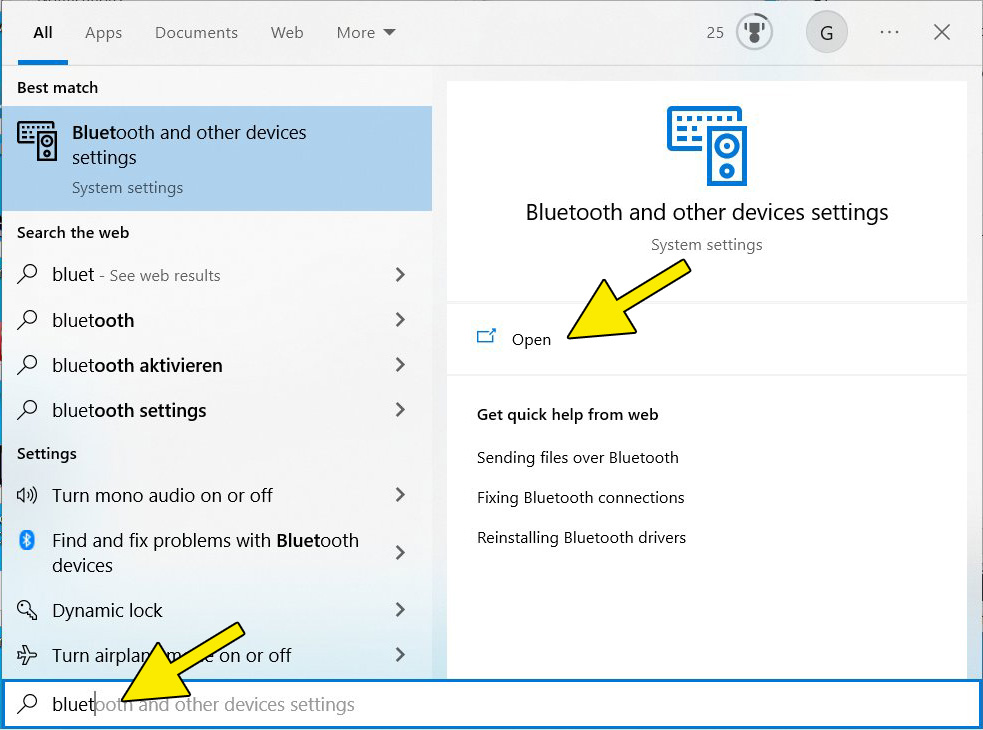
- Navigate to Devices > Bluetooth & other devices.
- If you see a toggle switch for “Bluetooth” at the top of this window, your PC has built-in Bluetooth. If the toggle is present, ensure it’s switched “On.” If it’s greyed out or missing, proceed to the Device Manager check.
- Via Device Manager:
- Right-click the Start button and select Device Manager from the context menu.
- In the Device Manager window, look for a category named Bluetooth. Expand this category.
- If you see entries like “Intel(R) Wireless Bluetooth(R),” “Generic Bluetooth Radio,” or a specific Bluetooth adapter listed, your PC has built-in Bluetooth.
- If the Bluetooth category is entirely absent, or if you see a “Unknown Device” with a yellow exclamation mark under “Other devices,” it strongly suggests either Bluetooth is not present, or its drivers are not correctly installed.
What to look for: The presence of a “Bluetooth” category or a Bluetooth device listed within Device Manager is a definitive indicator. Sometimes, if drivers are missing, the device might appear under “Other devices” or “Network adapters” with an issue icon. If you find no mention of Bluetooth anywhere, it’s highly probable your PC lacks native support, meaning you’ll need an external solution.
Identifying Your Operating System and Version
While the core steps for Bluetooth installation and management are similar across recent Windows versions (Windows 10 and 11), minor interface differences might exist. Knowing your exact OS version can be helpful when searching for specific drivers or troubleshooting guides.
To check your Windows version:
- Click the Start button, type “winver,” and press Enter. A small window will appear displaying your Windows edition and version number.
- Alternatively, go to Settings > System > About. Here, you’ll find comprehensive information about your Windows specification.
Understanding your OS is crucial because driver compatibility is often version-specific. Keeping your OS updated is also vital for security patches and feature enhancements, including improvements to Bluetooth functionality and stability. This aligns with our focus on Digital Security and leveraging modern Technology Trends for optimal performance.
Enabling Built-in Bluetooth and Driver Management
If your PC does have built-in Bluetooth, the next step is often to simply enable it and ensure its drivers are up-to-date. This section focuses on making sure your existing hardware is working optimally.
Activating Bluetooth in Windows Settings
For PCs with integrated Bluetooth, activating it is usually straightforward.
Step-by-Step Activation (Windows 10/11):
- Open Settings (Start > Settings).
- Click on Bluetooth & devices (Windows 11) or Devices > Bluetooth & other devices (Windows 10).
- Locate the Bluetooth toggle switch and ensure it is set to On. If it was off, switching it on should immediately enable Bluetooth functionality.
- Once enabled, you should see a Bluetooth icon in your system tray (bottom-right corner of the taskbar). Clicking this icon often provides quick access to Bluetooth settings and device pairing options.
Troubleshooting if the toggle is missing or greyed out:
If you can’t find the Bluetooth toggle or it’s unresponsive, it usually points to a driver issue. This is where Device Manager becomes your best friend.
Updating Bluetooth Drivers
Drivers are essential software programs that allow your operating system to communicate with your hardware. Outdated, corrupted, or missing Bluetooth drivers are a common cause of connectivity problems. Ensuring your drivers are current is a cornerstone of good PC maintenance and optimal performance.
How to Update Bluetooth Drivers:
- Open Device Manager: Right-click the Start button and select Device Manager.
- Locate Bluetooth Device: Expand the Bluetooth category. You’ll typically see entries for your Bluetooth radio and possibly an enumerator.
- Update Driver:
- Right-click on your primary Bluetooth adapter (e.g., “Intel(R) Wireless Bluetooth(R)”).
- Select Update driver.
- Choose “Search automatically for updated driver software.” Windows will attempt to find and install the latest driver from its database.
- Manufacturer’s Website (Recommended): If Windows can’t find a new driver, or if you’re experiencing persistent issues, the most reliable method is to visit your PC manufacturer’s support website (e.g., Dell, HP, Lenovo, ASUS) or the motherboard manufacturer’s website if it’s a custom-built desktop.
- Enter your PC’s model number or serial number to find specific drivers.
- Download the latest Bluetooth driver package.
- Run the installer and follow the on-screen prompts.
- Reinstall Driver: If a driver update doesn’t resolve the issue, you might need to uninstall and reinstall the driver.
- In Device Manager, right-click the Bluetooth adapter and select Uninstall device.
- Check the box that says “Delete the driver software for this device” (if available and you’re planning a clean install from a downloaded package).
- Restart your PC. Windows will often try to automatically reinstall a generic driver upon reboot. Then, proceed with installing the manufacturer-provided driver.
Why driver management is critical: Keeping drivers updated not only ensures compatibility with the latest Bluetooth standards (like Bluetooth 5.0, 5.1, or 5.3 which offer improved range, speed, and energy efficiency) but also incorporates security patches and performance optimizations. This directly contributes to Digital Security and enhances your overall Tech experience. Regularly checking for updates is a smart habit for any tech-savvy user.
Adding Bluetooth Functionality to Your PC
If your PC lacks built-in Bluetooth, or if its existing Bluetooth module is outdated or faulty, you’ll need to add external hardware. This is a common and usually straightforward process, offering varying levels of convenience and performance depending on your choice.
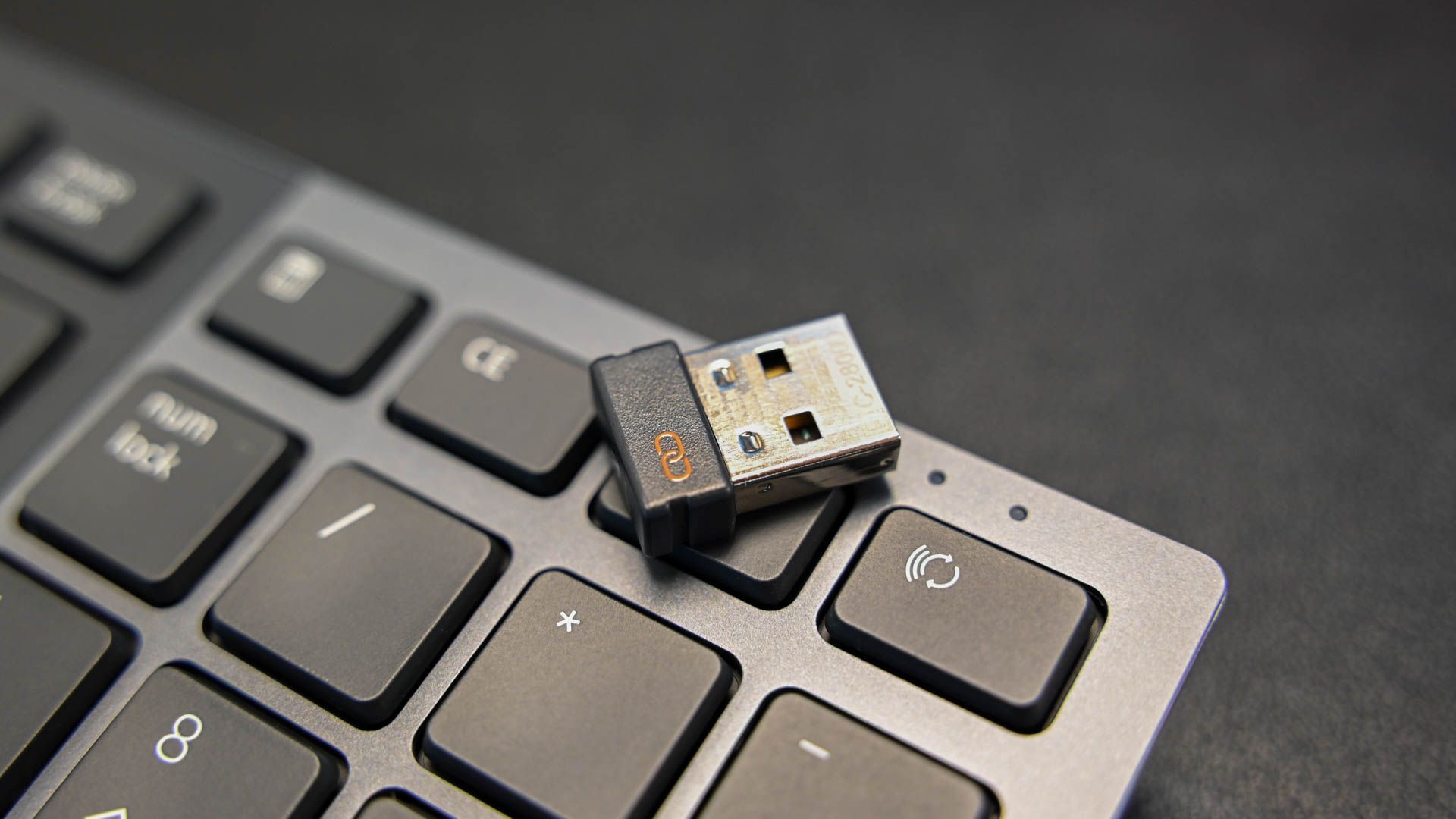
Using a USB Bluetooth Adapter
USB Bluetooth adapters are by far the easiest and most popular solution for adding Bluetooth to a PC. They are compact, affordable, and typically plug-and-play.
What to Look For When Buying a USB Adapter:
- Bluetooth Version: Aim for Bluetooth 5.0 or higher (5.1, 5.3) for better range, faster data transfer speeds, lower power consumption, and enhanced compatibility with modern devices. Older versions (like 4.0 or 4.2) are cheaper but offer reduced performance.
- Operating System Compatibility: Ensure the adapter supports your Windows version. Most modern adapters support Windows 10 and 11.
- Brand Reputation: Stick to reputable brands (e.g., TP-Link, Asus, Avantree, Ugreen) for reliability and driver support. This relates to “Brand” topics on our site – a good brand often means better product quality and customer service.
- Size: Some adapters are nano-sized and can be left in a USB port permanently, while others are slightly larger.
Installation Process:
- Plug it in: Simply insert the USB Bluetooth adapter into an available USB port on your PC.
- Automatic Driver Installation: For most modern adapters and Windows versions, the operating system will automatically detect the new hardware and install the necessary drivers. You’ll usually see a notification indicating “Device setup complete” or “Installing device drivers.”
- Manual Driver Installation (if needed): If Windows doesn’t install the drivers automatically, or if you encounter issues, check the adapter’s packaging or the manufacturer’s website for specific driver downloads.
- Download the appropriate driver for your Windows version.
- Run the installer and follow the instructions.
- Verify Installation: Once installed, check Settings > Bluetooth & devices and Device Manager to confirm the Bluetooth toggle is present and the adapter is listed under the “Bluetooth” category.
Benefits: USB adapters are incredibly cost-effective (tying into “Money” themes by providing an affordable solution) and offer great flexibility for users who primarily need basic Bluetooth connectivity without delving into internal hardware. They are perfect for laptops without integrated Bluetooth or for upgrading older desktop PCs.
Installing an Internal PCIe Bluetooth Card
For desktop PC users seeking a more integrated, high-performance, and often longer-range solution, an internal PCIe (Peripheral Component Interconnect Express) Bluetooth card is an excellent option. These cards typically combine Wi-Fi and Bluetooth functionality on a single card and require installation directly onto your PC’s motherboard.
What to Consider for PCIe Cards:
- Compatibility: Ensure your motherboard has an available PCIe slot (usually a small x1 slot is sufficient for Wi-Fi/Bluetooth cards).
- Bluetooth & Wi-Fi Standards: Look for cards supporting the latest Wi-Fi standards (Wi-Fi 6 or 6E) and Bluetooth 5.0 or higher for the best performance.
- Antennas: Most PCIe cards come with external antennas for improved signal strength and range, which is a significant advantage over many USB adapters.
- Operating System Support: Confirm compatibility with your Windows version.
Installation Process (Requires opening your PC case):
- Power Down and Unplug: Completely shut down your PC, unplug it from the power outlet, and press the power button a few times to discharge any residual electricity.
- Open PC Case: Remove the side panel of your PC case.
- Locate PCIe Slot: Find an available PCIe x1 slot on your motherboard. These are usually smaller than graphics card slots.
- Insert Card: Carefully align the PCIe card with the slot and press it firmly until it clicks into place. Secure it with a screw if your case provides one.
- Connect Antennas: Screw the external antennas onto the card’s ports at the back of your PC.
- Close Case and Power On: Replace the side panel, plug in your PC, and power it on.
- Driver Installation: Similar to USB adapters, Windows might automatically install drivers. However, it’s highly recommended to download and install the latest drivers from the card manufacturer’s website (e.g., Intel, TP-Link, Asus) for optimal performance and stability.
Benefits: PCIe cards offer superior range and stability, making them ideal for gaming, VR headsets, and connecting multiple peripherals across a larger area. They provide a cleaner, more permanent solution, often with better aesthetics due to the external antennas. While requiring a bit more technical comfort for installation, the performance benefits are significant, making it a worthy “investment” in your PC’s capabilities.
Driver Installation for New Hardware (General Principles)
Regardless of whether you choose a USB adapter or a PCIe card, proper driver installation is paramount.
- Always prefer manufacturer drivers: While Windows provides generic drivers, dedicated drivers from the hardware manufacturer are almost always superior. They are optimized for the specific chipset, offer more features, and are more stable.
- Keep drivers updated: Periodically check the manufacturer’s website for driver updates. These updates can bring performance improvements, fix bugs, and enhance compatibility with new Bluetooth devices. This is a key aspect of managing your “Tech” assets effectively.
- Troubleshooting driver issues: If your Bluetooth isn’t working after installing new hardware, revisit Device Manager. Look for yellow exclamation marks (indicating a problem) or red ‘X’s (indicating disabled hardware). Try reinstalling drivers, or if necessary, completely uninstalling old, conflicting Bluetooth drivers before installing new ones.
Connecting and Managing Bluetooth Devices
Once Bluetooth is successfully installed and enabled on your PC, the exciting part begins: connecting your wireless gadgets. From headphones to keyboards, mice, and even smart home hubs, Bluetooth opens up a world of wireless convenience.
Pairing New Bluetooth Devices
The process of connecting (pairing) a new Bluetooth device to your PC is generally consistent across different devices.
General Pairing Steps (Windows 10/11):
- Put Device in Pairing Mode: This is the most critical step. Every Bluetooth device has a specific method to enter “pairing mode” (sometimes called “discoverable mode”). This often involves holding down a power button, a dedicated Bluetooth button, or a combination of buttons until an indicator light flashes (e.g., rapidly blinking blue or white). Refer to your device’s manual if unsure.
- Open Bluetooth Settings on PC:
- Go to Settings > Bluetooth & devices (Windows 11) or Devices > Bluetooth & other devices (Windows 10).
- Ensure the Bluetooth toggle is set to On.
- Add Device: Click the “Add device” button (or “Add Bluetooth or other device”).
- Select Bluetooth Option: In the “Add a device” window, choose “Bluetooth” (for mice, keyboards, pens, audio devices, etc.).
- Select Your Device: Your PC will begin scanning for nearby discoverable Bluetooth devices. When your device appears in the list, click on it.
- Confirm Pairing:
- For some devices (e.g., keyboards, phones), you might be prompted to enter a PIN displayed on your PC screen into the device itself, or confirm a matching code.
- For most audio devices or simple peripherals, pairing will occur automatically.
- Device Connected: Once paired, the device will appear in your Bluetooth settings as “Connected” or “Paired.” You can now use it wirelessly!
Managing Paired Devices:
In the same Bluetooth & devices settings, you can see all your paired devices. You can click on a device to disconnect it, remove it (unpair), or access specific settings if available (e.g., audio levels, battery status). This centralized management makes it easy to keep track of your connected gadgets.
Troubleshooting Common Bluetooth Issues
Even with everything set up correctly, Bluetooth can sometimes be finicky. Here are solutions to common problems:
- Device Not Showing Up During Pairing:
- Ensure Device is in Pairing Mode: Double-check your device’s manual.
- Check Distance: Is the device too far from your PC? Move it closer.
- Interference: Other wireless devices (Wi-Fi routers, microwaves) can cause interference. Try moving away from them.
- Battery: Is the device charged? Low battery can prevent pairing.
- Previously Paired Elsewhere: Some devices can only be paired to one host at a time. Disconnect it from other devices (e.g., your phone) before attempting to pair with your PC.
- Bluetooth Icon Missing or Greyed Out:
- Check Device Manager: Look for issues under the Bluetooth category (yellow exclamation marks).
- Restart Bluetooth Service: Press
Windows key + R, typeservices.msc, find “Bluetooth Support Service,” right-click it, and select “Restart.” - Update/Reinstall Drivers: As discussed, this is often the culprit.
- Restart PC: A simple reboot can often resolve temporary glitches.
- Connection Drops or Poor Audio Quality:
- Distance and Obstacles: Bluetooth range is limited (typically 10-30 meters). Walls, furniture, and even your body can degrade the signal.
- Interference: High Wi-Fi traffic or other 2.4 GHz devices can cause issues.
- Drivers: Outdated drivers can impact performance.
- USB Port: If using a USB adapter, try a different USB port, especially a USB 3.0 port if available (though USB 2.0 is fine for most). Avoid ports near other wireless transmitters.
- Bandwidth: If you’re connecting multiple high-bandwidth devices (e.g., two sets of headphones) simultaneously, older Bluetooth versions might struggle.
Mastering these troubleshooting techniques enhances your “Productivity” and ensures a smoother experience with all your “Gadgets.”
The Broader Impact of Seamless Connectivity
Beyond the technical steps of installation, understanding the pervasive role of Bluetooth in modern technology offers valuable insights into how we interact with our digital world, resonating deeply with the “Tech” and “Productivity” themes of our platform.
Enhancing Productivity and User Experience
The ability to connect devices wirelessly dramatically improves workflow and user comfort.
- Ergonomics and Decluttering: Wireless keyboards, mice, and headsets eliminate cable clutter, making for a cleaner and more organized workspace. This can reduce stress and improve focus, boosting productivity.
- Mobility and Flexibility: Bluetooth audio devices allow you to move freely while on calls or listening to music, ideal for hybrid work environments or simply moving around your home office.
- Smart Home Integration: Bluetooth acts as a bridge for many smart home gadgets, allowing your PC to interact with lights, thermostats, and security systems, enabling a truly integrated smart ecosystem. This aligns with emerging Technology Trends and the evolving definition of “PC” as a central hub.
- Gaming and Entertainment: Wireless controllers provide a more immersive gaming experience, while Bluetooth speakers transform your PC into a powerful entertainment system.
Digital Security Considerations
While highly convenient, Bluetooth, like any wireless technology, presents potential security considerations.
- Device Visibility: When in pairing mode, your Bluetooth device is discoverable. It’s advisable to turn off pairing mode once connected to prevent unwanted connections.
- Unsolicited Connections: Be wary of connection requests from unknown devices. Always verify the source before accepting a pairing request.
- Firmware Updates: Keep the firmware of your Bluetooth peripherals (headphones, speakers, etc.) updated. Manufacturers often release updates that include security patches.
- Strong PINs: If a device requires a PIN for pairing, choose a strong, unique one if you have the option to customize it, rather than the default “0000” or “1234”.
These practices are fundamental to maintaining Digital Security in an increasingly wireless world.
The Future of Wireless Integration
Bluetooth technology continues to evolve, with new versions bringing enhanced capabilities. Bluetooth Low Energy (LE) Audio, for instance, promises superior sound quality, multi-stream audio, and extended battery life for audio devices, further blurring the lines between high-fidelity wired and wireless experiences. The integration with AI Tools is also growing, as AI-powered peripherals and voice assistants increasingly rely on seamless Bluetooth connections to communicate with your PC and the cloud. As technology trends push towards greater interconnectedness, Bluetooth will remain a foundational pillar, simplifying our digital lives and making our interaction with “Gadgets” more intuitive and efficient.
In conclusion, whether you’re a seasoned tech enthusiast or a casual user, installing and managing Bluetooth on your PC is a straightforward process that unlocks a world of convenience. By following the steps outlined in this guide, you can ensure your PC is ready to embrace the wireless future, enhancing both your productivity and your overall digital experience.
aViewFromTheCave is a participant in the Amazon Services LLC Associates Program, an affiliate advertising program designed to provide a means for sites to earn advertising fees by advertising and linking to Amazon.com. Amazon, the Amazon logo, AmazonSupply, and the AmazonSupply logo are trademarks of Amazon.com, Inc. or its affiliates. As an Amazon Associate we earn affiliate commissions from qualifying purchases.