
In today’s interconnected world, smartphones have transcended their original purpose as communication devices, evolving into powerful, pocket-sized computers. At the heart of this transformation lies the humble application, or “app.” For iPhone users, apps unlock an unparalleled universe of functionality, from enhancing productivity and streamlining daily tasks to providing endless entertainment and crucial digital security tools. Whether you’re a new iPhone owner or looking to deepen your understanding of the app ecosystem, knowing how to efficiently and securely install applications is fundamental.
This guide delves into every aspect of installing apps on your iPhone, exploring the standard methods, delving into advanced options, offering tips for organization and troubleshooting, and even touching upon how apps integrate with broader technology trends, personal finance, and brand experiences. As a core component of the “Tech” landscape discussed on our platform, mastering app installation is your first step towards fully harnessing the power of your Apple device.
Understanding the iPhone App Ecosystem: Your Digital Gateway
Before diving into the specifics of installation, it’s crucial to understand the environment in which iPhone apps thrive. Apple has cultivated a robust, secure, and expansive ecosystem centered around its App Store, creating a trusted brand experience that differentiates it from other platforms. This controlled environment is a cornerstone of Apple’s digital security strategy, aiming to protect users from malicious software.
The App Store: Apple’s Official Hub
The App Store is the undisputed, primary gateway for installing apps on your iPhone. Launched in 2008, it revolutionized how software was distributed and consumed, creating an accessible marketplace for millions of applications. It’s more than just a download portal; it’s a curated marketplace featuring apps from developers worldwide, ranging from independent creators to multinational corporations. Apple’s stringent review process for every app submitted ensures a certain level of quality, functionality, and adherence to privacy guidelines, reinforcing the brand’s commitment to user safety and experience.
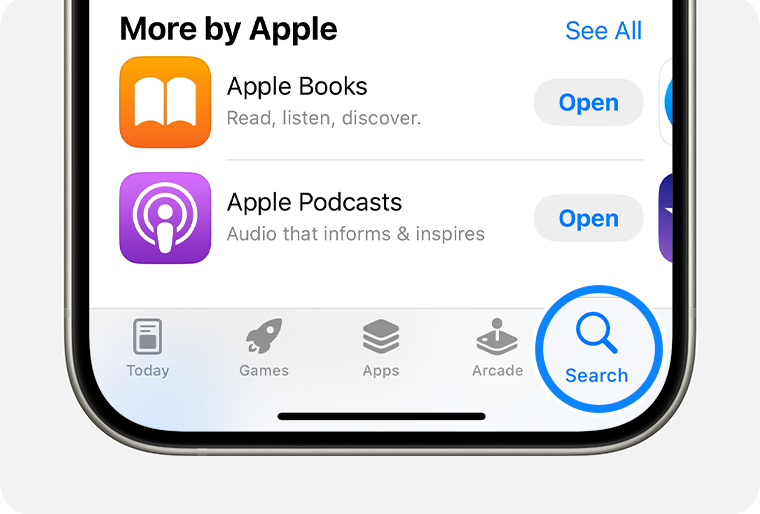
Navigating the App Store is intuitive. You’ll find sections for “Today,” offering editorial highlights and app stories; “Games” and “Apps,” categorized for easy browsing; “Arcade,” for Apple’s subscription gaming service; and a “Search” tab to find specific titles. This intuitive design reflects Apple’s strong emphasis on user experience and brand consistency across its digital services.
Your Apple ID: The Key to Everything
To download or purchase any app from the App Store, an Apple ID is indispensable. Your Apple ID is your personal account used across all Apple services, including iCloud, iTunes, and, critically, the App Store. It links your identity, purchases, and settings to your device, ensuring a seamless and personalized experience. If you’ve ever set up an iPhone, you likely already have one.
Creating an Apple ID is straightforward and typically involves providing an email address, setting a password, and answering security questions. For personal finance and security reasons, it’s vital to use a strong, unique password and enable Two-Factor Authentication (2FA) for your Apple ID. This adds an extra layer of protection, requiring a verification code sent to a trusted device in addition to your password, significantly bolstering your digital security. Without a valid Apple ID, you cannot engage with the App Store to download anything, free or paid.
Payment Methods and Subscriptions
While many excellent apps are free, a vast number of premium applications, games, and in-app purchases require payment. To facilitate this, your Apple ID allows you to link various payment methods, integrating directly into Apple Pay for a secure and convenient transaction process. Common options include credit/debit cards, PayPal, mobile phone billing (in select regions), and Apple ID balance (redeemable with gift cards).
Beyond one-time purchases, many apps operate on a subscription model, offering ongoing services or premium features for a recurring fee. This trend is particularly prevalent in productivity tools, streaming services, and AI-powered utilities. Understanding how to manage these subscriptions is crucial for your personal finance. All your subscriptions associated with your Apple ID can be easily reviewed and managed within the App Store settings, allowing you to cancel, change plans, or simply keep track of your recurring expenses, preventing unexpected charges that could impact your budget.
Step-by-Step: Installing Apps from the App Store
Once your Apple ID is set up and any necessary payment methods are linked, you’re ready to start downloading apps. The process is designed to be user-friendly, consistent, and quick, reflecting Apple’s commitment to a streamlined user experience.
Finding and Downloading Free Apps
- Open the App Store: Tap the blue icon with a white ‘A’ on your Home Screen.
- Browse or Search:
- Use the “Today,” “Games,” or “Apps” tabs to explore curated content, categories, and top charts.
- If you know what you’re looking for, tap the “Search” tab (magnifying glass icon) and type the app’s name or keywords into the search bar.
- Select the App: Tap on the app’s icon or name from the search results or browsing page to view its product page. Here, you can read descriptions, view screenshots, check user ratings and reviews (an important step for digital security and quality assessment), and see privacy details.
- Download: For free apps, you’ll see a “GET” button. Tap it.
- Authenticate: Your iPhone will ask you to verify the download. This typically involves Face ID, Touch ID, or entering your device passcode or Apple ID password. This authentication step is a vital security measure to prevent unauthorized downloads.
- Installation: Once authenticated, the “GET” button will change to a progress circle. The app icon will appear on your Home Screen or in your App Library, showing its download progress. When complete, the app is ready to launch.
Purchasing Paid Applications
The process for paid apps is nearly identical to free apps, with one key difference: payment.
- Find and Select: Browse or search for the desired paid app as described above.
- Purchase: Instead of a “GET” button, you’ll see a button displaying the app’s price (e.g., “$4.99”). Tap this button.
- Confirm Purchase: The button will briefly change to “BUY.” Tap it again to confirm.
- Authenticate and Pay: You’ll be prompted to authenticate with Face ID, Touch ID, or your device passcode/Apple ID password. If this is your first purchase or a while since your last, you might also need to confirm your chosen payment method. Apple processes the payment securely through your linked account.
- Installation: Similar to free apps, the app will download and install, appearing on your Home Screen or App Library once complete. You’ll also receive a purchase receipt via email, which is helpful for personal finance tracking.
Managing Updates and Reinstallations
Keeping your apps updated is crucial for performance, security, and accessing the latest features. Developers frequently release updates to fix bugs, introduce new functionalities, and patch security vulnerabilities, aligning with overall tech trends.
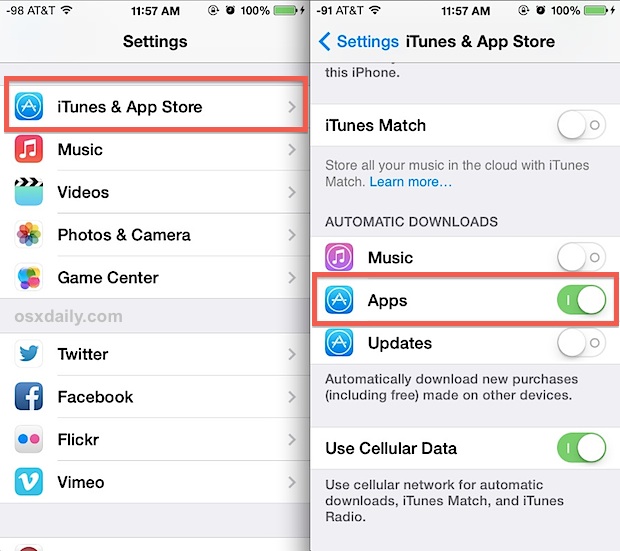
- Automatic Updates: Most users enable automatic app updates, which quietly install new versions in the background when your iPhone is connected to Wi-Fi. You can manage this setting under
Settings > App Store > App Updates. - Manual Updates: To manually check for and install updates, open the App Store, tap your profile picture in the top right corner, and scroll down. Any available updates will be listed. You can tap “Update All” or update individual apps.
- Reinstalling Apps: If you’ve previously downloaded or purchased an app and deleted it, you don’t need to buy it again. Open the App Store, tap your profile picture, then tap “Purchased” (even for free apps you’ve “purchased”). Go to “My Purchases,” find the app, and tap the cloud icon with a downward arrow to redownload it. This feature ensures you never lose access to your digital library.
Beyond Standard Installation: Advanced Options and Considerations
While the App Store is the primary channel, there are other methods and considerations for acquiring and managing apps, especially relevant for corporate users, beta testers, or those interested in web-based solutions. Understanding these options expands your technological literacy and highlights the versatility of the iPhone platform.
Enterprise Apps and TestFlight for Beta Access
For businesses, Apple offers the ability to distribute proprietary internal apps outside the public App Store. These “enterprise apps” are typically managed through Mobile Device Management (MDM) solutions, allowing organizations to securely deploy custom tools to their employees. This falls under the “Brand” and “Tech” categories, as companies leverage these bespoke applications for enhanced productivity and tailored operations, reflecting their unique brand strategy and corporate identity.
Similarly, TestFlight is Apple’s official platform for distributing beta versions of apps to a select group of testers before their public release. If you’re invited to a beta program, you’ll receive a link to download TestFlight, which then allows you to install and test unreleased versions of applications. This provides a valuable feedback loop for developers and gives eager users a sneak peek at future tech, engaging them in the app’s brand development.
Web Apps: Adding Websites to Your Home Screen
Not every useful digital tool needs to be a native app downloaded from the App Store. Many websites offer excellent mobile experiences, often referred to as Progressive Web Apps (PWAs). These web apps can be “installed” on your Home Screen, appearing and often behaving much like native applications, complete with their own icon. They run directly from your web browser (Safari), but without the browser’s interface, providing a full-screen experience.
To add a website as a Home Screen icon:
- Open Safari and navigate to the desired website.
- Tap the “Share” icon (a square with an upward arrow) at the bottom of the screen.
- Scroll down and tap “Add to Home Screen.”
- You can then name the shortcut before tapping “Add.”
This method is particularly useful for web-based productivity tools, news sites, or online banking portals, offering quick access without consuming local storage or undergoing the App Store’s review process.
Understanding Sideloading and Its Implications for Digital Security
The term “sideloading” refers to installing apps on a device from sources other than the official app store. On iOS, sideloading has historically been heavily restricted by Apple, a key aspect of their digital security and controlled ecosystem approach. This contrasts sharply with Android, which allows more open sideloading. Apple’s stance has been that restricting sideloading protects users from malware, privacy breaches, and low-quality software, reinforcing their brand promise of a secure and reliable experience.
However, recent regulatory changes, particularly the Digital Markets Act (DMA) in the European Union, are compelling Apple to open up its iOS ecosystem to alternative app marketplaces and sideloading within the EU. This represents a significant shift in technology trends and raises new questions about digital security and brand strategy. While this might offer users more choice, it also introduces potential risks. Apps obtained outside the App Store might not undergo the same rigorous security and privacy checks, making users potentially more vulnerable to malicious code. For the vast majority of users globally, and until these changes fully materialize and mature in relevant regions, the App Store remains the safest and most reliable source for apps. It’s crucial for users to remain vigilant and prioritize digital security when considering non-App Store sources, understanding that the convenience of alternative options may come with increased risk.
Optimizing Your App Experience: Organization, Security, and Troubleshooting
Installing apps is just the beginning. To truly enhance your iPhone experience, you need to know how to organize them effectively, manage their permissions to safeguard your privacy, and troubleshoot common issues. These practices are essential for maintaining productivity and ensuring your digital security.
Organizing Your Apps with Folders and the App Library
As your app collection grows, organization becomes paramount. A cluttered Home Screen can hinder productivity and make it difficult to find what you need.
- Folders: To create a folder, simply drag one app icon onto another. Your iPhone will automatically create a new folder containing both apps. You can then rename the folder (e.g., “Productivity,” “Social Media,” “Finance”) and drag more apps into it. This helps keep related apps together.
- Rearranging Apps: To move an app icon, long-press on it until all icons jiggle. Then drag the app to your desired location. You can move apps between Home Screens or into folders. Tap “Done” (or swipe up on newer iPhones) when finished.
- App Library: Introduced in iOS 14, the App Library automatically organizes all your apps into categories (e.g., “Suggestions,” “Recently Added,” “Utilities,” “Social”). It’s located to the far right of your Home Screens. You can access apps directly from here or use its search bar to quickly find any installed app. This feature helps declutter your Home Screens without deleting apps you use less frequently.
- Offloading Apps: If storage is an issue, you can “offload” apps. This removes the app itself but keeps its data and documents, allowing you to quickly reinstall it later without losing your progress. Go to
Settings > General > iPhone Storage, select an app, and tap “Offload App.” You can also enable “Offload Unused Apps” automatically.
Managing App Permissions and Ensuring Digital Security
Apps often request access to various data and features on your iPhone, such as your location, photos, microphone, camera, contacts, and notifications. While some permissions are necessary for an app to function (e.g., a mapping app needing your location), others might be excessive or used for data collection. This is a critical area for digital security and privacy.
- Review Permissions Upon Installation: When you first open an app, it will typically ask for permission to access certain features. Always review these requests carefully. If an app requests access that seems unrelated to its core function (e.g., a simple calculator asking for your contacts), consider denying it.
- Manage Permissions Post-Installation: You can review and adjust app permissions at any time. Go to
Settings > Privacy & Security. Here, you’ll find categories like “Location Services,” “Contacts,” “Photos,” etc. Tap on each category to see which apps have requested access and toggle permissions on or off. For example, you might grant location access “While Using the App” instead of “Always.” - App Tracking Transparency (ATT): Another vital privacy feature, ATT, requires apps to ask for your permission before tracking your activity across other companies’ apps and websites for advertising purposes. Always consider denying tracking requests unless you explicitly understand and agree with the practice, enhancing your personal digital security. This reflects Apple’s strong brand commitment to user privacy.
Common Installation Issues and Their Solutions
Even with a streamlined system, you might occasionally encounter issues when installing apps. Here are some common problems and their quick fixes:
- App Won’t Download/Stuck:
- Check Internet Connection: Ensure you have a stable Wi-Fi or cellular data connection.
- Restart App Store: Close the App Store from the App Switcher and reopen it.
- Pause/Resume Download: On the Home Screen, long-press the app icon and select “Pause Download” then “Resume Download.”
- Restart iPhone: A simple reboot can often resolve temporary glitches.
- “Payment Required” or Apple ID Issues:
- Update Payment Information: Go to
Settings > Your Name > Payment & Shippingand ensure your payment method is current and valid. - Check Restrictions: Go to
Settings > Screen Time > Content & Privacy Restrictions > iTunes & App Store Purchases. Ensure “In-app Purchases” and “Installing Apps” are allowed. - Sign Out/In Apple ID: Go to
Settings > Your Name, scroll down to “Sign Out,” then sign back in.
- Update Payment Information: Go to
- “Not Enough Storage”:
- Delete Unnecessary Content: Remove old photos, videos, or unused apps.
- Offload Apps: As mentioned above, offload apps to free up space while retaining their data.
- Check iPhone Storage: Go to
Settings > General > iPhone Storageto see what’s consuming space and get recommendations for freeing it up.
- App Crashing Immediately After Installation:
- Delete and Reinstall: The app might have downloaded incorrectly. Delete it (long-press icon > Remove App > Delete App) and reinstall from the App Store.
- Check App Compatibility: Ensure your iOS version meets the app’s requirements.
- Contact Developer: If the issue persists, check the app’s support page on the App Store or contact the developer directly.
Apps as Tools: Enhancing Productivity, Finance, and Future Trends
The ability to install and manage apps is not just a technical skill; it’s a gateway to leveraging technology for real-world benefits. Apps are at the forefront of technology trends, constantly evolving to integrate new features, from AI-driven insights to sophisticated financial planning tools, becoming indispensable for both personal and corporate branding efforts.
Leveraging Apps for Productivity and AI Integration
The modern iPhone is a powerful productivity machine, largely thanks to its extensive app ecosystem. From robust note-taking applications and comprehensive project management tools to advanced calendar and communication platforms, apps empower individuals and teams to work more efficiently. With the rapid advancement of AI tools, many apps are now integrating artificial intelligence to offer features like intelligent assistants, automated transcription, personalized recommendations, and advanced data analysis. These AI-powered apps are transforming how we interact with technology, making complex tasks simpler and more intuitive, aligning perfectly with the “Tech” category’s focus on innovation.
Whether it’s an app that helps you focus with Pomodoro timers, an AI writing assistant that drafts emails, or a sophisticated CRM tool for business development, the right selection of apps can significantly boost your output and streamline your workflows. These applications often become extensions of a personal brand, showcasing efficiency and technological savviness.
Financial Apps: From Budgeting to Investing
The “Money” aspect of our platform finds a rich expression within the iPhone app landscape. Mobile banking apps have made managing personal finance easier than ever, allowing you to check balances, transfer funds, and pay bills on the go. Beyond basic banking, a plethora of apps are designed to help with budgeting, expense tracking, and even investing.
Apps like Mint, YNAB (You Need A Budget), or PocketGuard offer robust tools to track spending, set financial goals, and visualize your financial health. For those interested in investing, apps from brokerages like Robinhood, Fidelity, or Schwab provide platforms for trading stocks, ETFs, and cryptocurrencies directly from your phone. These apps democratize access to financial markets and tools, empowering users to take greater control of their personal finance and work towards financial freedom, all while benefiting from the digital security measures inherent in the App Store ecosystem.

Staying Ahead: App Trends and Digital Security Practices
The app world is constantly evolving. Staying informed about new technology trends, such as the increasing integration of augmented reality (AR), the rise of subscription-based models, and the ongoing debate around data privacy, is crucial. As new types of apps emerge and platforms adapt (like Apple’s response to the DMA), understanding how these changes impact your digital security and user experience becomes more important.
Always prioritize digital security: stick to the App Store for downloads (unless you fully understand and accept the risks of alternative methods), meticulously manage app permissions, keep your iOS and apps updated, and use strong, unique passwords with Two-Factor Authentication for your Apple ID. By adhering to these practices, you can confidently navigate the vast and exciting world of iPhone apps, enhancing your life in countless ways while keeping your personal data and device secure.
Installing apps on your iPhone is a fundamental skill that unlocks a world of possibilities. By understanding the App Store ecosystem, mastering the installation process, utilizing advanced management techniques, and prioritizing digital security, you empower yourself to make the most of your device. Whether for productivity, financial management, entertainment, or simply staying connected, the right apps, thoughtfully installed and managed, are key to a richer, more efficient digital life.
aViewFromTheCave is a participant in the Amazon Services LLC Associates Program, an affiliate advertising program designed to provide a means for sites to earn advertising fees by advertising and linking to Amazon.com. Amazon, the Amazon logo, AmazonSupply, and the AmazonSupply logo are trademarks of Amazon.com, Inc. or its affiliates. As an Amazon Associate we earn affiliate commissions from qualifying purchases.