
The world of home entertainment has been revolutionized by streaming devices, and at the forefront of this transformation is Amazon’s Fire TV Stick. This compact, affordable gadget transforms any HDMI-equipped television into a smart TV, granting you access to a universe of movies, TV shows, music, and apps. Whether you’re looking to cut the cord on expensive cable packages or simply want a more versatile entertainment hub, understanding how to install and set up your Fire Stick is the first crucial step. This comprehensive guide will walk you through the entire process, from unboxing to enjoying your first stream, all while touching upon how this seemingly simple tech integrates with broader themes of tech adoption, branding, and even personal finance.
Unboxing and Initial Setup: Getting Started with Your Fire Stick
The journey of installing a Fire Stick is remarkably straightforward, designed for users of all technical skill levels. Amazon has prioritized a user-friendly experience, ensuring that getting your streaming dreams off the ground is as simple as plugging in a few cables.
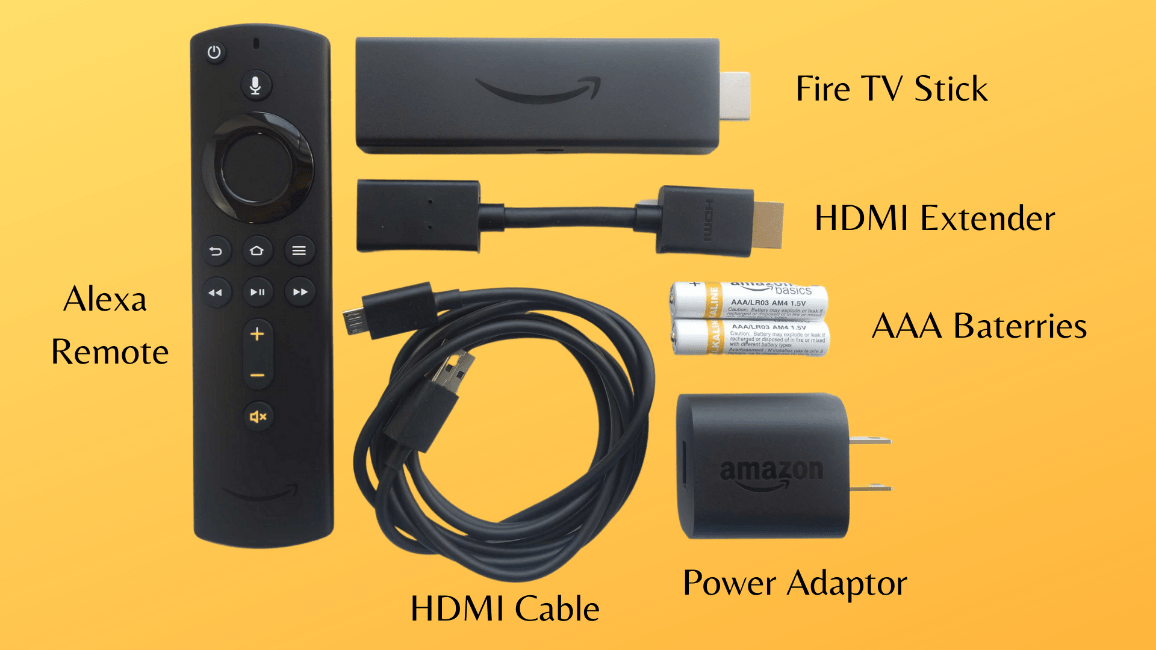
What’s Inside the Box?
When you purchase an Amazon Fire TV Stick, you’ll typically find the following components:
- The Fire TV Stick device: This is the core of your setup, a small dongle that plugs directly into your TV’s HDMI port.
- Amazon Fire TV Remote: This sleek remote is your primary interface for navigating menus, selecting content, and controlling playback. Most remotes come with voice control capabilities powered by Alexa.
- HDMI Extender Cable: This is useful if your TV’s HDMI port is difficult to access due to its location or if the Fire Stick sticks out too far and is prone to being bumped.
- Power Adapter and USB Cable: The Fire Stick requires a power source to operate. While some TVs can provide enough power through their USB ports, it’s generally recommended to use the included power adapter for optimal performance and stability.
- Quick Start Guide and Warranty Information: These documents provide basic instructions and important details about your device.
Connecting the Fire Stick to Your TV
The physical installation is the most intuitive part of the process:
- Locate an HDMI Port: Find an available HDMI port on the back or side of your television.
- Plug in the Fire Stick: Insert the Fire TV Stick directly into the HDMI port. If you’re using the HDMI extender cable, connect the Fire Stick to one end of the cable and the other end to the HDMI port on your TV.
- Connect the Power: Plug the USB cable into the Fire Stick and the other end into the power adapter. Then, plug the power adapter into a wall outlet. For the best experience, avoid powering the Fire Stick directly from a TV’s USB port unless the manufacturer explicitly states it provides sufficient power.
- Power On Your TV and Select the Correct Input: Turn on your television and use your TV’s remote to select the HDMI input source that corresponds to the port where you plugged in your Fire Stick. You should now see the Amazon Fire TV welcome screen.
This initial physical setup is a prime example of how readily accessible technology is becoming. For many, the ability to enhance their existing devices without complex installations is a significant draw, aligning with the broader trend of user-friendly gadgets that democratize access to advanced features.
Setting Up Your Fire Stick: On-Screen Navigation and Account Login
Once your Fire Stick is physically connected, the on-screen setup process begins. This is where you’ll connect to your Wi-Fi network and log in to your Amazon account, personalizing your streaming experience.
Connecting to Your Wi-Fi Network
The Fire TV interface will guide you through connecting to your home wireless network.
- Select Your Wi-Fi Network: A list of available Wi-Fi networks will appear. Use your Fire TV remote to navigate to your network name (SSID) and select it.
- Enter Your Wi-Fi Password: You’ll then be prompted to enter your Wi-Fi password. Use the on-screen keyboard and your remote to type in the password carefully. Passwords are case-sensitive, so double-check your entry.
- Connect: Once the password is entered correctly, select “Connect.” Your Fire Stick will attempt to establish a connection to your network.
A stable Wi-Fi connection is paramount for a smooth streaming experience. In today’s tech-driven world, reliable internet access is no longer a luxury but a necessity for utilizing devices like the Fire Stick. This reliance highlights the interconnectedness of our digital lives, where one piece of technology depends on another to function effectively.
Logging In or Creating an Amazon Account
The Fire TV Stick is intrinsically linked to your Amazon account. This account is used for purchases, app downloads, and managing your device settings.
- Existing Amazon Account: If you already have an Amazon account, select “Log in” and enter your Amazon email address and password using the on-screen keyboard and remote.
- New Amazon Account: If you don’t have an Amazon account, you can create one directly through the Fire TV interface or by visiting Amazon’s website on another device. Follow the on-screen prompts to set up a new account.
- Pairing Your Remote: In some cases, you might be prompted to pair your remote with the Fire Stick. This usually involves pressing and holding a specific button on the remote (often the Home button) until a confirmation appears on screen.
The necessity of an Amazon account ties into the Brand aspect. Amazon has masterfully integrated its ecosystem, making its devices a gateway to its wider services. This strategy not only enhances customer loyalty but also strengthens Amazon’s brand presence in the home entertainment market. For consumers, choosing a Fire Stick often means aligning with the Amazon brand and its associated services.
Navigating the Fire TV Interface and Installing Apps
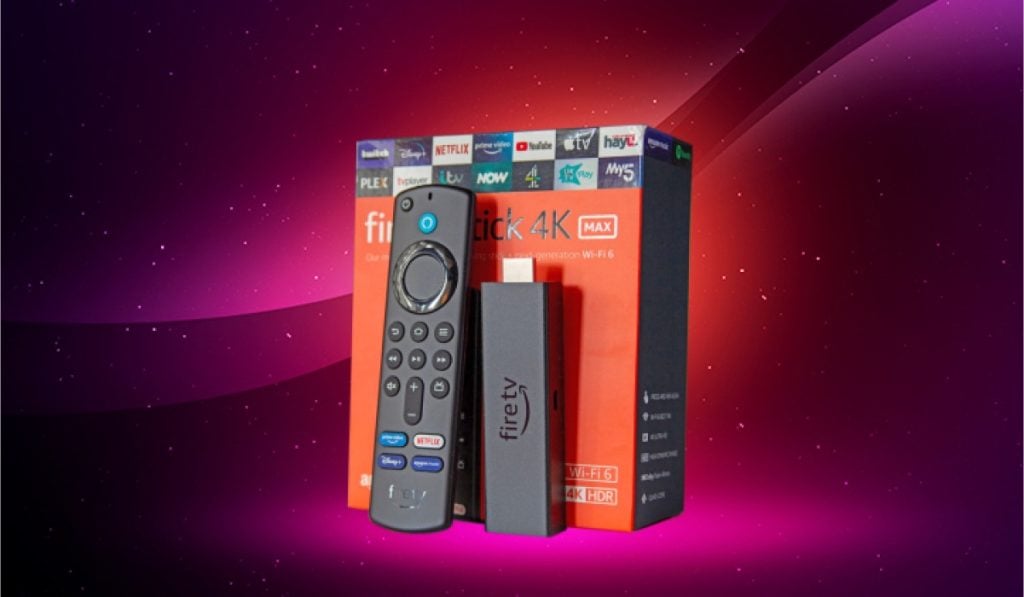
With your Fire Stick connected and logged in, you’re ready to explore the Fire TV interface and populate your device with your favorite streaming services and applications.
Understanding the Home Screen and Navigation
The Fire TV Home screen is your central hub for accessing content. You’ll find:
- Categories: Browse by genres like Movies, TV Shows, Apps, Games, News, and more.
- Your Apps: A section displaying all the applications you’ve installed.
- Recommended Content: Personalized suggestions based on your viewing history and Amazon’s algorithms.
- Search Bar: Use this to find specific titles, actors, directors, or apps. Voice search, accessible by pressing the microphone button on your remote, is incredibly efficient for this.
Navigating is done primarily with the directional pad on your remote. The “Back” button takes you to the previous screen, while the “Home” button always returns you to the main menu. The “Menu” button (often three horizontal lines) brings up context-specific options.
Installing Your Favorite Streaming Apps
The true power of the Fire Stick lies in its ability to access a vast library of apps.
- Access the Appstore: Navigate to the “Apps” section on the Home screen.
- Search or Browse: You can either search for a specific app (e.g., Netflix, Hulu, Disney+, YouTube) or browse through the categories to discover new ones.
- Select and Download: Once you find the app you want, select it. You’ll see an app description and a “Get” or “Download” button.
- Install: Click “Get” or “Download.” The app will then download and install on your Fire Stick.
- Launch: After installation, you can usually launch the app directly from its page or find it in your “Your Apps” list on the Home screen.
This process of downloading apps is where the Tech and Money aspects intersect. The availability of numerous free and subscription-based apps means that the Fire Stick can cater to a wide range of entertainment preferences and budgets. For instance, individuals focused on Personal Finance might opt for free streaming services or bundle subscriptions strategically to maximize value. The Fire Stick becomes a tool for cost-effective entertainment, allowing users to tailor their viewing habits to their financial goals. Furthermore, the sheer volume of apps available, from productivity tools to gaming, showcases the breadth of Technology Trends and Gadgets that are now accessible through such devices.
Advanced Features and Troubleshooting: Enhancing Your Fire Stick Experience
Once your Fire Stick is up and running, there are additional features to explore, and understanding common troubleshooting steps can save you time and frustration.
Exploring Alexa Voice Control
The integrated Alexa voice service is one of the most compelling features of the Fire TV Stick.
- Voice Search: Simply press and hold the microphone button on your remote and speak your request. You can ask for specific movies, shows, actors, genres, or even general queries like “What’s the weather?”
- App Control: You can tell Alexa to open apps, play, pause, rewind, or fast-forward content within supported applications.
- Smart Home Integration: If you have other Alexa-enabled smart home devices, you can use your Fire Stick remote to control them, such as dimming lights or adjusting thermostats.
This seamless integration of voice technology exemplifies the advancements in AI Tools and Software, making our interactions with technology more natural and intuitive.
Common Troubleshooting Tips
While the Fire Stick is generally reliable, you might encounter occasional issues. Here are some common problems and their solutions:
- Fire Stick Not Responding:
- Restart the Fire Stick: Unplug the power adapter from the Fire Stick for at least 30 seconds, then plug it back in.
- Check Power Connection: Ensure the power adapter is securely plugged into both the Fire Stick and the wall outlet.
- No Picture or Sound:
- Check HDMI Connection: Ensure the Fire Stick is securely plugged into the HDMI port and the HDMI extender (if used) is properly connected.
- Select Correct Input: Verify that your TV is set to the correct HDMI input source.
- Restart TV and Fire Stick: Sometimes, simply restarting both devices can resolve connectivity issues.
- Wi-Fi Connection Problems:
- Restart Router and Modem: Power cycle your home network equipment.
- Check Wi-Fi Password: Ensure you’ve entered the correct Wi-Fi password.
- Move Closer to Router: If the signal is weak, try moving the Fire Stick closer to your Wi-Fi router.
- App Not Working:
- Restart the App: Go to Settings > Applications > Manage Installed Applications, select the problematic app, and choose “Force Stop.” Then try launching it again.
- Clear App Cache and Data: In the same menu, you can try clearing the app’s cache and data. Be aware that clearing data might log you out of the app.
- Reinstall the App: Uninstall the app and then download and install it again from the Appstore.
Effective troubleshooting is a crucial aspect of Digital Security and Productivity in the digital age. Being able to resolve minor technical glitches independently not only saves time but also empowers users to maintain their digital infrastructure without constant reliance on support.
Conclusion: Your Gateway to Limitless Entertainment
Installing a Fire Stick is a gateway to a world of personalized entertainment, accessible and adaptable to your needs and budget. From the simple act of plugging it in to navigating a universe of apps and leveraging the power of Alexa, the process is designed to be user-friendly. This ease of use democratizes advanced entertainment technology, making it a staple in modern households.
Beyond the immediate gratification of streaming your favorite shows, understanding how to set up and manage devices like the Fire Stick reflects broader trends in Tech Adoption. It highlights our increasing reliance on digital platforms for information and entertainment, and the importance of user-friendly interfaces in driving mass adoption. For those mindful of their finances, the Fire Stick represents a smart investment in cost-effective entertainment, allowing for a curated selection of content without the hefty price tag of traditional cable packages. The Amazon Brand has successfully positioned the Fire Stick as an essential, affordable, and highly functional device, solidifying its place in the competitive smart TV landscape. As technology continues to evolve, devices like the Fire TV Stick will undoubtedly remain at the forefront, simplifying our digital lives and expanding our entertainment horizons.
aViewFromTheCave is a participant in the Amazon Services LLC Associates Program, an affiliate advertising program designed to provide a means for sites to earn advertising fees by advertising and linking to Amazon.com. Amazon, the Amazon logo, AmazonSupply, and the AmazonSupply logo are trademarks of Amazon.com, Inc. or its affiliates. As an Amazon Associate we earn affiliate commissions from qualifying purchases.