
The digital entertainment landscape has undergone a seismic shift over the last decade, transitioning from linear broadcasting to a complex ecosystem of On-Demand streaming services. Among the titans of this industry is Paramount Plus, a service that aggregates a massive library of content from CBS, Nickelodeon, MTV, Comedy Central, and the Paramount Pictures film vault. However, for many users, the transition from a traditional cable box to a multi-platform application environment can be technically daunting.
Getting Paramount Plus on your television is not merely a matter of pressing a button; it involves understanding the hardware-software synergy of your specific device, ensuring network stability, and navigating various operating systems. This guide provides an in-depth technical walkthrough on how to integrate Paramount Plus into your home theater setup across various hardware platforms.

Hardware Ecosystems and System Requirements
Before initiating the installation process, it is critical to understand the technical prerequisites. Paramount Plus is a resource-intensive application that requires specific hardware capabilities and software versions to function optimally, particularly if you intend to stream in 4K UHD or with HDR10/Dolby Vision metadata.
Integrated Smart TV Operating Systems
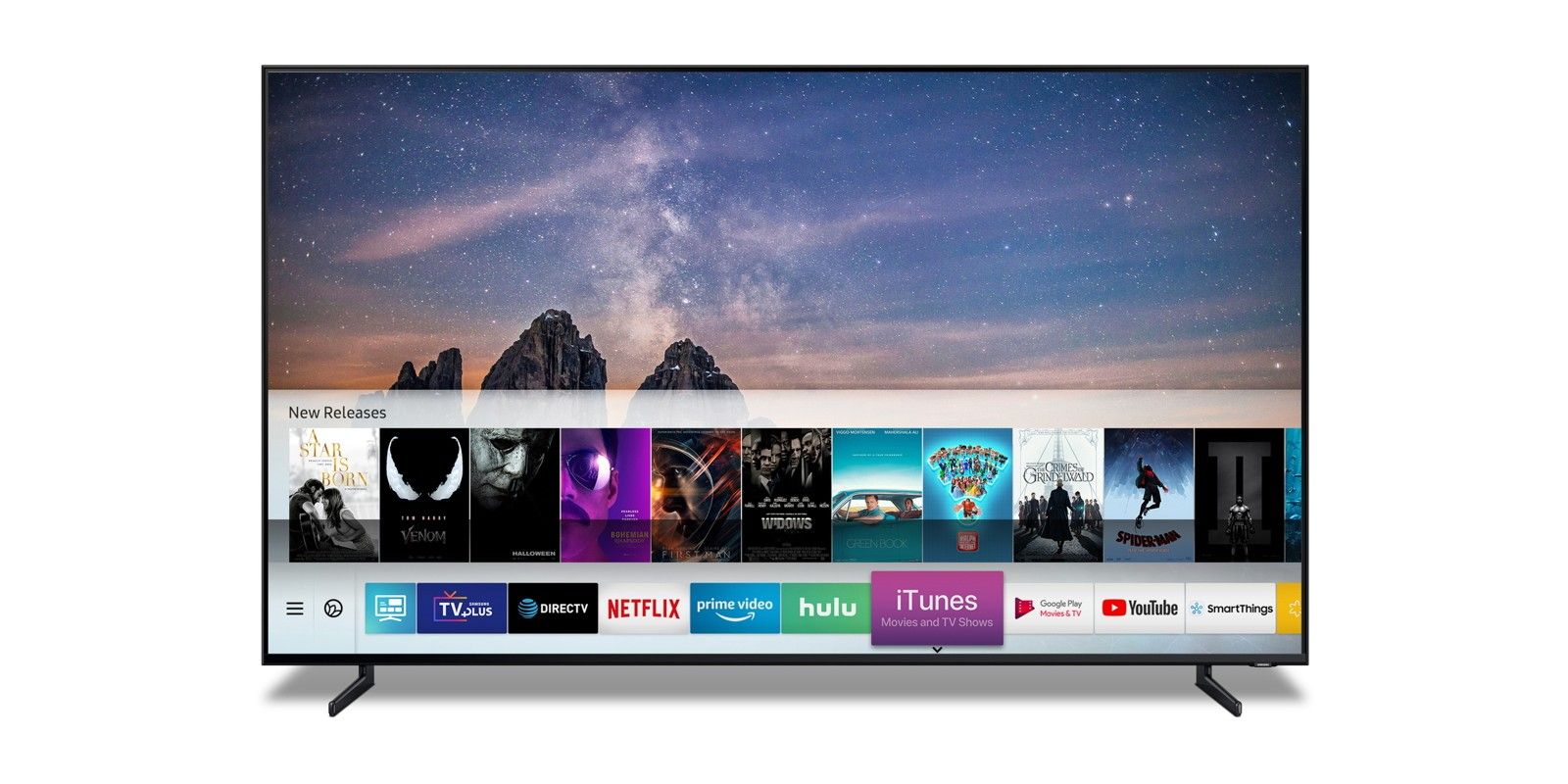
Most modern Smart TVs manufactured after 2017 come equipped with proprietary or licensed operating systems capable of hosting the Paramount Plus application. For Samsung owners, the TV must run the Tizen OS. Generally, models from 2017 and later are supported. LG users require webOS 4.0 or higher, which typically covers models released from 2018 onwards.
If you are using a TV powered by Android TV or Google TV (such as Sony, Hisense, or TCL), the process is often smoother due to the standardized nature of the Google Play Store. The technical requirement here is usually Android OS 5.0 (Lollipop) or higher, though for security and performance reasons, OS 10 or later is recommended to ensure the application remains stable during high-bitrate playback.
Streaming Media Players and Dongles
For users with older “dumb” TVs or Smart TVs with sluggish internal processors, external streaming devices offer a superior technical solution. Devices like the Roku Streaming Stick, Amazon Fire TV Stick, and Apple TV 4K utilize dedicated processors designed specifically for video decoding.
The Apple TV 4K, for instance, leverages the A-series bionic chips, which handle the Paramount Plus HEVC (High-Efficiency Video Coding) streams with much lower latency than a standard built-in TV chip. When selecting a device, ensure it supports the latest HDCP 2.2 (High-bandwidth Digital Content Protection) standards if you are connecting to a 4K television via HDMI.
Gaming Consoles and Specialized Hardware
Paramount Plus is also compatible with the Xbox One, Xbox Series X/S, and PlayStation 4/5. These devices are essentially high-powered computers capable of high-speed data throughput. Using a console for streaming is often the best way to leverage a hardwired Ethernet connection, reducing the jitter and packet loss often associated with 5GHz Wi-Fi bands.
Installation Protocols for Major TV Platforms
Once you have identified that your hardware is compatible, the installation process follows a specific software protocol depending on the interface of your device.
Downloading the App on Samsung and LG TVs
On a Samsung Smart TV, navigate to the “Apps” icon on the Smart Hub home screen. Use the search function to locate “Paramount Plus.” Once found, select “Install.” Technically, this process writes the application data to the TV’s internal flash storage. It is vital to ensure you have at least 500MB of free space to allow for the app and its future cache files.
For LG TVs, the process is handled through the LG Content Store. After searching and installing, the app will appear in your “Launcher” bar. A common technical hurdle here is the “Region Lock.” If your LG account is set to a region where Paramount Plus is not officially supported, the app will not appear in the store. You may need to adjust the service country settings in the TV’s advanced system menu to resolve this.
Setting Up via the Google Play Store and Amazon Fire OS
For Sony TVs, Hisense models, or Nvidia Shield Pro users, the Google Play Store is the gateway. Search for the app, click install, and the OS will handle the background APK (Android Package Kit) installation. One technical advantage of Android TV is the ability to “Force Stop” or “Clear Cache” within the system settings, which is essential for troubleshooting if the app hangs on the splash screen.
On Amazon Fire TV devices, the app is found in the “Amazon Appstore.” Since Fire OS is a forked version of Android, it behaves similarly. However, users should ensure that “Automatic Updates” are enabled in the Appstore settings to ensure the Paramount Plus client receives the latest security patches and DRM (Digital Rights Management) updates.
Authenticating Your Device
After installation, you must link your TV to your account. The most efficient technical method is the Web Code Activation. The TV will display a 5 or 6-digit alphanumeric code. On a computer or smartphone connected to the same network, you navigate to paramountplus.com/tv. Entering the code creates a secure handshake between the server and your TV’s unique device ID, bypassing the need to type complex passwords using a cumbersome TV remote.
Leveraging External Hardware for Enhanced Performance
While built-in apps are convenient, tech enthusiasts often prefer external hardware due to the increased RAM and superior GPU acceleration.
The Advantages of Apple TV and Roku
The Apple TV 4K offers a feature called “Match Content,” which allows the Paramount Plus app to switch the TV’s refresh rate to match the native frame rate of the content (e.g., 24fps for movies). This eliminates “judder”—a common technical artifact in digital playback.
Roku devices are prized for their “Private Listening” feature. By using the Roku app on a mobile device, you can route the Paramount Plus audio through your phone’s DAC (Digital-to-Analog Converter) to headphones, providing a high-fidelity audio experience without disturbing others.
Casting and AirPlay: The Wireless Bridge
If your TV does not natively support the Paramount Plus app, you can use “Casting” protocols. Google Cast (Chromecast) and Apple AirPlay 2 allow you to “throw” the video stream from your phone to the TV.
Technically, your phone acts as a remote, sending a URL to the TV’s receiver. The TV then pulls the stream directly from the Paramount servers. This is different from “Screen Mirroring,” which compresses your phone screen and results in lower resolution. For the best quality, always use the “Cast” icon within the Paramount Plus app rather than mirroring your entire device screen.
Advanced Configuration: Network and Playback Optimization
Installing the app is only half the battle; optimizing the environment ensures a buffer-free, high-definition experience.
Bandwidth Management and Latency
Paramount Plus requires a minimum of 4 Mbps for Standard Definition and 25 Mbps for 4K UHD. However, these are “sustained” speeds. In a home with multiple connected devices, network congestion can cause the app to downscale the resolution.
To optimize this, consider assigning your TV a Static IP address through your router’s DHCP settings. Additionally, if your router supports Quality of Service (QoS), prioritize traffic to your TV or streaming device. This ensures that even if another user is downloading a large file, the Paramount Plus video packets receive priority, maintaining the bitrate.
Audio and Video Calibration
Within the app, there are few settings for video quality, as the app uses an adaptive bitrate algorithm. However, you must calibrate your TV’s hardware settings. Ensure that “HDMI Ultra HD Deep Color” (on LG) or “Enhanced HDMI” (on Sony) is enabled for the port your streaming device is plugged into. Without this, the hardware handshake may fail to trigger HDR, leaving your image looking washed out.
On the audio side, if you are using a Soundbar or AVR (Audio/Video Receiver), ensure your TV is set to Bitstream or Pass-through mode. This allows the Paramount Plus app to send raw Dolby Digital Plus or Dolby Atmos data directly to your audio hardware for decoding, rather than having the TV downmix it to stereo.
Troubleshooting and Maintenance of the Streaming Stack
Even with a perfect setup, technical glitches are inevitable. Understanding the “Streaming Stack” helps in diagnosing where the failure occurs.
Resolving App Crashes and “Black Screen” Errors
If the app fails to launch, the most common culprit is a corrupted cache. On Android-based TVs, go to Settings > Apps > Paramount Plus > Clear Cache. This removes temporary files without logging you out. If the problem persists, a “Cold Boot” of the TV is required. Unplugging the TV from the power source for 60 seconds allows the capacitors to drain and clears the system RAM, often resolving software conflicts.

Connection and Authentication Hurdles
If you encounter “Error Code 6013” or similar connectivity issues, it is often a DNS (Domain Name System) problem. Many ISP-provided DNS servers are slow or filter certain traffic. Switching your TV’s network settings to use Google DNS (8.8.8.8) or Cloudflare (1.1.1.1) can significantly improve the speed at which the app communicates with Paramount’s authentication servers.
Furthermore, ensure your TV’s system clock is set to “Automatic.” Streaming services use time-stamped security tokens for DRM. If your TV’s clock is out of sync with the server, the video stream will be blocked to prevent unauthorized access, resulting in an endless loading circle.
In conclusion, getting Paramount Plus on your TV is a multi-faceted technical process that rewards the informed user. By choosing the right hardware, optimizing your network environment, and understanding the underlying software protocols, you can transform a simple “app installation” into a high-performance home cinema experience. Whether you are leveraging the integrated smarts of a new OLED TV or the processing power of a dedicated gaming console, the key to a seamless experience lies in the details of the configuration.
aViewFromTheCave is a participant in the Amazon Services LLC Associates Program, an affiliate advertising program designed to provide a means for sites to earn advertising fees by advertising and linking to Amazon.com. Amazon, the Amazon logo, AmazonSupply, and the AmazonSupply logo are trademarks of Amazon.com, Inc. or its affiliates. As an Amazon Associate we earn affiliate commissions from qualifying purchases.