
The transition from traditional linear television to over-the-top (OTT) streaming services has fundamentally changed how we consume media. Paramount+, the streaming home for a massive library of content from CBS, Nickelodeon, MTV, Comedy Central, and the Paramount Pictures film vault, is a central pillar in this digital shift. However, for many users, the primary hurdle isn’t subscribing to the service, but rather the technical execution of getting the application onto the big screen. Whether you are using a state-of-the-art OLED Smart TV, a legacy television with a streaming dongle, or a gaming console, understanding the software ecosystem of your device is the first step toward a seamless viewing experience.

Understanding Compatibility and Hardware Ecosystems
Before attempting to download the app, it is essential to identify the operating system (OS) your television or peripheral device uses. Modern streaming is not a one-size-fits-all solution; apps are developed for specific platforms. Paramount+ maintains a broad compatibility list, but older hardware may lack the processing power or updated security certificates required to run the latest version of the application.
Integrated Smart TV Platforms
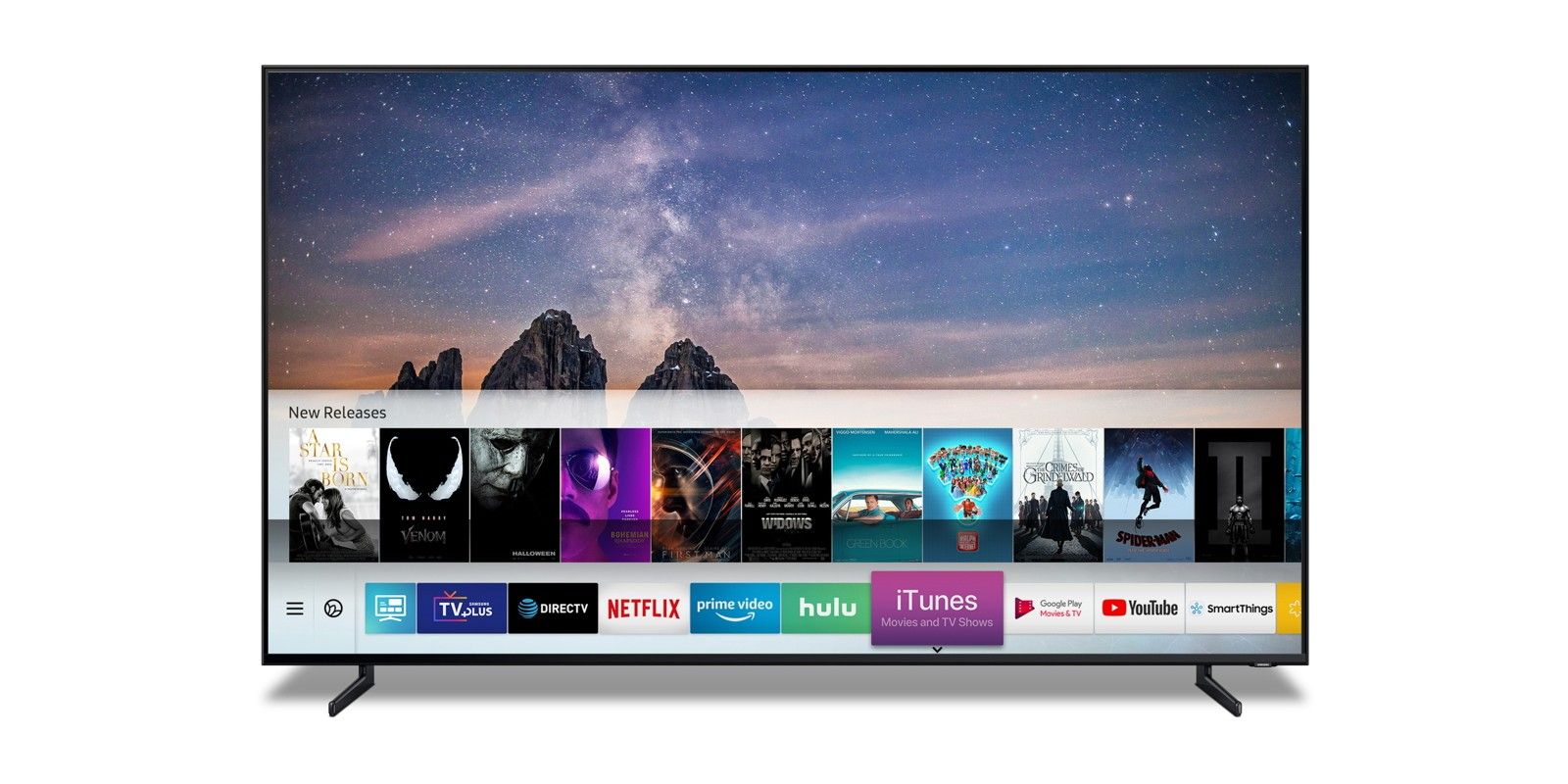
Most major TV manufacturers since 2018 include native support for Paramount+. If you own a Samsung Smart TV, your device likely runs on Tizen OS. LG televisions utilize webOS. Sony, Hisense, and TCL often leverage the Android TV or Google TV ecosystem. Each of these platforms has a dedicated app store—such as the Samsung Galaxy Store or the Google Play Store—where the Paramount+ app is hosted.
External Streaming Media Players
If your TV’s built-in software is sluggish or unsupported, external streaming sticks are the most efficient technical workaround. Devices like the Roku Streaming Stick, Amazon Fire TV Stick, and Apple TV 4K provide a dedicated environment optimized for high-bitrate video playback. These devices plug directly into an HDMI port and often receive software updates more frequently than integrated Smart TV platforms, ensuring better long-term compatibility with Paramount+’s evolving technical requirements.
Gaming Consoles as Media Hubs
For users who prefer a centralized entertainment hub, the PlayStation 4, PlayStation 5, Xbox One, and Xbox Series X/S all support the Paramount+ application. Utilizing a console can be advantageous due to their superior hardware specifications, which handle high-definition UI navigation and 4K HDR streaming with less latency than many budget-friendly Smart TVs.
Step-by-Step Installation Across Major Platforms
Once you have identified your device’s ecosystem, the installation process follows a standard logic: access the store, download the software, and authenticate the hardware.
Installing on Roku and Fire TV
For Roku users, the process involves navigating to the “Streaming Channels” menu from the home screen. Use the search function to find “Paramount+” and select “Add Channel.” For Amazon Fire TV users, the process is similar: navigate to the “Find” tab, search for the app, and select “Get” or “Download.” On both platforms, ensure your device is connected to a high-speed Wi-Fi network (preferably the 5GHz band) to prevent packet loss during the installation.
Setting Up on Android TV and Google TV
Devices running Android TV or Google TV (including newer Sony and Hisense models) utilize the Google Play Store. To install, navigate to the “Apps” tab or open the Play Store directly. Search for Paramount+ and click “Install.” One technical advantage of the Android ecosystem is the ability to enable “Auto-update apps,” which ensures you always have the latest security patches and feature sets without manual intervention.
Deployment on Apple TV (tvOS)
Apple TV remains one of the most stable environments for Paramount+. Access the App Store from the home screen, search for the app, and click the cloud or “Get” icon. If you have “Automatic Downloads” enabled on your iPhone or iPad under the same Apple ID, the app may already appear on your Apple TV home screen if you have previously downloaded it on a mobile device.
Advanced Connectivity: Casting, AirPlay, and Mirroring
For users with legacy televisions that lack an app store, or for those who prefer the convenience of their smartphones, casting and mirroring technologies provide a robust technical alternative. These methods bypass the need for a native TV app by using the television as a secondary display for the mobile device.
Utilizing Google Cast (Chromecast)
If you have a Chromecast dongle or a TV with “Chromecast Built-in,” you can initiate a stream from the Paramount+ app on an Android or iOS device. Ensure both the phone and the TV are on the same local area network (LAN). When you play a video on your phone, a “Cast” icon will appear in the top-right corner. Tapping this sends the stream URL directly to the TV. Technically, your phone acts as a remote control, while the TV pulls the data stream directly from Paramount’s servers, preserving battery life on your mobile device.
AirPlay 2 for the Apple Ecosystem
Apple users can leverage AirPlay 2 to send Paramount+ content from an iPhone, iPad, or Mac to a compatible TV or Apple TV box. This protocol is highly optimized for synchronization, ensuring that audio and video remain perfectly aligned. Like Chromecast, AirPlay requires both devices to reside on the same Wi-Fi network. From the playback screen on your mobile device, select the AirPlay icon and choose your television from the list of available targets.
HDMI Hardwiring
In scenarios where wireless signals are unstable or network congestion is high, a physical HDMI connection remains the most reliable method. By connecting a laptop to the TV via an HDMI cable, the TV functions as an external monitor. Simply navigate to the Paramount+ website on a browser (Chrome or Edge are recommended for hardware acceleration support) and enter full-screen mode. This method bypasses all app-related software issues and relies entirely on your computer’s processing power.
Troubleshooting and Performance Optimization
High-quality streaming requires more than just the app; it requires a stable environment where hardware and software work in tandem. If you encounter buffering, low resolution, or app crashes, several technical factors are likely at play.
Network Throughput and Latency
Paramount+ suggests a minimum download speed of 4 Mbps for standard definition and 25 Mbps for 4K UHD content. However, these are “floor” requirements. In a household with multiple connected devices, network jitter and latency can disrupt the stream. To optimize performance, consider using an Ethernet cable for a wired connection, which eliminates the interference common with Wi-Fi. If using Wi-Fi, ensure your router is positioned away from metal objects and electronic interference.
Clearing Cache and Cold Rebooting
If the Paramount+ app freezes or fails to load, it is often due to corrupted cache data. On Android-based systems (Fire TV, Google TV), you can navigate to Settings > Apps > Paramount+ and select “Clear Cache.” For Roku or Apple TV, where cache management is automated, a “cold reboot” is the best solution. Unplug the TV or streaming device from the power source for 60 seconds. This flushes the system RAM and forces the OS to re-initialize all drivers and network protocols upon restart.
Authentication and Activation Codes
When launching the app for the first time, you will often be presented with an activation code and a URL (such as paramountplus.com/activate). This is a security measure designed to link your hardware’s unique identifier (UUID) to your account without requiring you to type complex passwords using a TV remote. Enter the code on a web browser where you are already logged in to confirm the handshake. If the code expires or the screen hangs, refreshing the page on your browser and restarting the app on the TV usually resolves the synchronization error.

Future-Proofing Your Streaming Setup
The landscape of digital streaming is constantly evolving. As Paramount+ integrates higher-quality audio formats like Dolby Atmos and visual standards like Dolby Vision, the technical demands on your hardware will increase. To ensure you continue to get the most out of the service, it is vital to keep your TV’s firmware updated. Manufacturers frequently release patches that improve the efficiency of the internal HEVC (High Efficiency Video Coding) decoders used to process 4K video.
Furthermore, if your TV is more than five years old, you may find that the internal processor struggles with modern app interfaces. In these cases, upgrading to a dedicated streaming device—rather than replacing the entire television—is the most cost-effective way to maintain a premium tech stack. By offloading the software processing to a high-performance external device, you ensure that “getting Paramount+ on your TV” remains a simple, high-fidelity experience for years to come.
aViewFromTheCave is a participant in the Amazon Services LLC Associates Program, an affiliate advertising program designed to provide a means for sites to earn advertising fees by advertising and linking to Amazon.com. Amazon, the Amazon logo, AmazonSupply, and the AmazonSupply logo are trademarks of Amazon.com, Inc. or its affiliates. As an Amazon Associate we earn affiliate commissions from qualifying purchases.