
In an era dominated by on-demand entertainment, Amazon Prime Video has emerged as a cornerstone streaming service for millions globally. Far more than just a perk of an Amazon Prime subscription, it offers an expansive library of movies, TV shows, and critically acclaimed original content. However, for many, the journey from subscribing to Prime to actually enjoying its vast catalogue on the biggest screen in their home – the television – can sometimes seem less than intuitive. This guide aims to demystify the process, providing clear, actionable steps and insights to ensure you can seamlessly access Amazon Prime Video on your TV, regardless of your current setup.
Understanding Amazon Prime Video: Beyond Just Shopping
Before diving into the “how-to,” it’s beneficial to grasp what Amazon Prime Video truly is and how it integrates with the broader Amazon ecosystem. This understanding lays the groundwork for a smoother setup experience.
What is Amazon Prime Video?
Amazon Prime Video is Amazon’s premier video streaming service, offering a curated selection of films, television series, and live events. It features a robust collection of licensed content from various studios, alongside a rapidly growing library of Amazon Originals – exclusive, high-budget productions that have garnered significant critical acclaim and popular appeal. From compelling dramas and action-packed thrillers to family-friendly animations and insightful documentaries, Prime Video strives to offer something for every taste. Subscribers also have the option to rent or buy additional titles not included with their Prime membership, expanding their viewing choices even further.
The Prime Membership Advantage
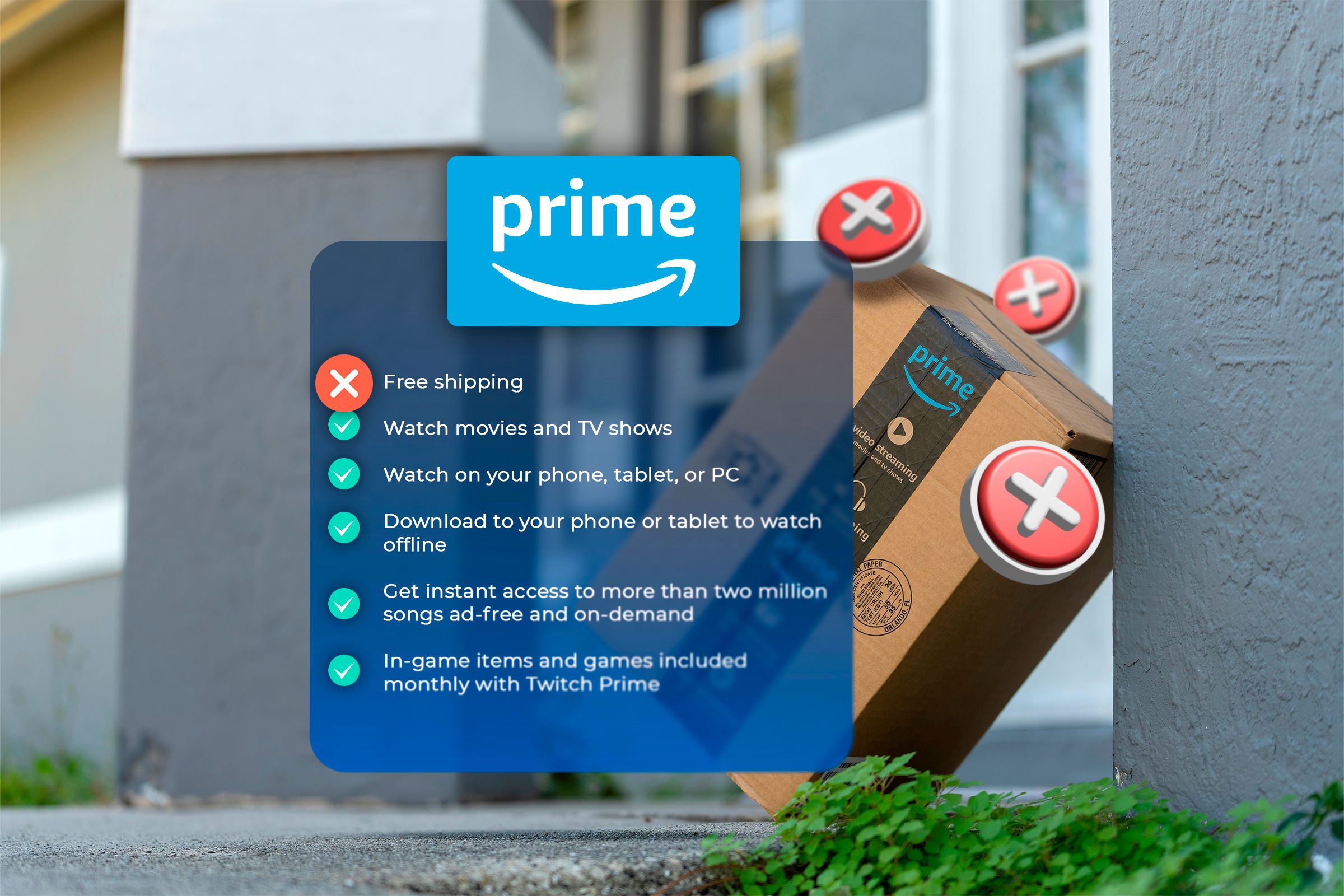
Crucially, Amazon Prime Video is included as part of an Amazon Prime membership. This all-encompassing subscription doesn’t just grant access to a vast streaming library; it also unlocks a host of other benefits, including expedited shipping on eligible Amazon purchases, access to Amazon Music Prime, Prime Gaming, and exclusive deals. This integrated approach is a key differentiator for Amazon, positioning Prime Video not as a standalone entertainment service but as a valuable component of a comprehensive digital lifestyle package. If you’re already a Prime member, you automatically have access to Prime Video; if not, signing up for a Prime membership (or a standalone Prime Video subscription in some regions) is your first step.
Direct Methods for Accessing Prime Video on Your Smart TV
The most straightforward way to get Amazon Prime Video on your TV is if you own a smart television. Modern smart TVs are essentially large screens with built-in operating systems and internet connectivity, designed to bring streaming services directly to your living room without extra hardware.
Using Built-in Smart TV Apps
The vast majority of smart TVs manufactured in the last five to ten years come with popular streaming apps pre-installed or readily available for download from their respective app stores. Brands like Samsung (Tizen OS), LG (webOS), Sony (Android TV/Google TV), Vizio, and Panasonic typically include the Amazon Prime Video app among their core offerings.
- Locating the App: On your smart TV’s home screen or app launcher, look for an icon that says “Prime Video” or “Amazon Prime Video.” It’s often represented by the Amazon smile logo or a blue/black icon with “Prime Video” text.
- Downloading if Necessary: If you don’t see it, navigate to your TV’s app store (e.g., Samsung Smart Hub, LG Content Store, Google Play Store for Android TVs). Use the search function to find “Amazon Prime Video” and then select “Download” or “Install.”
- Logging In: Once the app is open, you’ll be prompted to sign in. This usually involves one of two methods:
- Direct Login: Entering your Amazon account email and password directly into the TV app using the on-screen keyboard.
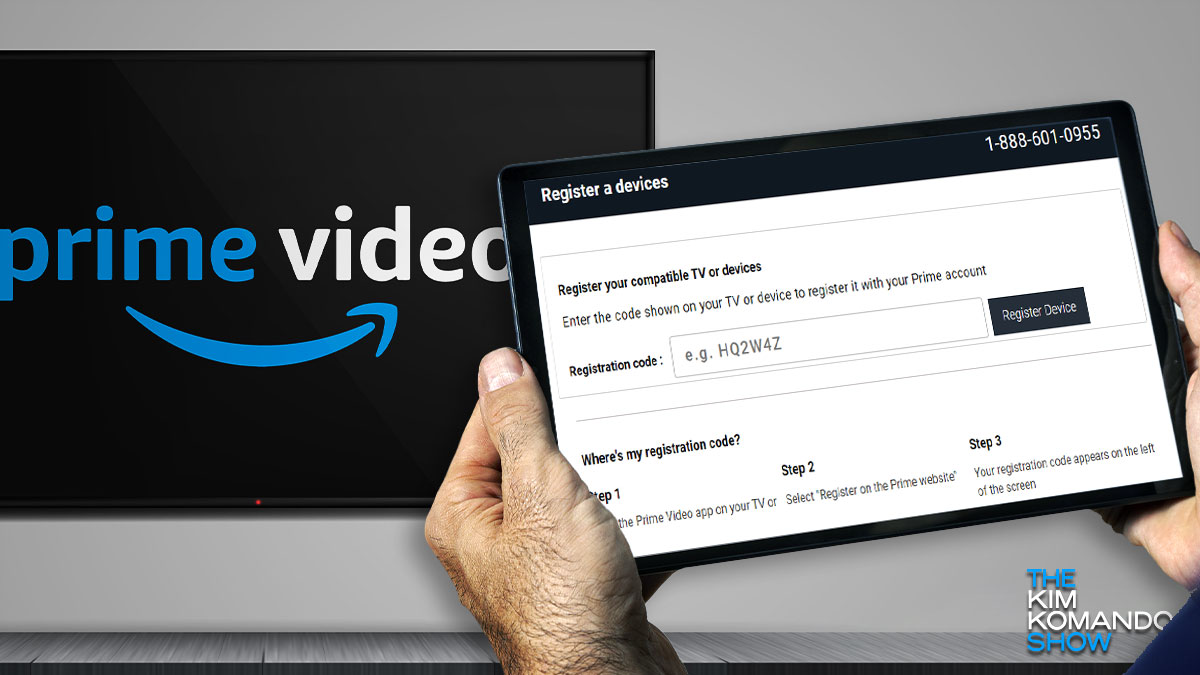
- Activation Code: A more common and convenient method. The app will display an alphanumeric code (e.g., “ASDF-1234-QWER”). You’ll then need to go to
primevideo.com/mytv(oramazon.com/mytvin some cases) on a computer or mobile device, sign in to your Amazon account, and enter this code. This links your TV to your account.
Amazon Fire TV Edition Smart TVs
Some smart TVs, particularly those from brands like Insignia and Toshiba, come branded as “Amazon Fire TV Edition.” These televisions have Amazon’s Fire TV operating system built directly into them.
- Integrated Experience: If you have a Fire TV Edition TV, Prime Video is deeply integrated into the system. It’s often featured prominently on the home screen, and accessing your Prime Video content is incredibly seamless.
- Alexa Voice Control: These TVs also typically feature Alexa voice integration, allowing you to use your remote’s microphone button to simply say, “Alexa, open Prime Video” or “Alexa, play [show name] on Prime Video,” providing an exceptionally convenient viewing experience.
Ensuring Your TV is Connected and Updated
For any smart TV method, two crucial prerequisites must be met:
- Internet Connection: Your TV must be connected to the internet, either via Wi-Fi or an Ethernet cable. Without an active internet connection, streaming services cannot function.
- Software Updates: Ensure your smart TV’s software (firmware) is up to date. Manufacturers regularly release updates that improve performance, add new features, and ensure compatibility with the latest app versions. Outdated software can lead to app malfunctions or prevent downloads. Check your TV’s settings menu for a “Software Update” or “About” section.
Leveraging Streaming Devices for Any TV
What if you don’t have a smart TV, or your smart TV’s operating system is sluggish or outdated? This is where dedicated streaming devices come into play. These small, external gadgets plug into your TV’s HDMI port and provide a smart interface, effectively upgrading any TV into a smart one capable of running Prime Video and other streaming apps.
Amazon Fire TV Stick/Cube: The Native Experience
Unsurprisingly, Amazon’s own line of Fire TV devices offers the most integrated and user-friendly experience for Prime Video.
- Variety of Devices: From the affordable Fire TV Stick Lite to the powerful Fire TV Stick 4K Max and the feature-rich Fire TV Cube, there’s a Fire TV device for every budget and performance need.
- Setup: Simply plug the device into an available HDMI port on your TV, connect it to power, and follow the on-screen instructions to connect to your Wi-Fi and sign in with your Amazon account. Prime Video is front and center on the Fire TV interface.
- Alexa Voice Integration: Like Fire TV Edition TVs, all Fire TV devices come with Alexa voice remote capabilities, making content discovery and playback incredibly convenient.
Roku Devices: Seamless Integration
Roku is a pioneering name in streaming devices, offering a wide range of players (Roku Express, Roku Streaming Stick, Roku Ultra) and even Roku-branded smart TVs.
- Vast App Ecosystem: Roku’s strength lies in its expansive “Channel Store,” which includes virtually every major streaming service, including Amazon Prime Video.
- Setup: Connect the Roku device to your TV via HDMI, power it on, connect to Wi-Fi, and create/log in to your Roku account. From the home screen, navigate to the Channel Store, search for “Prime Video,” and add the channel. You’ll then sign in with your Amazon credentials.
Google Chromecast with Google TV: Casting and Apps
Google’s streaming solution has evolved, with the latest iteration, Chromecast with Google TV, offering a full app-based interface in addition to its traditional casting capabilities.
- App-Centric Experience: Plug it in, connect to Wi-Fi, and sign in with your Google account. The Google TV interface is app-driven, and you can easily download the Amazon Prime Video app from the Google Play Store.
- Casting from Mobile: Even with the app-based experience, you can still “cast” Prime Video content directly from the Prime Video app on your smartphone or tablet to the Chromecast device, offering flexibility.
Apple TV: Premium Streaming Solution
For users immersed in the Apple ecosystem, an Apple TV (HD or 4K) provides a premium streaming experience.
- tvOS Interface: Apple TV runs on tvOS, offering a polished user interface. Download the Amazon Prime Video app from the App Store on the Apple TV.
- Deep Integration: While primarily an Apple product, it seamlessly integrates third-party apps, making Prime Video easily accessible once you’ve signed in.
Gaming Consoles: PlayStation and Xbox
Many modern gaming consoles double as powerful media centers, making them excellent choices for streaming Amazon Prime Video.
- PlayStation (PS4, PS5): From the PlayStation’s main dashboard, navigate to the “TV & Video” section or the PlayStation Store. Search for and download the “Prime Video” app.
- Xbox (Xbox One, Xbox Series X/S): Go to the Microsoft Store on your Xbox, search for “Prime Video,” and download it.
- Login Process: In both cases, once the app is launched, you’ll go through the standard Amazon sign-in or activation code process.
Setting Up and Optimizing Your Prime Video Experience
Once you have the Prime Video app installed and logged in on your TV or streaming device, a few more steps can help ensure you get the best possible viewing experience.
Initial Setup and Sign-In Process
As mentioned, signing in typically involves entering your Amazon credentials or using an activation code. Always verify that you’re logging into the correct Amazon account that has the Prime membership associated with it. If you encounter issues, double-check your username and password, or use the “Forgot Password” option if needed.
Navigating the User Interface
Most Prime Video apps across different platforms share a similar design philosophy:
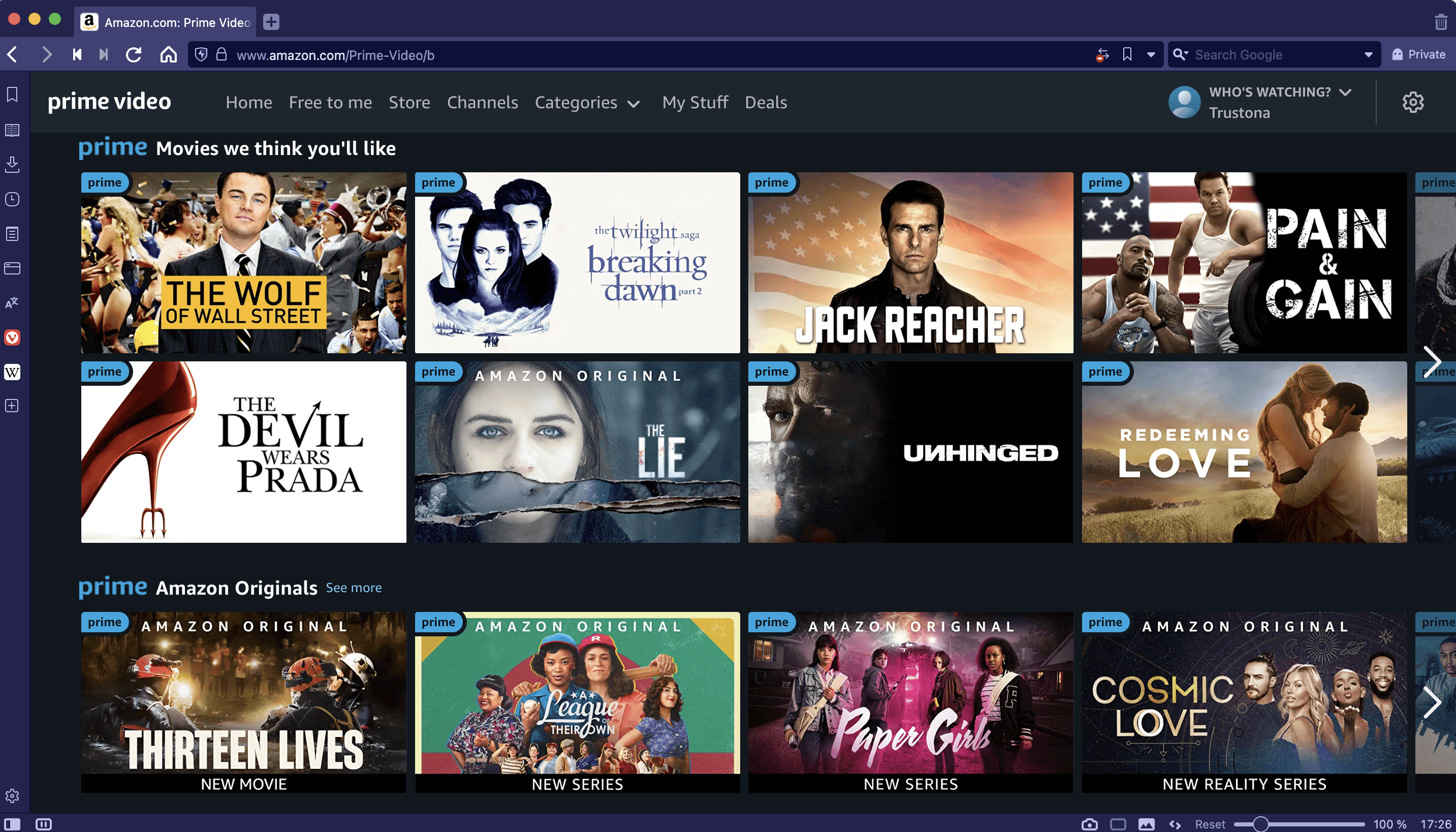
- Home Screen: Showcases trending content, personalized recommendations, and quick access to different categories.
- Search Function: Essential for finding specific titles.
- Categories/Genres: Browse content by genre (Action, Comedy, Drama, etc.) or type (Movies, TV Shows, Kids).
- Watchlist: A crucial feature for saving titles you want to watch later.
- Your Videos: Access to content you’ve rented or purchased.
Familiarize yourself with these sections to navigate efficiently.
Picture Quality Settings and Bandwidth Considerations
Prime Video offers content in various resolutions, including HD, Full HD (1080p), 4K Ultra HD, and even HDR (High Dynamic Range) for enhanced color and contrast.
- Automatic Quality: By default, Prime Video apps usually adjust streaming quality automatically based on your internet speed to prevent buffering.
- Manual Adjustment: In some app settings (often accessible during playback or in the main app settings), you might be able to manually select streaming quality. Be aware that higher quality streams (especially 4K HDR) require significant internet bandwidth (e.g., 25 Mbps or more for 4K). If your internet is slow, manually selecting a lower quality can reduce buffering.
- TV Capabilities: Ensure your TV supports 4K and HDR if you intend to watch content in those formats. You may also need to enable specific HDMI settings on your TV (e.g., “HDMI UHD Color” or “Enhanced HDMI”) for full 4K HDR passthrough from streaming devices.
Audio Settings: Surround Sound and More
Prime Video supports various audio formats, including Dolby Digital 5.1 and, for some content, Dolby Atmos.
- Device Output: Ensure your streaming device or TV is configured to output the highest quality audio format your sound system (soundbar, AV receiver) supports.
- TV Pass-Through: If using an external sound system connected to your TV, make sure your TV’s audio output settings (e.g., HDMI ARC/eARC, Optical) are correctly configured to pass through surround sound formats.
Parental Controls and Profiles
Amazon Prime Video offers robust parental controls, allowing you to restrict content based on age ratings. It also supports user profiles, so different members of your household can have their own personalized watch history and recommendations.
- Setting Controls: These settings are typically managed through your Amazon account online, under “Prime Video Settings” -> “Parental Controls.” You can set viewing restrictions and a PIN to bypass them.
- Creating Profiles: Within the Prime Video app (usually accessible from the top-left or top-right menu), you can create and switch between different user profiles.
Troubleshooting Common Issues
Even with the best setup, technology can sometimes be temperamental. Here are solutions to common problems you might encounter.
Connectivity Problems: Wi-Fi and Ethernet
- Check Router: Ensure your Wi-Fi router is on and functioning correctly.
- Restart Devices: A simple restart of your TV/streaming device and your router can often resolve temporary network glitches.
- Signal Strength: If using Wi-Fi, ensure your TV/device is close enough to the router for a strong signal. Consider using an Ethernet cable for the most stable connection if possible.
- Other Devices: Check if other internet-connected devices in your home are working.
App Not Loading or Crashing
- Restart App/Device: Close the Prime Video app completely and restart it. If that doesn’t work, restart your entire TV or streaming device.
- Clear Cache/Data: In your device’s app settings, look for an option to “Clear Cache” or “Clear Data” for the Prime Video app. Be aware that clearing data might require you to sign back in.
- Reinstall App: If all else fails, uninstall the Prime Video app and then reinstall it from your TV’s app store.
Buffering and Playback Quality Issues
- Internet Speed: Run an internet speed test on a device connected to the same network. Ensure your download speed meets the recommendations for the quality you’re trying to stream (e.g., 25 Mbps for 4K).
- Reduce Network Congestion: If multiple devices are using your home network simultaneously, they might be consuming bandwidth. Pause downloads or other streaming on other devices.
- VPN/Proxy: If you’re using a VPN or proxy service, try temporarily disabling it, as it can sometimes interfere with streaming performance or location detection.
- Router Placement: Ensure your Wi-Fi router is centrally located and not obstructed by physical barriers.
Sign-In Errors and Account Verification
- Double-Check Credentials: Carefully re-enter your Amazon email and password. Pay attention to capitalization.
- Amazon Account Status: Log in to your Amazon account on a computer or mobile device to ensure your Prime membership is active and there are no outstanding payment issues.
- Two-Factor Authentication: If you have 2FA enabled, ensure you are correctly entering the verification code when prompted.
Accessing Amazon Prime Video on your TV is a straightforward process, whether you leverage the built-in capabilities of a smart TV or opt for the versatility of an external streaming device. By following the steps outlined above, understanding the nuances of your setup, and knowing how to troubleshoot common issues, you can unlock a world of entertainment. With its growing library of compelling content, Prime Video offers a rich viewing experience that transforms your living room into a cinematic hub, providing endless hours of enjoyment for the whole household. Now, all that’s left is to grab your remote, settle in, and explore the vast digital aisles of Amazon’s cinematic offerings.
aViewFromTheCave is a participant in the Amazon Services LLC Associates Program, an affiliate advertising program designed to provide a means for sites to earn advertising fees by advertising and linking to Amazon.com. Amazon, the Amazon logo, AmazonSupply, and the AmazonSupply logo are trademarks of Amazon.com, Inc. or its affiliates. As an Amazon Associate we earn affiliate commissions from qualifying purchases.