
In the modern era of digital entertainment, the television has transitioned from a passive receiver of broadcast signals into a sophisticated computing hub. Amazon Prime Video stands as one of the pillars of this streaming revolution, offering a vast library of original content, licensed movies, and live sports. However, because the smart TV market is fragmented across various operating systems and manufacturer interfaces, finding and installing the Amazon Prime Video app can occasionally be a source of technical friction. Whether you are setting up a brand-new OLED display or trying to breathe life into an older LED model, understanding the nuances of your TV’s software ecosystem is the first step toward a seamless viewing experience.
Understanding the Smart TV Interface and App Ecosystem
Before diving into the installation steps, it is essential to identify the underlying software powering your television. Unlike smartphones, which are largely divided between iOS and Android, the smart TV landscape features several proprietary and third-party operating systems. Each has its own dedicated app store and navigation logic.
The Evolution of Integrated Streaming
Ten years ago, accessing Amazon Prime on a TV often required an external peripheral like a Blu-ray player or a dedicated set-top box. Today, almost every major television manufacturer integrates “Smart” features directly into the hardware. These systems rely on a localized App Store—much like a smartphone—where the Amazon Prime Video application resides. The app is rarely “built-in” to the hardware itself; rather, it is a piece of software that must be indexed, downloaded, and periodically updated to ensure compatibility with Amazon’s evolving streaming protocols and security standards.
Navigating the App Store on Major TV Brands
The process of finding the app begins at the “Home” screen or the “Dashboard” of your TV. For Samsung users, this is the Smart Hub, a ribbon-like interface at the bottom of the screen. For LG owners, it is the webOS launcher. Sony, TCL, and Hisense users are likely navigating the Google TV or Android TV interface. Regardless of the brand, the objective is to locate the “Apps” icon or the magnifying glass “Search” icon.
In many modern units, Amazon Prime Video is pre-installed or featured prominently on the home screen due to high-level partnerships between manufacturers and Amazon. If the icon is not immediately visible, it simply means the app has not been “pinned” to your favorites or needs to be downloaded from the manufacturer’s repository.
Step-by-Step Installation Across Different Platforms
Because every manufacturer utilizes a unique user interface, the path to finding Amazon Prime Video varies. Below is a breakdown of how to locate and install the app on the most popular television platforms currently on the market.
Installing on Samsung Smart TVs (Tizen OS)
Samsung’s Tizen-based operating system is known for its speed and minimalist design. To find Prime Video:
- Press the Home button on your remote to bring up the Smart Hub.
- Navigate to the left and select the Apps icon.
- Once the App Store opens, select the Search icon (magnifying glass) in the top right corner.
- Type “Amazon Prime” or simply “Prime Video.”
- Select the app from the results and click Install.
- Once downloaded, you can select Add to Home to ensure the app is always visible on your main ribbon.
Setting Up on LG Smart TVs (webOS)
LG uses webOS, which features a distinctive “Magic Remote” with a cursor.
- Press the Home button to launch the app ribbon.
- Look for the LG Content Store (it often looks like a shopping bag).
- Navigate to the Apps section or use the search function at the top of the screen.
- Search for “Prime Video.”
- Click Install. After the installation is complete, the app will appear at the end of your app list. You can reposition it by entering “Edit Mode” (long-pressing the app icon).
Using Amazon Prime on Android TV and Google TV
Android TV (found on many Sony, Sharp, and older Hisense models) and Google TV (the newer interface on Sony and TCL) rely on the Google Play Store infrastructure.
- On the Home screen, navigate to the Apps tab.
- If you are on Google TV, you can use the “Search for apps” bar. If you are on Android TV, open the Google Play Store.
- Search for “Amazon Prime Video.”
- Select Install. Because these systems are Google-based, you may need to be signed into a Google account to facilitate the download.
Troubleshooting Vizio and Roku-Integrated TVs
Vizio TVs use a system called SmartCast. Unlike other TVs, SmartCast apps are often cloud-based and updated automatically. If Prime Video is missing, ensure your TV is connected to the internet; the app should populate in the “App Row” automatically. On Roku TVs (like those made by TCL or RCA), you navigate to Search on the left-hand sidebar, type “Prime Video,” and select Add Channel.
Authorizing Your Account and Connecting Your Device

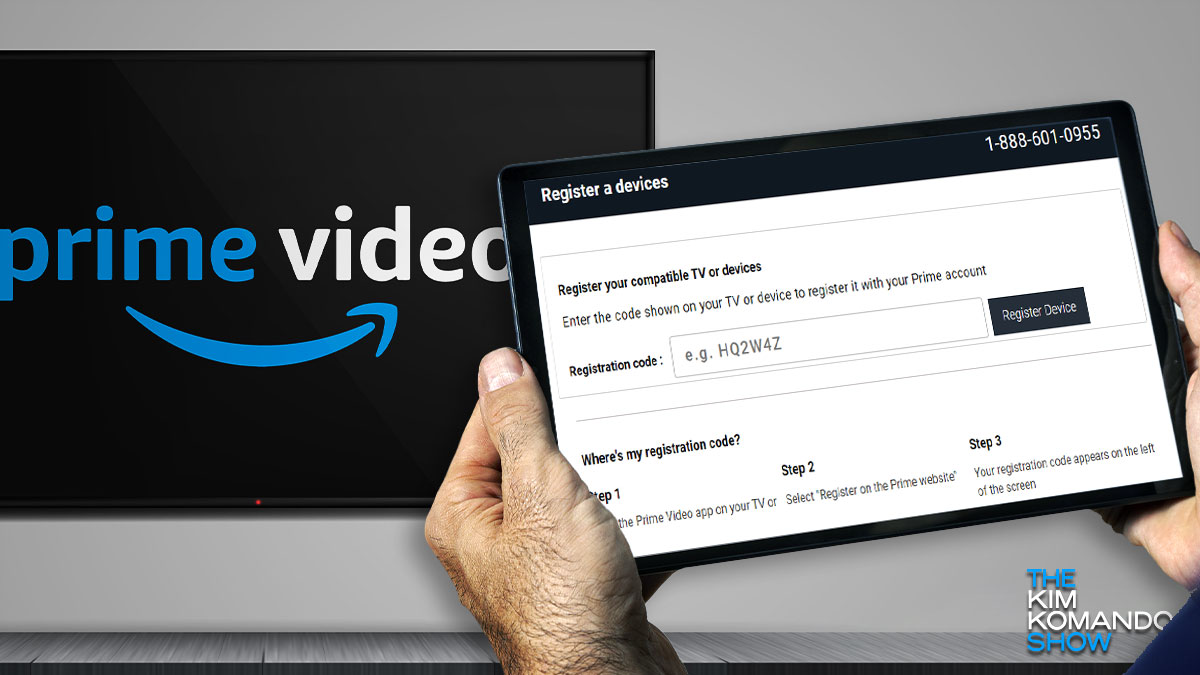
Once the app is found and installed, the next hurdle is the authentication process. Amazon employs a secure handshake method to link your TV to your Amazon account without requiring you to type a complex password using a clunky TV remote.
Using the On-Screen Activation Code
When you open the Prime Video app for the first time, you will typically see a “Sign In” button. Clicking this will generate a 5-to-6-character alphanumeric code on your TV screen.
- On a separate device (smartphone, tablet, or computer), open a web browser.
- Navigate to amazon.com/mytv.
- Sign in with your Amazon credentials.
- Enter the code displayed on your TV screen.
Within seconds, the TV app will refresh and grant you access to your profile and library.
QR Code Authentication for Seamless Login
Many newer versions of the Prime Video app display a QR code alongside the alphanumeric code. By opening the camera app on your smartphone and scanning this code, you will be redirected to the Amazon login page. Once you authenticate on your phone, the TV will automatically log in. This is often the most efficient method as it leverages the biometric security (FaceID or Fingerprint) already established on your mobile device.
Troubleshooting and Performance Optimization
Technology is rarely without its glitches. If you cannot find the app or if it fails to launch, there are several technical factors at play, ranging from regional restrictions to hardware limitations.
Resolving Connectivity and Buffering Issues
If the Prime Video app is installed but fails to load content, the primary culprit is usually network congestion or DNS issues. Smart TVs often have weaker Wi-Fi antennas than laptops. If possible, use an Ethernet cable for a stable 10/100/1000 Mbps connection. If you must use Wi-Fi, ensure your TV is connected to the 5GHz band rather than the 2.4GHz band to minimize interference from household appliances.
Managing Firmware Updates and App Compatibility
If you cannot find the Prime Video app in your TV’s store, your television’s firmware might be outdated. Manufacturers frequently release “Over-the-Air” (OTA) updates that update the App Store’s catalog. Navigate to Settings > Support > Software Update to ensure you are running the latest version.
Furthermore, “Legacy” smart TVs (models typically made before 2014 or 2015) may no longer be supported by Amazon. As streaming technology moves toward higher encryption standards (like Widevine L1) and advanced codecs (like HEVC/H.265), older hardware lacks the processing power to decode the stream.
Hardware Alternatives for Older Televisions
If your TV’s native App Store does not feature Prime Video or the app performs poorly, the most effective solution is an external streaming media player. Devices like the Amazon Fire TV Stick, Roku Streaming Stick, or Apple TV 4K plug into an HDMI port and provide a much more robust and frequently updated software environment than the TV’s built-in OS. This effectively bypasses the TV’s internal software limitations, providing a high-speed interface for Prime Video.
Enhancing Your Viewing Experience: Settings and Features
Finding the app is only half the journey; optimizing it ensures you are getting the visual quality you paid for with your Prime subscription.
Customizing Audio and Video Quality
Within the Prime Video app, navigate to the Settings (gear icon). Here, you can adjust “Data Usage” settings. If you have a data cap on your home internet, you may want to set this to “Good” or “Better.” However, for those with unlimited high-speed fiber, ensure the app is allowed to stream in “Best” quality to trigger 4K Ultra HD and HDR (High Dynamic Range) playback.
Note that to see the “4K” or “UHD” badge on content, your TV must support HDCP 2.2 (High-bandwidth Digital Content Protection) via its HDMI ports or internal decoder. Most modern smart TVs handle this automatically, but if you are using an external soundbar, ensure it supports “4K Passthrough.”
Managing Profiles and Security Settings
Amazon Prime Video allows for multiple user profiles. This is particularly useful for tailoring recommendations and maintaining separate “Watchlists.” Furthermore, if you have children in the house, you can find the Parental Controls section within the app settings on your TV. This allows you to set a PIN for purchases and restrict content based on age ratings (G, PG, TV-14, etc.). This adds a layer of digital security, ensuring that accidental “One-Click” purchases do not occur while you are browsing the catalog.
By understanding the specific architecture of your smart TV and following the standardized installation and authentication protocols, you can transform your living room into a high-tech cinema. Finding Amazon Prime is not just about locating an icon; it is about integrating a powerful digital ecosystem into your daily hardware.
aViewFromTheCave is a participant in the Amazon Services LLC Associates Program, an affiliate advertising program designed to provide a means for sites to earn advertising fees by advertising and linking to Amazon.com. Amazon, the Amazon logo, AmazonSupply, and the AmazonSupply logo are trademarks of Amazon.com, Inc. or its affiliates. As an Amazon Associate we earn affiliate commissions from qualifying purchases.