
YouTube has evolved from a simple video-sharing site into a massive digital ecosystem, hosting billions of hours of content and millions of creators. With such a staggering volume of data, finding a specific channel—or discovering new ones that align with your interests—requires more than just typing a name into a search bar. As the platform’s algorithm and user interface continue to update, understanding the technical nuances of YouTube’s search functionality is essential for any power user.
Whether you are looking for a high-profile tech reviewer, an obscure niche tutorial creator, or a specific brand’s official page, this guide provides a deep dive into the software features, search filters, and discovery tools available to help you navigate the platform with precision.

Mastering the Internal Search Engine and Filters
The most direct way to find a channel is through the primary search bar located at the top of the YouTube interface. However, because many channels share similar names or produce content on identical topics, a standard query often returns a mix of individual videos, playlists, and shorts rather than the channel itself. To find exactly what you are looking for, you must leverage YouTube’s built-in filtering system.
Utilizing Search Filters on Desktop and Mobile
After entering a channel name or a relevant keyword into the search bar, the results page will populate with a variety of content types. To isolate channels:
-
On Desktop: Click the “Filters” button located at the top left of the search results. Under the “Type” column, select “Channel.” This will strip away individual videos and only display user profiles that match your query.
-
On Mobile: Tap the three vertical dots (the kebab menu) in the top right corner after performing a search, then select “Search filters.” Set the “Type” to “Channel” and tap “Apply.”
This method is particularly effective when you are looking for a creator whose name might also be a common phrase or a popular song title. By filtering for “Channel,” you bypass the millions of videos that might otherwise bury the creator’s profile.
Identifying Verified Channels and Handles
In 2022, YouTube introduced “Handles” (e.g., @username), a unique identifier for every channel. Unlike channel names, which can be duplicated, handles are unique to each creator. If you know a creator’s handle, typing it directly into the search bar with the “@” symbol is the most efficient way to find them.
Furthermore, when browsing results, look for the verification checkmark next to the channel name. For music artists, this appears as a small musical note icon. Verification indicates that YouTube has confirmed the identity of the channel owner, which is a critical security feature to ensure you are not following an impersonator or a “fan” account that may distribute misleading software or links.
Leveraging Advanced Search Operators and Google Integration
Sometimes, YouTube’s internal search algorithm prioritizes “relevant” or “trending” content over exact matches. When the internal search bar fails to provide the specific channel you need, you can turn to advanced search operators and external search engines to narrow the field.
Using Google’s “site:” Operator
Because Google owns YouTube, its web search engine is incredibly well-indexed for YouTube content. If you are struggling to find a channel within the app, you can use a targeted Google search. By typing site:youtube.com "Channel Name" into Google, you force the search engine to look only within the YouTube domain. Adding the quotation marks ensures that Google looks for that specific phrase in that specific order.
Finding Channels via Niche and Topic Search
If you do not have a specific name in mind but want to find channels within a specific tech niche—such as “AI prompt engineering” or “custom PC building”—you can use descriptive queries. To find authoritative channels in these spaces, look for the “About” section in search results. YouTube often highlights channels that have a high “Authority” score in certain topics.
Another advanced trick is to use the “allintitle:” operator in Google. For example, searching allintitle: "Linux Tutorials" site:youtube.com/c/ will help you locate channel URLs that specifically include those keywords, often leading you to more specialized creators who may not appear in the top-tier trending results.
Discovery via Content and the Recommendation Engine
Finding a channel isn’t always about knowing the name beforehand; often, discovery happens organically through the content you consume. YouTube’s recommendation engine is a complex AI-driven system designed to surface creators you might enjoy based on your viewing history and technical interests.
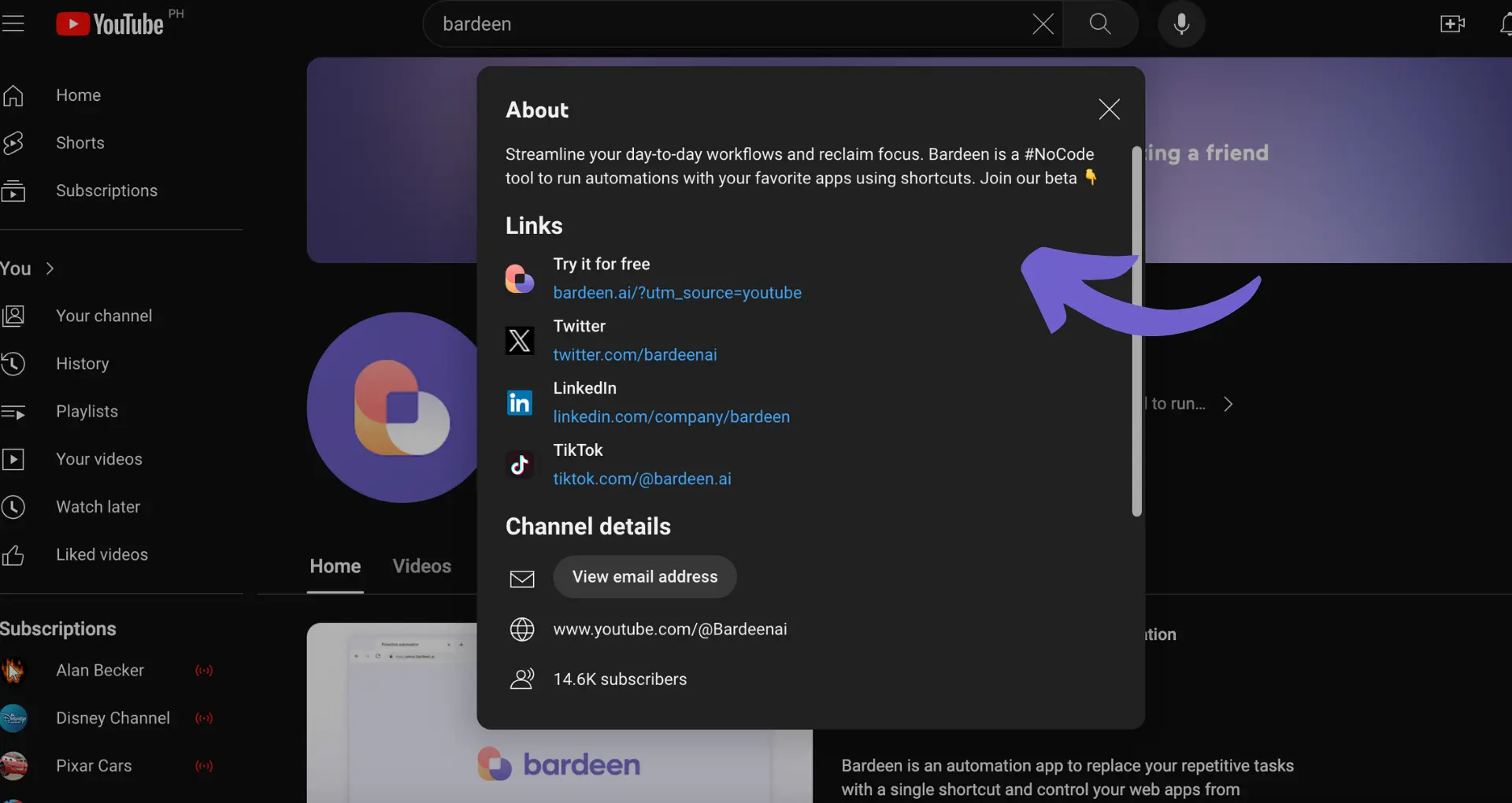
Exploring the “About” and “Links” Sections
Once you find a video you enjoy, the easiest way to access the channel is to click the channel name or profile picture located directly below the video player. However, seasoned users know to look further. By navigating to the “About” tab (or the “More info” section in the new UI) on a channel page, you can find links to “Featured Channels.” Many creators collaborate or run secondary channels—such as “Live” or “Shorts” channels—that are listed here. This is a goldmine for finding related content without performing new searches.
The Power of the “Related” Sidebar
When watching a video on a desktop, the sidebar on the right (or below the video on mobile) displays “Up Next” and “Related” videos. This algorithm is not just looking for similar titles; it is looking for “channel affinity.” If a specific creator is frequently recommended alongside another, it is likely because their technical focus or presentation style overlaps. Clicking through these recommendations is one of the most common ways users build their subscription lists.
Utilizing YouTube “Handles” in URLs
A technical shortcut to finding a channel if you have the handle is to bypass the search UI entirely. Every YouTube channel can be reached via a direct URL: youtube.com/@handle. This is particularly useful when you see a creator mentioned on technical forums, GitHub, or social media. Simply appending their handle to the YouTube domain in your browser’s address bar will take you directly to their homepage.
Troubleshooting and Technical Hurdles in Channel Discovery
Despite the platform’s sophistication, users often encounter hurdles when trying to locate specific channels. These issues can range from technical glitches to intentional privacy settings by the creator.
Handling Rebranded or Renamed Channels
In the tech world, channels frequently undergo rebranding. A channel formerly known for “Mobile Reviews” might change its name to reflect a broader “Tech Ecosystem” focus. If you search for an old name and cannot find the channel, try searching for the specific titles of videos you remember. Once you find an old video, click the current channel name to see the new branding.
Finding Hidden or Private Channels
Some channels may not appear in search results because they have been set to “Unlisted” or “Private.” If a channel is unlisted, it will not appear in the YouTube search index, regardless of how specific your query is. In these cases, the only way to find the channel is through a direct link shared via email, a website, or another social media platform.
Furthermore, if a channel has been terminated for violations of YouTube’s Terms of Service (such as copyright issues or digital security breaches), it will be purged from the search results entirely. If a search for a previously active channel returns zero results, it is possible the account has been suspended or deleted.
Dealing with Regional Restrictions
Some technology brands or media companies utilize “geo-blocking” to restrict their channels to specific regions. If you are searching for a channel that you know exists but cannot find it, it may be hidden due to your IP address. While this is less common for individual creators, corporate tech channels often use these settings for licensing reasons. Using a VPN or checking your location settings can sometimes reveal these “missing” channels.
Managing and Organizing Your Discovered Channels
Once you have successfully found the channels you are looking for, the final step in mastering the platform is ensuring you can find them again. Discovery is only half the battle; management is the other.
Using Subscriptions and Notifications
The “Subscribe” button is the primary tool for saving a channel. However, being subscribed does not guarantee you will see every update. To ensure a channel stays at the forefront of your feed, you must click the “Bell” icon to enable all notifications. Technically, this moves the channel into a higher priority tier within your personal algorithm.
Organizing with Subscriptions Folders and Extensions
For users who follow hundreds of tech channels, the subscription feed can become cluttered. While YouTube does not natively offer “folders” for subscriptions anymore, many power users utilize browser extensions or third-party apps to categorize their channels. By grouping channels into categories like “Programming,” “Gadget Reviews,” and “Cybersecurity News,” you can navigate your discovered content more efficiently.

Using the “Library” and “History” Features
If you found a channel but forgot to subscribe, the “History” tab is your best technical fallback. YouTube keeps a detailed log of every video you have watched (unless paused in settings). By searching your own watch history for keywords related to the content, you can trace your steps back to the channel profile.
By combining the use of specific search filters, unique handles, external search operators, and the platform’s recommendation logic, you can turn YouTube from a chaotic video repository into a precisely tuned library of content. Navigating the platform efficiently ensures that you spend less time searching and more time engaging with the high-quality technical content that matters to you.
aViewFromTheCave is a participant in the Amazon Services LLC Associates Program, an affiliate advertising program designed to provide a means for sites to earn advertising fees by advertising and linking to Amazon.com. Amazon, the Amazon logo, AmazonSupply, and the AmazonSupply logo are trademarks of Amazon.com, Inc. or its affiliates. As an Amazon Associate we earn affiliate commissions from qualifying purchases.