
In an increasingly connected world, the ability to disconnect and still access your favorite entertainment has become a prized feature. Amazon Prime Video, a leading streaming service, understands this perfectly, offering users the invaluable option to download content for offline viewing. Whether you’re commuting through areas with spotty signal, embarking on a long flight, or simply wish to conserve mobile data, knowing how to download Prime Video content is a fundamental skill for any savvy digital consumer. This comprehensive guide will walk you through every step, ensuring you can enjoy your chosen movies and TV shows anytime, anywhere, without the need for an internet connection.
Understanding the “Download” Feature on Prime Video
The concept of downloading streaming content for offline access might seem counterintuitive at first, but it offers a powerful layer of flexibility and convenience to your viewing experience. It’s a feature designed to empower users, freeing them from the constant tether of Wi-Fi or cellular data.
The Rationale Behind Offline Viewing
The core reason for offline viewing capabilities is simple: life happens outside of consistent internet access. Think about international travel, where roaming data can be exorbitant, or domestic travel through rural areas notorious for dead zones. Even at home, data caps can be a concern, making it desirable to download content over a stable Wi-Fi connection and save it for later. For many, a quiet evening flight or a road trip with children becomes significantly more manageable when a library of pre-downloaded entertainment is readily available. Amazon’s commitment to user experience shines through this feature, acknowledging that modern entertainment consumption extends beyond the living room couch.
Key Benefits of Downloading Content
The advantages of downloading Prime Video content are manifold. Firstly, uninterrupted playback is paramount. No more buffering wheels or dropped connections ruining a pivotal scene. Once downloaded, your content plays smoothly, regardless of your internet status. Secondly, it offers significant data savings. Downloading large files over a home Wi-Fi network eliminates the need to stream them on costly mobile data plans. Thirdly, it provides ultimate portability. Your personal entertainment library travels with you, accessible on planes, trains, and automobiles, or even in remote locations where connectivity is a luxury. Lastly, it offers peace of mind, knowing that your selected shows and movies are secured and ready for viewing, preventing reliance on potentially unstable public Wi-Fi networks or unforeseen connectivity issues.
Downloadable Content vs. Streaming Limitations
It’s important to note that not all content on Prime Video is available for download. Licensing agreements with studios and distributors dictate which titles can be downloaded and for how long. Generally, a vast majority of Amazon Originals and popular licensed content are available, indicated by a “Download” icon next to the title. When content is downloaded, it typically has an expiry period, meaning it will become unavailable after a certain number of days (usually 30) or a set time after you first start watching it (e.g., 48 hours). Additionally, there might be limits on how many devices can have the same title downloaded simultaneously, or a total number of titles that can be downloaded across all your registered devices. Understanding these nuances helps manage expectations and plan your offline viewing library effectively.
Downloading Prime Video Content on Mobile Devices
Mobile devices — smartphones and tablets — are perhaps the most common platforms for consuming downloaded Prime Video content due to their portability. The process is remarkably similar across iOS and Android, designed for intuitive navigation.
Step-by-Step for iOS Devices (iPhone & iPad)
-
Open the Prime Video App: Ensure you have the latest version of the Amazon Prime Video app installed from the App Store. Log in with your Amazon account credentials.
-
Browse or Search: Navigate through the app to find the movie or TV show you wish to download. You can use the search bar, browse by category, or check your watchlist.
-
Select Content: Tap on the title to open its detail page. For TV shows, you’ll need to select a specific season and then an episode.
-
Locate the Download Icon: On the detail page (or next to each episode for TV shows), you’ll see a prominent “Download” icon. This usually looks like a downward-pointing arrow.
-
Choose Download Quality (Optional): Before the download begins, the app may prompt you to choose your preferred download quality (e.g., Good, Better, Best, or Data Saver). Higher quality consumes more storage space.
-
Initiate Download: Tap the download icon. A progress circle or bar will appear, indicating the download status.
-
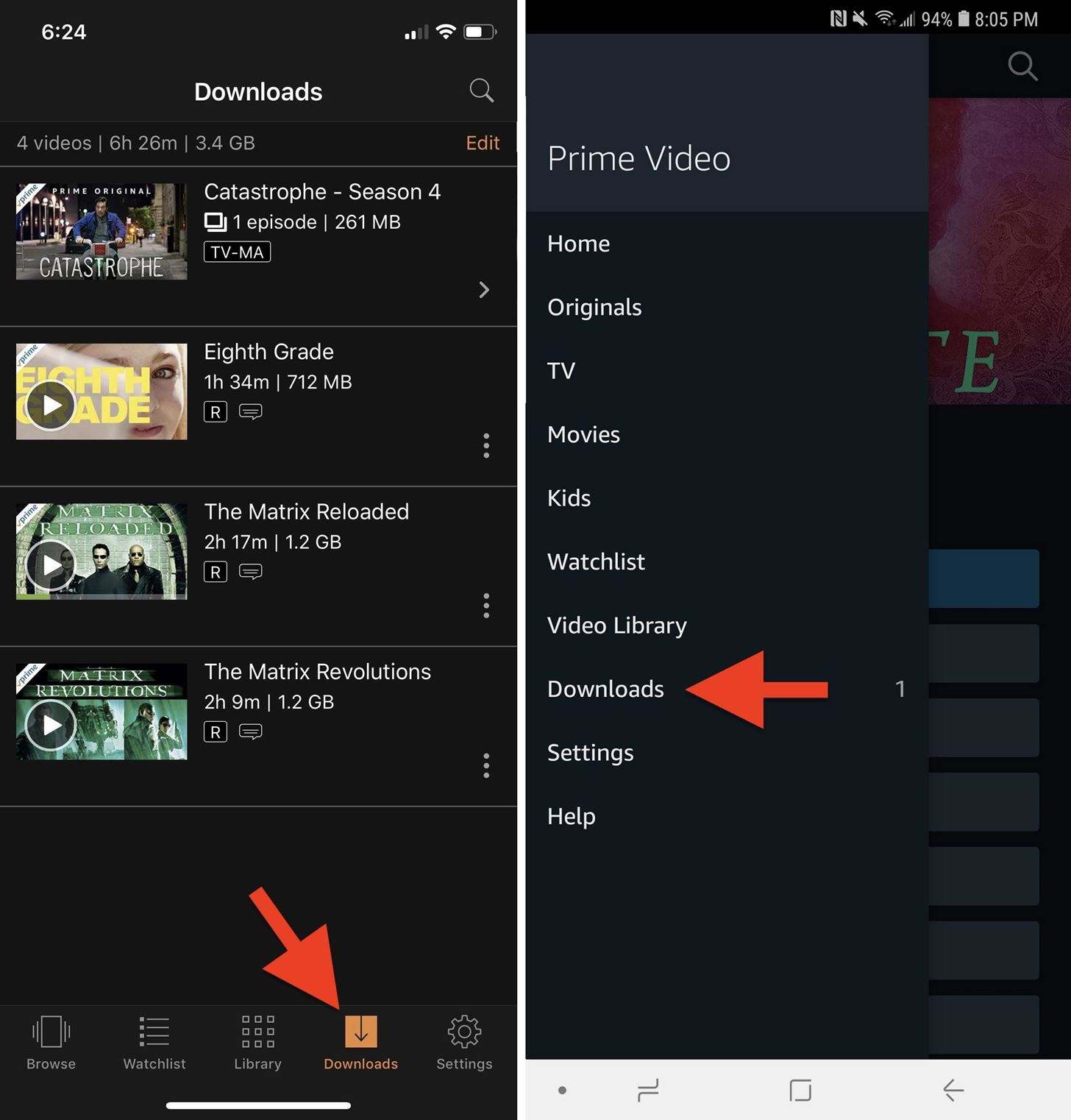
Access Downloads: Once complete, you can find your downloaded content by tapping “My Stuff” (or similar icon) at the bottom of the screen, and then selecting “Downloads.”
Step-by-Step for Android Devices
-
Install/Open Prime Video App: Download the Amazon Prime Video app from the Google Play Store and sign in.
-
Find Your Content: Browse the extensive library or use the search function to locate the movie or TV episode you want.
-
Go to Detail Page: Tap on the desired title to open its information page.
-
Tap the Download Icon: Similar to iOS, look for the downward arrow icon. For TV series, you’ll find it next to individual episodes.
-
Select Download Quality: The app will likely ask you to choose a download quality setting, allowing you to balance video fidelity with storage consumption.
-
Start Downloading: Tap the download button. You’ll see a notification or an in-app indicator showing the download’s progress.
-
View Offline Content: All your downloaded titles are accessible under the “My Stuff” or “Downloads” section within the app.
Customizing Download Quality on Mobile
Both iOS and Android Prime Video apps allow you to set a default download quality. This can be very useful for managing storage space on your device. To adjust this:
-
Go to the “My Stuff” section.
-
Tap the “Settings” icon (gear icon, usually top right).
-
Select “Stream & Download” or “Download Preferences.”
-
Choose “Download Quality” and select your preferred setting (e.g., Best, Better, Good, Data Saver). Data Saver offers the smallest file size, ideal for limited storage or when you simply need basic quality.
Accessing Prime Video Downloads on Desktop & Laptops
While mobile devices are prime candidates for offline viewing, larger screens often offer a more immersive experience. Amazon extends its download functionality to desktop and laptop users through its dedicated Prime Video app for Windows and macOS.
Installing the Prime Video App for Windows/macOS
To download content on your computer, you first need the official Prime Video application, as downloads are not supported directly through web browsers.
-
For Windows: Open the Microsoft Store, search for “Amazon Prime Video,” and click “Get” or “Install.”
-
For macOS: While there used to be a standalone app, Amazon has integrated Prime Video content within the Apple TV app for macOS. Open the Apple TV app, navigate to the “Channels” section, and you should find Prime Video there. Log in with your Amazon account. For direct downloads, it’s typically done through the Prime Video website indirectly via the Apple TV app’s integration or by streaming. However, the most robust download functionality for Macs is often through the official browser and associated integrations rather than a dedicated Amazon desktop app similar to Windows. Correction: Amazon has a dedicated Prime Video app for macOS available directly from the Mac App Store, similar to Windows. Search for “Amazon Prime Video” and install it.
Navigating to Downloadable Content
Once the app is installed and you’re logged in:
-
Launch the Prime Video app on your computer.
-
Browse the library or use the search function to locate the movie or TV series you wish to download.
-
Click on the title to go to its detail page.
The Download Process on Desktop

-
Locate the Download Button: Similar to mobile, look for the “Download” icon (downward arrow) on the title’s detail page or next to individual episodes of a TV show.
-
Select Download Quality: The app will likely offer options for download quality. Choose based on your preference for file size versus video fidelity.
-
Initiate Download: Click the download button. The content will begin downloading.
-
Access Downloads: To find your downloaded titles, navigate to the “Downloads” section within the Prime Video desktop app. This section centralizes all your offline content.
Managing Your Prime Video Downloads
Effectively managing your downloads is crucial for an optimal experience, especially concerning storage, content availability, and device limits. A proactive approach will prevent frustrating “storage full” messages or unexpected content expiry.
Monitoring Storage Usage
Downloaded content, especially in high quality, can consume significant storage space on your device.
-
In the Mobile App: Go to “My Stuff” > “Settings” (gear icon) > “Stream & Download” > “Manage Storage.” Here, you’ll see how much space Prime Video downloads are using and can delete content selectively.
-
In the Desktop App: The “Downloads” section often provides an overview of consumed storage or allows you to manage content directly.
It’s good practice to periodically check your device’s overall storage settings to ensure Prime Video downloads aren’t monopolizing space needed for other apps or files.
Understanding Download Expiry Dates
As mentioned earlier, downloaded titles from Prime Video are not permanent. They come with expiry periods dictated by licensing agreements.
-
Most downloaded content remains available for 30 days from the date of download.
-
Once you start watching a downloaded title, you typically have 48 hours to finish it before it expires.
-
Expired content will need to be re-downloaded (if still available) to watch again.
-
The Prime Video app usually provides indicators or warnings about approaching expiry dates within your “Downloads” section. Regularly reviewing this section helps prevent unexpected content loss.
Deleting Downloaded Content
To free up storage space, you’ll need to delete content you’ve already watched or no longer need.
-
On Mobile: Go to “My Stuff” > “Downloads.” Tap “Edit” (iOS) or the three-dot menu next to the title (Android), then select “Delete Download.” You can also “Manage Storage” from settings to delete multiple items at once.
-
On Desktop: Navigate to your “Downloads” section. Hover over the title and look for an “X” or a trash can icon to delete.
Setting Default Download Quality
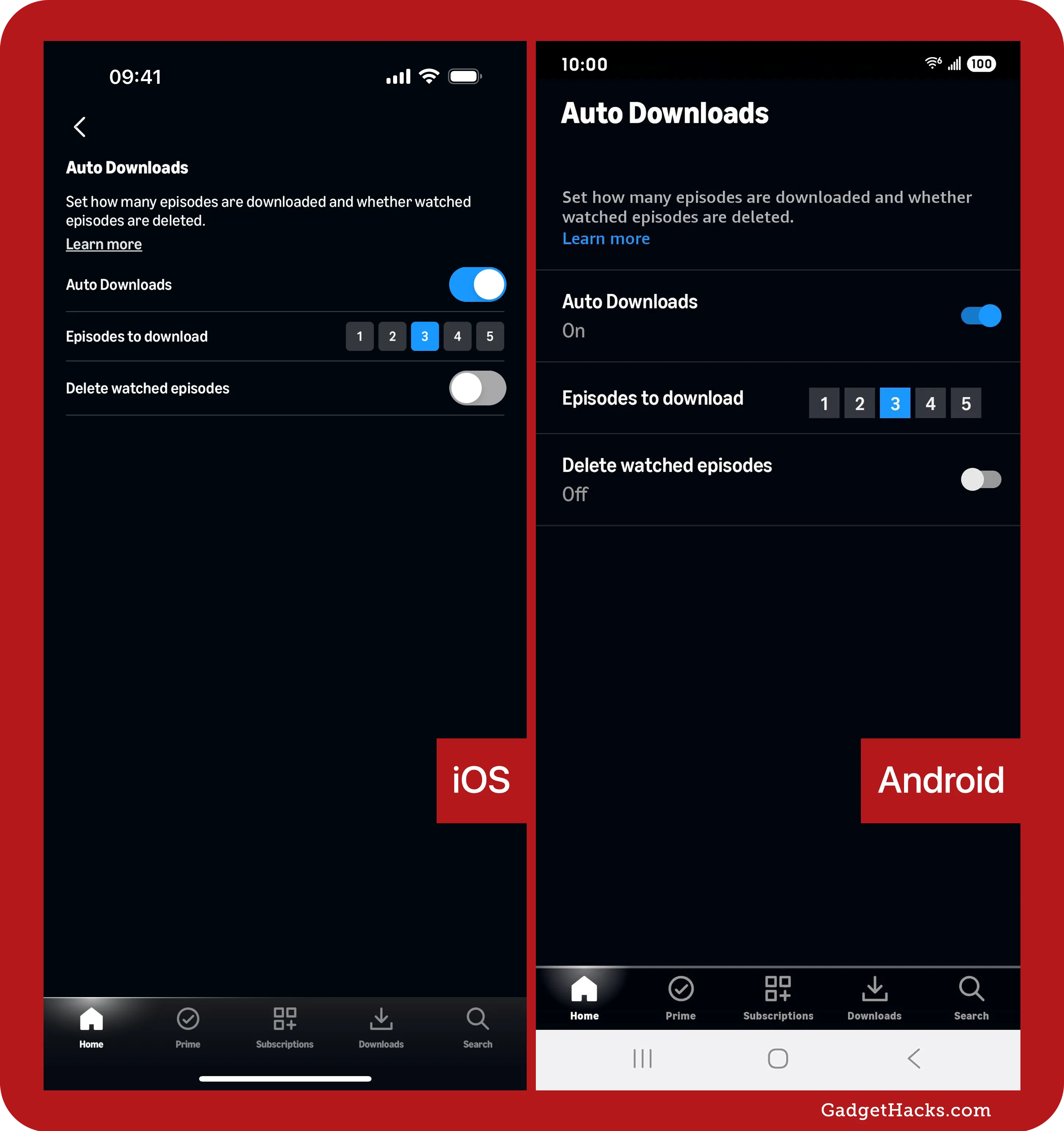
To save time and manage storage automatically, setting a default download quality is highly recommended.
-
Mobile App: Navigate to “My Stuff” > “Settings” > “Stream & Download” > “Download Quality.”
-
Desktop App: Within the app’s settings or preferences, look for a “Download” section where you can adjust default quality.
Choosing “Good” or “Data Saver” will result in smaller file sizes, ideal for devices with limited storage, while “Best” offers superior visual quality at the expense of storage.
Troubleshooting Common Download Issues
Even with a straightforward process, you might occasionally encounter issues when trying to download content. Here are some common problems and their solutions.
“Not Enough Storage” Error
This is perhaps the most common issue.
- Solution: Check your device’s available storage. Delete old Prime Video downloads, other unused apps, photos, or videos to free up space. Adjust your default download quality to a lower setting for future downloads.
“Download Failed” or Interrupted Downloads
Downloads can fail due to various reasons, from connectivity to app glitches.
-
Solution:
-
Check Internet Connection: Ensure you have a stable Wi-Fi connection, especially for large files. Switching to mobile data might work if Wi-Fi is the issue (but be mindful of data usage).
-
Restart App/Device: Sometimes, simply closing and reopening the Prime Video app, or restarting your device, can resolve temporary glitches.
-
Clear Cache: For Android, clearing the app’s cache (Settings > Apps > Prime Video > Storage > Clear Cache) can sometimes help. For iOS, offloading the app (Settings > General > iPhone Storage > Prime Video > Offload App) and then reinstalling it can resolve deeper issues without deleting data.
-
Device Limit Reached
Prime Video, like many streaming services, imposes limits on the number of devices you can have content downloaded on simultaneously.
- Solution: Go to your Prime Video account settings (often accessible via the Amazon website under “Account & Settings” > “Your Devices”). Deregister any old or unused devices that might still be linked to your account. You may also need to delete downloads from a device you’re not currently using.
Content Not Available for Download
Not every title in the Prime Video library is downloadable due to licensing restrictions.
- Solution: Check the title’s detail page. If there’s no download icon, the content simply isn’t available for offline viewing. There’s no workaround for this.
Ensuring a Stable Internet Connection
While downloads are for offline viewing, initiating and completing them requires a robust online connection.
- Solution: Always use a strong, stable Wi-Fi connection when downloading content, especially large movies or entire seasons of TV shows. Avoid downloading over public Wi-Fi networks if they are known to be unreliable. If using mobile data, ensure you have a strong signal to prevent interruptions.
In conclusion, the ability to download Prime Video content transforms your viewing experience, offering unparalleled flexibility and convenience. By mastering the simple steps outlined in this guide and understanding how to manage your downloaded library, you’ll be well-equipped to enjoy a world of entertainment, free from the constraints of internet connectivity. Happy watching!
aViewFromTheCave is a participant in the Amazon Services LLC Associates Program, an affiliate advertising program designed to provide a means for sites to earn advertising fees by advertising and linking to Amazon.com. Amazon, the Amazon logo, AmazonSupply, and the AmazonSupply logo are trademarks of Amazon.com, Inc. or its affiliates. As an Amazon Associate we earn affiliate commissions from qualifying purchases.