
In the modern era of digital streaming, the ability to consume content without a persistent internet connection has transitioned from a luxury to a necessity. Whether you are preparing for a long-haul flight, commuting through areas with spotty cellular coverage, or simply looking to preserve your mobile data plan, downloading content from Amazon Prime Video is a vital skill. This guide provides a deep dive into the technical requirements, step-by-step procedures, and optimization strategies for managing offline media within the Amazon ecosystem.
Understanding the Technical Requirements and Device Compatibility
Before initiating a download, it is essential to understand the software and hardware architecture required to support Amazon’s offline viewing feature. Unlike streaming, which can be done through almost any modern web browser, downloading content is restricted to specific applications due to Digital Rights Management (DRM) protocols.
Supported Operating Systems and Apps
Amazon Prime Video does not allow users to download content directly through a web browser (such as Chrome, Safari, or Firefox) on a PC or Mac. This is a security measure designed to prevent unauthorized distribution of copyrighted material. To download videos, you must use the dedicated Prime Video app available for the following platforms:
-
Mobile Devices: iOS (iPhone and iPad), Android smartphones and tablets, and Fire tablets.
-
Desktop Computers: Windows 10 and 11 (available via the Microsoft Store) and macOS (available via the Mac App Store).
-
Media Players: Some specialized devices like the ChromeOS (via the Google Play Store) also support the app.
Hardware Constraints and Storage Needs
Video files are resource-intensive. A standard-definition (SD) movie can take up approximately 500MB to 1GB, while a High Definition (HD) or 4K Ultra HD title can consume between 3GB and 5GB per hour of footage. Ensure your device has sufficient internal storage or a high-speed microSD card (supported on many Android and Fire devices) before starting the process.
Step-by-Step Instructions for Mobile and Desktop
The process for downloading content is relatively uniform across devices, but there are subtle UI differences between the mobile and desktop versions of the app.
Downloading on iOS and Android Devices
-
Launch the App: Open the Prime Video app and sign in with your Amazon credentials.
-
Find Your Content: Browse the library or use the search function to find a movie or TV show. Note that not every title is available for download; this depends on the licensing agreements Amazon has with the content creators.
-
Initiate the Download:
-
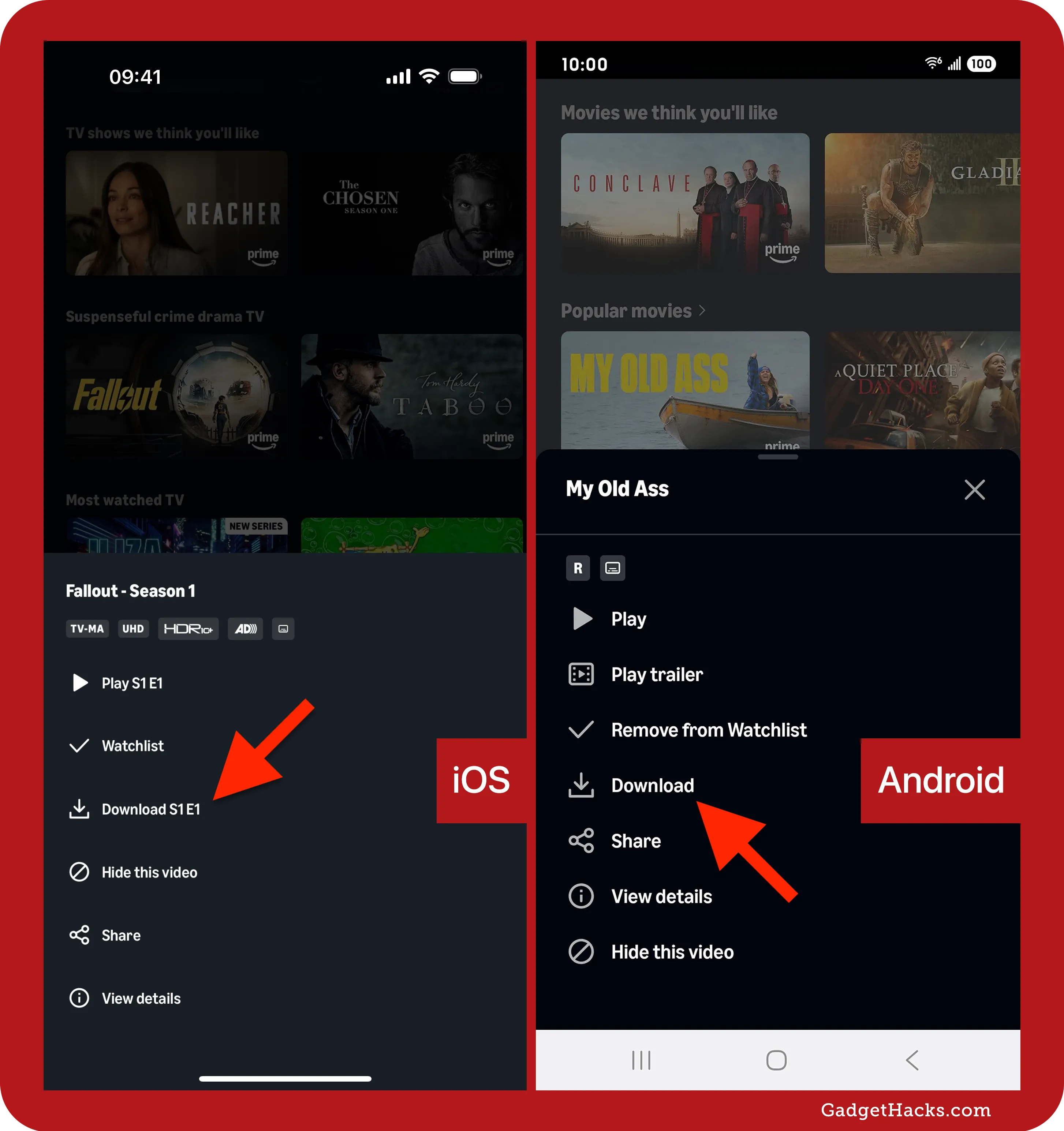
For Movies: Tap on the movie’s detail page. You will see a “Download” button (usually an icon with a downward-pointing arrow). Tap it to begin.
-
For TV Shows: You can choose to download the entire season or individual episodes. To download a single episode, scroll down to the episode list and tap the download icon next to the specific title.
-
-
Accessing Content: Once the download is complete, navigate to the “Downloads” tab (located at the bottom of the screen on mobile) to view your offline library.
Using the Windows and macOS Desktop Apps
The desktop experience is designed for larger screens but follows a similar logic.
-
Install the App: Download the official Amazon Prime Video app from the Microsoft Store or Mac App Store.
-
Select Quality: Before downloading, it is wise to check your settings. Click on the gear icon (Settings) and select “Download Quality.” You can choose between “Best,” “Better,” and “Good.”
-
Execute the Download: Navigate to the title you wish to save. On the right-hand side of the interface, click the “Download” button.
-
Offline Access: Your saved videos are housed in the “Downloads” section of the left-hand navigation sidebar.
Managing Your Downloads: Settings, Quality, and Limitations
To maintain a smooth technical experience, users must manage the balance between visual fidelity and storage capacity. Amazon provides several tools within the app to automate and refine this process.
Adjusting Video Quality for Storage Efficiency
The Prime Video app utilizes advanced video codecs (such as H.264 or HEVC) to compress files, but the user still has control over the final bitrate.
-
Best: This provides the highest resolution and bitrate, ideal for tablets with Retina or OLED displays, but it uses the most storage.
-
Good: This significantly reduces file size by lowering the bitrate and resolution, which is perfect for small smartphone screens or when storage is at a premium.
Expiration Dates and Licensing Restrictions
Downloads are not permanent files. They are governed by strict DRM “rental” periods. Typically, you have 30 days to begin watching a downloaded video once it has been saved to your device. Once you press “play,” the window usually shrinks to 48 hours. Furthermore, if your Amazon Prime subscription expires or a title leaves the Prime library, the downloaded file will become inaccessible.
Using the “Smart Downloads” Feature
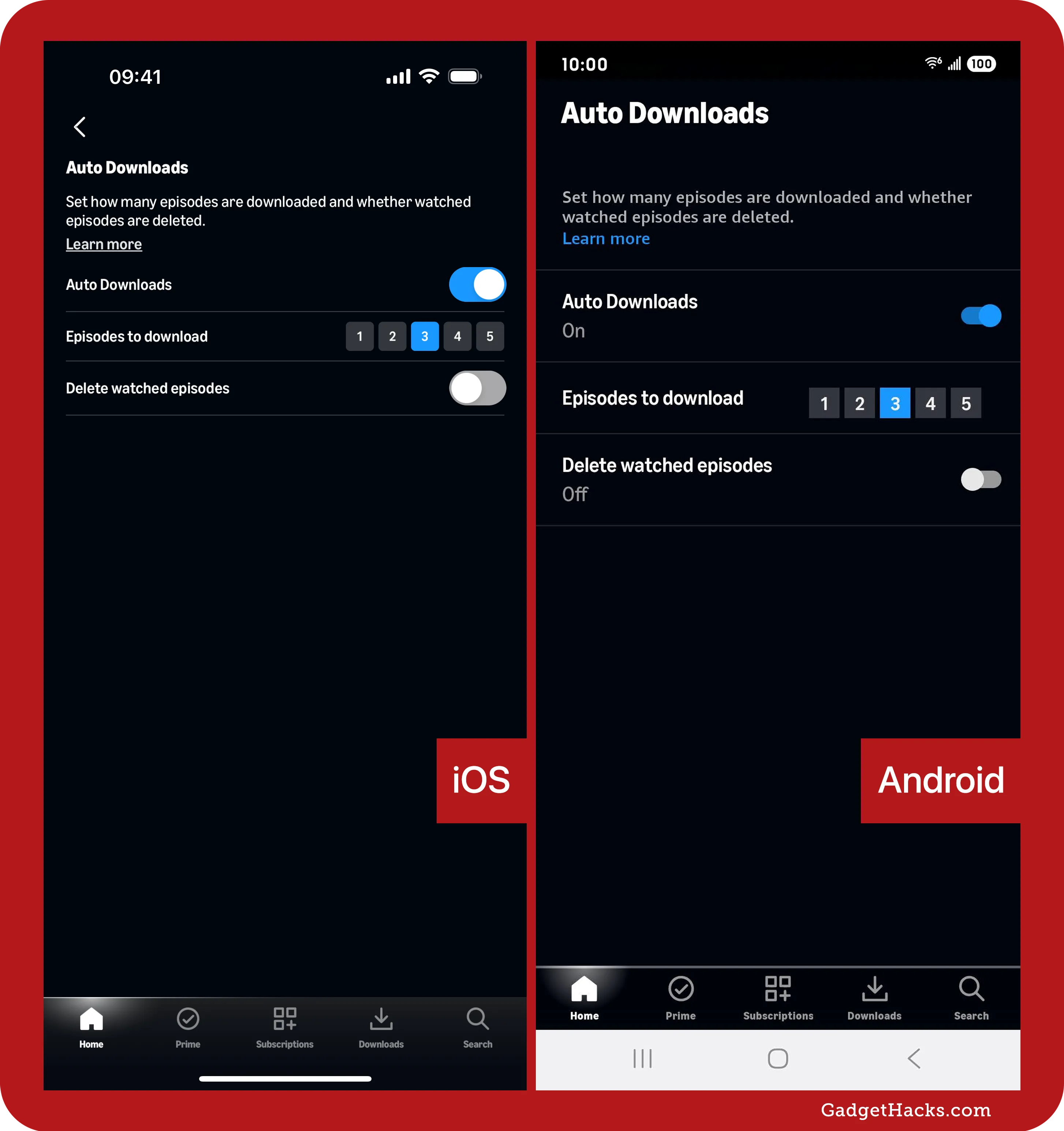
For binge-watchers, Amazon offers a “Smart Downloads” feature. On mobile devices, this feature automatically deletes an episode once you finish watching it and begins downloading the next episode in the series (provided you are connected to Wi-Fi). This ensures that you always have fresh content without manually managing your storage.
Troubleshooting Common Download Issues
Even with a robust app, technical glitches can occur. Understanding how to troubleshoot these issues can save time and frustration.
Connectivity and Authentication Errors
If a download fails to start, the most common culprit is a fluctuating internet connection. Prime Video requires a stable handshake with Amazon’s servers to verify your subscription status before it allows a download to commence. If you encounter a “Download Failed” error, try toggling your Airplane Mode or switching from a 4G/5G connection to a stable 5GHz Wi-Fi band.
Storage Full and Cache Clearing
If the app reports that there is insufficient space despite your device appearing to have room, the app’s cache may be bloated. On Android, you can go to Settings > Apps > Prime Video > Storage and “Clear Cache.” On iOS or Desktop, you may need to delete older downloads manually within the app to free up “allocated” space that the OS might not be reporting correctly.
Regional Restrictions and VPN Usage
Licensing for Amazon content is region-specific. If you download a movie in the United States and travel to a country where that movie is not licensed, the app may block playback even if the file is stored locally. Furthermore, using a VPN while downloading can often trigger a “Service Area” error, as Amazon’s DRM systems are designed to detect and block proxy servers to enforce regional copyrights.
Advanced Tips for a Better Offline Experience
For power users who want the most out of their mobile tech, these advanced strategies can enhance the offline viewing experience.
External Storage and SD Card Usage
Android and Fire tablet users have a distinct advantage: the ability to save downloads to an external microSD card. To enable this, go to the app’s “Settings,” select “Streaming & Downloading,” and find the “Download Videos to SD Card” toggle. Ensure you are using a Class 10 or UHS-1 rated card to prevent stuttering during playback, as lower-grade cards may not have the read/write speeds necessary for high-bitrate video.
Battery Optimization during Offline Playback
Watching downloaded video is significantly less taxing on a battery than streaming over Wi-Fi or LTE because the device’s radio antennas (which are major power consumers) do not need to be active. However, the screen remains the primary power draw. To maximize battery life during a long flight:
-
Lower the Brightness: Manually reduce screen brightness to the lowest comfortable level.
-
Enable Airplane Mode: Since the video is local, turning off all radios prevents the device from searching for signals, further extending battery life.
-
Use Headphones: Using wired headphones or power-efficient Bluetooth 5.0+ earbuds uses less energy than the device’s built-in speakers.

Keeping the App Updated
Amazon frequently updates its DRM protocols and video player engine. If you find that your downloads are frequently “expiring” prematurely or the app is crashing, check for updates in the App Store or Google Play Store. Keeping the software at the latest version ensures compatibility with the latest security patches and performance optimizations.
By understanding the intersection of hardware capabilities and software limitations, users can effectively transform their mobile devices into portable cinemas. Amazon Prime Video’s download feature is a sophisticated piece of technology that, when managed correctly, offers a seamless bridge between online availability and offline convenience.
aViewFromTheCave is a participant in the Amazon Services LLC Associates Program, an affiliate advertising program designed to provide a means for sites to earn advertising fees by advertising and linking to Amazon.com. Amazon, the Amazon logo, AmazonSupply, and the AmazonSupply logo are trademarks of Amazon.com, Inc. or its affiliates. As an Amazon Associate we earn affiliate commissions from qualifying purchases.