
In an increasingly connected world, the ability to disconnect without losing access to your favorite entertainment has become a highly valued feature. For millions of Amazon Prime subscribers, the convenience of streaming a vast library of movies and TV shows is a primary draw. However, true liberation comes from the power to watch that content offline—whether you’re enduring a long flight, commuting through a dead zone, or simply want to conserve mobile data. This comprehensive guide delves into the technical intricacies and user-friendly steps required to effectively download videos from Amazon Prime, ensuring your entertainment is always within reach, regardless of your internet connection.
The Essentials of Amazon Prime Video Downloads
Understanding the fundamentals of Prime Video’s download functionality is the first step towards mastering offline viewing. This section will clarify why this feature is invaluable, which devices support it, and the inherent policies that govern its use.
Why Offline Viewing Matters
The demand for offline media consumption has surged, driven by modern lifestyle needs. For the tech-savvy individual, downloading Prime Video content offers several compelling advantages:
-
Uninterrupted Entertainment: Eliminate buffering, poor streaming quality, and connection drops that plague online viewing, especially in areas with unstable Wi-Fi or limited mobile data.
-
Data Conservation: Avoid exceeding mobile data caps while on the go. Downloading content over Wi-Fi before you leave home saves precious cellular data for other essential tasks.
-
Travel Companion: Long flights, train rides, and road trips often mean extended periods without internet access. A downloaded library transforms these journeys into enjoyable viewing experiences.
-
Accessibility in Remote Locations: For those who live or travel to areas with limited or no internet infrastructure, offline content becomes a gateway to digital entertainment.
-
Battery Efficiency: Streaming actively consumes more battery power than playing downloaded content, as the device isn’t constantly processing data packets from the internet.
Device Compatibility for Downloads
Amazon Prime Video’s download feature is designed to be accessible across a range of popular devices, primarily focusing on platforms where offline viewing is most practical. It’s crucial to distinguish between devices that stream Prime Video and those that download it.
-
Mobile Devices (Smartphones & Tablets): This is the primary target for offline viewing. Both iOS (iPhones, iPads) and Android devices (various smartphones and tablets) are fully supported via the official Amazon Prime Video app.
-
Desktop & Laptops: For Windows 10/11 users, the Amazon Prime Video app available from the Microsoft Store enables downloads. Similarly, macOS users can download the Prime Video app from the Mac App Store to access this feature.
-
Not Supported: Devices like smart TVs, streaming sticks (Roku, Fire TV Stick), gaming consoles (PlayStation, Xbox), and web browsers generally do not support direct content downloads for offline playback. These platforms are designed for real-time streaming experiences.
Understanding Prime Video’s Download Policies
While convenient, the download feature operates under specific technical and licensing parameters set by Amazon and content providers. Being aware of these policies helps manage expectations and avoid common frustrations.
-
Content Availability: Not all titles on Prime Video are available for download. Licensing agreements with studios dictate which movies and shows can be downloaded. Typically, titles included with your Prime subscription are more likely to be downloadable than those you rent or purchase (though some rentals/purchases also offer download options).
-
Expiry Dates: Downloaded content isn’t permanent. Most downloads have an expiration period, usually 30 days from the download date. Once you start watching, you typically have 48 hours to finish the content before it expires. After expiry, you’ll need to re-download or reconnect to the internet to verify your subscription status and renew access.
-
Device Limits: Amazon limits the number of devices you can download content to simultaneously. Generally, you can have the same title downloaded on a maximum of two unique devices at any given time. If you exceed this, you’ll need to delete the download from one device before adding it to another. There’s also a limit on the total number of unique titles that can be downloaded across all your devices, often around 15 or 25, depending on your region and subscription type.
-
Geographical Restrictions: Downloads are typically tied to the region where you originally accessed and downloaded the content. If you travel outside that region, you might find that your downloaded content becomes temporarily unavailable until you return or if the content is licensed for your current region.
-
Storage Requirements: Downloads can consume significant storage space, especially at higher quality settings. Users must ensure their device has sufficient free space before initiating downloads.
Step-by-Step: Downloading on Mobile (iOS & Android)
Mobile devices are arguably the most popular platform for consuming downloaded Prime Video content. The process is intuitive, designed for ease of use.
Preparing Your Mobile Device
Before you begin downloading, ensure your device is ready:
-
Install the Prime Video App: If you haven’t already, download the official “Amazon Prime Video” app from the Apple App Store (for iOS) or Google Play Store (for Android).
-
Log In: Open the app and log in with your Amazon account credentials linked to your Prime subscription.
-
Check Storage: Navigate to your device settings to confirm you have enough free storage. A full-length movie can easily consume 1-3 GB, while TV episodes might range from 300MB to 1GB.
-
Connect to Wi-Fi (Recommended): To avoid data charges and ensure faster downloads, connect to a stable Wi-Fi network.
Navigating the Prime Video App for Downloads
Once logged in, finding and initiating downloads is straightforward:
-
Browse or Search: Use the app’s navigation bar to browse categories (Movies, TV Shows), or use the search icon to find a specific title.
-
Select Your Content: Tap on the movie or TV show you wish to download. This will take you to its detail page.
-
Initiate Download:
-
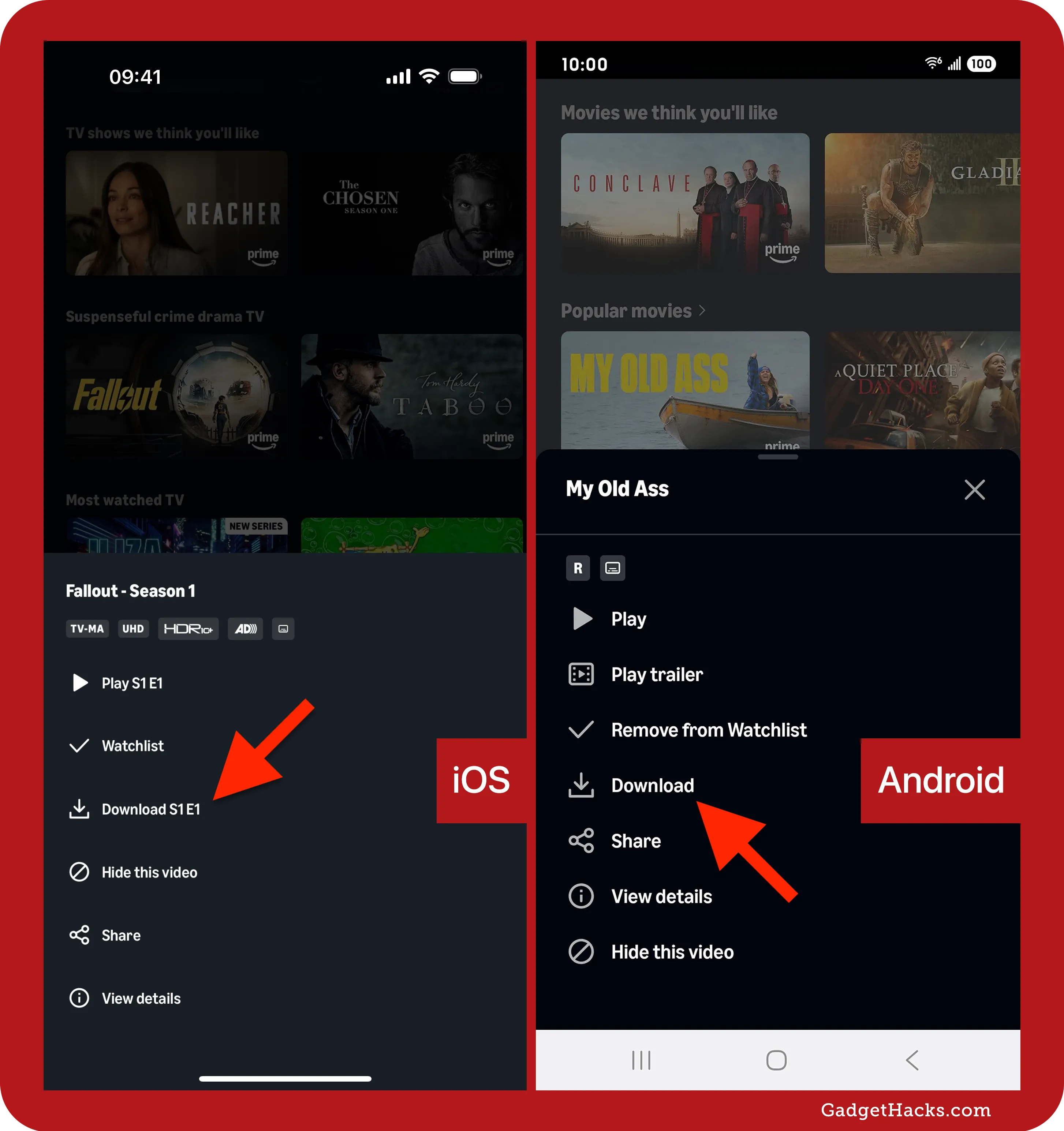
For Movies: Look for a prominent “Download” button, often represented by a downward arrow icon or explicitly labeled.
-
For TV Shows: Tap on the season you want, then individual episodes will display a “Download” button next to them. You may also find an option to “Download Season” if available.
-
-
Choose Download Quality (Optional): After tapping download, a prompt might appear asking you to select your preferred download quality (e.g., Good, Better, Best). Higher quality consumes more storage. Choose based on your storage capacity and viewing preferences. The app often has a default setting, which you can adjust in the app settings under “Stream & Download” -> “Download Quality.”
-
Monitor Progress: A download icon (often a circle with a downward arrow) will appear, indicating the download is in progress. You can typically see the progress on the content’s detail page or within the “Downloads” section of the app.
Customizing Download Quality and Storage Location
The Prime Video app offers options to manage how downloads are stored:
-
Changing Download Quality:
-
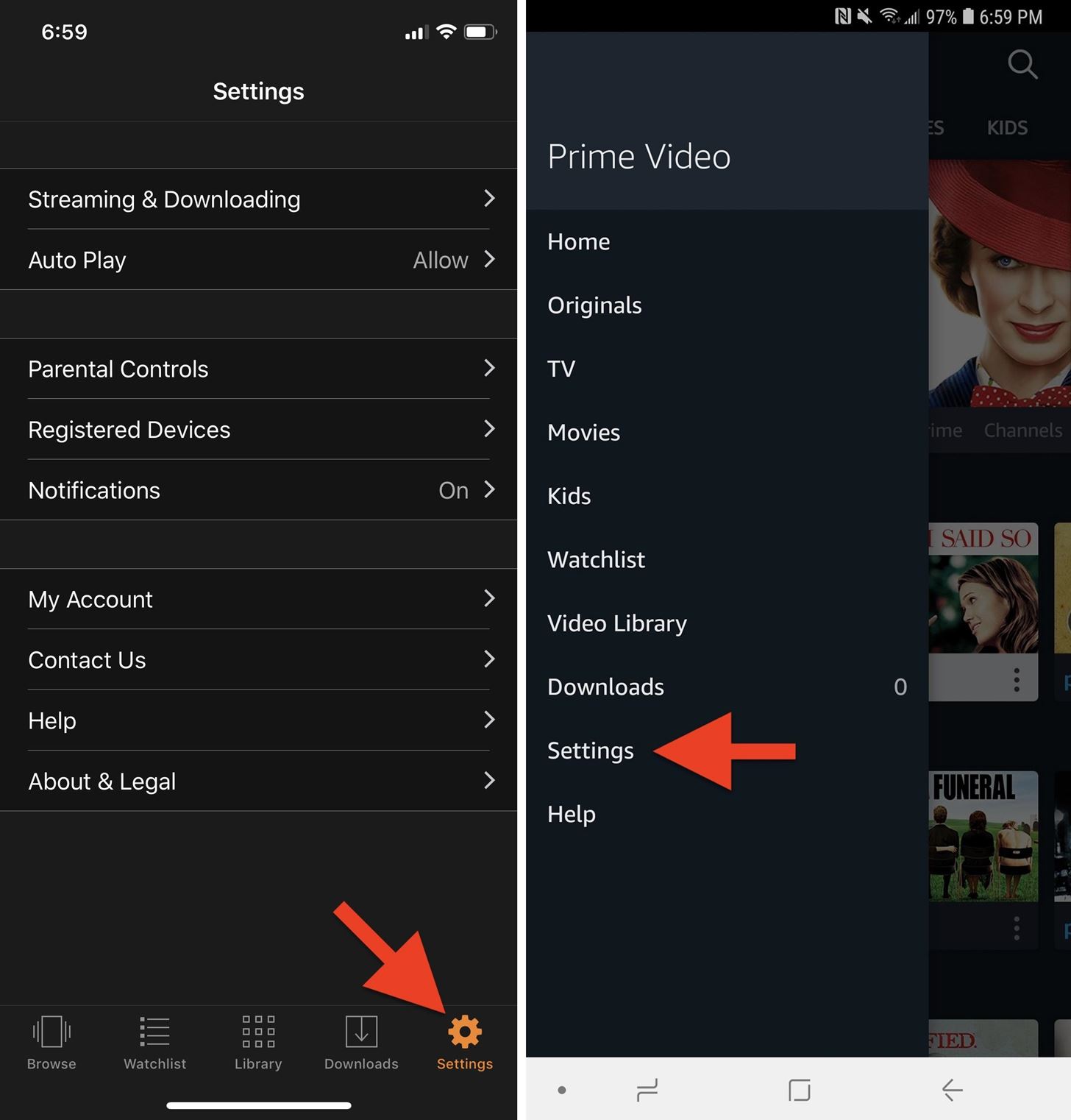
Go to “My Stuff” (or “Settings” menu icon, usually a gear or three dots/lines).
-
Select “Settings” -> “Stream & Download” -> “Download Quality.”
-
Choose your desired quality: “Good” (least storage), “Better,” “Best” (most storage), or “Data Saver” for minimal consumption.
-
-
Saving to SD Card (Android Only): If your Android device has an SD card slot, you can direct downloads to it to save internal storage.
- Go to “My Stuff” -> “Settings” -> “Stream & Download” -> “Download Videos to SD Card.” Toggle this option on.
Managing Your Downloaded Library
To access, view, or remove downloaded content:
-
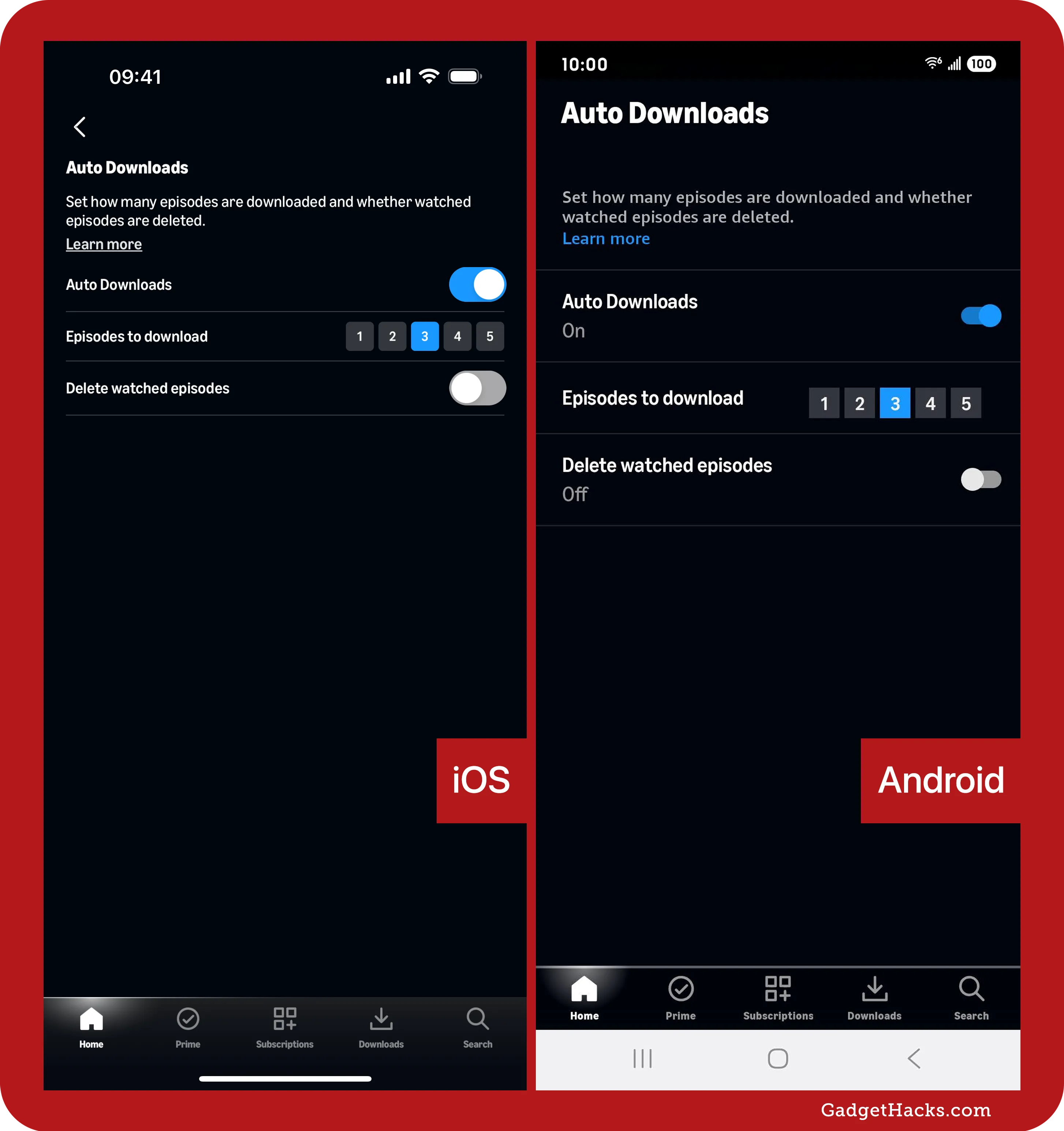
Access Downloads: Tap the “My Stuff” tab at the bottom of the screen, then select “Downloads.”
-
Watch Offline: From this section, simply tap on a title to start watching it. No internet connection is required.
-
Delete Downloads: To free up space, tap the “Edit” or “Options” button (often three dots) next to the downloaded title, then select “Delete Download.” You can also “Delete All Downloads” if desired.
Downloading Prime Video Content on Desktop Computers (Windows & Mac)
While mobile devices are excellent for portability, downloading content to a laptop or desktop offers the advantage of a larger screen and often more robust storage.
The Desktop Application Advantage
For desktop users, the key to offline viewing is the dedicated Amazon Prime Video application, not the web browser. The browser interface does not support downloads due to technical limitations and licensing agreements that typically restrict local storage of content.
-
Windows Users: Search for “Amazon Prime Video” in the Microsoft Store and install the app. It’s compatible with Windows 10 and 11.
-
macOS Users: Search for “Amazon Prime Video” in the Mac App Store and install the app. It supports recent macOS versions.
Executing Downloads on Your PC or Mac
The desktop app mirrors much of the mobile experience, making the transition seamless:
-
Launch and Log In: Open the Prime Video app on your desktop and log in with your Amazon account.
-
Browse or Search: Use the app’s interface to find the movie or TV show you want.
-
Initiate Download:
-
On the content’s detail page, look for the “Download” button (a downward arrow).
-
For TV shows, select the season, then click the “Download” icon next to individual episodes or choose “Download Season” if available.
-
-
Select Download Quality (Windows only): The Windows app typically offers quality options (Good, Better, Best) before downloading. macOS app generally downloads at a standard quality setting, which can be adjusted in the app’s preferences.
-
Monitor Progress: Downloads progress will be displayed within the app, often in a dedicated “Downloads” section or a notification area.
Accessing and Playing Downloaded Content
After downloading, your content is readily available for offline enjoyment:
-
Navigate to Downloads: In the desktop app, go to the “Downloads” section (usually accessible via the left-hand navigation menu or a dedicated tab).
-
Start Watching: Click on the title you wish to play. The content will begin without requiring an internet connection.
-
Manage Storage: To remove downloaded content and free up disk space, right-click on the title in your “Downloads” section and select “Remove Download” or similar option.
Optimizing Your Download Experience and Troubleshooting Common Issues
While the download process is generally smooth, understanding how to optimize performance and troubleshoot common hurdles can significantly enhance your offline viewing experience.
Maximizing Storage and Network Performance
Efficient downloading isn’t just about clicking a button; it involves managing your device resources:
-
Prioritize Wi-Fi: Always download over a strong, stable Wi-Fi connection. This prevents cellular data overages and ensures the fastest possible download speeds.
-
Clear Cache/Data (Mobile): Over time, app cache can accumulate and slow down performance. Periodically clear the Prime Video app’s cache (via device settings -> Apps -> Prime Video -> Storage) to ensure optimal functioning.
-
Close Background Apps: On both mobile and desktop, close unnecessary background applications that might be consuming bandwidth or CPU cycles, potentially slowing down downloads.
-
Choose Lower Quality: If storage is a concern, opt for “Good” or “Better” download quality settings. The visual difference on smaller mobile screens might be negligible, but the storage savings are significant.
Decoding Download Limits and Expiry Dates
These are frequent sources of confusion for users:
-
“Download Limit Reached” Errors: If you encounter this, it means you’ve hit the maximum number of devices or total titles allowed for downloads.
- Solution: Go to your “Downloads” section on all your devices. Identify titles you’ve already watched or no longer need and delete them. This frees up slots. Remember to check both mobile and desktop apps.
-
Content Expiry: When a download expires, it doesn’t mean it’s gone forever from Prime Video; it just means your offline access has ended.
- Solution: Reconnect to the internet and open the Prime Video app. The app will automatically re-verify your subscription and often refresh the expiration timer for downloaded content. If it doesn’t, simply delete and re-download the title.
-
48-Hour Playback Limit: Once you start playing a downloaded video, you typically have 48 hours to finish it before it expires, even if the 30-day download window hasn’t closed.
- Solution: Plan your viewing. If you’re going on a trip, download content just before you leave and start watching when you’re ready to finish within the 48-hour window.
Addressing Playback and Error Messages
Sometimes, downloads complete, but playback is problematic, or you receive an error:
-
“Error Playing Video” or Black Screen:
- Solution: First, ensure the Prime Video app is updated to the latest version. Try restarting the app or your device. If the issue persists, delete the problematic download and attempt to download it again. Corrupted files can sometimes cause this.
-
“Regional Restrictions”: If you’ve downloaded content in one country and then traveled to another, you might face regional restrictions.
- Solution: This is a limitation of licensing. Unfortunately, downloaded content from one region may not be playable in another where Amazon doesn’t hold streaming rights for that specific title. There’s no direct workaround for legitimate use beyond waiting until you return to the original region.
-
Insufficient Storage Error:
- Solution: Delete other apps, photos, or files from your device, or choose a lower download quality setting within the Prime Video app. On Android, utilize an SD card if available.
Best Practices for Seamless Offline Viewing
-
Plan Ahead: Download content in advance, especially before travel or when you know you’ll be without internet.
-
Regularly Manage Downloads: Delete content you’ve watched to free up storage and avoid hitting device limits.
-
Update Your App: Keep the Prime Video app updated to benefit from the latest features, bug fixes, and performance improvements.
-
Understand Your Subscription: Be aware of what’s included with Prime, what’s rented/purchased, and how those categories might differ in download availability and terms.
Mastering the art of downloading videos from Amazon Prime ensures that your entertainment remains a constant companion, adapting seamlessly to your lifestyle and technological needs. By understanding the platform’s capabilities and limitations, and following these guidelines, you can unlock a world of uninterrupted, high-quality offline viewing.
aViewFromTheCave is a participant in the Amazon Services LLC Associates Program, an affiliate advertising program designed to provide a means for sites to earn advertising fees by advertising and linking to Amazon.com. Amazon, the Amazon logo, AmazonSupply, and the AmazonSupply logo are trademarks of Amazon.com, Inc. or its affiliates. As an Amazon Associate we earn affiliate commissions from qualifying purchases.