
Navigating the ecosystem of modern streaming hardware and software requires a reliable support system. Whether you are experiencing a hardware failure on your Apple TV 4K, a software glitch within the tvOS environment, or a billing discrepancy regarding your Apple TV+ subscription, knowing exactly how to reach Apple’s technical support is essential. Apple offers a multi-layered support infrastructure designed to address everything from minor configuration questions to complex hardware repairs. This guide outlines the specific channels available to users, the technical preparation required before making contact, and the most efficient ways to resolve issues within the Apple ecosystem.
Navigating the Apple Ecosystem for TV Support
Before reaching out to a representative, it is vital to understand that “Apple TV” refers to three distinct components: the hardware device (the set-top box), the tvOS software, and the Apple TV+ streaming service. Identifying which of these is the source of your concern will determine the most effective support path.
Identifying Your Device and Software Version
When you contact support, the first information a technician will request is your device’s serial number and the version of tvOS you are currently running. To find these details on a functional device, navigate to Settings > General > About. If the device will not power on, you can find the serial number on the bottom of the hardware unit or on the original packaging. Having this information ready ensures that the support agent can immediately access the technical specifications and warranty status of your specific model.
The Role of Your Apple ID in Support Requests
Your Apple ID is the backbone of your support experience. Apple’s internal systems link your hardware purchases, active subscriptions, and support history to this account. For the fastest service, ensure you are logged into the Apple Support portal or the Support app with the same Apple ID associated with your Apple TV. This allows the technician to view your AppleCare+ status and previous service logs without a lengthy verification process.
Digital Channels: Using the Apple Support App and Website
For most users, digital support channels are the most efficient way to initiate a technical inquiry. Apple has optimized its online portals to offer troubleshooting steps that can often resolve software-related issues without the need for human intervention.
Step-by-Step Guide to the Apple Support Website
The primary hub for digital assistance is the official Apple Support website (getsupport.apple.com). Upon visiting the site, follow these steps:
-
Select “Apple TV” from the list of products.
-
Choose a specific category that matches your issue, such as “Remote Control,” “Connecting to Wi-Fi,” or “Subscriptions & Billing.”
-
The system will present a list of recommended articles. If these do not solve the problem, scroll down to see the “Contact” options.
-
You will typically see options for “Chat” or “Talk to Apple Support Now.”
The web portal is particularly useful because it allows you to run remote diagnostics in some cases. If you are using a Mac or an iPad while troubleshooting your Apple TV, the technician can sometimes send a diagnostic prompt to your devices to check the health of your local network or Apple ID configuration.
Leveraging the iOS Apple Support App
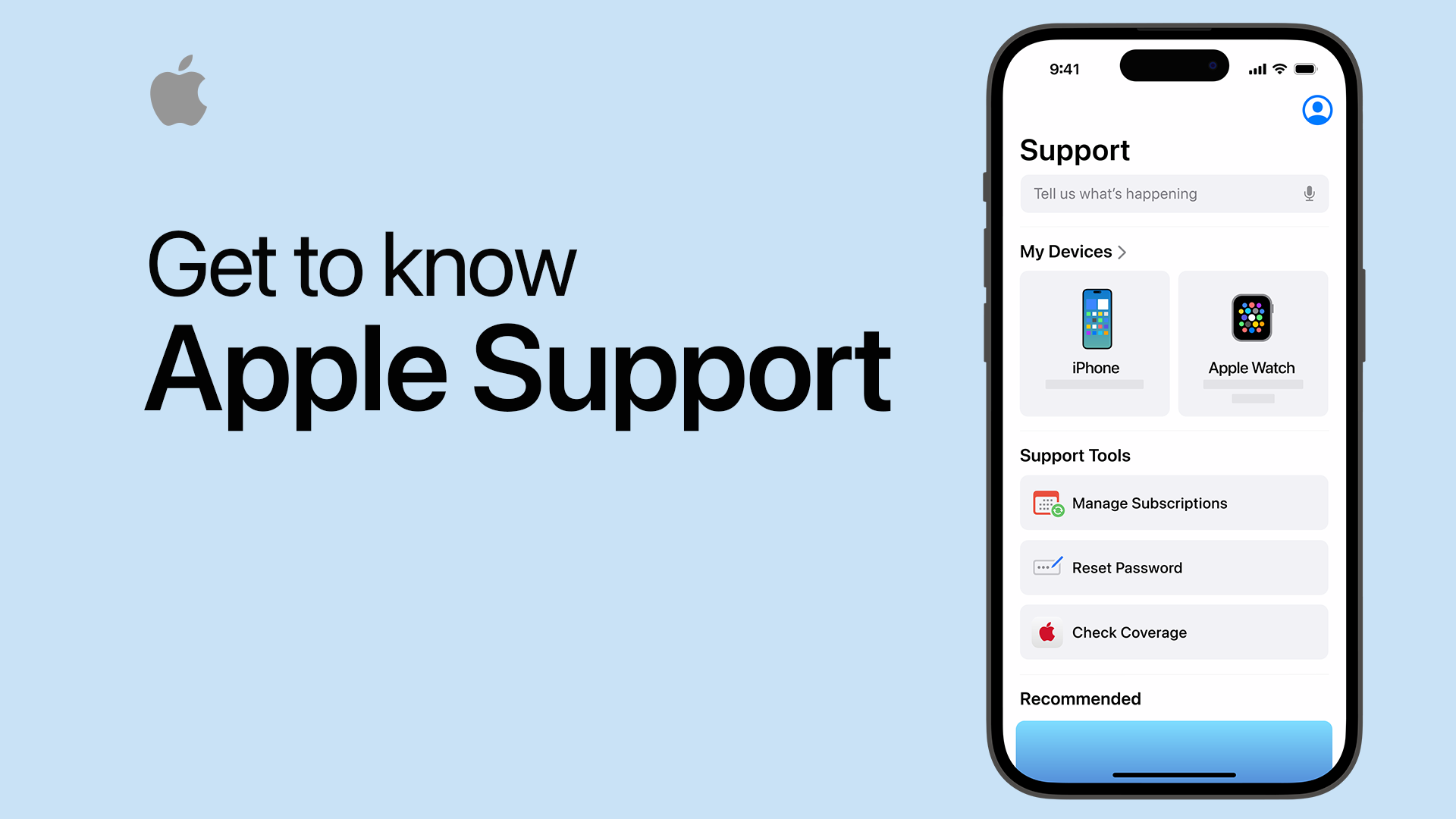
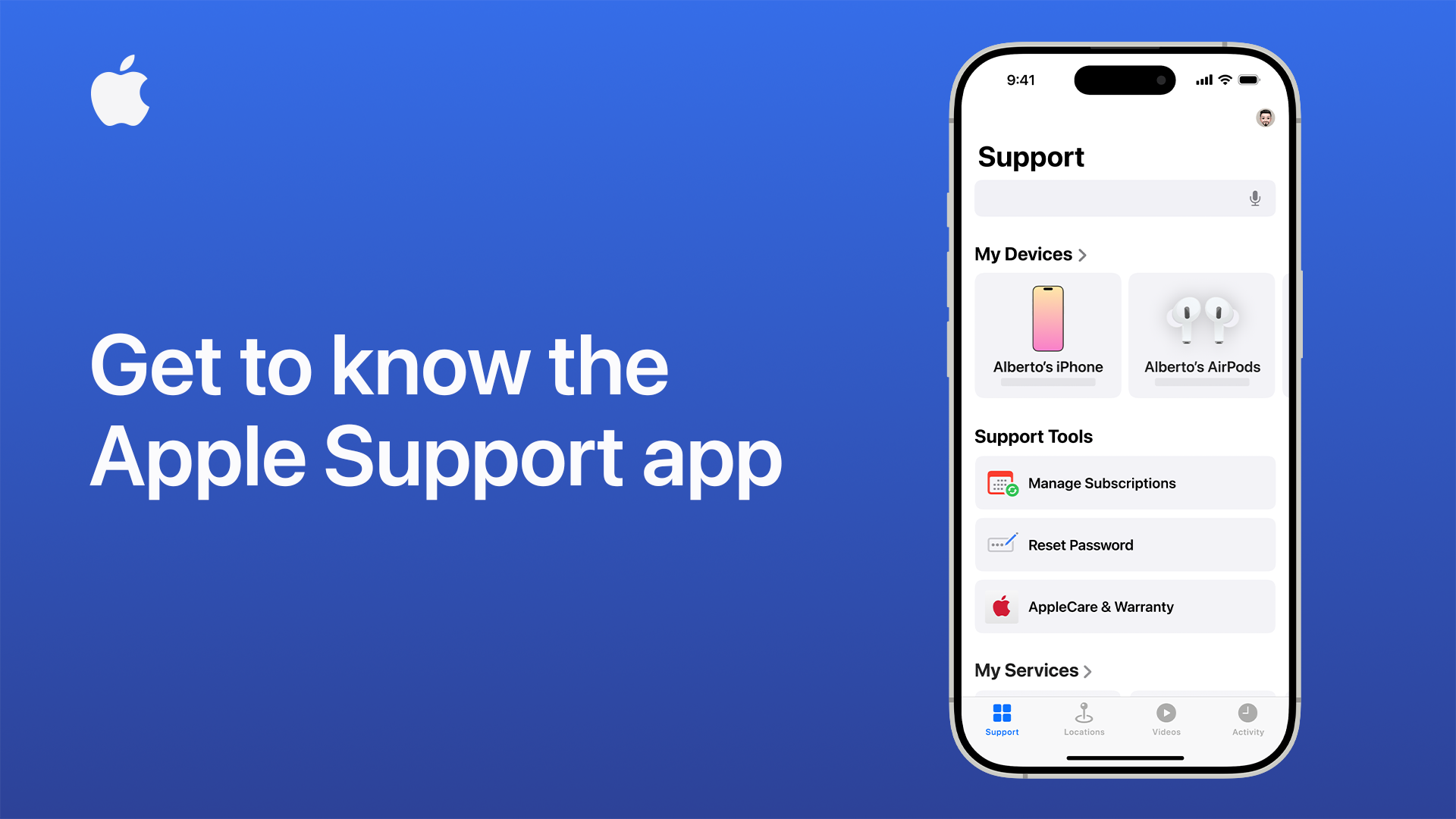
If you have an iPhone or iPad, the Apple Support app is arguably the most streamlined method for contacting customer service. The app automatically detects the devices registered to your Apple ID. Once you open the app and select your Apple TV, you are presented with a personalized interface.
The app provides real-time wait estimates for chat and phone calls. It also allows you to schedule a callback at a time that is convenient for you, preventing you from having to wait on hold. Furthermore, the app stores a history of your support tickets, making it easy to follow up on ongoing hardware repairs or escalated technical issues.
Utilizing Live Chat for Instant Troubleshooting
Live chat is ideal for software-related issues, such as problems with the Apple TV app on third-party smart TVs or issues with tvOS updates. During a chat session, you can easily share screenshots of error messages or copy-paste specific error codes. This reduces the margin for error that often occurs when relaying complex technical strings over the phone.
Direct Contact Methods: Phone Support and In-Person Assistance
While digital tools are excellent for software, hardware malfunctions—such as a non-responsive Siri Remote or a failing HDMI port—often require direct communication or physical inspection.
Global Support Phone Numbers
Apple maintains a robust network of call centers globally. In the United States, the primary support number is 1-800-APL-CARE (1-800-275-2273). For users outside the U.S., Apple provides a comprehensive list of local support numbers on its website. When calling, you will interact with an Automated Interactive Voice Response (IVR) system. Clearly stating “Apple TV support” will route you to a specialist trained in the tvOS ecosystem rather than a generalist.
If you have AppleCare+, you have access to 24/7 priority access to Apple experts. This is particularly valuable if you are experiencing connectivity issues during off-peak hours or while traveling.
Scheduling a Genius Bar Appointment
If remote troubleshooting determines that your Apple TV hardware is defective, you will likely need to visit an Apple Store or an Apple Authorized Service Provider. It is highly recommended that you do not walk into a store without an appointment.
Using the Apple Support app or website, you can book a “Genius Bar” appointment. This ensures that a technician is available to test your hardware at a specific time. When attending the appointment, bring the Apple TV unit, the power cable, and the Siri Remote. The technician will run a series of proprietary diagnostic tests that can identify internal component failures that are not visible to the user.
Express Lane and Mail-In Repairs
For users who do not live near an Apple Store, the “Express Lane” service allows for mail-in repairs. Apple will send a pre-paid shipping box to your address. You simply place the Apple TV inside and drop it off at a designated courier. Once the repair center receives the device, you can track the progress of the repair through the Apple Support portal.
Self-Service and Community-Led Troubleshooting
In many instances, the technical issue you are facing has already been encountered and solved by the broader Apple community. Using self-service tools can often be faster than waiting for an official representative.
The Apple Support Communities Forum
The Apple Support Communities is a massive repository of user-generated technical knowledge. Apple employees and “Community Specialists” frequently moderate these forums to ensure information accuracy. By searching for your specific error message or symptom on the forum, you can find detailed walkthroughs written by advanced users. This is a great resource for “fringe” issues, such as integrating Apple TV with specific high-end home theater systems or legacy networking hardware.
Official YouTube Support Tutorials
Apple maintains a dedicated “Apple Support” YouTube channel that features high-quality, concise video tutorials. These videos cover common technical tasks such as:
-
How to pair a new Siri Remote.
-
How to reset an Apple TV to factory settings.
-
How to use the “Color Balance” feature using an iPhone.
-
Troubleshooting 4K HDR playback issues.
Visual learners often find these tutorials more helpful than text-based manuals, as they demonstrate exactly what the interface should look like during each step of the process.
Advanced Technical Support for Software and Connectivity
Some issues go beyond basic troubleshooting and require a deeper understanding of how tvOS interacts with local networks and external hardware.
tvOS Update Failures and Restoration
If an Apple TV becomes “bricked” (unresponsive) during a software update, standard remote-based troubleshooting may fail. For older Apple TV models, you could connect the device to a computer via USB-C to restore the software via Finder or iTunes. However, newer models (like the Apple TV 4K) do not have a user-accessible USB port for restoration. In these cases, contacting Apple Support is mandatory, as they may need to initiate a hardware replacement or provide a specialized recovery tool.

Network Connectivity and AirPlay Issues
A frequent reason for contacting Apple TV support involves AirPlay lag or Wi-Fi drops. Support specialists can guide you through analyzing “Signal-to-Noise” ratios or identifying interference from other 2.4GHz or 5GHz devices. They may suggest switching to a wired Ethernet connection to determine if the issue lies with the Apple TV’s wireless radio or the home router’s configuration.
When dealing with these complex networking issues, it is helpful to have your router’s model number and internet speed test results ready before you initiate the contact. This allows the Apple technician to rule out external bandwidth limitations and focus on the device’s internal network stack.
By utilizing these various channels—from the immediate feedback of the Support app to the specialized expertise of the Genius Bar—users can ensure their Apple TV hardware and software remain in peak operating condition. Whether you prefer a self-guided digital approach or direct human interaction, Apple’s support infrastructure is designed to provide a resolution for every technical hurdle.
aViewFromTheCave is a participant in the Amazon Services LLC Associates Program, an affiliate advertising program designed to provide a means for sites to earn advertising fees by advertising and linking to Amazon.com. Amazon, the Amazon logo, AmazonSupply, and the AmazonSupply logo are trademarks of Amazon.com, Inc. or its affiliates. As an Amazon Associate we earn affiliate commissions from qualifying purchases.