
In the increasingly digital landscape of personal finance, platforms like PayPal have become indispensable tools for managing transactions, sending money, and making online purchases. Yet, with great convenience comes significant responsibility, especially concerning the security of your financial data. One of the simplest, yet most critical, lines of defense you possess is your password. Regularly changing it, or knowing how to reset it if forgotten, is not just a good practice—it’s an essential safeguard in an age rife with cyber threats. This comprehensive guide will walk you through the precise steps to change your PayPal password, offer crucial advice on creating impenetrable security, and equip you with the knowledge to maintain robust digital financial hygiene.
The Essential Steps to Changing Your PayPal Password
Changing your PayPal password proactively is a fundamental aspect of digital security. Whether you suspect your old password might be compromised, it’s been a while since your last update, or you simply wish to enhance your account’s protection, the process is straightforward.
Accessing Your PayPal Account
The journey begins by logging into your PayPal account. Open your preferred web browser and navigate to the official PayPal website (paypal.com). Enter your current email address and password into the designated fields. If you encounter any issues logging in, ensure you’re using the correct credentials and that your internet connection is stable. Avoid attempting to log in from unfamiliar or public devices unless absolutely necessary, and always verify the URL to protect against phishing attempts.
Navigating to Security Settings
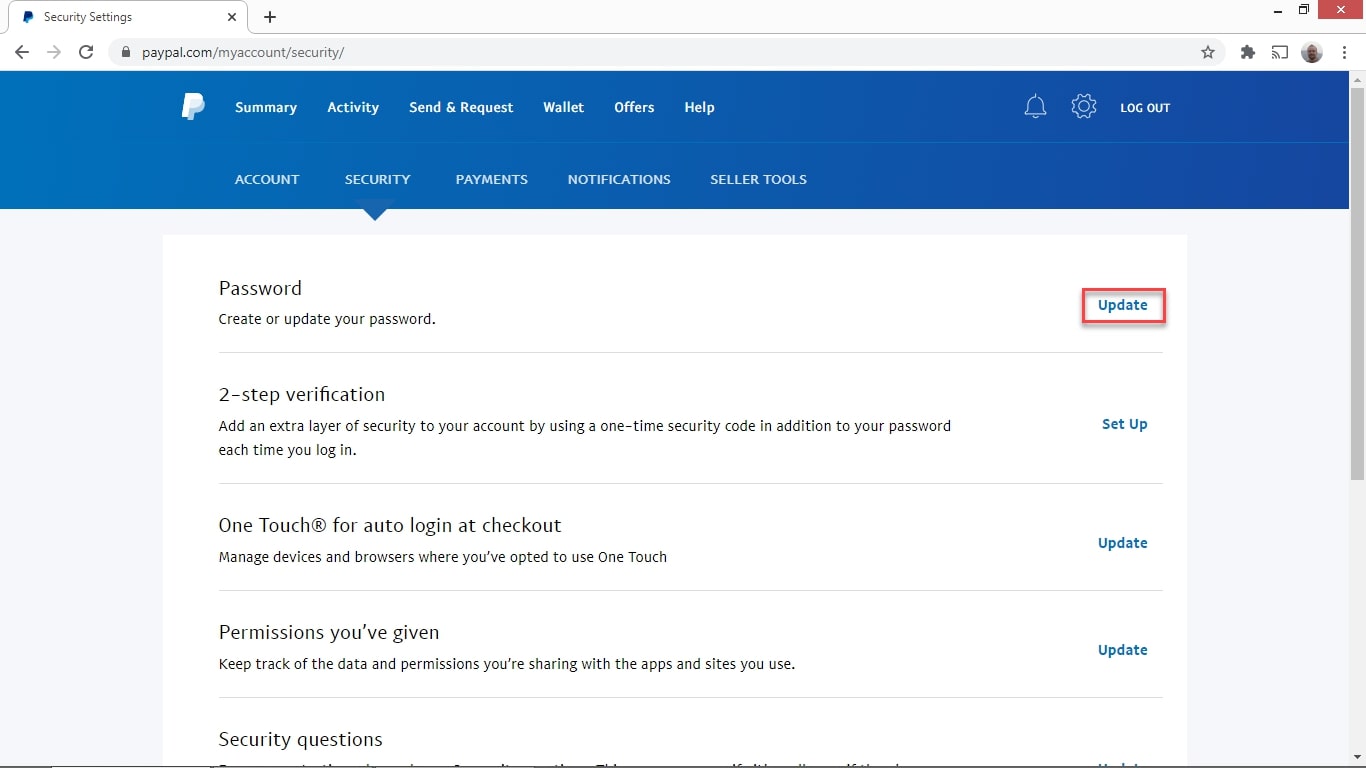
Once you’ve successfully logged in, you’ll be directed to your PayPal dashboard, which typically displays recent activity and account balances. To initiate a password change, you need to access your account settings. Look for the “Settings” or “Gear” icon, usually located in the top-right corner of the page. Clicking this will open a menu of various account management options. Within the settings, locate the “Security” tab. This section is dedicated to all aspects of your account’s protection, including password management, two-factor authentication, and security questions.
Creating a Strong, New Password
Upon entering the “Security” section, you’ll find an option to “Update your password” or “Change your password.” Click on this link. PayPal will prompt you to enter your current password first, as a verification step to confirm you are the legitimate account holder. After successfully entering your current password, you will be asked to create a new one.
This is arguably the most critical step. Your new password must be robust and unique. A strong password typically includes:
- A minimum of 8-12 characters: Longer is generally better.
- A mix of uppercase and lowercase letters: Enhances complexity.
- Numbers: Essential for adding variety.
- Special characters: Symbols like !, @, #, $, %, ^, &, * are highly recommended.
Avoid using easily guessable information such as birthdays, pet names, sequential numbers, or common dictionary words. Steer clear of reusing passwords from other online accounts. Consider using a passphrase—a series of unconnected words—as these can be long, complex, and easier to remember than random strings of characters. For example, “BlueUmbrella@RiverRuns23!” is much stronger than “paypal123.”
Confirming and Saving Your Changes
After crafting your strong new password, you’ll typically be asked to re-enter it to confirm consistency. Double-check for any typos. Once both entries match and meet PayPal’s complexity requirements (which they often indicate as you type), click the “Change Password” or “Save” button. PayPal will usually send an email notification to your registered email address, confirming that your password has been successfully updated. This serves as an additional security alert, letting you know if an unauthorized change occurs.
What to Do If You’ve Forgotten Your PayPal Password
Forgetting a password can be frustrating, especially for an account linked to your finances. Fortunately, PayPal has a well-established and secure process for password recovery.
Initiating the Password Reset Process
If you can’t recall your password, do not panic. On the PayPal login page, instead of attempting to guess, look for the “Having trouble logging in?” or “Forgot password?” link. Clicking this link is the correct first step. PayPal will then guide you through a series of identity verification checks designed to ensure that only the legitimate account owner can regain access.
Verifying Your Identity
Security is paramount when resetting a password. PayPal employs several methods to confirm your identity. You will typically be asked to:
- Enter the email address or phone number associated with your PayPal account. This initial step helps PayPal locate your account.
- Choose a verification method. Common options include:
- Receiving a code via text message to your registered mobile phone number.
- Receiving a link via email to your registered email address.
- Answering security questions that you previously set up (e.g., “What was the name of your first pet?”).
- Confirming details from a linked bank account or credit card.
Follow the prompts carefully for the chosen method. If you select email, check your inbox (and spam folder) for a message from PayPal containing a password reset link. If you choose SMS, ensure your registered phone is accessible to receive the code.
Setting a New Password Securely
Once your identity is successfully verified through one of the above methods, you will be prompted to create a brand-new password. This process mirrors the “Creating a Strong, New Password” section described earlier. Adhere to the same principles: make it long, complex, and unique. Do not attempt to reuse your old password or any variation that could be easily guessed. Once you’ve entered and confirmed your new, robust password, you’ll regain full access to your account.
Why Regular Password Changes are Crucial for Digital Security
While it might seem like a chore, routinely updating your PayPal password is a non-negotiable aspect of safeguarding your financial well-being in the digital realm. This proactive measure significantly mitigates various online risks.
Mitigating the Risk of Data Breaches
The digital world is unfortunately prone to data breaches. Major companies, often unrelated to PayPal, can suffer security incidents that expose user credentials. If you use the same password across multiple sites, a breach on one platform can compromise your PayPal account, even if PayPal itself wasn’t breached. Regularly changing your PayPal password, and ensuring it’s unique, acts as a crucial barrier, limiting the fallout if one of your other online accounts is compromised. It’s a proactive defense against the ripple effect of third-party vulnerabilities.
Protecting Against Phishing and Social Engineering
Phishing attacks and social engineering tactics are sophisticated attempts by malicious actors to trick you into revealing your login credentials. These can come in the form of fake emails, deceptive websites, or even misleading phone calls that mimic legitimate services. While being vigilant against these scams is key, a strong and frequently changed password adds an extra layer of protection. Even if you accidentally fall victim to a phishing attempt, a recently updated password may render the stolen credentials obsolete, or at least buy you time to react before significant damage occurs.
The Importance of Unique Passwords
Password reuse is one of the most common and dangerous security blunders. Cybercriminals often use “credential stuffing” attacks, where they take lists of usernames and passwords stolen from one site and try them on hundreds of other popular sites, including financial platforms. If your PayPal password is the same as your password for a less secure forum or shopping site, a breach on that weaker site immediately puts your PayPal funds at risk. A unique password for PayPal ensures that even if other accounts are compromised, your critical financial hub remains secure. Password managers are excellent tools to help you create and store unique, complex passwords for all your online services without having to remember them all.
Understanding PayPal’s Security Layer
PayPal invests heavily in robust security infrastructure, including encryption, fraud detection algorithms, and real-time transaction monitoring. However, your password is the primary gateway to these protections. A weak or compromised password negates many of PayPal’s advanced security features because it grants unauthorized access to a legitimate user interface. Your strong password acts as the final lock on a highly secure vault. By managing it diligently, you’re actively participating in the collaborative effort between you and PayPal to keep your money safe.
Advanced Security Measures for Your PayPal Account
While a strong, frequently changed password is foundational, securing your PayPal account effectively requires embracing a multi-layered approach. Beyond basic password hygiene, several advanced measures can dramatically enhance your account’s resilience against threats.
Enabling Two-Factor Authentication (2FA)
Two-Factor Authentication (2FA), sometimes called Multi-Factor Authentication (MFA) or two-step verification, is arguably the single most important security enhancement you can enable for your PayPal account. With 2FA, merely knowing your password isn’t enough to gain access. An additional piece of information, typically a unique, time-sensitive code sent to your registered mobile device via SMS or generated by an authenticator app (like Google Authenticator or Authy), is required at login. This means that even if a cybercriminal manages to steal your password, they cannot access your account without also having physical access to your phone. To enable 2FA on PayPal, navigate to your “Security” settings and look for the “2-step verification” option. It’s a simple setup that offers profound protection.
Regularly Reviewing Account Activity
Proactive vigilance is a powerful security tool. Make it a habit to regularly log into your PayPal account and review your transaction history. Look for any unfamiliar or unauthorized transactions, even small ones. Most fraudulent activities start with small, unnoticed charges to test the water. If you spot anything suspicious, report it to PayPal immediately through their Resolution Center. Swift action can often prevent further financial loss and help PayPal’s fraud detection systems improve. Also, keep an eye on your email for transaction confirmations; these can sometimes be the first indicator of unauthorized activity if someone has gained access.
Being Vigilant Against Phishing Attempts
As mentioned earlier, phishing remains a prevalent threat. Scammers often create convincing fake PayPal emails or websites designed to trick you into entering your login credentials. Always be suspicious of emails asking you to click a link to “verify your account,” “update billing information,” or “claim a refund,” especially if they convey a sense of urgency or threat.
- Check the sender’s email address: Does it look legitimate, or is it a slight variation?
- Hover over links before clicking: Does the URL truly lead to paypal.com?
- Never enter your login details on a website you reached via an unsolicited email.
- Access PayPal directly: If you receive a suspicious email, open your browser and type paypal.com yourself to log in and check your account directly.
PayPal will never ask for your full password, bank account, or credit card number in an email.
Securing Your Devices
Your PayPal account’s security is only as strong as the devices you use to access it. Ensure your computers, smartphones, and tablets are adequately secured:
- Install and maintain antivirus/anti-malware software: Keep it updated and run regular scans.
- Keep your operating system and web browser updated: Software updates often include critical security patches.
- Use strong, unique passwords or biometric authentication (fingerprint/face ID) for your devices.
- Be cautious about public Wi-Fi networks: They are often unsecured. If you must use them, consider using a Virtual Private Network (VPN) for an encrypted connection.
Troubleshooting Common Password Change Issues
While changing or resetting your PayPal password is generally a smooth process, you might occasionally encounter hiccups. Knowing how to troubleshoot these common issues can save you time and frustration.
Issues with Verification Codes
One of the most frequent problems users face during password reset is with verification codes.
- Delay in receiving codes: Sometimes, there’s a slight delay due to network congestion or carrier issues. Wait a few minutes before requesting another code.
- Incorrect phone number/email: Double-check that the phone number or email address PayPal is trying to reach is indeed the one registered to your account and that it’s active. If you’ve recently changed contact details, ensure they’re updated on PayPal’s system.
- Spam/Junk folder: Email verification links often land in the spam or junk folder. Always check there.
- Blocked numbers: Ensure you haven’t accidentally blocked messages from PayPal on your mobile device.
Browser or Device-Specific Problems
Technical glitches can sometimes interfere with the password change process.
- Clear browser cache and cookies: Accumulated data can sometimes cause display or functionality issues. Clearing these can resolve many browser-related problems.
- Try a different browser: If one browser (e.g., Chrome) is giving you trouble, try another (e.g., Firefox, Edge, Safari).
- Use a different device: If you’re using a mobile device, try accessing PayPal from a desktop computer, or vice-versa. This can rule out device-specific conflicts.
- Disable browser extensions: Ad blockers or other security extensions can sometimes interfere with website functionality. Try disabling them temporarily.
Contacting PayPal Support
If you’ve exhausted the self-help options and are still unable to change or reset your password, it’s time to contact PayPal’s customer support.
- Visit the PayPal Help Center: This is usually the best starting point. It provides a wealth of FAQs and guided solutions.
- Use the “Contact Us” link: You can usually find options for calling, live chat, or sending an email. Be prepared to provide identifying information to confirm your identity, such as your registered email address, phone number, and potentially details from a linked bank account or card.
- Be patient and polite: Customer service representatives are there to help, and providing clear, concise details of your issue will aid in a quicker resolution.
Conclusion
Securing your PayPal account is a cornerstone of responsible digital financial management. Knowing “how do I change PayPal password” is more than just a procedural query; it’s an understanding of a critical security practice. By regularly updating your password, crafting unique and complex passphrases, and embracing advanced security measures like two-factor authentication, you actively fortify your financial fortress against the ever-evolving landscape of cyber threats. Stay vigilant against phishing, routinely review your account activity, and leverage PayPal’s robust security features. Your proactive engagement in these digital security habits ensures that your online transactions remain safe, secure, and under your absolute control. Remember, a few minutes spent on security today can save you from significant headaches and financial loss tomorrow.
aViewFromTheCave is a participant in the Amazon Services LLC Associates Program, an affiliate advertising program designed to provide a means for sites to earn advertising fees by advertising and linking to Amazon.com. Amazon, the Amazon logo, AmazonSupply, and the AmazonSupply logo are trademarks of Amazon.com, Inc. or its affiliates. As an Amazon Associate we earn affiliate commissions from qualifying purchases.