
In an era where our financial lives are increasingly managed through digital interfaces, the security of our online accounts has transitioned from a technical afterthought to a fundamental necessity. PayPal, as one of the world’s leading digital payment platforms, sits at the intersection of convenience and risk. For millions of users, a PayPal account is a gateway to their bank accounts, credit cards, and personal identity. Consequently, knowing how to change your PayPal password—and understanding the technical ecosystem that keeps your funds safe—is a critical skill in modern digital security.
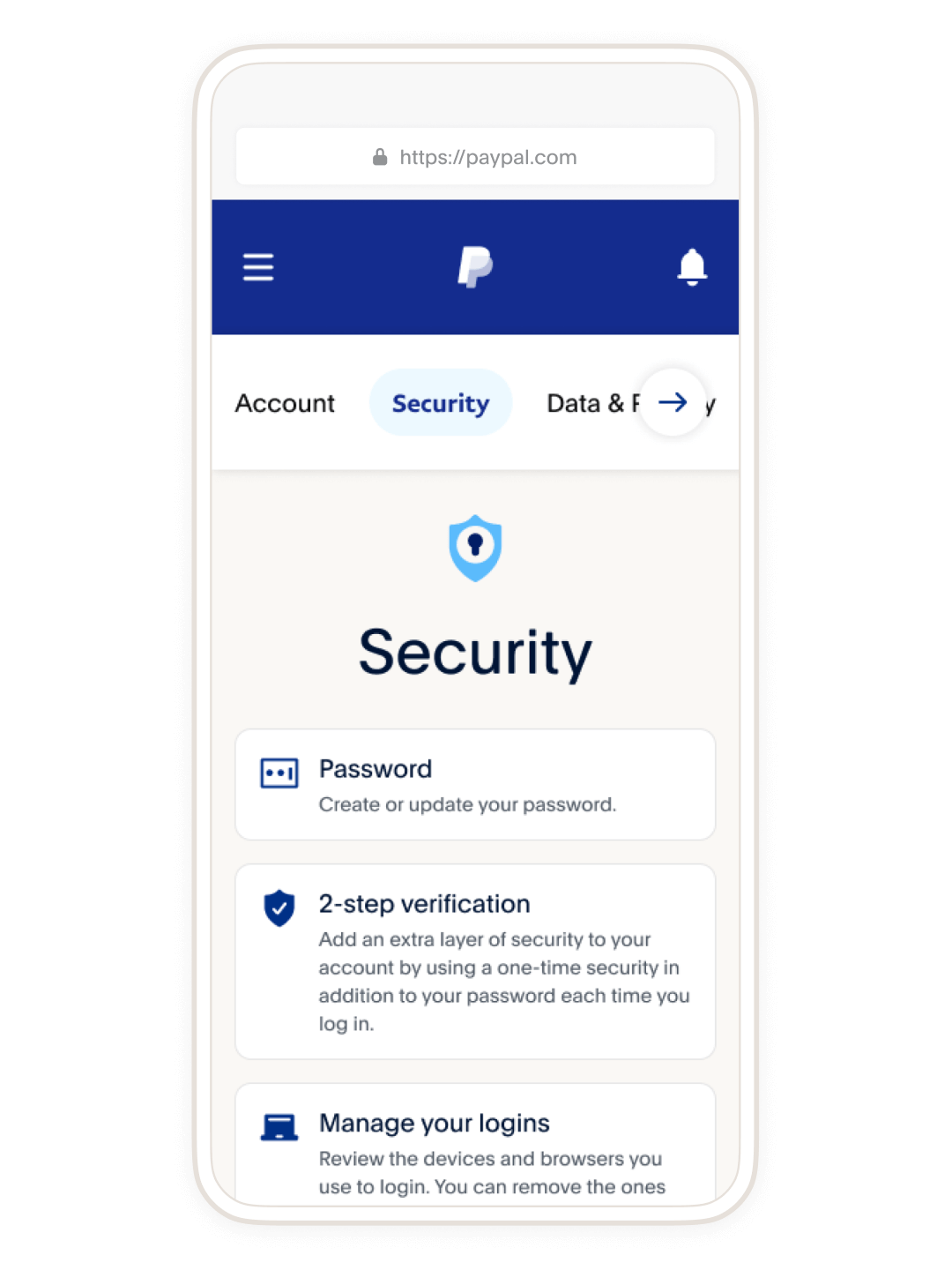
This guide provides a detailed walkthrough of the password-changing process across various platforms, while exploring the broader technological frameworks that protect your digital assets.
1. Step-by-Step Tutorial: Changing Your PayPal Password
Navigating the user interface of a major fintech platform can sometimes feel daunting due to frequent software updates and UI/UX redesigns. Whether you are performing a routine security update or responding to a potential threat, the process is streamlined to ensure user accessibility.
Updating via Web Browser (Desktop)
The desktop version of PayPal offers the most comprehensive set of security settings. To update your credentials:
- Log In: Navigate to the official PayPal website and enter your current credentials.
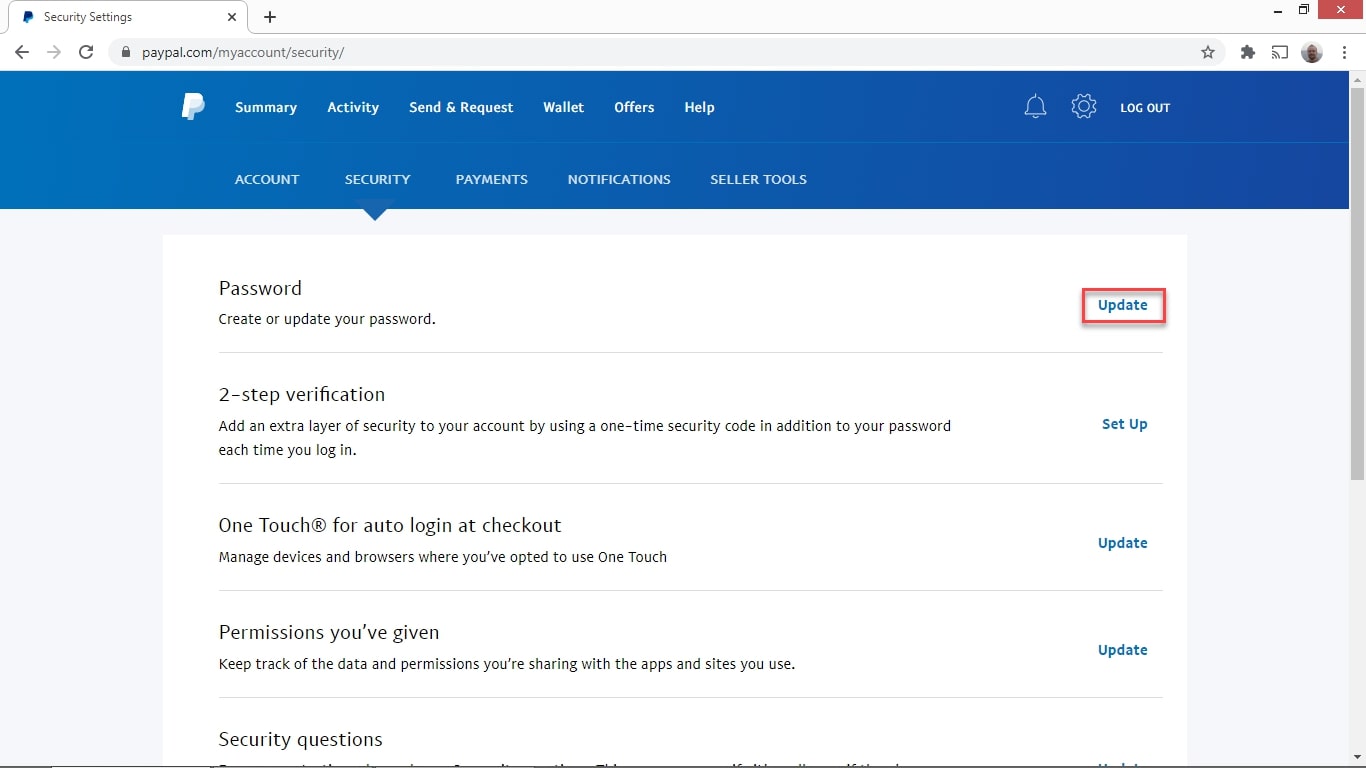
- Access Settings: Click on the “Settings” icon (the gear symbol) located in the top right corner of the dashboard.
- Security Tab: Select the “Security” tab from the secondary navigation menu.
- Password Edit: Find the “Password” section and click “Update.”
- Verification: You will likely be asked to confirm your current password before entering a new one. This is a standard cryptographic handshake to ensure the request is authorized.
- Confirmation: Enter your new password twice to ensure there are no typographical errors and click “Change Password.”
Updating via the PayPal Mobile App
For users on the go, the mobile application provides a condensed but equally secure method for credential management.
- Open the App: Ensure you are using the latest version of the PayPal app from the iOS App Store or Google Play Store.
- Profile Icon: Tap the profile icon or the “Settings” gear, usually found in the top corner of the home screen.
- Login and Security: Select the “Login and Security” option.
- Password Update: Tap on “Password” and follow the prompts to input your new secure string.
- Biometric Confirmation: Depending on your device settings, you may need to provide a fingerprint or FaceID scan to authorize the change.
2. Troubleshooting and Credential Recovery
Technology is rarely without its friction points. Users often find themselves needing to change a password not out of routine, but because they have lost access to their original credentials.
The “Forgot Password” Protocol
If you cannot access your account, PayPal utilizes a multi-layered recovery system. By clicking “Having trouble logging in?” on the login page, the system initiates a series of identity verification checks. This typically involves sending a One-Time Password (OTP) to your registered mobile number or email address. In more complex cases, the software may require you to answer security questions or provide documentation to prove ownership of the linked financial instruments.
Addressing Technical Glitches
Occasionally, users may encounter “Looping” errors or “Session Expired” messages while attempting to change a password. From a software perspective, this is often due to cached data or corrupted cookies in the browser. Clearing your browser cache or switching to “Incognito Mode” usually resolves these synchronization issues between your local client and PayPal’s servers. Furthermore, ensure that any Virtual Private Network (VPN) is disabled during this process, as sudden changes in IP geography can trigger PayPal’s automated fraud detection systems, temporarily locking the account for safety.
3. Strengthening Your Digital Perimeter: Advanced Security Features
Changing a password is only the first line of defense. In the current cybersecurity landscape, a static password—no matter how complex—is often insufficient against sophisticated phishing or brute-force attacks.
Implementing Multi-Factor Authentication (MFA)
The most significant tech upgrade you can give your PayPal account is the activation of Two-Step Verification. This adds a physical layer to your digital security. You can choose between receiving an SMS code or, more securely, using a Time-based One-Time Password (TOTP) app like Google Authenticator or Authy. By using an authenticator app, you mitigate the risk of “SIM swapping,” a technique where hackers hijack your phone number to intercept SMS codes.
Managing Third-Party App Permissions
PayPal’s API allows it to integrate with various e-commerce sites and financial tools. Over time, users often accumulate a long list of “Connected Apps” that have permission to access certain account data. Under the “Security” tab, you should periodically review these permissions. Revoking access for apps you no longer use minimizes your “attack surface,” ensuring that a security breach at a secondary merchant doesn’t provide a backdoor into your PayPal account.
4. The Future of Authentication: Biometrics and Passkeys
The tech industry is gradually moving toward a “passwordless” future. This shift is driven by the realization that human memory is a weak link in the security chain.
The Rise of Passkeys
PayPal has begun implementing “Passkeys,” a new industry standard developed by the FIDO Alliance and the W3C. Unlike a password, a passkey is a digital entity stored on your device that uses public-key cryptography to verify your identity. It is inherently resistant to phishing because there is no “secret” for the user to reveal; the authentication happens locally on your device via biometrics (FaceID/TouchID) or a hardware security key.
AI and Behavioral Biometrics
Behind the scenes, PayPal utilizes sophisticated AI tools to monitor login attempts. If you change your password, the system doesn’t just look at the characters you typed. It analyzes “behavioral biometrics”—the speed at which you type, the way you move your mouse, and the device metadata. If the AI detects a pattern inconsistent with your historical behavior, it may trigger additional security hurdles even if the correct password was entered. This represents the cutting edge of digital security software, where the system “learns” the user to protect them.
5. Best Practices for Digital Security Hygiene
To maintain the integrity of your financial accounts, password management must be treated as a continuous process rather than a one-time task.
The Anatomy of a Secure Password
From a technical standpoint, length often trumps complexity. While many systems require a mix of symbols and numbers, a long “passphrase” (e.g., Blue-Mountain-Coffee-2024!) is computationally harder to crack via brute force than a short, complex string (e.g., P@ss1). Modern security recommendations suggest a minimum of 12 to 16 characters.
Leveraging Password Managers
In the Tech world, the consensus is clear: do not reuse passwords. If your credentials for a minor retail site are leaked in a data breach, and you use that same password for PayPal, your financial account is immediately compromised. Software tools like 1Password, Bitwarden, or LastPass allow you to generate and store unique, high-entropy passwords for every service you use. These tools encrypt your vault locally, ensuring that even if the password manager’s servers were compromised, your data remains unreadable without your master key.
Recognizing Phishing and Social Engineering
No amount of technical encryption can protect a user who voluntarily gives away their credentials. Phishing remains the most common method for account takeovers. Always verify the URL in your browser’s address bar. PayPal will never send an email asking you to “Click here to change your password” via an unverified link. If you receive a suspicious notification, the safest tech-forward approach is to ignore the link and navigate directly to the official PayPal portal in a new browser tab.
Conclusion
Securing your PayPal account is a vital component of your broader digital footprint. By mastering the tutorial steps to change your password, troubleshooting technical hurdles, and embracing modern tools like MFA and Passkeys, you position yourself ahead of the curve in digital security. Technology provides the tools for safety, but the responsibility of implementation lies with the user. In the fast-evolving landscape of fintech, staying informed is your most powerful defense.
aViewFromTheCave is a participant in the Amazon Services LLC Associates Program, an affiliate advertising program designed to provide a means for sites to earn advertising fees by advertising and linking to Amazon.com. Amazon, the Amazon logo, AmazonSupply, and the AmazonSupply logo are trademarks of Amazon.com, Inc. or its affiliates. As an Amazon Associate we earn affiliate commissions from qualifying purchases.