
In the rapidly evolving landscape of the “Great Unbundling,” YouTube TV has emerged as a titan of the Cord-Cutting era. By offering a robust suite of local channels, sports networks, and an unlimited cloud DVR, it successfully bridged the gap between traditional cable and the modern streaming experience. However, as subscription fatigue sets in and monthly costs for live TV streaming services continue to climb toward the $75 mark, many tech-savvy consumers are re-evaluating their digital overhead.
Whether you are migrating to a more niche service like FuboTV, moving back to a decentralized “app-only” lifestyle with Netflix and Disney+, or simply streamlining your digital footprint to improve financial efficiency, knowing the technical nuances of canceling your subscription is essential. This guide provides a deep dive into the software workflows required to terminate or pause your service across multiple platforms, while analyzing the technical implications of doing so.

The Technical Workflow: Terminating Your Subscription Across Devices
YouTube TV is deeply integrated into the Google ecosystem, which means your subscription is tied to your Google Account. Depending on which device you are using, the User Interface (UI) and the backend process for cancellation can vary significantly.
Canceling via a Web Browser (The Most Reliable Method)
From a technical standpoint, managing subscriptions via a desktop browser (Chrome, Safari, or Firefox) is the most stable method, as it bypasses mobile app limitations and provides the clearest view of your account settings.
- Authentication: Navigate to
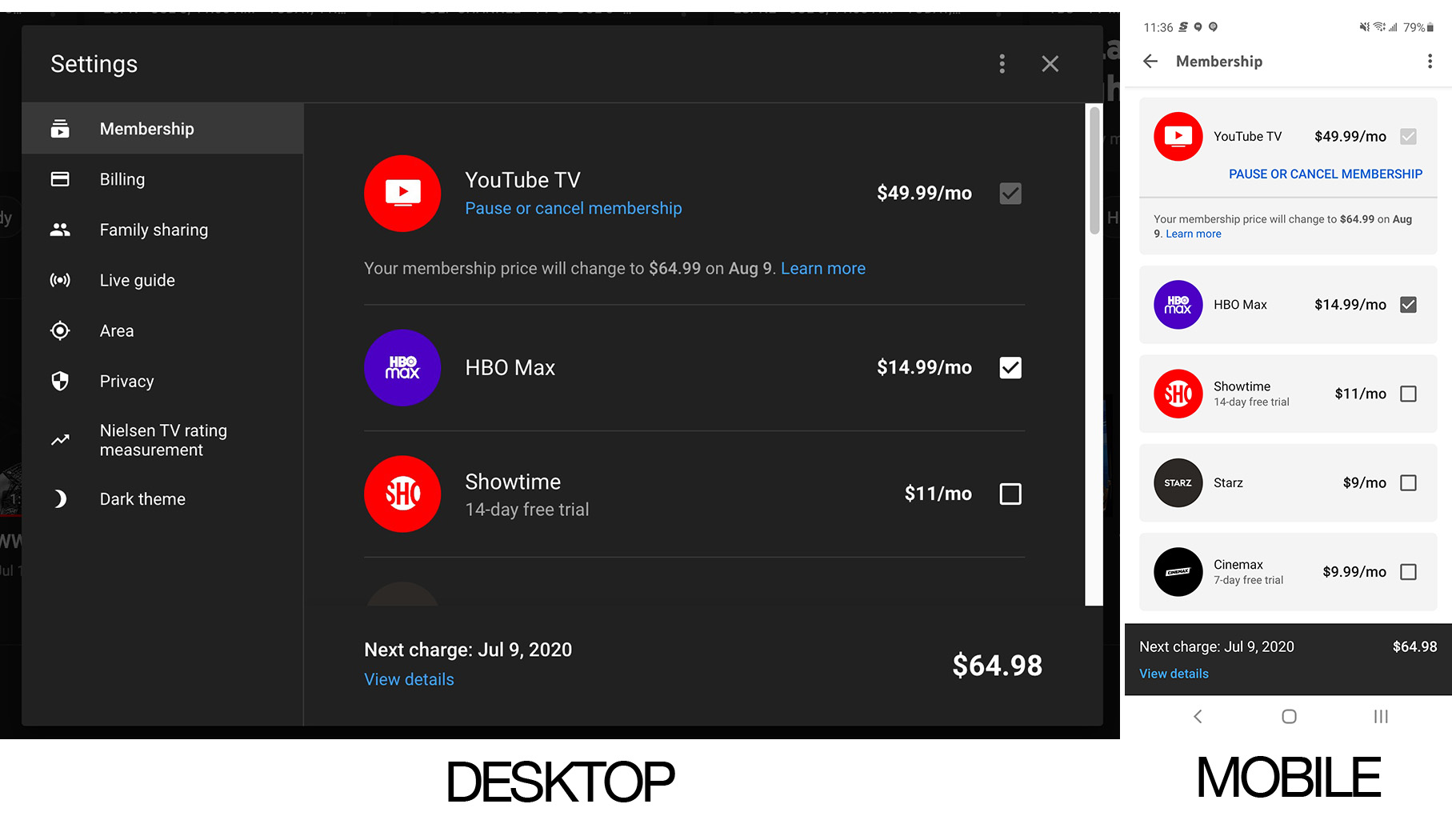
tv.youtube.comand ensure you are signed in with the primary account holder’s credentials. - Accessing Settings: Click on your profile avatar in the top-right corner. This opens the account management overlay. Select Settings, then navigate to the Membership tab.
- The Deactivation Trigger: You will see your current plan details. Click the Manage button next to your base plan.
- The Decision Point: Google will present two options: “Pause Membership” or “Cancel.” If you wish to permanently stop billing, select Cancel.
- Retention Logic: Like many SaaS (Software as a Service) platforms, YouTube TV will present a brief survey asking why you are leaving. This is a data-collection point for their product team to analyze churn rates. Select a reason and click Continue.
- Final Confirmation: You must click Confirm Cancellation to finalize the process. You should receive an automated email confirmation; keep this as a digital receipt of the transaction.
Managing Subscriptions on Android and iOS
While the Android app allows for direct cancellation through the Google Play Store’s billing API, iOS users often face a different technical hurdle. Due to Apple’s “In-App Purchase” (IAP) policies and the 15-30% “Apple Tax,” many users who signed up through an iPhone may be billed via Apple rather than Google.
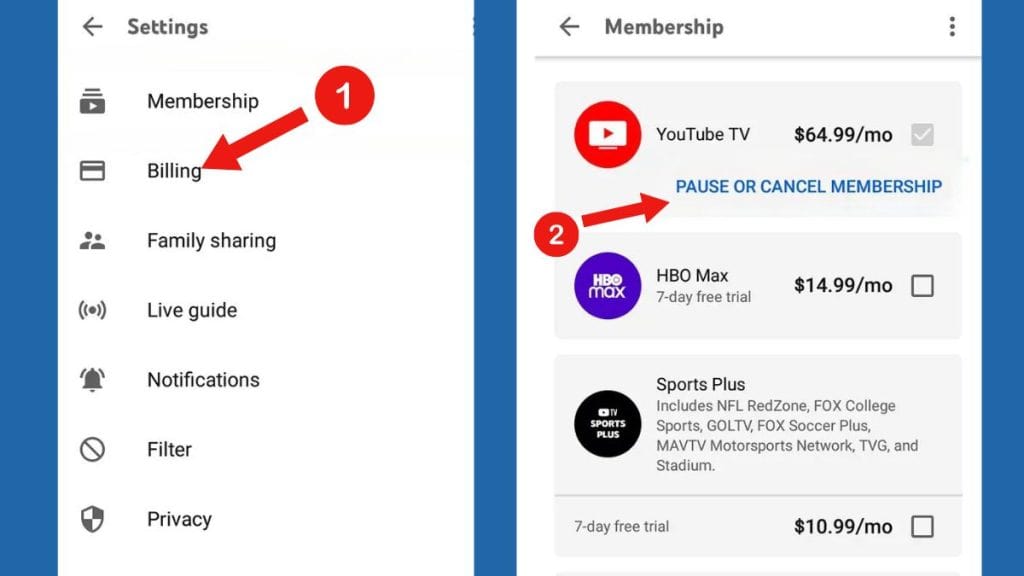
- For Android Users: Open the YouTube TV app, tap your profile icon, go to Settings > Membership, and follow the prompts. The app will likely redirect you to the Google Play Subscriptions interface to handle the handshake between the app and the billing engine.
- For iOS Users: If you don’t see the “Manage” option in the YouTube TV app, it is because you are billed through the App Store. You must go to your iPhone Settings > [Your Name] > Subscriptions to terminate the service. This ensures that the recurring billing instruction is deleted from your Apple ID.
To Cancel or to Pause? Analyzing Data Persistence and DVR Retention
One of the most innovative features of YouTube TV’s software architecture is the “Pause” functionality. Before you finalize a full cancellation, it is worth understanding the technical differences between these two states, particularly regarding your saved data.
The “Pause” Mechanism
When you pause your membership, you essentially put a “hold” on your billing cycle for a duration of 4 weeks to 6 months.
- Data Retention: While paused, your custom settings, “Home” recommendations, and—most importantly—your Library (Cloud DVR) remain intact.
- Billing Suspension: Your access ends at the end of the current billing cycle, and no further charges occur until the pause period expires or you manually resume.
- Automatic Resumption: Users should be aware that the system is programmed to automatically resume billing once the pause duration ends. From a digital management perspective, this requires setting a calendar reminder to avoid unexpected charges.
The “Cancellation” State and Cloud DVR Deletion
If you choose a full cancellation, the technical consequences are more absolute.
- The 21-Day Rule: YouTube TV typically retains your library of recordings for 21 days after your membership ends. If you do not restart your service within this window, the metadata and stored video files associated with your account are purged from Google’s servers to free up storage space.
- Access Until Cycle End: Regardless of when you hit the cancel button, the software allows access to the service until the final second of your current billing period. There are no prorated refunds for “unused” days, so it is technically advantageous to cancel early in the month to ensure you don’t forget later.
Navigating Third-Party Billing and Security Considerations
In the modern tech ecosystem, subscriptions are rarely isolated. They are often part of a complex web of “bundled” billing or third-party integrations.
Integrated Billing (Verizon, Frontier, and T-Mobile)
Many users receive YouTube TV as part of an internet service provider (ISP) bundle or a mobile carrier promotion. If your billing is handled by a third party like Verizon or T-Mobile, the “Cancel” button on the YouTube TV website may be greyed out or redirected.
- Technical Hand-off: In these cases, the “source of truth” for the subscription is the third party’s billing portal. You must log in to your ISP or carrier account to remove the YouTube TV add-on. If you cancel at the Google level but the carrier still has the “hook” active, you may continue to see charges on your monthly phone or internet bill.
Security and Account Hygiene
When you cancel a major service like YouTube TV, it is a prudent time to conduct a “Digital Security Audit.”
- Revoke Permissions: Check your Google Account’s “Third-party apps with account access” section. Ensure that no third-party TV tracking apps or “smart remote” software still have permissions to access your YouTube TV data.
- Payment Method Cleanup: If YouTube TV was the only service using a specific credit card or PayPal link, consider removing that payment method from your Google Pay profile to minimize the risk of “ghost subscriptions” or unauthorized reactivations.
Troubleshooting Technical Hurdles in the Cancellation Process
Occasionally, the software doesn’t behave as expected. Understanding the technical reasons behind these glitches can save hours of frustration.
The “Infinite Loop” or Greyed-out Buttons
If you find that clicking “Cancel” simply reloads the page or the button is unclickable, this is often a cache or cookie conflict.
- The Fix: Clear your browser’s cache or attempt the cancellation in “Incognito/Private” mode. This forces the browser to pull a fresh version of the page’s JavaScript, bypassing any corrupted session data that might be blocking the cancellation script.
Family Group Complications
YouTube TV allows for “Family Sharing” with up to five other members. A common technical point of confusion is who has the authority to cancel.
- The “Family Manager” Role: Only the Family Manager (the person who originally purchased the subscription) has the administrative privileges to cancel the service. Family members will see the service in their apps but will lack the “Membership” settings required to terminate the bill. If you are a family member and wish to “leave” the group without canceling the service for everyone else, you must manage your “Family Group” settings specifically.
Unrecognized Charges After Cancellation
If you see a charge after canceling, it is usually due to one of three technical reasons:
- Multiple Accounts: You may have accidentally signed up with a different Gmail address (e.g., a work email vs. a personal email).
- Add-on Services: Sometimes, users cancel the base plan but have standalone “Premium Channels” (like HBO Max or Red Zone) that were billed separately.
- The Processing Window: If you cancel within 24 hours of your renewal date, the automated clearinghouse (ACH) or credit card batch processing may have already been initiated.
Final Perspective: The Future of Stream Management
As we move deeper into the decade, the tech industry is shifting toward “Subscription Management Suites”—tools designed to help users track and cancel services with a single click. Until these tools are perfected, understanding the manual technical workflows of platforms like YouTube TV is a vital skill for the modern digital citizen.
By mastering the interface, understanding the difference between pausing and canceling, and knowing how to navigate third-party billing, you regain control over your digital ecosystem. Cancellation isn’t just about saving money; it’s about exercising your right to curate the software and services that populate your daily life. Whether you are taking a break or leaving for good, doing so with technical precision ensures a smooth transition to your next digital destination.
aViewFromTheCave is a participant in the Amazon Services LLC Associates Program, an affiliate advertising program designed to provide a means for sites to earn advertising fees by advertising and linking to Amazon.com. Amazon, the Amazon logo, AmazonSupply, and the AmazonSupply logo are trademarks of Amazon.com, Inc. or its affiliates. As an Amazon Associate we earn affiliate commissions from qualifying purchases.