
In an increasingly digitized world, free trials have become the ubiquitous gateway to a vast array of streaming services, software platforms, and online tools. While these introductory offers provide an excellent opportunity to explore new services without immediate financial commitment, they often come with an implicit understanding: vigilance is key. Among the myriad of digital entertainment options, YouTube TV stands out as a prominent live TV streaming service. Its free trial offers an enticing glimpse into a cord-cutting future, but for those who decide it’s not the right fit, understanding precisely how to cancel before incurring a charge is paramount. This guide will walk you through the technical steps, best practices, and broader implications of managing your digital subscriptions, ensuring you retain control over your digital footprint and finances.

Navigating the Digital Subscription Landscape
The digital economy thrives on convenience and accessibility, and free trials embody this philosophy. They are a powerful marketing tool, designed to lower the barrier to entry and allow users to experience a service firsthand. However, the convenience they offer can quickly turn into a financial burden if not managed proactively.
The Allure and Pitfalls of Free Trials
Free trials are a win-win on the surface: companies acquire potential new subscribers, and users get to test drive a product. For businesses, it’s a strategic move to demonstrate value and foster user engagement, hoping that the seamless experience will convert trials into long-term subscriptions. For consumers, it’s an opportunity to evaluate features, content libraries, user interfaces, and overall service quality without risk.
However, the “free” aspect often overshadows the crucial detail of auto-renewal. Most free trials are structured to automatically roll into a paid subscription once the trial period expires, placing the onus squarely on the user to cancel if they don’t wish to continue. This model, while standard, contributes to “subscription fatigue,” where users find themselves unknowingly paying for services they no longer use or initially intended to subscribe to. The result is often a small, recurring charge that accumulates, becoming a drain on personal finances and a source of frustration.
Understanding YouTube TV’s Free Trial Model
YouTube TV, Google’s live television streaming service, typically offers a free trial period, which can vary in length (often 5-14 days). During this period, users gain full access to its extensive channel lineup, cloud DVR capabilities, and other premium features. The service requires a payment method at the time of signup, even for the free trial, which is standard practice across the industry. This is to ensure a smooth transition to a paid subscription if the user decides to continue the service.
The critical piece of information for any free trial, including YouTube TV’s, is the exact date your trial period ends and the first billing cycle begins. YouTube TV makes this information available within your account settings upon signup. Missing this date means your linked payment method will automatically be charged for the first month’s subscription, triggering a paid service you might not want. Therefore, knowing how to proactively cancel is not just a convenience; it’s a necessity for prudent digital consumption.
Step-by-Step Guide to Canceling Your YouTube TV Free Trial
The process of canceling your YouTube TV free trial is straightforward, designed to be accessible through your account settings. While platforms aim for ease of use, slight variations can exist depending on whether you’re using a web browser or a mobile app. The core principle, however, remains consistent: access your account, navigate to membership settings, and initiate the cancellation.
Accessing Your YouTube TV Settings
The most reliable way to manage your YouTube TV subscription, including cancellation, is through a web browser. While you might use a smart TV or mobile app to watch content, subscription management features are typically more robust and clearly laid out on the web interface.
- Open a Web Browser: Navigate to tv.youtube.com on your computer, tablet, or smartphone.
- Sign In: Ensure you are signed in to the Google account that was used to initiate the YouTube TV free trial. This is a common point of confusion; if you have multiple Google accounts, double-check which one is associated with your subscription.
- Access Settings: Once logged in, look for your profile icon (usually in the top-right corner of the screen). Click or tap on it to open a dropdown menu.
- Select “Settings”: From the dropdown menu, choose the “Settings” option. This will take you to your account management page, where you can view your membership details, billing information, and cancellation options.
The Cancellation Process Explained
Once you are in your YouTube TV settings, the cancellation process is designed to be relatively intuitive, though some platforms might introduce a few extra clicks to confirm your decision.
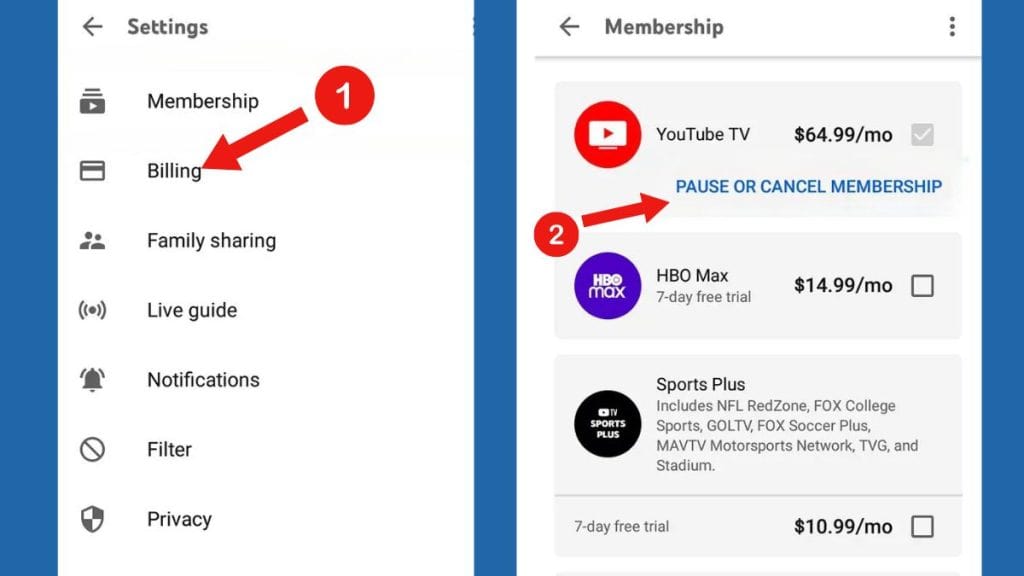
- Navigate to “Membership”: Within the “Settings” menu, you should see a section titled “Membership” or “Billing.” Click on this to view your current subscription status.
- Locate the “Cancel Membership” Option: Under your membership details, you will typically find an option to “Cancel Membership,” “Pause Membership,” or “Manage Membership.” Select the cancellation option.
- Confirm Your Decision: YouTube TV, like many services, may present you with an offer to pause your membership, a discount to stay, or ask for feedback on why you’re canceling. Carefully review these prompts. If you’re certain you want to cancel, continue through the prompts until you see a definitive cancellation confirmation.
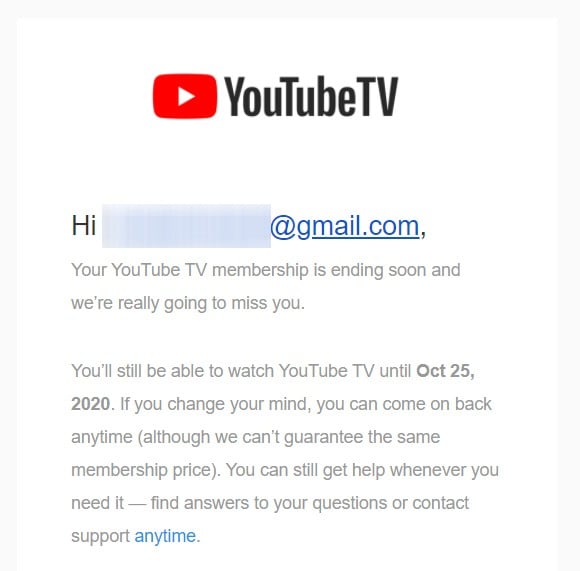
- Receive Confirmation: After successfully canceling, you should receive an email confirmation from YouTube TV (or Google) stating that your free trial has been canceled and you will not be charged. Keep this email for your records. Your access to the service will typically continue until the original trial end date.
Common Pitfalls and Troubleshooting
Even with clear instructions, users can sometimes encounter issues. Being prepared for these can save time and frustration.
- Wrong Google Account: The most frequent issue is attempting to cancel while logged into a different Google account than the one used for the free trial. Always verify the account displayed in your profile icon.
- Mobile App Limitations: While some mobile apps offer cancellation options, they might sometimes redirect you to a web browser or have a less obvious path. If you struggle on the app, switch to a web browser on a computer.
- Subscription Managed via Third Party: In rare cases, if you signed up for YouTube TV through a third-party billing service (e.g., Apple App Store, Google Play Store), you might need to manage the subscription directly through that platform’s subscription settings. However, for most users, direct cancellation via tv.youtube.com is the standard.
- Lack of Confirmation: If you don’t receive a confirmation email, retrace your steps or contact YouTube TV support immediately. Without confirmation, the cancellation might not have registered correctly, potentially leading to an unwanted charge.
What Happens After You Cancel Your Free Trial?
Canceling a free trial doesn’t necessarily mean an immediate loss of service. Understanding the post-cancellation phase is crucial for managing expectations and potentially rejoining the service in the future.
Continued Access and Billing Cycle
A key aspect of most free trial cancellations, including YouTube TV’s, is that your access usually continues until the originally scheduled end date of the trial period. This means you can still enjoy the service for the remainder of your trial without being charged. For example, if you start a 7-day trial on Monday and cancel on Tuesday, you’ll likely still have access until the following Monday. This policy is consumer-friendly, allowing users to make an early decision without prematurely ending their evaluation period. Once the trial period fully expires, your access will cease, and no charges will be applied to your payment method.
Rejoining YouTube TV in the Future
Deciding against YouTube TV during a free trial doesn’t mean it’s off the table forever. Life circumstances, content offerings, or pricing models can change.
- Resubscribing: If you decide to rejoin YouTube TV at a later date, you can do so easily by navigating back to tv.youtube.com and signing up for a paid membership. You’ll simply click the “Join YouTube TV” or “Resubscribe” option within your account settings.
- Future Promotions: Keep an eye out for future promotions or potential new free trial offers. While unlikely to receive another free trial on the same Google account in quick succession, companies sometimes offer returning subscriber deals or limited-time trials for specific events or new features.
- Pausing vs. Canceling: If your decision is temporary (e.g., you’re going on vacation, or a specific show you watch is on hiatus), YouTube TV offers a “Pause Membership” option. This allows you to temporarily suspend billing and service for a set period (e.g., 1-6 months) and automatically resume it afterward, without the need to cancel and resubscribe. This can be a convenient alternative if you anticipate wanting the service again soon.
Managing Other Google Subscriptions
Your YouTube TV subscription is linked to your Google account, which often serves as a central hub for various Google services and subscriptions. Understanding this integration is key to holistic digital management.
- Google Subscriptions Hub: Google provides a centralized page where you can view and manage all subscriptions tied to your Google account, including YouTube Premium, Google One, Google Play Store subscriptions, and more. This hub can be accessed via payments.google.com or by navigating through your Google Account settings.
- Unified Billing: Since many Google services share the same payment methods, managing one can inform your strategy for others. Regularly reviewing this consolidated list helps identify forgotten subscriptions and ensures no unwanted charges occur across the Google ecosystem.
Best Practices for Digital Subscription Management
In an era where every service seems to come with a recurring fee, proactive management of digital subscriptions is no longer a luxury but a necessity. Implementing a structured approach can save you money, time, and the headache of unexpected charges.
Setting Reminders and Notifications
The most common reason for unwanted charges after a free trial is simply forgetting the end date. Leveraging technology to remind yourself is the simplest and most effective solution.
- Calendar Alerts: Immediately after signing up for any free trial, add an event to your digital calendar (Google Calendar, Outlook Calendar, Apple Calendar) for 2-3 days before the trial’s end date. Set multiple reminders. In the event description, include the service name, the cancellation URL, and the Google account used.
- Third-Party Reminder Apps: Several apps specialize in subscription management and can send you timely notifications (e.g., Bobby, Truebill, Mint). These can also track your spending on subscriptions.
- Email Filters: Create a specific email folder for “Subscriptions” and set up filters to automatically move all signup and billing emails for free trials there. Regularly review this folder.
Regular Subscription Audits
Even with reminders, it’s easy to accumulate subscriptions over time. Performing periodic audits of your active subscriptions is essential.
- Monthly/Quarterly Review: Designate a specific time each month or quarter to review all your recurring charges. This could be as simple as reviewing your bank statements or credit card bills for familiar (and unfamiliar) recurring charges.
- Categorization: Consider categorizing your subscriptions (e.g., streaming, productivity, fitness) to better understand where your money is going and identify areas for potential cuts.
- Value Assessment: For each subscription, ask yourself: Am I actively using this? Am I getting enough value to justify the cost? Can I get similar benefits from a free or cheaper alternative? This critical assessment helps eliminate “zombie subscriptions” – services you’re paying for but rarely use.
Leveraging Account Management Tools
Beyond simple calendar reminders, several tools can help you maintain a tight grip on your digital subscriptions.
- Bank/Credit Card Features: Many banks and credit card companies now offer features within their online portals or mobile apps that allow you to view, manage, and sometimes even block recurring charges. These can be incredibly useful for catching subscriptions you’ve forgotten about.
- Dedicated Subscription Management Apps: Apps like Truebill (now Rocket Money), Mint, or YNAB (You Need A Budget) offer comprehensive financial management, including tools to track and categorize subscriptions, identify free trials, and even help cancel unwanted services.
- Google’s Subscription Center: As mentioned, for services linked to your Google account, payments.google.com is your central hub for managing payment methods and subscriptions, offering a consolidated view of your Google-related recurring charges.
The Broader Implications: Taking Control of Your Digital Footprint
Successfully managing free trials and subscriptions extends beyond mere financial savings. It’s a critical component of maintaining control over your digital life, impacting everything from your personal data to your mental well-being.
Privacy and Data Considerations
Every digital service you sign up for, even for a free trial, collects some form of your personal data. This can range from basic demographic information to viewing habits and usage patterns. While canceling a subscription typically stops future data collection related to your active use, the data collected during your trial period often remains with the service provider.
- Reviewing Privacy Policies: Before signing up for any service, take a moment to skim its privacy policy, especially concerning data retention after cancellation.
- Data Deletion Requests: For more sensitive services, understand your rights regarding data deletion. Under regulations like GDPR (Europe) or CCPA (California), you might have the right to request that your personal data be deleted from their servers even after canceling. This is an extra step beyond mere subscription cancellation and requires direct interaction with the company’s data privacy team.
The Psychology of Subscription Fatigue
The sheer volume of digital services available today can lead to a phenomenon known as “subscription fatigue.” This isn’t just about the financial burden; it’s also the mental overhead of constantly tracking, evaluating, and managing a growing list of monthly commitments.
- Decision Overload: Each new service presents a choice, and each ongoing subscription requires a periodic re-evaluation. This constant decision-making can be mentally draining.
- Information Overload: Keeping up with content on multiple streaming platforms, features on various productivity apps, and updates across different software can feel overwhelming.
- Regaining Control: By taking proactive steps to manage free trials and regularly audit your subscriptions, you’re not just saving money; you’re reclaiming a sense of control over your digital environment. This can lead to a less cluttered digital life, reducing stress and allowing you to focus on the services that truly bring value and joy.
In conclusion, canceling a YouTube TV free trial is a simple technical task, but it serves as a powerful reminder of the broader need for conscious digital consumption. By understanding the mechanics of trial periods, implementing smart management practices, and considering the wider implications, you can navigate the digital subscription landscape with confidence, ensuring technology serves you, rather than the other way around.
aViewFromTheCave is a participant in the Amazon Services LLC Associates Program, an affiliate advertising program designed to provide a means for sites to earn advertising fees by advertising and linking to Amazon.com. Amazon, the Amazon logo, AmazonSupply, and the AmazonSupply logo are trademarks of Amazon.com, Inc. or its affiliates. As an Amazon Associate we earn affiliate commissions from qualifying purchases.