
In an increasingly subscription-driven digital landscape, services like YouTube Premium offer a compelling package: ad-free viewing, background play, downloads, and access to YouTube Music Premium. While these features significantly enhance the YouTube experience, circumstances often lead users to re-evaluate their subscriptions. Whether it’s to manage burgeoning monthly expenses, consolidate services, or simply because the perceived value no longer aligns with usage, knowing how to efficiently terminate a digital subscription is a fundamental aspect of modern tech literacy. This comprehensive guide will walk you through the precise steps to cancel your YouTube Premium membership across various platforms, explore the implications of cancellation, and offer insights into managing your digital subscriptions effectively.
Understanding YouTube Premium: Features and Common Cancellation Triggers
YouTube Premium offers a suite of enhancements designed to transform the viewing experience from merely good to exceptional. Before diving into the cancellation process, it’s beneficial to understand what you’re stepping away from and why users often arrive at this decision.
What You Gain with YouTube Premium
Subscribing to YouTube Premium unlocks several key features that address common pain points for regular YouTube users. The most prominent benefit is undoubtedly the ad-free experience, eliminating interruptions across all videos and devices where you’re logged in. Beyond this, Premium subscribers enjoy background playback, allowing audio to continue even when you switch to other apps or turn off your screen – a godsend for listening to music, podcasts, or long-form content. Downloads empower users to save videos for offline viewing, perfect for travel or areas with limited connectivity. Finally, YouTube Premium comes bundled with YouTube Music Premium, offering an ad-free music streaming service with extensive libraries, offline playback, and background listening capabilities, directly competing with platforms like Spotify and Apple Music. For many, this comprehensive package justifies the monthly investment, offering unparalleled convenience and access.
Primary Reasons Users Opt to Cancel
Despite the robust feature set, the decision to cancel YouTube Premium often stems from a variety of personal and financial considerations. One of the most common drivers is cost management. In an era where multiple subscription services (streaming, gaming, productivity, etc.) can quickly accumulate, users frequently audit their expenses to cut back on non-essential services. If YouTube Premium is not being fully utilized, its monthly fee can feel redundant.
Another significant factor is changes in usage patterns. Perhaps a user initially subscribed for the ad-free experience while commuting but now works from home and watches less YouTube, or their entertainment consumption has shifted predominantly to other streaming platforms. Similarly, the YouTube Music Premium bundle might become redundant if a user already subscribes to a preferred music service or finds its offerings no longer align with their musical tastes. Users might also find that the core features, while nice-to-have, are no longer “must-haves,” especially if they primarily watch short-form content where ads are less intrusive or have ample data for streaming. Occasional technical glitches or dissatisfaction with customer support, though less common, can also contribute to a user’s decision to discontinue the service.
Evaluating Your Usage: Is Premium Still Worth It?
Before proceeding with cancellation, a brief self-assessment can be valuable. Consider how frequently you leverage the key Premium features:
- Ad-free viewing: Do ads genuinely disrupt your viewing experience, or do you mostly ignore them?
- Background play: How often do you listen to YouTube content with your screen off or while using other apps?
- Downloads: Is offline viewing a frequent necessity for your consumption habits?
- YouTube Music Premium: Is this your primary music streaming service, or do you use an alternative?
If your answers indicate infrequent use of these core benefits, then cancellation might be the most pragmatic choice. This evaluation helps confirm that the decision aligns with your current lifestyle and financial priorities, ensuring you make an informed choice about your digital expenditure.
The Definitive Step-by-Step Guide to Cancellation
Canceling YouTube Premium is a straightforward process, but the exact steps can vary slightly depending on the device or platform you initially used to subscribe. This section provides detailed instructions for the most common scenarios.
Canceling on Desktop or Web Browser
The web interface is often the most direct method for managing your Google subscriptions.
- Log In: Open your preferred web browser and navigate to youtube.com. Ensure you are logged into the Google account associated with your YouTube Premium membership.
- Access Settings: Click on your profile picture in the top right corner of the screen.
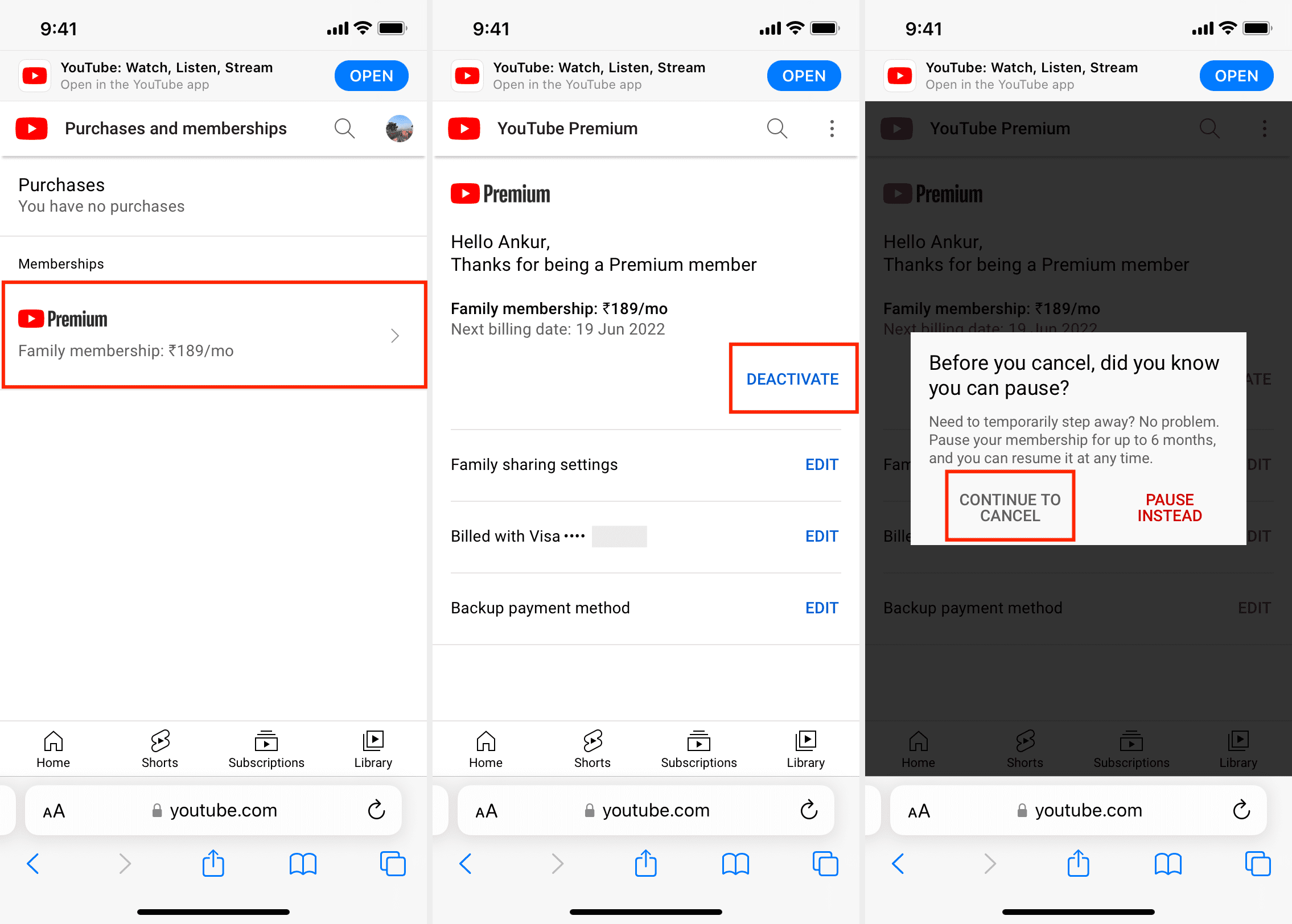
- Navigate to Purchases & Memberships: From the dropdown menu, select “Purchases and memberships.” This will display all your active YouTube-related subscriptions.
- Manage Membership: Locate “YouTube Premium” in the list and click on “MANAGE MEMBERSHIP.” This action will redirect you to the Google Play Subscriptions page, even if you didn’t subscribe via Google Play directly.
- Initiate Cancellation: On the Google Play Subscriptions page, you’ll see your YouTube Premium subscription details. Click on “Manage” next to your subscription, then select “Cancel membership” or “Cancel subscription.”
- Confirm Cancellation: You might be prompted to select a reason for canceling. While optional, providing feedback can help YouTube improve its services. Follow the on-screen prompts to confirm your decision. You will receive an email confirmation shortly after.
Canceling via Android Devices
Canceling on an Android device is typically managed through the YouTube app or the Google Play Store app.
From the YouTube App:
- Open YouTube App: Launch the YouTube app on your Android device.
- Access Profile: Tap your profile picture in the top right corner.
- Go to Paid Memberships: Select “Purchases and memberships” from the menu.
- Manage Membership: Find “YouTube Premium” and tap “MANAGE MEMBERSHIP.” This will typically open a browser window or redirect you to the Google Play Store subscription management interface.
- Cancel: Follow the prompts to cancel your subscription, similar to the desktop steps, by tapping “Cancel subscription” and confirming.
From the Google Play Store App:
- Open Play Store: Launch the Google Play Store app on your Android device.
- Access Menu: Tap your profile icon in the top right corner.
- Navigate to Payments & Subscriptions: Select “Payments & subscriptions,” then “Subscriptions.”
- Find YouTube Premium: Locate “YouTube Premium” in your list of subscriptions.
- Cancel: Tap on the subscription, then tap “Cancel subscription.” Confirm your decision when prompted.
Canceling on iOS Devices (Apple Subscriptions)
If you subscribed to YouTube Premium through the YouTube app on an iPhone or iPad, your subscription is likely managed through Apple’s App Store subscriptions.
- Open Settings: Go to the “Settings” app on your iOS device.
- Access Apple ID: Tap on your name at the very top of the Settings menu.
- Subscriptions: Tap “Subscriptions.” You might need to authenticate with Face ID, Touch ID, or your passcode.
- Find YouTube Premium: Scroll through your active subscriptions and tap on “YouTube Premium.”
- Cancel Subscription: Tap “Cancel Subscription” (or “Cancel Free Trial” if you’re still in a trial period).
- Confirm: Confirm your cancellation when prompted.
What to Do if You Subscribed Through a Third Party
In some cases, users might subscribe to YouTube Premium as part of a bundle or promotion through a third-party service provider (e.g., a mobile carrier, an internet provider, or another digital service). If you cannot find your YouTube Premium subscription in your Google account settings or Apple subscriptions, this is likely the reason.
- Identify the Third Party: Recall how you initially subscribed or check your billing statements for clues about the provider.
- Contact the Provider: Visit the third-party provider’s website or contact their customer support. They will have specific instructions for managing and canceling subscriptions billed through them.
- Follow Their Process: Adhere to their unique cancellation procedures, as these will differ from direct Google or Apple subscriptions.
Navigating the Post-Cancellation Landscape
Canceling your YouTube Premium subscription doesn’t mean an immediate loss of benefits. There’s typically a grace period and specific implications for your saved content and features. Understanding these details helps manage expectations and ensures a smooth transition.
Understanding Your Subscription End Date and Grace Period
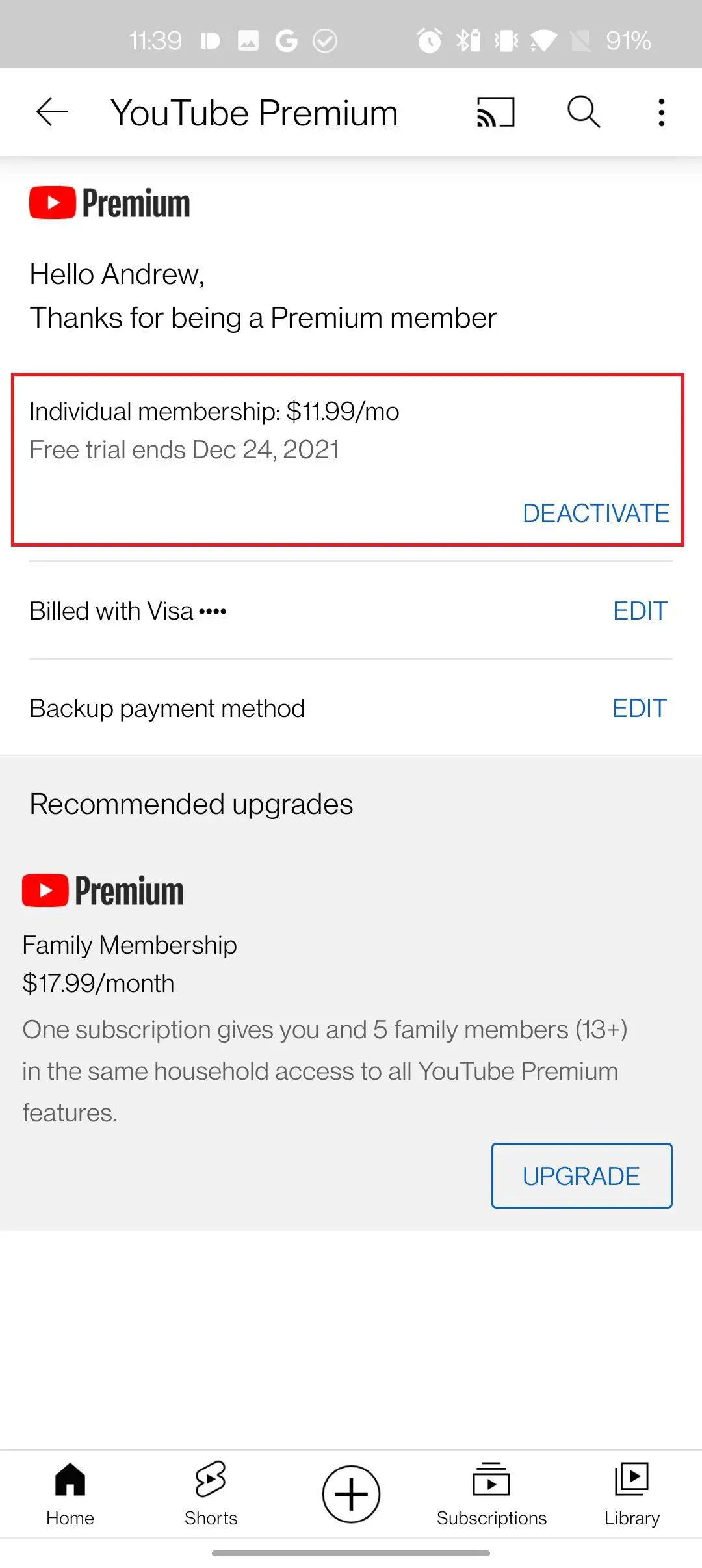
When you cancel YouTube Premium, your membership does not typically end immediately. Instead, it remains active until the end of your current billing cycle. For example, if your billing date is the 15th of each month and you cancel on the 1st, you will continue to enjoy Premium benefits for another two weeks, until the 15th. This allows you to utilize the service you’ve already paid for, providing a seamless wind-down period without feeling shortchanged. You will not be charged for the next billing cycle. It’s important to note this end date, as it marks the point when your Premium features will cease.
What Happens to Your Downloaded Content and Ad-Free Experience
Once your subscription period officially ends, all the exclusive YouTube Premium features will revert to the standard YouTube experience.
- Ad-Free Viewing: Advertisements will reappear on videos. While an inconvenience, it’s the standard experience for the vast majority of YouTube users.
- Background Playback: This feature will be disabled. If you navigate away from the YouTube app or lock your screen, video playback will stop.
- Downloads: All videos you have downloaded for offline viewing will become inaccessible. They are essentially ‘leased’ content that requires an active Premium subscription. It’s advisable to watch any downloaded content before your membership expires if you won’t have internet access later.
- Smart Downloads: The automatic download feature for recommended videos will also cease to function.
These changes are instantaneous upon the final expiration of your Premium membership. It’s a return to the free tier, with all its inherent limitations and opportunities for advertising.
Managing YouTube Music Premium After Cancellation
Since YouTube Music Premium is bundled with YouTube Premium, canceling the latter also means losing access to the former’s premium features.
- Ad-Free Music: Ads will be reintroduced during music playback.
- Background Play: Music will no longer play in the background or with the screen off.
- Downloads: Any downloaded music, albums, or playlists will become unavailable.
- Audio Quality/Modes: While the core music library remains accessible, certain premium audio quality options or exclusive listening modes might be restricted.
If YouTube Music was your primary music streaming service, you might want to consider alternatives such as Spotify, Apple Music, or Amazon Music, or revert to the free tier of YouTube Music (which still offers a vast library but with ads and limitations) or other ad-supported music streaming services. Planning for this transition is crucial if music is a significant part of your daily digital consumption.
Alternatives to Full Cancellation: Pause, Downgrade, or Reconsider
Before making a definitive break with YouTube Premium, it’s worth exploring flexible options that might better suit your evolving needs or provide a temporary reprieve without full commitment.
Pausing Your YouTube Premium Membership
YouTube understands that user needs fluctuate. Instead of outright canceling, you have the option to pause your membership. This feature allows you to suspend your subscription for a period of 1 to 6 months. During the pause, you won’t be charged, and your Premium benefits will be temporarily suspended. Once the pause period ends, your membership and billing will automatically resume. This is an excellent option for:
- Temporary budget constraints.
- Periods of reduced YouTube usage (e.g., during a busy project, vacation, or while trying out another service).
- Testing if you truly miss the Premium features before a permanent cancellation.
To pause: follow the same initial steps as cancellation (e.g., profile picture > Purchases and memberships > MANAGE MEMBERSHIP), but instead of “Cancel,” look for an option to “Pause membership” or similar, usually found within the “Manage” section.
Exploring Family Plans vs. Individual Plans
If the primary concern is cost, but multiple members of your household benefit from YouTube Premium, consider switching from individual plans to a YouTube Premium Family Plan. This plan allows up to five family members (aged 13+) living in the same household to share a single Premium subscription at a lower per-person cost than multiple individual plans.
- Cost Savings: Significant savings compared to multiple individual subscriptions.
- Shared Benefits: Everyone enjoys ad-free viewing, background play, downloads, and YouTube Music Premium.
- Centralized Billing: One person manages the subscription and payments.
If you are currently on an individual plan and multiple people in your home use YouTube, converting to a family plan could be a cost-effective alternative to complete cancellation. You would cancel your individual plan and then subscribe to a family plan.
Reconsidering Your YouTube Premium Value Proposition
Sometimes, the decision to cancel comes from a perception of diminishing value. Before taking the final step, reflect on whether you might be underutilizing the service. Are there features you’re not aware of or haven’t explored?
- Deep Dive into YouTube Music: Have you fully explored the personalized playlists, radio stations, and exclusive content on YouTube Music Premium?
- Maximize Downloads: Are you taking advantage of downloads for podcasts, documentaries, or educational content to consume during commutes or travel?
- Background Play for Productivity: Do you use background play for listening to study music, ambient sounds, or long-form interviews while working?
A re-evaluation might reveal untapped value, making the subscription worthwhile again. Conversely, if you’ve explored all avenues and still find the benefits lacking for your current needs, then proceeding with cancellation is the right choice.
Troubleshooting Common Cancellation Issues and Best Practices
While canceling YouTube Premium is designed to be user-friendly, occasional hurdles can arise. Knowing how to troubleshoot these common issues and adopting best practices for managing subscriptions can save time and frustration.
Unable to Find the Cancellation Option
This is a frequent issue, often due to how the subscription was initially made.
- Check the Correct Google Account: Ensure you are logged into the exact Google account that purchased the Premium subscription. Many users have multiple Google accounts, and subscribing with the wrong one is a common mistake.
- Verify Subscription Source: As mentioned earlier, if you subscribed via a third party (like a mobile carrier), the cancellation option won’t appear in your Google or Apple subscription settings. You must manage it directly through that provider. Check your bank statements or email confirmations for clues about the original purchase method.
- Temporary Technical Glitch: Occasionally, web pages or apps can experience temporary glitches. Try clearing your browser’s cache and cookies, using a different browser, or attempting the cancellation on a different device. If the issue persists, wait a few hours and try again.
Accidental Cancellation or Reinstatement
If you cancel by mistake or change your mind before your current billing cycle ends, you typically have options:
- Reactivate Before Expiration: In most cases, before your current subscription period fully ends, you can go back to the “Purchases and memberships” section and find an option to “Reactivate” or “Resume” your membership. This will prevent your Premium benefits from ceasing at the end of the cycle.
- Resubscribe After Expiration: If your Premium membership has already expired, you’ll need to subscribe again as if you were a new member. This usually means starting a new billing cycle immediately.
- Contact Support: For any unusual scenarios or persistent issues, YouTube’s customer support (often accessible via their help pages or directly from your subscription management page) can provide personalized assistance.

Securing Your Digital Subscriptions: Best Practices
Managing multiple digital subscriptions effectively is a critical aspect of modern digital life.
- Centralized Tracking: Use a spreadsheet, a dedicated budgeting app, or a subscription management tool (like Bobby, Mint, or Truebill) to keep a list of all your recurring subscriptions, their billing dates, and costs.
- Regular Audits: Periodically review your subscription list (e.g., quarterly or annually) to ensure you’re still using and deriving value from each service. This helps prevent “subscription creep.”
- Use Strong, Unique Passwords: Protect your accounts with robust, unique passwords and enable two-factor authentication (2FA) wherever possible. This prevents unauthorized access and potential fraudulent subscriptions.
- Monitor Bank Statements: Regularly check your credit card or bank statements for unexpected charges. This can help identify forgotten subscriptions or fraudulent activity.
- Understand Trial Periods: Be mindful of free trial periods. Mark their end dates in your calendar so you can cancel before incurring charges if you decide not to continue.
By following these guidelines, canceling your YouTube Premium subscription—or any other digital service—becomes a controlled and informed process, empowering you to manage your digital footprint and financial commitments with confidence.
aViewFromTheCave is a participant in the Amazon Services LLC Associates Program, an affiliate advertising program designed to provide a means for sites to earn advertising fees by advertising and linking to Amazon.com. Amazon, the Amazon logo, AmazonSupply, and the AmazonSupply logo are trademarks of Amazon.com, Inc. or its affiliates. As an Amazon Associate we earn affiliate commissions from qualifying purchases.