
In the ever-expanding universe of digital streaming, managing your subscriptions can sometimes feel like navigating a labyrinth. Paramount+, with its compelling array of shows, movies, and live sports, has undoubtedly captured the attention of many. However, circumstances change, viewing habits evolve, or perhaps you’re simply looking to streamline your monthly outgoings. Whatever your reason, understanding the precise steps to cancel your Paramount+ subscription is a fundamental digital literacy skill. This comprehensive guide will demystify the process, offering clear, actionable instructions tailored to various billing platforms, ensuring a smooth and hassle-free cancellation experience.
Understanding Your Paramount+ Subscription Management
Before you dive into the cancellation steps, it’s crucial to understand how your subscription was initiated, as this dictates the path you’ll need to take. Paramount+ subscriptions aren’t all managed from a single portal; their control panel is typically tied to the platform you used for the initial sign-up.
Identifying Your Billing Platform
The most common point of confusion for users is determining where their subscription is actually managed. Did you sign up directly through the Paramount+ website? Or perhaps through an app store on your mobile device, a smart TV platform, or a third-party service provider?
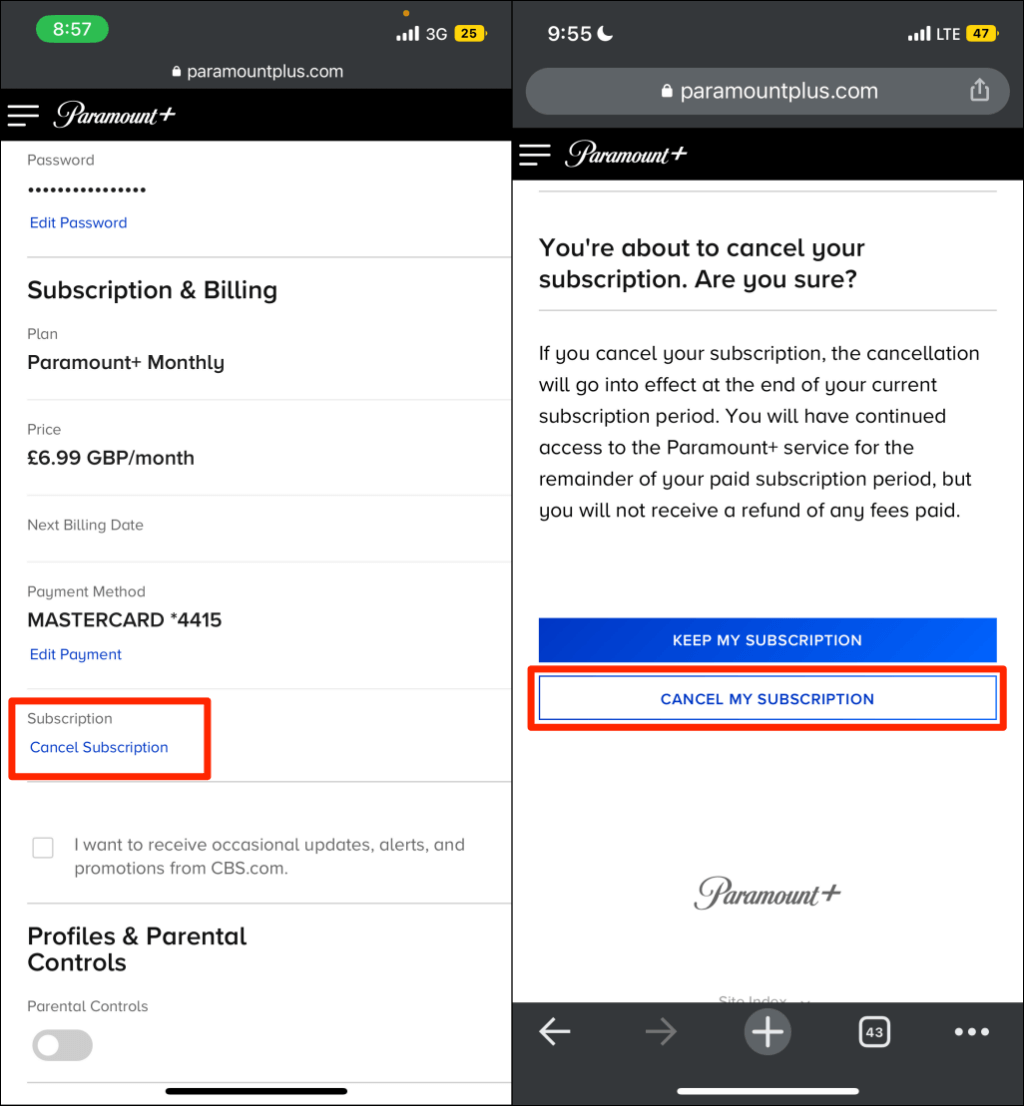
- Direct via Paramount+ Website: If you signed up by visiting ParamountPlus.com directly and entering your payment information there, your subscription is managed entirely through your Paramount+ account settings on their website. This is often the most straightforward cancellation path.
- Apple App Store (iOS devices): Many users subscribe via the Paramount+ app downloaded on an iPhone or iPad, with billing handled through their Apple ID. These subscriptions are managed within your Apple ID settings on your device or computer.
- Google Play Store (Android devices): Similarly, Android users subscribing via the app will have their billing managed through their Google Play account. Cancellation occurs within the Google Play Store app or website.
- Amazon (Prime Video Channels, Fire TV Devices): If you added Paramount+ as a channel through Amazon Prime Video, or subscribed directly via a Fire TV device, your subscription is managed via your Amazon account.
- Roku Devices: Subscriptions initiated through the Paramount+ channel on a Roku device are managed through your Roku account.
- Other Third-Party Providers: This can include services like YouTube TV, Apple TV Channels (separate from iOS app store), or even certain internet/cable providers who offer Paramount+ as part of a bundle. Each of these will have its own specific management portal.
Knowing your billing platform is the first and most critical step. If you’re unsure, checking your bank statements for the charge description can often provide a clue (e.g., “Apple Services,” “Google Play,” “Amazon,” “ParamountPlus.com”). Alternatively, logging into your Paramount+ account on their website often provides information about your billing source in the “Account” or “Subscription” section.
Key Considerations Before You Cancel
Before you commit to cancelling, a few technical and practical considerations might influence your decision or prepare you for the post-cancellation phase:
- Remaining Access: In most cases, cancelling your Paramount+ subscription does not immediately terminate your access. You will typically retain full access to the service until the end of your current billing cycle (e.g., the end of the month or year for which you’ve already paid). This allows you to finish watching any desired content without losing out on paid time.
- Reactivation: Should you decide to return to Paramount+ in the future, reactivating your subscription is usually a simple process through your account settings. Paramount+ often stores your preferences and watch history, making it easy to pick up where you left off.
- Promotional Offers: Be mindful of any ongoing promotional rates you might be enjoying. Cancelling may mean losing access to these rates if you resubscribe later, potentially requiring you to pay the standard monthly fee.
- Linked Profiles: If you have multiple user profiles set up on your Paramount+ account, remember that cancelling the primary subscription will affect all linked profiles. Inform other users in your household before proceeding.
- Downloading Content: For those who use the download feature for offline viewing, note that once your subscription ends, any downloaded content will become inaccessible. Plan accordingly if you have content you wish to watch before your access expires.
Taking these points into account ensures that your cancellation process is informed and free of unexpected surprises.
Step-by-Step Cancellation Guides: Direct Paramount+ Subscriptions
For the vast majority of users who signed up directly through the Paramount+ website, the cancellation process is streamlined and managed entirely within your online account. This section details how to navigate these settings.
Cancelling via the Paramount+ Website
This is the most common and often the simplest method for cancellation.
- Access the Paramount+ Website: Open your web browser and go to www.paramountplus.com.
- Log In to Your Account: Enter your registered email address and password to log in. If you’ve forgotten your password, use the “Forgot Password?” link to reset it.
- Navigate to Account Settings: Once logged in, hover over your profile icon (usually in the top-right corner) and select “Account” or “Account & Billing” from the dropdown menu.
- Locate Subscription & Billing: Within the Account section, look for a tab or section labeled “Subscription & Billing,” “Subscription,” or “Plan.” This area provides details about your current plan, next billing date, and payment method.
- Initiate Cancellation: You should see an option like “Cancel Subscription,” “Manage Subscription,” or “Cancel My Plan.” Click on this link.
- Follow On-Screen Prompts: Paramount+ may present you with an offer to pause your subscription, change your plan, or ask for a reason for cancellation. Carefully read through these prompts. You may need to click through several screens to confirm your intent to cancel. Be vigilant for any “Are you sure?” or “Confirm Cancellation” buttons.
- Receive Confirmation: After successfully cancelling, you should receive an on-screen confirmation message and, typically, a confirmation email to the address associated with your account. Retain this email for your records.
Navigating Account Settings for Subscription Control
The “Account” section on the Paramount+ website is your central hub for all subscription-related controls. Beyond cancellation, you can also:
- Update Payment Information: Change your credit card details or update your billing address.
- Change Plans: Upgrade or downgrade your subscription tier (e.g., from Essential to Premium).
- View Billing History: Access past invoices and payment records.
- Manage Profiles: Add, edit, or delete user profiles associated with your account.
Familiarizing yourself with these account management features empowers you to have full control over your digital streaming services.
Cancelling Paramount+ Through Third-Party Platforms
If you didn’t subscribe directly through the Paramount+ website, your cancellation journey will take a slightly different route, leading you to the settings of the platform through which you originally subscribed.
Apple App Store Subscriptions
For users who subscribed on an iPhone, iPad, or Apple TV:
- On an iOS Device (iPhone/iPad):
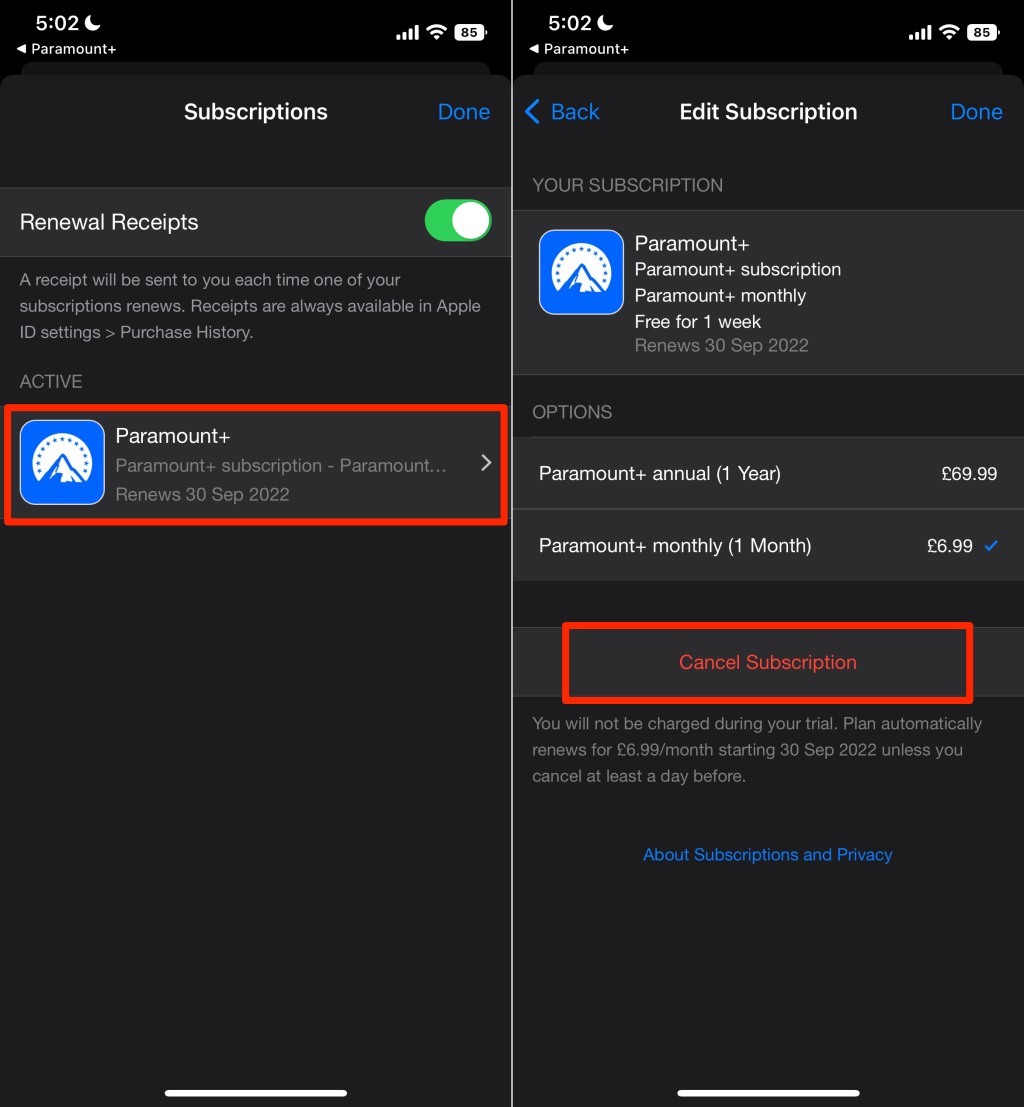
- Open the Settings app.
- Tap on your name/Apple ID at the top.
- Tap Subscriptions.
- Find and tap on Paramount+ in your list of subscriptions.
- Tap Cancel Subscription (or “Cancel Free Trial” if you’re still in a trial period).
- Confirm your cancellation.
- On a Mac:
- Open the App Store app.
- Click on your name at the bottom of the sidebar.
- Click Account Settings at the top of the window. You may need to sign in.
- Scroll to the “Subscriptions” section and click Manage.
- Find Paramount+ and click Edit.
- Click Cancel Subscription.
Google Play Store Subscriptions
For users who subscribed on an Android device:
- On an Android Device:
- Open the Google Play Store app.
- Tap your profile icon (top right).
- Tap Payments & subscriptions, then Subscriptions.
- Find and tap on Paramount+.
- Tap Cancel subscription.
- Follow the on-screen instructions to confirm.
- On a Computer (via web browser):
- Go to play.google.com/store/account.
- Sign in to your Google account if prompted.
- In the “Subscriptions” section, find Paramount+.
- Click Manage, then Cancel Subscription.
Amazon Prime Video Channels and Devices
If you subscribed to Paramount+ as a channel through Amazon Prime Video, or directly via an Amazon Fire TV device:
- Via Amazon Website:
- Go to www.amazon.com/yourmembershipsandsuscriptions.
- Log in to your Amazon account.
- Locate Paramount+ under “Prime Video Channels” or “Your Subscriptions.”
- Click the “Cancel Channel” or “Manage Subscription” button next to it.
- Follow the prompts to confirm your cancellation.
Roku Devices and Channel Subscriptions
For subscriptions made directly through your Roku device:
- On Your Roku Device:
- Navigate to the Paramount+ channel on your Roku home screen.
- Press the * (star) button on your Roku remote.
- Select “Manage subscription.”
- Select “Cancel subscription.”
- Confirm your choice when prompted.
- Via Roku Website:
- Go to my.roku.com on a web browser.
- Log in to your Roku account.
- Click on “Manage your subscriptions.”
- Find Paramount+ and click “Cancel subscription.”
- Follow the on-screen instructions.
Other Digital Retailers (e.g., Apple TV Channels, YouTube TV)
For other platforms, the principle remains the same: find the subscription management section within that specific service.
- Apple TV Channels: If you subscribed via the Apple TV app (not the iOS App Store), you manage it within the Apple TV app settings under “Subscriptions.”
- YouTube TV: Log into your YouTube TV account, go to “Settings,” then “Membership,” and find the option to manage or cancel add-on channels.
Always ensure you are logged into the correct account associated with the subscription to successfully manage or cancel it.
Post-Cancellation and Troubleshooting
The journey doesn’t quite end with clicking “cancel.” It’s wise to verify your cancellation and know what to do if you encounter any issues.
What to Expect After Cancellation
Upon successful cancellation, you’ll typically retain access to Paramount+ content until the end of your current billing period. This means you can continue to enjoy shows and movies without interruption for the time you’ve already paid for. Once that period concludes, your access will cease, and you will no longer be charged. Paramount+ will often send a reminder email a few days before your access is set to expire.
Verifying Your Cancellation Status
To ensure peace of mind, it’s a good practice to verify your cancellation:
- Check for Confirmation Email: Look for an email from Paramount+ or the third-party billing platform confirming your cancellation. This is your primary proof.
- Review Account Settings: Log back into your Paramount+ account (or the relevant third-party platform) and navigate to the “Subscription” or “Account & Billing” section. It should clearly state that your subscription is cancelled and specify the date your access will end.
- Monitor Bank Statements: After your next expected billing date, check your bank or credit card statement to confirm that no further charges from Paramount+ have been processed.
Common Issues and How to Resolve Them
While the cancellation process is usually smooth, you might occasionally encounter a snag.
- “Can’t Find My Subscription”: This almost always means you’re looking in the wrong place. Double-check your initial sign-up method. Did you subscribe directly, or through Apple, Google, Amazon, Roku? Review your bank statements for clues on who is billing you.
- “Error Message During Cancellation”: If you receive a technical error, try clearing your browser’s cache and cookies, using a different browser, or attempting the cancellation process on a different device.
- Still Being Charged After Cancellation: If you’ve received a confirmation but are still being billed, gather all your cancellation confirmation emails and screenshots. Contact Paramount+ customer support directly, providing them with this evidence. If they cannot resolve it, contact the third-party platform (Apple, Google, Amazon, etc.) or your bank/credit card provider to dispute the charge.
- Forgot Login Credentials: If you can’t log in to cancel, use the “Forgot Password” or “Forgot Email” options on the relevant platform to regain access to your account.
Customer support for Paramount+ can be found via their official website’s help section, usually offering FAQs, a chat function, or contact forms. When reaching out, be prepared with your account details, billing platform information, and any relevant dates or confirmation numbers.
In conclusion, cancelling your Paramount+ subscription is a straightforward process once you’ve identified your billing platform. By following these detailed, tech-focused steps, you can confidently manage your digital subscriptions, maintaining control over your entertainment choices and personal finances without unnecessary complications.
aViewFromTheCave is a participant in the Amazon Services LLC Associates Program, an affiliate advertising program designed to provide a means for sites to earn advertising fees by advertising and linking to Amazon.com. Amazon, the Amazon logo, AmazonSupply, and the AmazonSupply logo are trademarks of Amazon.com, Inc. or its affiliates. As an Amazon Associate we earn affiliate commissions from qualifying purchases.