
In an increasingly digitized world, subscription services have become an integral part of our daily lives, particularly when it comes to entertainment. YouTube TV, Google’s popular live TV streaming service, offers a robust package of channels and features that rival traditional cable. However, circumstances change, viewing habits evolve, or perhaps you’ve simply found a better fit elsewhere. The process of managing digital subscriptions, including cancellation, should ideally be straightforward, yet it can sometimes feel like navigating a maze. This comprehensive guide aims to demystify the YouTube TV cancellation process, ensuring you have all the information you need to make an informed decision and execute it seamlessly. We’ll delve into the practical steps, explore crucial considerations, and troubleshoot common issues, all within the realm of digital service management and user interaction with an application.

Understanding Your YouTube TV Subscription
Before diving into the mechanics of cancellation, it’s beneficial to grasp the fundamentals of your YouTube TV subscription. This understanding will not only help you navigate the process but also ensure you make the best decision for your streaming needs.
The Allure of Live TV Streaming
YouTube TV revolutionized the way many consumers access live television, offering a flexible, internet-based alternative to traditional cable and satellite providers. With a strong channel lineup, unlimited cloud DVR, and multi-device compatibility, it quickly became a favorite for cord-cutters. Its integration with the wider Google ecosystem also provided a layer of familiarity and ease of use for many. However, the very flexibility that makes streaming services appealing also means users can easily switch providers or take breaks as their preferences or financial situations dictate. The tech behind these platforms is designed for user control, including the ability to start, pause, or stop subscriptions at will.
Common Reasons for Cancellation
While YouTube TV offers a compelling service, various factors might lead users to consider cancellation. Understanding these common motivators can provide perspective and help validate your own decision.
- Cost: Subscription prices can increase over time, and even without increases, the cumulative cost of multiple streaming services can become substantial. Budget management is a primary driver for re-evaluating subscriptions.
- Content Overlap/Availability: Many users subscribe to multiple services. If desired channels or shows move to a different platform, or if another service offers a more appealing bundle, it can prompt a switch.
- Reduced Usage: Life changes, new hobbies, or simply less time for TV can lead to a realization that a subscription is no longer being utilized to its full potential.
- Technical Issues or User Experience: While generally robust, occasional technical glitches, interface preferences, or specific feature limitations might prompt some users to seek alternatives.
- Temporary Needs: Some users might subscribe for a specific sports season or event, intending to cancel once their immediate need is met.
Key Considerations Before You Act
Before you hit the “cancel” button, take a moment to consider these important points to avoid any surprises.
- Billing Cycle: YouTube TV operates on a monthly billing cycle. Canceling your subscription does not immediately terminate your access. Instead, your service will continue until the end of your current billing period. You won’t receive a prorated refund for any unused days. Knowing this helps you time your cancellation effectively.
- Pause vs. Cancel: YouTube TV offers a “pause” option, which can be an excellent alternative to full cancellation if your reason is temporary (e.g., vacation, seasonal usage). Pausing allows you to suspend your membership for 4 weeks up to 6 months, retaining your library and preferences without immediate payment. We’ll discuss this further later.
- Add-ons and Bundles: If you have any premium add-on channels or are part of a bundle, canceling your base YouTube TV subscription will also terminate access to these additional services.
Step-by-Step: The Cancellation Process
Executing the cancellation process for YouTube TV is designed to be user-friendly, primarily accessible through a web browser or the mobile app. Following these steps will ensure a smooth and successful termination of your service.
Canceling Via Your Web Browser (Desktop/Laptop)
This is generally the most straightforward and recommended method due to the larger interface and ease of navigation.
- Log In to YouTube TV: Open your preferred web browser and go to tv.youtube.com. Ensure you are logged in with the Google account associated with your YouTube TV subscription.
- Access Settings: In the top right corner of the page, click on your profile picture. From the dropdown menu, select “Settings.”
- Navigate to Membership: Within the Settings menu, you’ll see several categories on the left sidebar. Click on “Membership.”
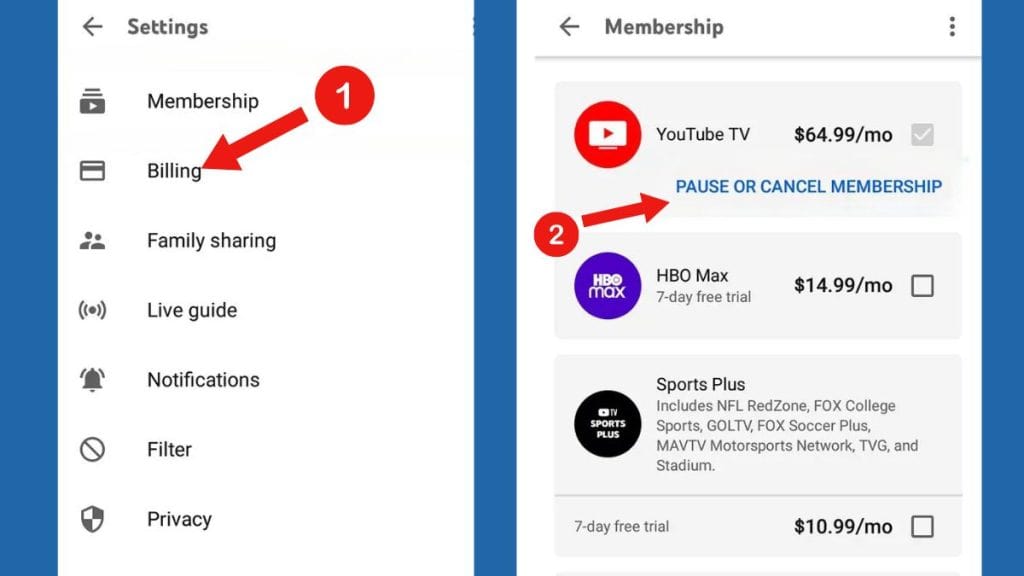
- Manage Membership: On the Membership page, you’ll see details about your current plan and billing. Look for a section that says “Manage Membership” or “Cancel Membership” and click on it.
- Initiate Cancellation: You might be presented with an option to “Pause membership” first. If you’re certain you want to cancel, look for the “Cancel membership” link, usually displayed prominently or as a less emphasized text link.
- Confirm and Provide Feedback: YouTube TV will often present a series of screens asking for feedback on why you’re canceling. While optional, providing feedback can help the service improve. You may also be offered incentives to stay. Continue through these screens until you reach a final confirmation.
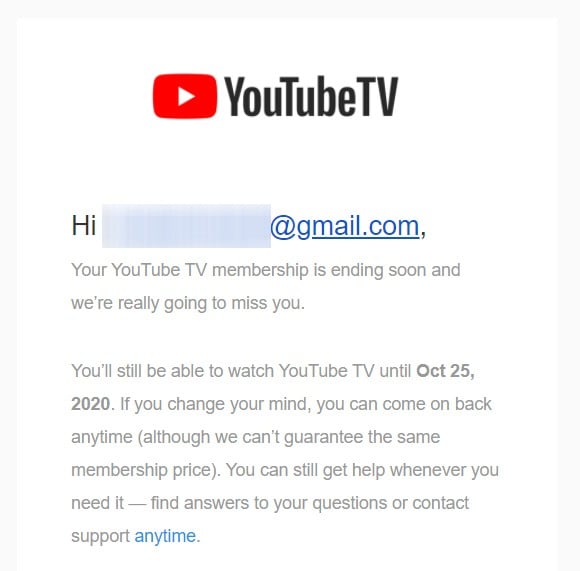
- Final Confirmation: Click “Yes, cancel” or “Confirm cancellation” to finalize the process. You should receive an email confirmation of your cancellation, detailing the date your service will officially end. Keep this email for your records.
Canceling Through the YouTube TV Mobile App
For those who primarily manage their subscriptions on the go, the YouTube TV mobile app offers a similar cancellation path.
- Open the YouTube TV App: Launch the YouTube TV app on your smartphone or tablet.
- Access Settings: Tap your profile picture in the top right corner of the app.
- Select Settings: From the menu that appears, tap “Settings.”
- Go to Membership: Tap “Membership” from the options.
- Manage Your Membership: Locate and tap “Manage.” This will typically open a web browser within the app or redirect you to a browser to complete the cancellation process, as certain billing management features are handled via the web interface for security and consistency.
- Follow Web Browser Steps: Once redirected, the steps will largely mirror those for canceling via a desktop web browser (steps 5-7 above), including feedback prompts and final confirmation.
Special Cases: Subscriptions Billed Through Third Parties
In some instances, you might have signed up for YouTube TV through a third-party platform, such as Apple (via iTunes/App Store) or Google Play Store. The cancellation process for these accounts often needs to be managed directly through that third-party platform’s subscription settings.
- Apple Subscriptions: Go to your device’s Settings > [Your Name] > Subscriptions. Find YouTube TV and manage it there.
- Google Play Subscriptions: Open the Google Play Store app > Menu > Payments & subscriptions > Subscriptions. Find YouTube TV and manage it.
Always check your original billing method if you’re unsure where your subscription is managed.
What Happens After You Cancel?
The act of cancellation is only one part of the journey. Understanding what occurs immediately after and in the longer term is crucial for managing your digital entertainment landscape.
Access Duration Post-Cancellation
As mentioned earlier, canceling YouTube TV doesn’t immediately cut off your service. Your access will continue until the end of your current billing cycle. For example, if your billing date is the 15th of each month and you cancel on the 5th, you will still have access to YouTube TV until the 14th of that month. This grace period allows you to continue enjoying your favorite shows and recordings without interruption until your paid period expires. After this date, your access to live TV, on-demand content, and your cloud DVR library will cease. Your recordings will be retained for a certain period (typically 9 months) in case you decide to resubscribe.
The “Pause Membership” Alternative
For users who are contemplating a temporary break, the “Pause membership” feature is a highly valuable option that leverages the flexibility of digital subscriptions.
- How it Works: You can choose to pause your membership for a duration ranging from 4 weeks to 6 months. During this period, you won’t be billed, and your access to YouTube TV will be suspended.
- Benefits: This option is ideal for vacations, periods of high workload, or if you’re experimenting with another streaming service temporarily. It saves you the hassle of going through the full cancellation and resubscription process, and crucially, it retains your entire cloud DVR library and personalized recommendations.
- Resumption: Your service will automatically resume at the end of your chosen pause period, and billing will recommence. You can also manually resume your membership earlier if your plans change. This provides unparalleled control over your subscription, a hallmark of modern tech services.
Resubscribing to YouTube TV
Should you decide to return to YouTube TV in the future, the resubscription process is typically as simple as your initial sign-up.
- Log In: Go to tv.youtube.com and log in with your Google account.
- Reactivate Membership: You will likely see an option to “Reactivate membership” or “Resume membership” on your account page.
- Confirm Payment: Confirm your payment method, and your service will be reactivated immediately. Any previous settings, custom channel lineups, and DVR recordings (if within the retention period) will often be restored.
Troubleshooting Common Cancellation Issues
Even with clear instructions, technology can sometimes present unexpected hurdles. Here’s how to address common issues you might encounter during the YouTube TV cancellation process.
Missing Cancellation Options
If you can’t find the “Cancel membership” option, there are a few potential reasons:
- Wrong Account: Ensure you are logged into the exact Google account that holds the YouTube TV subscription. Many users have multiple Google accounts, leading to confusion.
- Third-Party Billing: As discussed, if you subscribed through Apple, Google Play, or another partner, you must manage the subscription directly through their respective platforms. YouTube TV’s interface will only redirect you.
- Temporary Glitch: Occasionally, web interfaces can experience temporary glitches. Try clearing your browser’s cache and cookies, using a different browser, or attempting the cancellation from the mobile app.
Unexpected Billing After Cancellation
This is a rare but frustrating issue. If you’ve received a bill after confirming cancellation:
- Check Confirmation Email: Refer to the cancellation confirmation email you received. It clearly states the date your service was set to end.
- Review Bank/Card Statements: Compare the charge date with your cancellation date. Remember, you pay for the full billing cycle, so a charge for a period before your cancellation date is normal. A charge after your service was supposed to end is not.
- Contact Support: If you’re certain you were charged incorrectly, gather your confirmation email and bank statements and contact YouTube TV support immediately. They can investigate billing discrepancies.
When to Contact YouTube TV Support
While this guide covers most scenarios, there are times when direct intervention from customer support is necessary.
- Persistent Technical Issues: If you encounter error messages or the website/app repeatedly fails during the cancellation attempt.
- Billing Disputes: For any charges you believe are erroneous after cancellation.
- Account Access Issues: If you’re locked out of your Google account or cannot access your YouTube TV settings.
- Unusual Circumstances: Any situation not covered here that prevents you from managing your subscription.
YouTube TV typically offers support through chat, email, or social media channels, accessible via their official help center. Be prepared with your account details and any relevant screenshots or documentation.
Exploring Your Streaming Landscape
The decision to cancel a service like YouTube TV often signifies a broader re-evaluation of your digital entertainment choices. This reflects the dynamic nature of the tech industry, where competition and innovation constantly offer new possibilities.
Evaluating Your Entertainment Needs
Before jumping to another service, take stock of what you truly want from your streaming experience.
- Must-Have Channels: List the channels that are absolutely essential for you.
- Content Preferences: Do you primarily watch live sports, news, movies, or specific TV series?
- Budget: Determine how much you’re willing to spend monthly on streaming.
- Features: Do you need unlimited DVR, multiple simultaneous streams, offline viewing, or specific device compatibility?
This introspection will help you align your choices with your actual consumption patterns, ensuring future subscriptions are a better fit.
Top YouTube TV Alternatives
The streaming market is vibrant and competitive, offering numerous alternatives for live TV and on-demand content. While this article focuses on YouTube TV cancellation, it’s worth noting some popular alternatives that users often consider:
- Hulu + Live TV: Combines live TV with Hulu’s extensive on-demand library.
- Sling TV: A more budget-friendly option with customizable channel packages.
- DirecTV Stream: Offers traditional cable-like packages with various channel tiers.
- FuboTV: Heavily geared towards sports enthusiasts.
- Philo: An inexpensive option focusing on entertainment and lifestyle channels (no sports or news).
Each platform has its unique selling points, pricing structures, and channel lineups, making the tech consumer’s choice both broad and nuanced.
Making Informed Decisions for Your Digital Entertainment
Ultimately, the ability to easily manage digital subscriptions, including cancellation, is a powerful tool for consumers. It fosters competition among service providers, driving them to constantly improve their offerings and provide better value. By understanding the process for services like YouTube TV, you empower yourself to make informed decisions that align with your budget, preferences, and evolving entertainment needs in the ever-changing digital landscape. Whether you’re pausing for a break, switching providers, or simply cutting back, managing your tech subscriptions effectively is a key component of modern digital literacy.
aViewFromTheCave is a participant in the Amazon Services LLC Associates Program, an affiliate advertising program designed to provide a means for sites to earn advertising fees by advertising and linking to Amazon.com. Amazon, the Amazon logo, AmazonSupply, and the AmazonSupply logo are trademarks of Amazon.com, Inc. or its affiliates. As an Amazon Associate we earn affiliate commissions from qualifying purchases.