
In the rapidly expanding universe of digital entertainment, streaming services like Paramount+ have become an integral part of how many of us consume media. Yet, just as our interests evolve or budgets shift, the need to manage and, at times, discontinue these subscriptions becomes a common task. While seemingly straightforward, the process of canceling a Paramount+ subscription can vary significantly depending on how and where you initially subscribed, posing a unique set of technical hurdles for users.
This guide is designed as a detailed technical walkthrough, demystifying the cancellation process across various platforms. We’ll delve into the nuances of direct subscriptions versus third-party billing, provide step-by-step instructions for popular devices and app stores, and offer practical troubleshooting tips. Our focus remains firmly on the technical mechanics, user interface navigation, and digital account management best practices, ensuring you can confidently and effectively manage your digital subscriptions.
Understanding Paramount+ Subscription Models and Platforms
Before diving into the cancellation steps, it’s crucial to understand that Paramount+ subscriptions aren’t a one-size-fits-all entity. The method of cancellation is directly tied to the initial point of purchase or subscription. This distinction is paramount for a smooth process, as attempting to cancel through the wrong platform will invariably lead to frustration and wasted effort.
Direct Subscriptions vs. Third-Party Billing
Paramount+ offers two primary avenues for subscription:
- Direct Subscription via ParamountPlus.com: This is when you subscribe directly through the official Paramount+ website. In this scenario, Paramount Global is your direct billing entity, and all account management, including cancellation, is handled through their web portal.
- Third-Party Billing: Many users subscribe to Paramount+ through various app stores or digital marketplaces. Common third-party billing platforms include:
- Apple App Store (iOS devices): Subscriptions made via an iPhone, iPad, or Apple TV.
- Google Play Store (Android devices): Subscriptions made via an Android phone, tablet, or Android TV.
- Amazon: This can include subscriptions via Amazon Prime Video Channels (where Paramount+ is an add-on) or directly through a Fire TV device.
- Roku: Subscriptions made directly through a Roku streaming device or Roku Channel Store.
- Other Providers: This might include cable providers that bundle Paramount+ or other smart TV operating systems.
The key technical insight here is that when you subscribe via a third-party, you’re not directly canceling with Paramount+ itself but rather with the platform that manages the billing for the service. Paramount+ merely provides the content access; the third-party platform manages the transactional relationship.
Impact of Platform on Cancellation Process
This distinction has significant technical implications. For example, if you subscribed via Apple, you must cancel through your Apple ID subscription settings; attempting to cancel on ParamountPlus.com will show no active subscription. This is a common point of confusion for users, highlighting the importance of recalling the initial subscription source. Each platform has its own unique user interface, navigation pathways, and authentication requirements for managing subscriptions, demanding a tailored approach to cancellation.
Step-by-Step Cancellation Guides for Common Platforms
Navigating the various digital ecosystems requires precise instructions. Here, we outline the technical steps for canceling your Paramount+ subscription on the most common platforms.
Cancelling Directly via ParamountPlus.com
This method applies if you subscribed directly through the Paramount+ website.
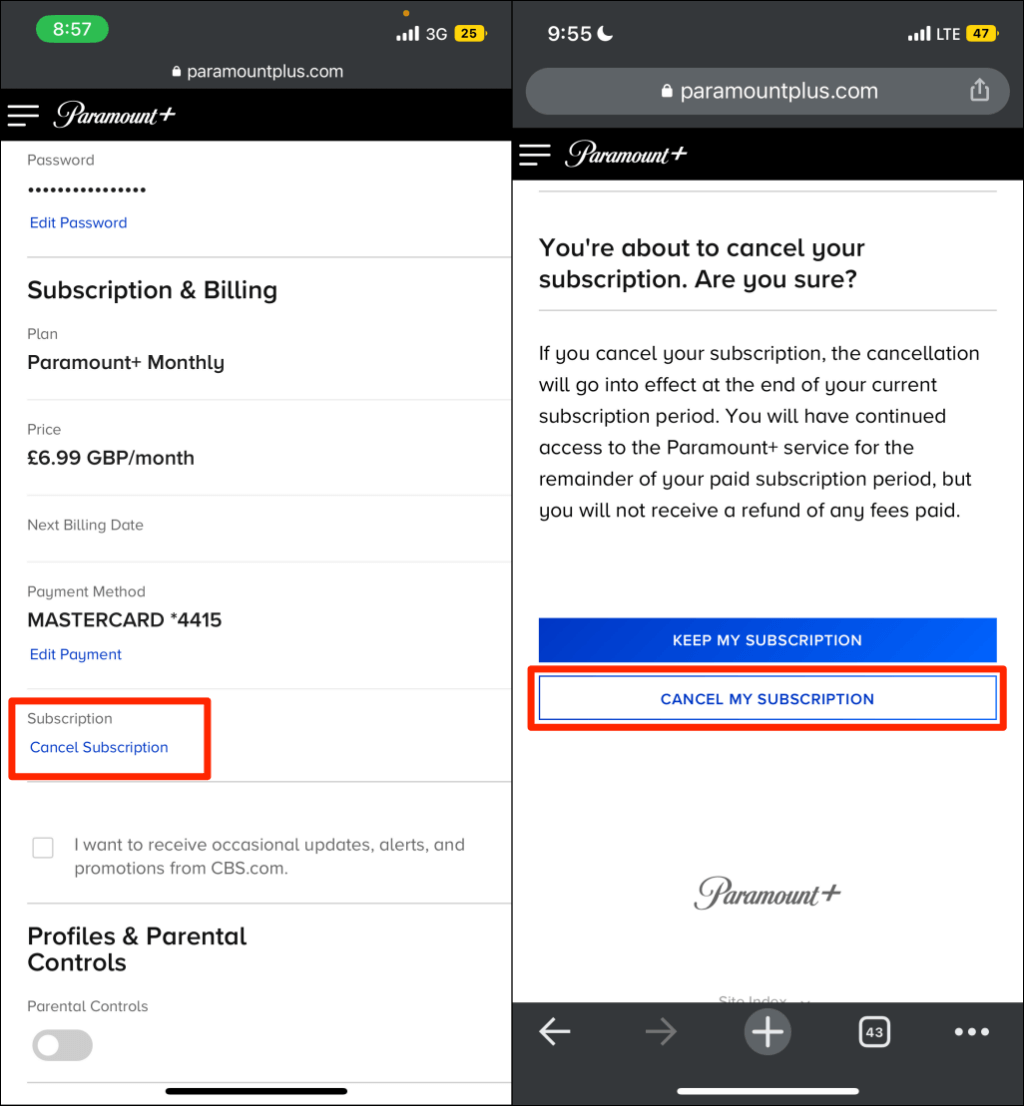
- Access the Website: Open a web browser and go to www.paramountplus.com.
- Sign In: Click the “Sign In” button (usually in the top right corner) and enter your Paramount+ email address and password.
- Navigate to Account: Once logged in, hover over your profile icon (top right) or click the menu icon, then select “Account.”
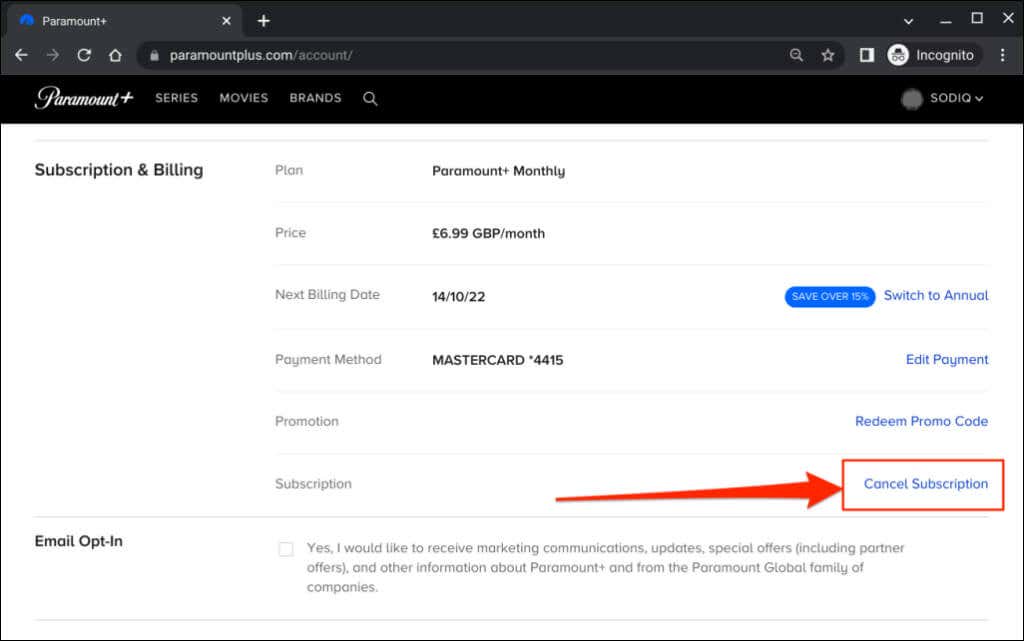
- Subscription & Billing: On your account page, locate the “Subscription & Billing” section.
- Cancel Subscription: You should see an option to “Cancel subscription” or “Cancel.” Click this link.
- Confirmation Steps: Follow any on-screen prompts, which may include a brief survey about your reason for canceling. Confirm your decision.
- Verify: You should receive an email confirmation of your cancellation. Always check your inbox (and spam folder) for this crucial verification. Your access will continue until the end of your current billing cycle.
Cancelling via Apple App Store (iOS/iPadOS)
For subscriptions initiated on an iPhone, iPad, or Apple TV.
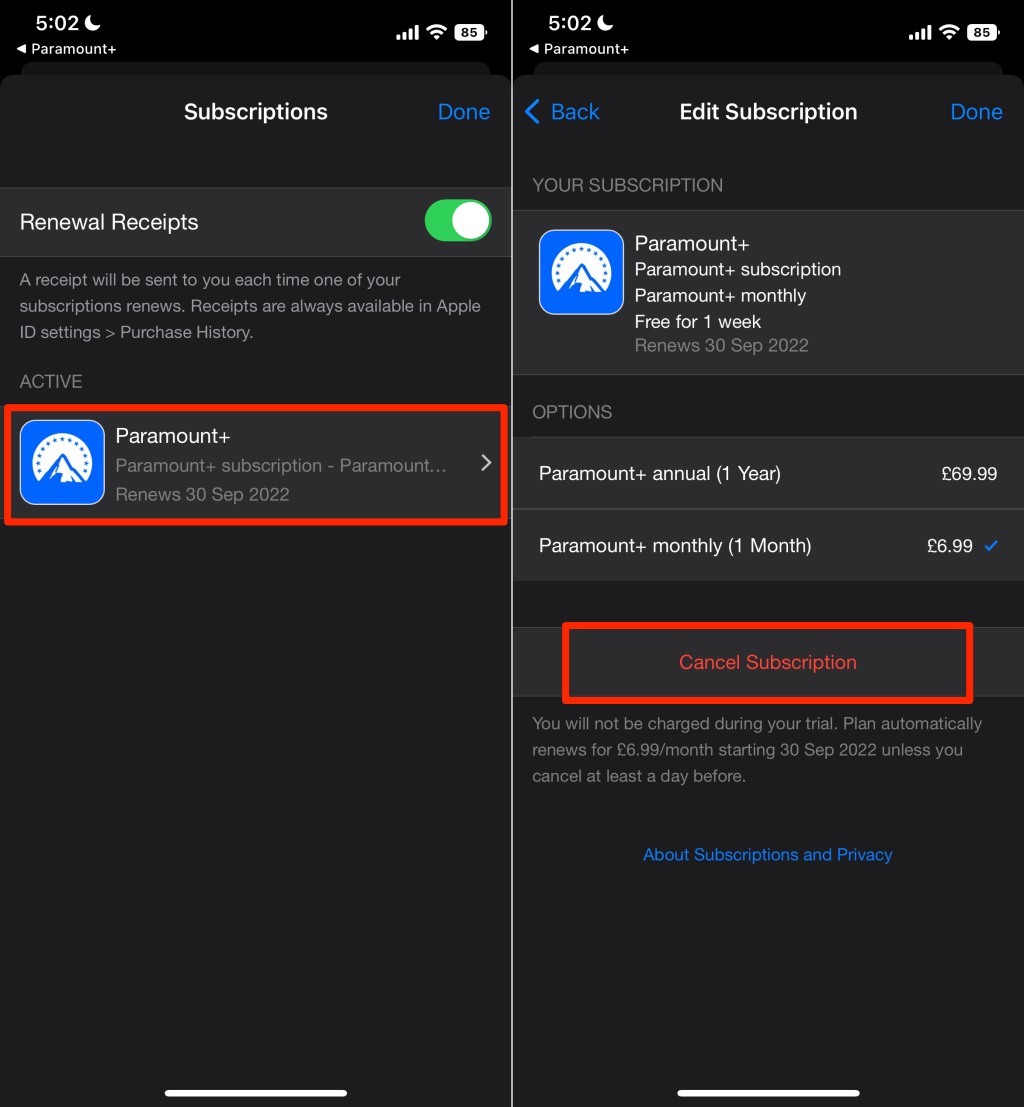
- Open Settings: On your iOS device, open the “Settings” app.
- Tap Apple ID: Tap on your name/Apple ID at the very top of the Settings menu.
- Subscriptions: Tap “Subscriptions.” You may need to authenticate with Face ID, Touch ID, or your passcode.
- Find Paramount+: Locate Paramount+ in your list of active subscriptions and tap on it.
- Cancel Subscription: Tap “Cancel Subscription” (or “Cancel Free Trial” if you’re in a trial period).
- Confirm: Confirm your cancellation. You will retain access until the end of the current billing period.
Cancelling via Google Play Store (Android)
For subscriptions initiated on an Android phone, tablet, or Android TV.
- Open Google Play Store: On your Android device, open the “Google Play Store” app.
- Access Menu: Tap on your profile icon (top right corner).
- Payments & Subscriptions: Select “Payments & subscriptions,” then “Subscriptions.”
- Find Paramount+: Locate Paramount+ in your list of subscriptions.
- Cancel Subscription: Tap “Cancel subscription.”
- Follow Prompts: Choose a reason for cancellation if prompted, and confirm. Access continues until the end of the current billing cycle.
Cancelling via Amazon (Prime Video Channels/Fire TV)
This applies if you added Paramount+ as an Amazon Prime Video Channel or subscribed directly through an Amazon Fire TV device.
- Access Amazon Account: Go to amazon.com in a web browser and sign in.
- Your Memberships & Subscriptions: Hover over “Accounts & Lists” (top right) and select “Memberships & Subscriptions.”
- Locate Paramount+: Find Paramount+ in your list of subscriptions.
- Manage Channel/Subscription: Click “Manage channel” or “Manage subscription.”
- Cancel Channel/Subscription: Select the option to cancel. Follow any further prompts.
Cancelling via Roku
For subscriptions initiated directly through a Roku device or the Roku Channel Store.
- Access Roku Device: Go to your Roku device’s home screen.
- Highlight Paramount+: Use your remote to highlight the Paramount+ channel icon.
- Options Menu: Press the Star (*) button on your Roku remote.
- Manage Subscription: Select “Manage subscription.”
- Cancel Subscription: Choose “Cancel subscription” and follow the on-screen prompts to confirm.
Troubleshooting Common Cancellation Issues
Even with clear instructions, technical glitches or user errors can occur. Understanding common pitfalls and their solutions is vital.
Can’t Find My Subscription / Account Login Problems
This is often the most frustrating issue.
- Verify Platform: Double-check where you originally subscribed. Did you use an Apple device, an Android, Amazon, Roku, or the Paramount+ website directly? This dictates where you must cancel.
- Correct Login Credentials: Ensure you’re using the correct email and password for the specific platform. If you used “Sign in with Apple” or “Sign in with Google” for your Paramount+ account, you might have different credentials than a direct Paramount+ login.
- Password Reset: If you’re having trouble logging in, use the “Forgot password” option on the relevant platform (Paramount+, Apple, Google, Amazon, Roku).
- Check All Accounts: If you have multiple email addresses or family members who might have subscribed, check each possible account.
Subscription Still Active After Cancellation
If you’ve followed the steps but still see charges or access, consider these technical points:
- Confirmation Email: Did you receive a cancellation confirmation email? If not, the cancellation process might not have completed successfully. Reattempt the cancellation.
- Billing Cycle: Remember that cancellation typically takes effect at the end of your current billing cycle. You will still have access until that date, and you might see the next bill if you canceled after the current cycle had already renewed.
- Prorated Refunds: Most streaming services do not offer prorated refunds for partial months after cancellation. Your access simply ceases at the end of the period you’ve already paid for.
- System Lag: Occasionally, there can be a slight delay in system updates. If after a few days the issue persists, contact the support team of the platform where you subscribed (Paramount+, Apple, Google, etc.).
Unrecognized Charges Post-Cancellation
If charges appear after your expected access should have ceased:
- Screenshot Confirmation: If you have a cancellation confirmation email or a screenshot of the successful cancellation, this is invaluable evidence.
- Contact Support: Immediately contact the support team for the platform that issued the charge (e.g., Apple Support if charged via Apple, Paramount+ support if direct). Provide all relevant details, including dates and any confirmation numbers.
- Bank/Credit Card Dispute: As a last resort, if the platform support cannot resolve the issue, you may need to dispute the charge with your bank or credit card company, providing them with your cancellation evidence.
Dealing with Multiple Accounts
Some users inadvertently create multiple accounts, leading to confusion.
- Email Search: Search your email inboxes (including spam) for “Paramount+” or “subscription confirmation” from different email addresses you might use. This can reveal which email is tied to which active subscription.
- Consolidate: Once identified, cancel the unwanted subscriptions and consolidate your viewing onto a single preferred account.
Best Practices for Managing Digital Subscriptions
Effective digital literacy extends beyond mere cancellation. Proactive management of your online subscriptions can prevent future headaches and enhance your overall digital security posture.
Keeping Track of Your Subscriptions
- Dedicated Spreadsheet/App: Maintain a simple spreadsheet or use a dedicated subscription management app (e.g., Mint, Bobby, Subscriptions) to list all your recurring digital services, their billing dates, and the associated login credentials.
- Calendar Reminders: Set calendar reminders a few days before each subscription’s renewal date. This gives you time to review whether you still need the service before being billed again.
Understanding Billing Cycles and Prorated Refunds
- Read Terms of Service: Before subscribing, quickly review the cancellation and refund policies. While most streaming services don’t offer prorated refunds, knowing this upfront manages expectations.
- Cancel Strategically: If you know you want to cancel, do so just before the next billing cycle begins to maximize your access without incurring an unwanted charge.
Digital Security and Account Management Tips
- Strong, Unique Passwords: Use a unique, strong password for each subscription service. A password manager can help you store and generate these securely.
- Two-Factor Authentication (2FA): Enable 2FA whenever available. This adds an extra layer of security, protecting your account even if your password is compromised.
- Regular Account Audits: Periodically review your active subscriptions and payment methods linked to various platforms. Remove outdated or unused payment information.
- Phishing Awareness: Be wary of suspicious emails or messages claiming to be from Paramount+ or billing platforms asking for your login credentials or payment details. Always go directly to the official website or app to manage your account.
Exploring Alternatives Before Cancelling
Sometimes, cancellation might be premature. Consider these options:
- Pausing Subscriptions: Some services offer the ability to pause your subscription for a period, which can be useful if you’ll be away or just need a break. This avoids the hassle of full cancellation and resubscription.
- Downgrading Plans: Paramount+ often has different tiers (e.g., Essential with ads, Premium without ads). If the cost is a concern, consider downgrading to a cheaper plan before fully canceling.
- Contact Support for Offers: Occasionally, if you indicate intent to cancel, the service might offer you a retention deal or a temporary discount.
In conclusion, canceling your Paramount+ subscription, while a simple objective, requires a keen understanding of digital ecosystems and precise technical execution. By identifying your original subscription platform, following the correct step-by-step instructions, and employing proactive digital management practices, you can navigate this process smoothly and securely. Mastering these technical aspects not only resolves your immediate cancellation query but also empowers you with greater control over your entire landscape of digital services.
aViewFromTheCave is a participant in the Amazon Services LLC Associates Program, an affiliate advertising program designed to provide a means for sites to earn advertising fees by advertising and linking to Amazon.com. Amazon, the Amazon logo, AmazonSupply, and the AmazonSupply logo are trademarks of Amazon.com, Inc. or its affiliates. As an Amazon Associate we earn affiliate commissions from qualifying purchases.