
In the increasingly digital landscape of modern travel, platforms like Expedia have revolutionized how we discover, book, and manage our accommodations. While the convenience of booking a hotel with a few taps or clicks is undeniable, the need to alter or cancel a reservation can sometimes present a daunting challenge. Whether due to unforeseen circumstances, a change in plans, or simply finding a better deal, understanding the precise steps and digital pathways to cancel an Expedia hotel reservation is a crucial skill for any modern traveler. This comprehensive guide will walk you through the process, emphasizing the technological interface and digital protocols involved, ensuring a smooth and efficient experience.
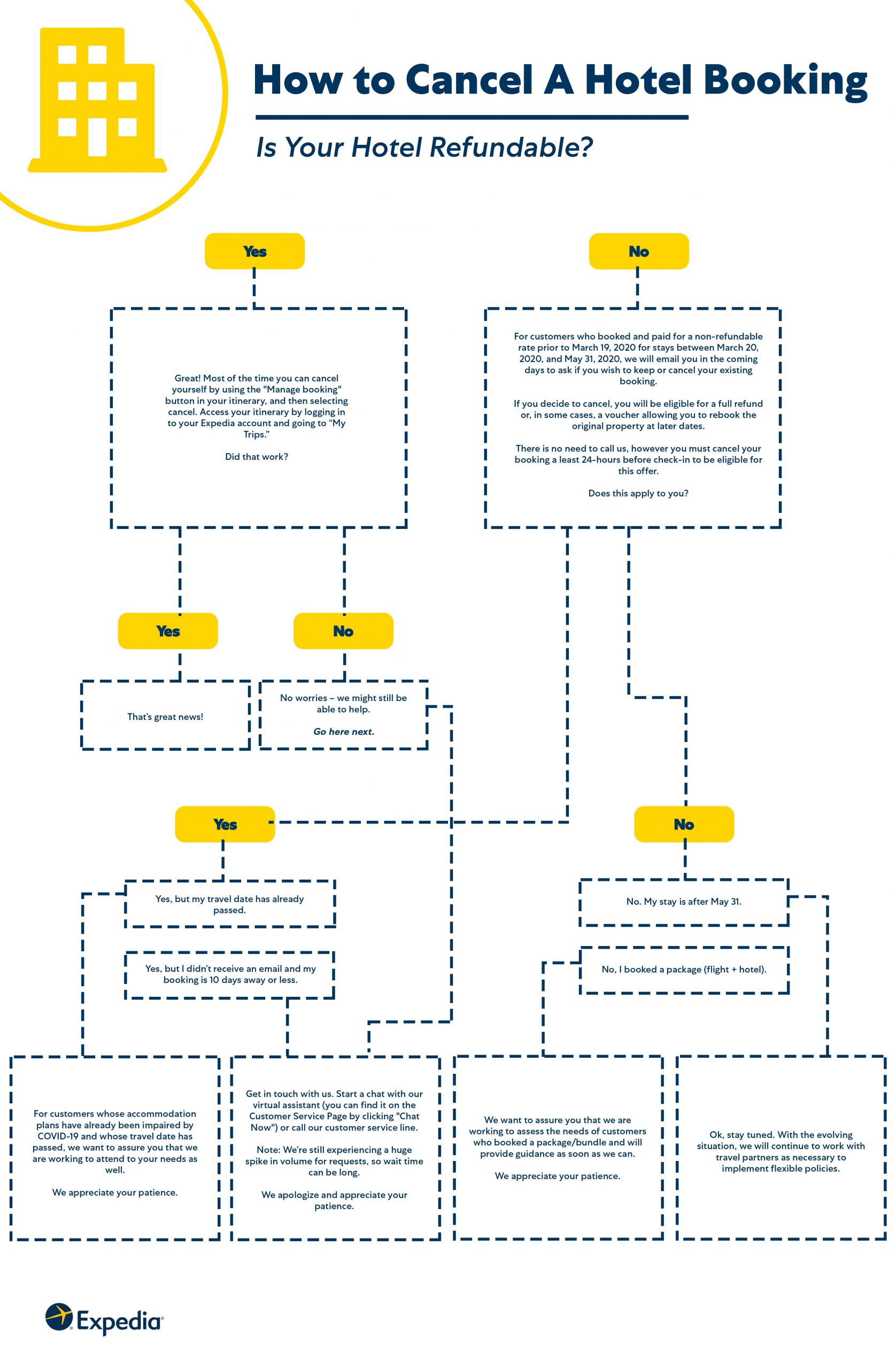
Navigating Expedia’s Digital Platform for Cancellations
The first and most critical step in initiating a cancellation is knowing how to effectively navigate Expedia’s digital ecosystem. The platform offers a user-friendly interface designed to streamline booking management, but familiarity with its specific functionalities is key.
Understanding Expedia’s Interface: Website vs. Mobile App
Expedia provides two primary digital interfaces for managing your bookings: its desktop website and its mobile application (available on iOS and Android). While both platforms offer similar functionalities, their layouts and user experiences differ slightly.
-
Desktop Website: The website typically offers a more expansive view of your booking details and access to a wider range of customer service options directly from the page. It’s often preferred for detailed review of policies and terms due to larger screen real estate. To access your bookings, you’ll generally find a “My Trips” or “Trips” section prominently displayed in the navigation bar, usually after logging in.
-
Mobile App: The app provides on-the-go convenience and often features a more streamlined, touch-optimized interface. Bookings are usually accessible via a “Trips” or “Bookings” icon at the bottom of the screen or within a side menu. Notifications and quick actions are often more integrated into the app experience.
Regardless of your chosen platform, ensuring you are logged into the correct account associated with your reservation is paramount. Without logging in, you will not be able to access or modify your specific booking details.
Locating Your Reservation: The Starting Point
Once logged in, the next step is to pinpoint the specific hotel reservation you wish to cancel.
-
“My Trips” or “Trips” Section: This is your digital hub for all current and past bookings. On the website, it’s usually found near your profile icon. In the app, it’s often a dedicated tab. Clicking on this will display a list of your reservations.
-
Identifying the Correct Booking: Each reservation will typically be listed with key details such as the hotel name, check-in/check-out dates, and a unique booking ID or itinerary number. Carefully review these details to ensure you select the correct reservation for cancellation, especially if you have multiple upcoming trips.
-
Accessing Booking Details: Click or tap on the specific hotel reservation. This action will take you to a dedicated page or screen displaying all the pertinent information for that booking, including pricing, room type, guest details, and crucially, management options.
The Step-by-Step Cancellation Process
With your specific reservation open, you can now proceed with the actual cancellation. This involves a series of prompts and confirmations designed to ensure you understand the implications before finalizing the action.
Initiating the Cancellation Request
Within the detailed view of your booking, you will typically find options to “Manage Booking,” “Change Reservation,” or “Cancel Reservation.”
-
Locating the “Cancel” Option: Look for a clearly labeled button or link, often highlighted, that states “Cancel Reservation” or “Cancel Room.” This option is usually distinct from “Change Reservation,” which allows modifications like date changes rather than full cancellation.
-
Proceeding with Caution: Clicking this button is the first step in the cancellation workflow. Expedia’s system is designed with safeguards, meaning this action won’t immediately cancel your booking. Instead, it will lead you to a series of informational screens.
Reviewing Cancellation Policies and Fees Digitally
Before you can confirm the cancellation, Expedia’s platform will present you with the crucial details of your reservation’s specific cancellation policy. This is where understanding the digital display of information becomes vital.
-
Policy Display: The screen will clearly state whether your reservation is eligible for a full refund, a partial refund, or no refund at all. It will also indicate any potential cancellation fees that may apply. These policies are often determined by the hotel itself, as well as the type of rate you booked (e.g., non-refundable rates vs. flexible rates).
-
Deadline Information: Pay close attention to any dates and times specified for free cancellation. Many hotels offer free cancellation up to 24 or 48 hours before check-in. If you are past this deadline, you may incur charges. The platform will typically display this information prominently, often with a countdown or clear indication if the deadline has passed.
-
Understanding Refund Amounts: The system will calculate and display the exact refund amount you can expect, factoring in any applicable fees or non-refundable portions. It’s essential to review this figure carefully to avoid surprises. If the refund amount is zero, it means the reservation is entirely non-refundable according to its terms.
-
Terms and Conditions: There might be a link to the full terms and conditions of your specific booking. While lengthy, it’s advisable to quickly scan this if anything about the displayed policy is unclear, especially concerning specific circumstances or penalties.
Confirming Your Cancellation and Awaiting Confirmation
After reviewing the policy and understanding the financial implications, you will be prompted to confirm your decision.
-
Final Confirmation Button: Look for a button such as “Confirm Cancellation,” “Cancel My Booking,” or “Process Cancellation.” This is your final chance to proceed or back out.
-
Digital Confirmation Screen: Upon successful cancellation, Expedia’s system will immediately display a confirmation screen. This screen will typically show a cancellation confirmation number, reiterate the refund amount (if any), and provide instructions on what to expect next.
-
Email Confirmation: Simultaneously, Expedia will send a cancellation confirmation email to the address associated with your account. This email is your official digital record of the cancellation and should be saved for future reference. It will contain all the key details, including the cancellation number, refund information, and the date and time of the cancellation.
Post-Cancellation: What to Expect Electronically
The process doesn’t end immediately after hitting the confirm button. There are a few digital follow-up steps and considerations.
Digital Confirmation and Record Keeping
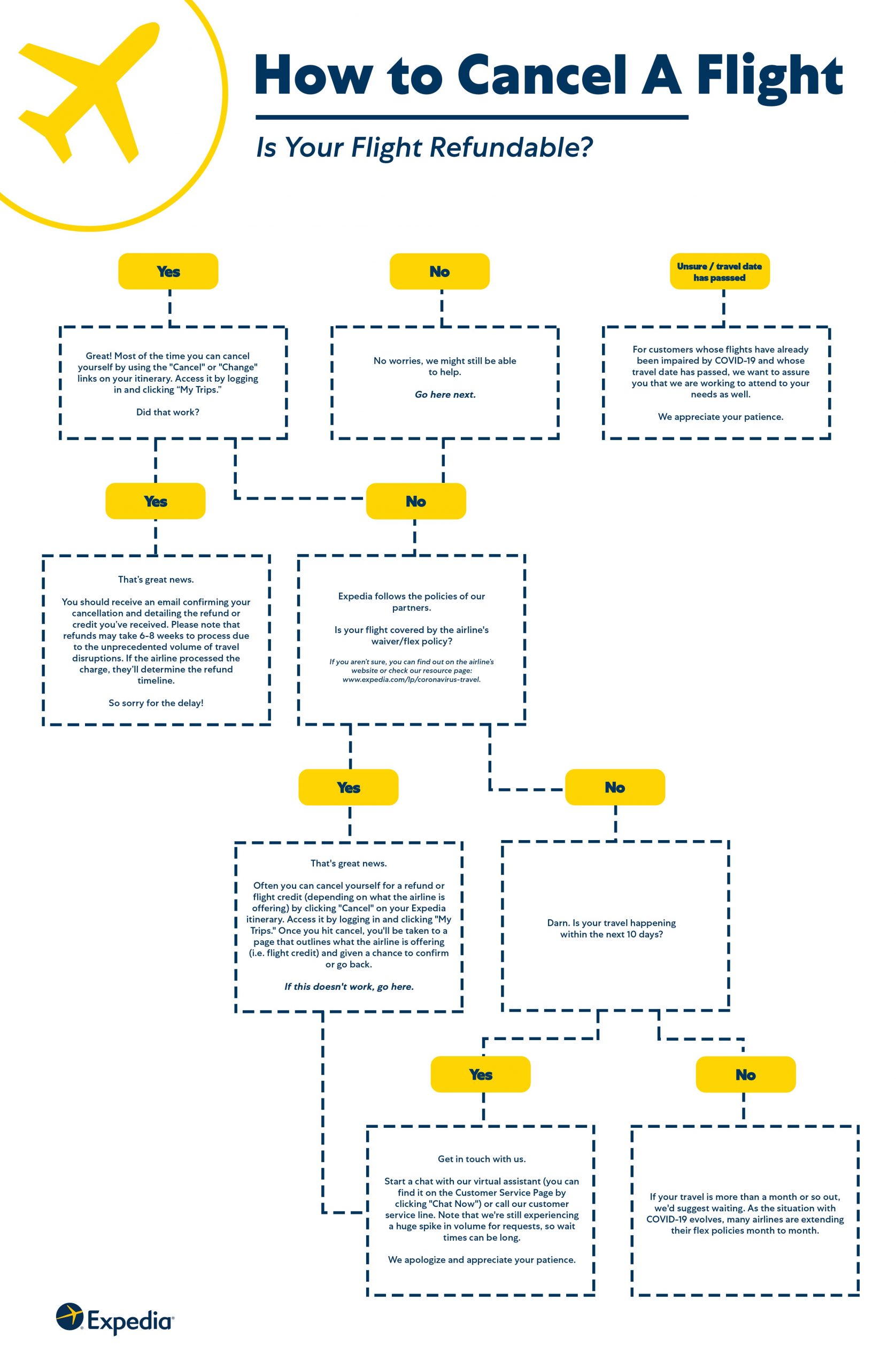
-
Saving the Email: The cancellation confirmation email is a vital digital artifact. Store it in an accessible folder in your email inbox. It serves as proof of your action and contains critical information should any discrepancies arise later.
-
Checking “My Trips”: Even after receiving the email, it’s good practice to log back into your Expedia account and verify that the canceled reservation no longer appears under “Upcoming Trips” or has been moved to a “Canceled Trips” section. This confirms the system has fully processed the action.
Tracking Refund Status within the Expedia System (if applicable)
If your reservation was eligible for a refund, monitoring its status is the next step.
-
Refund Processing Time: The confirmation screen and email will usually provide an estimated timeframe for when you can expect to see the refund reflected on your original payment method. This typically ranges from 3-10 business days, but can sometimes be longer depending on your bank or credit card company’s processing times.
-
Expedia Account for Status Updates: Some Expedia accounts may offer a feature to track refund status directly within the “My Trips” or “Booking Details” section for canceled reservations. While not always detailed, it can sometimes indicate if the refund has been initiated by Expedia.
-
Checking Your Bank/Credit Card Statement: The most definitive way to track your refund is by regularly checking your bank or credit card statements, either through online banking portals or mobile banking apps. The refund will appear as a credit transaction from Expedia or the hotel.
Troubleshooting Common Digital Cancellation Issues
While Expedia’s platform is generally robust, technical issues or unique circumstances can sometimes complicate the cancellation process.
When Online Cancellation Isn’t Available
Occasionally, you might find that the “Cancel Reservation” option is grayed out or entirely absent for a specific booking.
-
Hotel Direct Bookings/Special Rates: Some reservations, especially those booked through third-party partners or involving complex packages, might require direct contact with the hotel or a specific airline/car rental company (if it was part of a bundle).
-
Last-Minute Cancellations: If you are attempting to cancel extremely close to the check-in time, the system might automatically disable online cancellation, forcing you to contact support for urgent assistance.
-
Technical Glitch: Rarely, a temporary system error might prevent the option from appearing.
In such cases, you will need to escalate the issue.
Dealing with Technical Glitches or Error Messages
If you encounter error messages, page loading issues, or inexplicable behavior while attempting to cancel, it’s typically a technical glitch.
-
Refresh and Retry: Often, simply refreshing the page or closing and reopening the app can resolve minor issues.
-
Clear Cache/Cookies: For browser-based issues, clearing your browser’s cache and cookies can often fix display or functionality problems.
-
Try a Different Device/Browser: If problems persist, try using a different web browser, a different computer, or switching from the website to the mobile app (or vice versa). This helps determine if the issue is with your device/browser or Expedia’s platform.
Contacting Expedia Support: Digital vs. Phone Channels
If all self-service online attempts fail, or if you need clarification that the digital interface cannot provide, contacting Expedia’s customer support is the next step.
-
Expedia’s Online Help Center/Virtual Agent: Expedia offers a comprehensive online help center with FAQs and often a virtual agent (chatbot) that can guide you through common issues or direct you to the correct resources. This is usually the quickest digital support channel.
-
Email Support: For non-urgent matters, you might find an option to submit a support ticket or send an email. This creates a written record of your communication.
-
Phone Support: For urgent issues or when online channels aren’t resolving your problem, contacting Expedia via phone is often the most effective. Have your itinerary number and account details ready. Be prepared for potential wait times, especially during peak travel periods.
Optimizing Your Digital Travel Planning to Avoid Future Hassles
Proactive digital habits can significantly reduce the likelihood of cancellation headaches in the future.
Leveraging Expedia’s Filters for Flexible Bookings
When making future reservations on Expedia, utilize the platform’s advanced search filters.
-
“Free Cancellation” Filter: Many online travel agencies, including Expedia, offer a “Free Cancellation” filter. Activating this during your initial search will only display hotels that allow cancellations without penalty up to a certain point, making your future booking management much simpler.
-
Reading Policy Details: Even with the filter, always click on the specific hotel to read the precise cancellation policy before finalizing the booking. Digital information is dynamic, and understanding the nuances is crucial.

Understanding Digital Travel Insurance Options
For complex or expensive trips, considering travel insurance offered through Expedia or third-party providers can provide an extra layer of digital security and peace of mind.
-
Policy Coverage: Travel insurance can cover non-refundable portions of your trip in specific unforeseen circumstances, such as illness, job loss, or natural disasters, allowing you to reclaim costs even if the hotel’s policy states no refund.
-
Digital Purchase and Management: These policies are typically purchased and managed digitally, with claims often submitted online, streamlining the process of financial recovery.
Mastering the digital process of canceling an Expedia hotel reservation is a valuable skill in today’s interconnected travel world. By understanding the platform’s interface, meticulously following the step-by-step instructions, and leveraging the available digital support tools, you can navigate cancellations with confidence and ensure your travel plans remain as flexible as your adventures demand.
aViewFromTheCave is a participant in the Amazon Services LLC Associates Program, an affiliate advertising program designed to provide a means for sites to earn advertising fees by advertising and linking to Amazon.com. Amazon, the Amazon logo, AmazonSupply, and the AmazonSupply logo are trademarks of Amazon.com, Inc. or its affiliates. As an Amazon Associate we earn affiliate commissions from qualifying purchases.