
Percentages are a fundamental aspect of daily life, appearing in everything from sales discounts and tax calculations to statistical reports and financial growth figures. While the concept itself might seem straightforward, accurately calculating percentages, especially complex ones, often requires the reliable assistance of a calculator. This guide will demystify the process, transforming your calculator from a simple arithmetic tool into a powerful percentage-crunching machine. Whether you’re using a basic pocket calculator, a scientific model, or a smartphone app, understanding the core principles and functions will empower you to tackle any percentage challenge with confidence and precision.
The Basics: Understanding Percentages and Your Calculator
Before diving into specific calculations, it’s crucial to solidify your understanding of what a percentage truly represents and to familiarize yourself with the essential features of your chosen calculator. This foundational knowledge will serve as your bedrock for mastering more intricate operations.
What is a Percentage?
At its heart, a percentage is simply a way to express a proportion of a whole as a number out of 100. The term “percent” literally means “per hundred.” So, 25% signifies 25 parts out of every 100. This makes it a standardized and easily comparable metric across different contexts.
Crucially, when performing calculations, percentages often need to be converted into their decimal or fractional equivalents. For instance, 25% is equivalent to 0.25 (25 divided by 100) or 1/4. Your calculator handles this conversion seamlessly when you use its dedicated percent button, but understanding the underlying principle is key to troubleshooting and manual calculations.
Familiarizing Yourself with Calculator Types
While the core functionality remains consistent, different types of calculators offer varying levels of complexity and features:
-
Basic Calculators: These typically feature a straightforward layout with essential arithmetic operations (+, -, *, /) and often a dedicated ‘%’ button. They are perfect for quick, simple percentage tasks.
-
Scientific Calculators: Designed for more advanced mathematical and scientific computations, these calculators boast a wider array of functions, including memory storage, parentheses, and order of operations adherence, which can be invaluable for multi-step percentage problems.
-
Graphing Calculators: While overkill for most percentage calculations, their ability to handle complex equations and display visual data makes them powerful tools for data analysis involving percentages in academic or professional settings.
-
Smartphone Calculator Apps: Most smartphones come with built-in calculator apps that mimic either basic or scientific calculators. These offer the convenience of being readily available and often include an intuitive user interface.
-
Online Calculators & Software: Web-based tools and spreadsheet software (like Excel or Google Sheets) provide robust environments for percentage calculations, especially when dealing with large datasets or needing to automate calculations.
Regardless of the type, the fundamental principles of inputting numbers and using operators remain consistent.
Key Calculator Buttons for Percentages
To efficiently calculate percentages, you’ll primarily interact with a few key buttons on your calculator:
-
The Number Pad (0-9): For entering your values.
-
Arithmetic Operators (+, -, *, /): For addition, subtraction, multiplication, and division, which form the backbone of all percentage calculations.
-
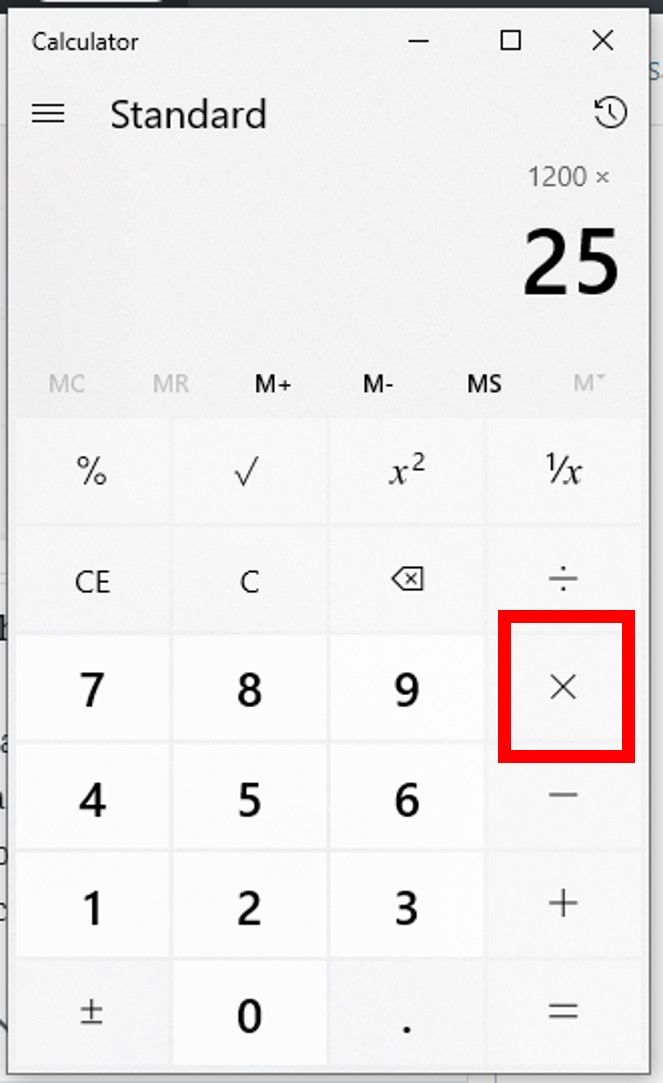
The Percent Button (%): This is often the most confusing but also the most convenient button. Its function can vary slightly between calculator models:
-
On many calculators, pressing ‘%’ after multiplying a number by a percentage (e.g.,
150 * 20 %) will directly give you the percentage amount (30). -
When used in addition or subtraction (e.g.,
150 + 20 %), it often calculates the percentage increase or decrease (180 or 120, respectively). -
Some calculators require you to first calculate the percentage amount (e.g.,
20 / 100 * 150) and then add/subtract it. -
Always test your specific calculator’s ‘%’ button functionality with a simple, known calculation (e.g.,
100 + 10 %) to understand how it behaves.
-
-
The Equals Button (=): To finalize calculations and display the result.
-
The Decimal Point (.): Crucial for entering non-whole numbers or converting percentages to decimals manually.
-
Parentheses ((), if available): Essential for controlling the order of operations in complex multi-step problems, ensuring calculations are performed in the correct sequence.
Fundamental Percentage Calculations
With a grasp of the basics, let’s explore the most common percentage calculations you’ll encounter and how to execute them on your calculator.
Finding a Percentage of a Number
This is perhaps the most frequent percentage calculation: determining what a certain percentage amount is from a given total. For example, finding a 15% discount on an item priced at $80.
Method 1: Using the Percent Button (%)
Most calculators can handle this directly:
-
Enter the total number:
80 -
Press the multiplication button:
* -
Enter the percentage:
15 -
Press the percent button:
% -
The display should show the percentage amount:
12- If your calculator doesn’t automatically show
12after pressing%, it might require pressing=afterwards. (80 * 15 % = 12)
- If your calculator doesn’t automatically show
Method 2: Converting to Decimal
This method is universally reliable, especially if your ‘%’ button is temperamental or absent:
-
Convert the percentage to a decimal:
15 / 100 = 0.15 -
Multiply the total number by this decimal:
80 * 0.15 -
Press the equals button:
= -
The result will be the percentage amount:
12
Calculating Percentage Increase
This involves adding a percentage of a number back to the original number. For instance, calculating the new price of an item after a 10% price hike on a $50 item.
Method 1: Two-Step Calculation (Conceptually Clear)
-
Find the percentage amount (e.g., 10% of $50):
50 * 10 % = 5(or50 * 0.10 = 5) -
Add this amount to the original number:
50 + 5 = 55
Method 2: Using the Percent Button (if your calculator supports it)
-
Enter the original number:
50 -
Press the addition button:
+ -
Enter the percentage:
10 -
Press the percent button:
% -
Press the equals button:
= -
The display should show the new total:
55
Method 3: Direct Decimal Multiplication (Most Efficient)
-
Add the percentage (as a decimal) to 1 (representing 100% of the original amount):
1 + 0.10 = 1.10 -
Multiply the original number by this factor:
50 * 1.10 -
Press the equals button:
= -
The new total is:
55
Calculating Percentage Decrease
Similar to increase, but you subtract the percentage amount. A common application is calculating the final price after a discount. For example, a $75 item with a 20% discount.
Method 1: Two-Step Calculation
-
Find the percentage amount (e.g., 20% of $75):
75 * 20 % = 15(or75 * 0.20 = 15) -
Subtract this amount from the original number:
75 - 15 = 60

Method 2: Using the Percent Button (if your calculator supports it)
-
Enter the original number:
75 -
Press the subtraction button:
- -
Enter the percentage:
20 -
Press the percent button:
% -
Press the equals button:
= -
The display should show the new total:
60
Method 3: Direct Decimal Multiplication (Most Efficient)
-
Subtract the percentage (as a decimal) from 1:
1 - 0.20 = 0.80 -
Multiply the original number by this factor:
75 * 0.80 -
Press the equals button:
= -
The new total is:
60
Advanced Percentage Scenarios and Practical Applications
Beyond basic increases and decreases, percentages are used in more complex ways. Your calculator, especially more advanced models, can handle these with ease once you grasp the logic.
Finding What Percentage One Number Is of Another
This calculation answers the question, “X is what percentage of Y?” For example, if you scored 45 out of 60 on a test, what is your percentage score?
The formula is (Part / Whole) * 100.
-
Enter the part:
45 -
Press the division button:
/ -
Enter the whole:
60 -
Press the multiplication button:
* -
Enter
100 -
Press the equals button:
= -
The result is the percentage:
75(so, 75%)
Reverse Percentage Calculations
Sometimes you know the final amount after a percentage change, and you need to find the original amount. This is common when trying to determine an item’s original price before tax or discount.
Finding Original Amount Before a Percentage Increase:
If an item costs $120 after a 20% price increase, what was its original price?
The formula is Original = Final / (1 + % increase as decimal).
-
Convert the percentage increase to decimal and add to 1:
1 + 0.20 = 1.20 -
Enter the final amount:
120 -
Press the division button:
/ -
Enter the factor:
1.20 -
Press the equals button:
= -
The original price was:
100
Finding Original Amount Before a Percentage Decrease:
If a shirt costs $45 after a 25% discount, what was its original price?
The formula is Original = Final / (1 - % decrease as decimal).
-
Convert the percentage decrease to decimal and subtract from 1:
1 - 0.25 = 0.75 -
Enter the final amount:
45 -
Press the division button:
/ -
Enter the factor:
0.75 -
Press the equals button:
= -
The original price was:
60
Chained Percentage Changes
This involves multiple percentage changes applied sequentially, such as a discount followed by sales tax. It’s crucial to apply changes one after another, not combine the percentages directly.
Example: An item costs $100. It’s discounted by 20%, then a 10% sales tax is added.
-
First change (20% discount):
-
100 * (1 - 0.20) = 100 * 0.80 = 80 -
The price after discount is $80.
-
-
Second change (10% tax on the new price):
-
80 * (1 + 0.10) = 80 * 1.10 = 88 -
The final price is $88.
-
If you mistakenly calculated 100 * (1 - 0.20 + 0.10) or 100 * (1 - 0.10), you would get incorrect results. Calculators with parentheses functions are particularly useful here: 100 * (1 - 0.20) * (1 + 0.10) = 88.
Tips for Accuracy and Efficiency
Maximizing your calculator’s potential for percentage calculations goes beyond just knowing the buttons; it involves smart practices for accuracy and speed.
Double-Checking Your Work
Even with a calculator, errors can occur due to incorrect input or a misunderstanding of the problem. A quick mental check or re-entering the calculation in a slightly different way (e.g., using the decimal method if you initially used the percent button) can catch mistakes. For increases and decreases, always ask: “Does the answer make sense? Should it be higher or lower than the original?”
Understanding Order of Operations
Scientific and graphing calculators strictly adhere to the order of operations (PEMDAS/BODMAS). This means multiplication and division are performed before addition and subtraction. For basic calculators, it’s often left-to-right. Using parentheses () on more advanced calculators is the best way to control the sequence of operations, especially in multi-step percentage problems, ensuring that parts of the calculation are performed exactly when you intend them to be.
Leveraging Calculator Memory Functions
Most calculators have memory functions (M+, M-, MR, MC). These allow you to store intermediate results and recall them later. This is incredibly useful for multi-step percentage calculations where you need to save a calculated percentage amount before adding or subtracting it from another number, or when dealing with sums of various percentage calculations.
-
M+ (Memory Plus): Adds the current display value to the memory.
-
M- (Memory Minus): Subtracts the current display value from the memory.
-
MR/MRC (Memory Recall/Clear): Recalls the value stored in memory. Pressing twice often clears the memory.
-
MC (Memory Clear): Clears the memory.
Using memory can reduce input errors and streamline complex workflows, especially in areas like financial budgeting where you might be adding up several percentage-based costs or earnings.
When to Use a Calculator vs. Mental Math
While calculators are indispensable for precision and complex numbers, developing a sense for mental percentage calculations can be highly efficient for simpler scenarios. For example, finding 10% of any number simply involves moving the decimal point one place to the left (e.g., 10% of 250 is 25). For 20%, double the 10% amount. For 5%, halve the 10% amount. Recognizing these shortcuts can save time and improve your number sense, reserving your calculator for when its computational power is truly needed.
Conclusion
Mastering how to calculate percentages on a calculator is a vital skill in today’s data-driven world. From deciphering sales tags to analyzing reports, your calculator acts as an extension of your mathematical capabilities. By understanding the core concept of percentages, familiarizing yourself with your specific calculator’s functions, and practicing the various methods for calculation, you can tackle any percentage problem thrown your way. Remember to experiment with your calculator’s ‘%’ button to understand its unique behavior, leverage memory functions for efficiency, and always double-check your results. With these insights, you’re now equipped to confidently and accurately navigate the world of percentages, one precise calculation at a time.
aViewFromTheCave is a participant in the Amazon Services LLC Associates Program, an affiliate advertising program designed to provide a means for sites to earn advertising fees by advertising and linking to Amazon.com. Amazon, the Amazon logo, AmazonSupply, and the AmazonSupply logo are trademarks of Amazon.com, Inc. or its affiliates. As an Amazon Associate we earn affiliate commissions from qualifying purchases.