
The shift from traditional linear television to Over-The-Top (OTT) streaming services has redefined how consumers interact with media. YouTube TV, Google’s flagship live television offering, has emerged as a powerhouse in this sector, leveraging Google’s robust cloud infrastructure to deliver low-latency streaming and unlimited cloud DVR storage. However, as the digital landscape evolves and “subscription fatigue” becomes a tangible phenomenon for many tech-savvy users, knowing how to efficiently manage, pause, or terminate these services is a critical skill in modern digital hygiene.
Managing a YouTube TV subscription involves more than just clicking a button; it requires an understanding of how Google integrates its billing systems across different platforms, including web browsers, mobile operating systems, and third-party billing partners. This guide provides a deep dive into the technical steps required to cancel your YouTube TV service, while also exploring the data implications and platform-specific nuances of the process.
Navigating the Termination Process Across Different Platforms
Because YouTube TV is built on the Google ecosystem, the cancellation process varies depending on the hardware and software interface you are using. The technical handshake between your user account and the billing server differs whether you are on a desktop browser, an Android device, or an iOS environment.
Canceling via Web Browser (Desktop and Laptop)
For most users, the web browser remains the most direct way to access the backend of their Google account settings. This method offers the most comprehensive view of your subscription status and billing cycle.
-
Authentication: Navigate to tv.youtube.com and ensure you are logged into the specific Google Account associated with the subscription. In the world of multi-account management (Common in Chrome), verifying the active profile is the first step to avoiding cross-account confusion.
-
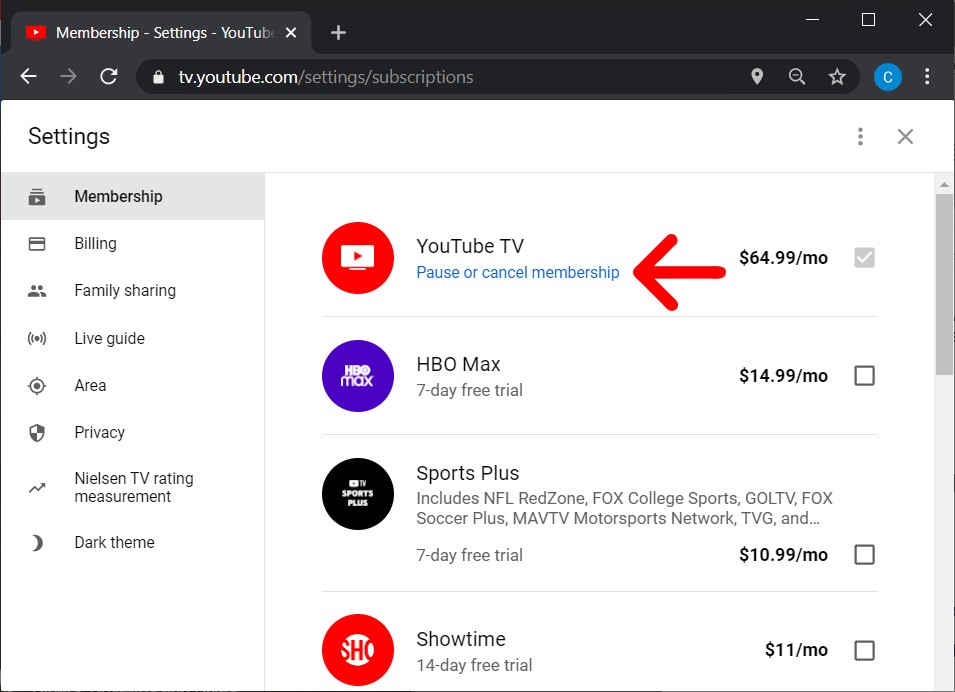
Accessing Settings: Click on your profile avatar in the top-right corner. This triggers the user interface (UI) overlay. Select “Settings” to enter the administrative dashboard.
-
Membership Management: In the left-hand navigation pane, “Membership” is the primary tab. Here, the system displays your current monthly rate and the “Deactivate Membership” link.
-
The Retention Loop: Google, like most SaaS (Software as a Service) providers, utilizes a “retention loop.” Upon clicking cancel, you will be presented with an option to “Pause” instead. If your goal is total termination, you must bypass the pause option and proceed to the final confirmation.
-
Data Feedback: You will likely be prompted to provide a reason for cancellation. This is part of Google’s telemetry and data gathering to improve churn rates. Once a reason is selected, confirming the cancellation will trigger an automated email receipt, which serves as your technical proof of termination.
Managing Subscriptions on Android vs. iOS
The technical architecture of mobile cancellations depends heavily on the “App Store” economy.
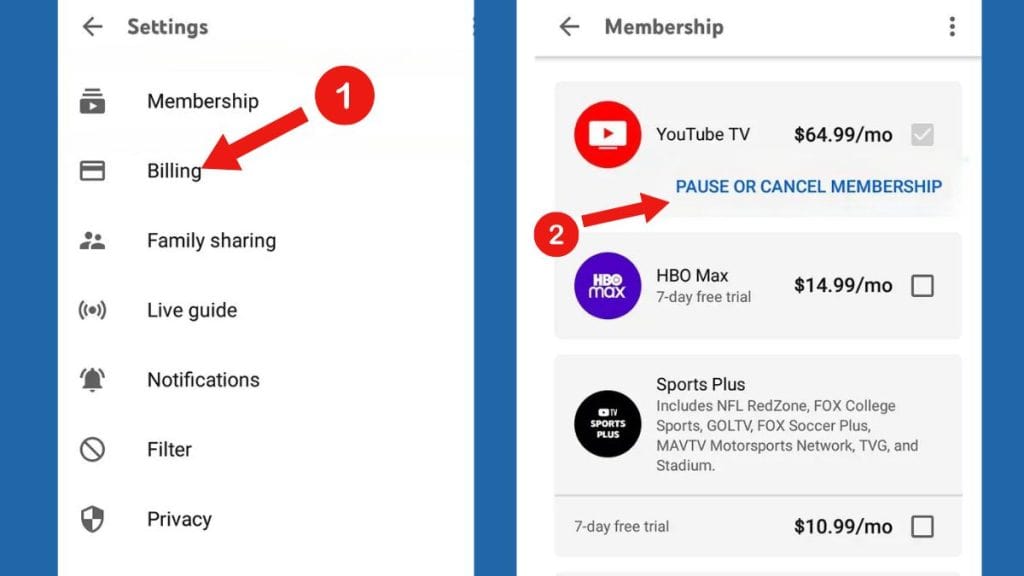
On Android, YouTube TV is often integrated with the Google Play Store billing system. Users can navigate to the Play Store app, tap their profile icon, and manage “Payments & subscriptions.” This centralized management allows for a streamlined API call to terminate the service without even opening the YouTube TV app itself.
On iOS (iPhone/iPad), the situation is more complex due to Apple’s proprietary billing system. If you signed up for YouTube TV through the Apple App Store, Google does not have direct control over your billing records. You must navigate to the iOS “Settings” app, tap your Name/Apple ID at the top, and select “Subscriptions.” If you do not see YouTube TV listed there, it means you are likely being billed directly by Google, and you must use the web browser method described above. This distinction is vital because simply deleting the app from an iPhone does not terminate the underlying financial agreement or the recurring API billing requests.
Pausing vs. Canceling: The Technical Impact on Cloud DVR and User Data
One of the most innovative features of YouTube TV is its unlimited Cloud DVR. When a user decides to end their service, there is a significant difference between “Pausing” and “Canceling” regarding how Google handles your stored metadata and recorded content.
The Mechanics of Pausing
YouTube TV offers a “Pause Membership” feature that allows users to halt billing for a period ranging from 4 weeks to 6 months. From a software perspective, your account enters a “dormant” state.
-
Data Retention: During a pause, your library of recordings is preserved. However, the standard 9-month expiration date for individual recordings still applies.
-
Immediate Access: The pause typically takes effect at the end of your current billing cycle, preventing the next automated charge while keeping your preferences and custom channel lineups intact in the database.
The Implications of Full Cancellation
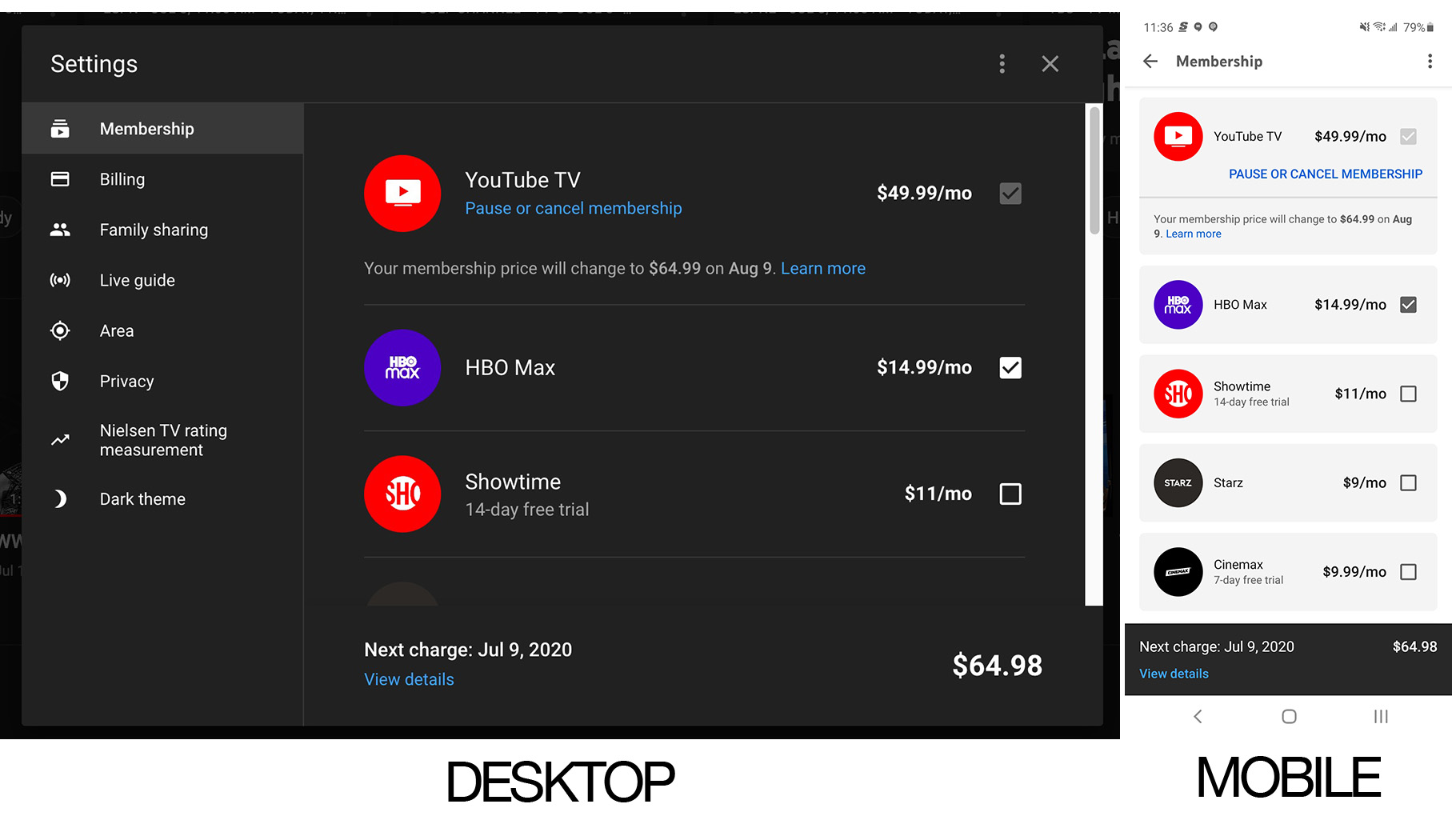
Full cancellation initiates a different data protocol. While Google generally retains your settings and library for a limited window in case of reactivation, your access to the Cloud DVR is severed the moment the billing cycle expires.
-
Access Windows: If you cancel mid-month, you retain access to the service until the final day of the pre-paid period. The system does not offer pro-rated refunds for the remaining days; instead, it keeps the entitlement token active for the duration of the cycle.
-
The 21-Day Trial Caveat: For users on a free trial, the technical rules are stricter. Canceling a trial often results in the immediate loss of access to the service, including the clearing of any temporary DVR data.
Troubleshooting Third-Party Billing and Integration Issues
Many users do not pay Google directly for YouTube TV. Instead, they access the service through bundles provided by Internet Service Providers (ISPs) or mobile carriers like T-Mobile, Frontier, or Verizon. This creates a layered billing architecture where the “Cancel” button in the YouTube TV settings may be greyed out or replaced with a link to an external portal.
Navigating the ISP Handshake
When a third party manages your subscription, they act as the billing intermediary. To cancel, you must authenticate through the provider’s portal. This is because the “Entitlement Service” that authorizes your Google account to play video content is dependent on a “Success” signal from the third-party’s billing API.
-
Verification: If you find yourself unable to cancel within the app, check the “Membership” tab in settings. It will typically indicate “Billed through [Provider Name].”
-
Synchronicity: There can sometimes be a delay between canceling with a provider and the YouTube TV app reflecting that change. If the service remains active after a provider-side cancellation, it may require a manual “token refresh” by logging out and logging back into the app.
Digital Security and Unauthorized Charges
In the context of digital security, it is important to monitor your Google Pay dashboard (pay.google.com). Occasionally, users may find “ghost” subscriptions if they have multiple Google identities. If you are being charged but cannot find an active subscription on your primary account, the technical resolution involves checking the “Family Link” settings. If you are part of a Google Family Group, the Family Manager is the only entity with the administrative privileges to cancel a subscription shared across the group.
The Future of Streaming and Subscription Management Tools
As the streaming market matures, the technical hurdles associated with subscription management are being addressed by both software developers and regulatory bodies. The rise of “one-click cancel” mandates in various jurisdictions is forcing software architects to simplify the UI/UX of termination.
AI and Churn Management
From a tech trend perspective, YouTube TV utilizes sophisticated machine learning algorithms to predict “churn”—the likelihood of a user canceling. When you enter the cancellation flow, the offers you see (such as a discounted month or a free add-on) are often dynamically generated based on your viewing habits and length of tenure. This is a prime example of how AI is integrated into the “offboarding” process of modern software.
Aggregator Tools
For users managing multiple platforms beyond just YouTube TV, new categories of software are emerging. Subscription aggregators and financial management apps use “Read-Only” API access to your bank or credit card statements to identify recurring SaaS charges. These tools represent a shift toward decentralized subscription management, where the user can view their entire “Tech Stack” of entertainment in one dashboard.
Final Technical Considerations
Before finalizing a YouTube TV cancellation, users should consider the following checklist:
-
Exporting Data: While you cannot export DVR recordings due to Digital Rights Management (DRM) restrictions, you can manually note your “Top Picks” to rebuild your library on another platform.
-
Primary Account Status: Ensure that canceling the TV service does not inadvertently affect other Google Workspace or YouTube Premium subscriptions. They are technically distinct services but often reside within the same billing UI.
-
App Permissions: After cancellation, it is good digital practice to revoke any third-party app permissions that were granted to the YouTube TV interface, especially if you used “Sign in with Google” for auxiliary sports or movie apps.
In conclusion, canceling YouTube TV is a straightforward technical process, provided you understand the platform you are using and the nature of your billing agreement. By navigating the settings menu with a clear understanding of data retention and third-party integrations, you can effectively manage your digital subscriptions and maintain control over your software ecosystem.
aViewFromTheCave is a participant in the Amazon Services LLC Associates Program, an affiliate advertising program designed to provide a means for sites to earn advertising fees by advertising and linking to Amazon.com. Amazon, the Amazon logo, AmazonSupply, and the AmazonSupply logo are trademarks of Amazon.com, Inc. or its affiliates. As an Amazon Associate we earn affiliate commissions from qualifying purchases.