
The convergence of high-definition streaming hardware and massive digital content libraries has redefined modern home entertainment. At the center of this evolution are Roku, a pioneer in streaming player technology, and YouTube, the world’s most expansive video-sharing platform. Integrating these two powerhouses allows users to transition from the small-screen experience of a smartphone or laptop to the immersive environment of a living room television. Understanding how to watch YouTube on Roku involves more than just a simple installation; it requires an appreciation of the software ecosystem, hardware compatibility, and optimization techniques that ensure a seamless viewing experience.

Installation and Initial Configuration of the YouTube Channel
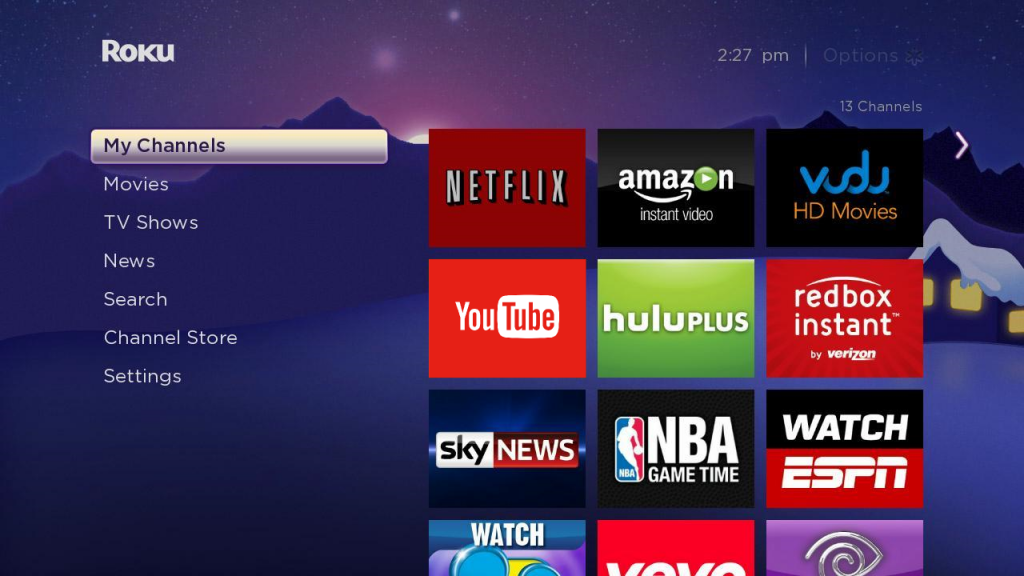
Roku operates on a proprietary Linux-based operating system known as Roku OS. Within this ecosystem, applications are referred to as “Channels.” To access YouTube, the user must interface with the Roku Channel Store, a centralized repository for digital services.
The Step-by-Step Installation Process
To begin, power on your Roku device and navigate to the Home screen using the dedicated remote. From the sidebar menu, select “Streaming Channels.” This action opens the Roku Channel Store. You can find YouTube by navigating to the “Top Free” section, as it is consistently one of the most downloaded applications globally, or by using the “Search Channels” function.
Once you locate the YouTube icon, select “Add Channel.” If your Roku account is protected by a PIN, you will be prompted to enter it at this stage. After a brief download and installation period, the YouTube app will appear at the bottom of your Home screen grid. For convenience, you can highlight the app icon, press the asterisk (*) button on your remote, and select “Move channel” to reposition it for quicker access.
Hardware Compatibility and OS Versions
Most modern Roku devices—including the Roku Express, Roku Streaming Stick 4K, and the high-end Roku Ultra—support the latest version of the YouTube app. However, users with legacy hardware (models released over a decade ago) may experience latency or limited feature sets. It is technically imperative to ensure your Roku OS is updated to the latest version (typically Version 12.5 or higher) to maintain compatibility with YouTube’s frequent API updates. To check for updates, navigate to Settings > System > System Update.
Optimizing Video Quality and Technical Performance
Watching YouTube on a television necessitates a higher standard of visual fidelity than mobile viewing. The technical synergy between Roku’s hardware and YouTube’s adaptive bitrate streaming allows for resolutions ranging from 480p to 4K Ultra HD, depending on your device and network infrastructure.
Achieving 4K and HDR Playback
If you own a Roku device capable of 4K output, such as the Roku Ultra or the Streaming Stick 4K, and a compatible 4K television, you can access YouTube’s extensive library of UHD content. YouTube utilizes the VP9 and AV1 video codecs to compress high-resolution data efficiently. To ensure you are receiving the highest quality, you should monitor the “Stats for Nerds” feature within the YouTube app’s settings. This overlay provides real-time data on resolution, frame rate, and connection speed.
High Dynamic Range (HDR) is another critical technical component. Roku devices supporting HDR10 or Dolby Vision can interpret the metadata in YouTube’s HDR videos, offering superior contrast and color depth. Ensure that your HDMI input is configured for HDMI 2.0 or higher to facilitate the necessary bandwidth for these features.
Networking and Connectivity Requirements
Stability is the backbone of high-quality streaming. While Roku devices are equipped with robust Wi-Fi antennas, the 5GHz band is preferred for YouTube 4K streaming due to its higher data throughput and lower interference compared to the 2.4GHz band. For the most demanding users, the Roku Ultra offers an Ethernet port for a hardwired connection, effectively eliminating the packet loss and latency issues sometimes associated with wireless networking. A consistent download speed of at least 25 Mbps is recommended for uninterrupted 4K playback.
Advanced Features: Casting and Cross-Device Integration
The relationship between Roku and YouTube extends beyond the standalone app. The integration of the DIAL (Discovery-and-Launch) protocol and AirPlay 2 allows for sophisticated cross-device control, enabling users to treat their smartphones as advanced remote controls.
Mobile-to-TV Casting
One of the most efficient ways to watch YouTube on Roku is through “casting.” When your smartphone and Roku are on the same Wi-Fi network, a “Cast” icon will appear on the YouTube mobile app. Selecting your Roku device from the list will launch the YouTube app on the TV and immediately begin playback of the chosen video. This method leverages the Roku as the primary renderer of the video stream, while the phone acts as a sophisticated interface for searching and queuing content.
Apple AirPlay 2 and HomeKit Integration
For users within the Apple ecosystem, many recent Roku models support AirPlay 2. This allows for the mirroring of an iPhone or Mac screen directly to the Roku-connected display. This is particularly useful for viewing YouTube content that may be restricted in the native app or for sharing non-video elements from the YouTube web interface.
Utilizing the Roku Mobile App
The Roku mobile app serves as a secondary technical bridge. It offers a digital keyboard, making the process of searching for specific YouTube creators or long-tail keywords significantly faster than using the directional pad on a physical remote. Additionally, the “Private Listening” feature allows users to route YouTube audio through their smartphone’s headphones, a highly valued technical feature for late-night viewing without disturbing others.
Troubleshooting and System Maintenance
Even the most stable software environments encounter technical friction. Understanding how to diagnose and resolve these issues is essential for maintaining an optimal YouTube experience on Roku.
Resolving App Crashes and Buffering
If the YouTube app becomes unresponsive or fails to load, the first technical intervention should be a system restart. This can be done via Settings > System > Power > System Restart. If the issue persists, the “Cache Clearing” equivalent on Roku involves removing the YouTube channel, restarting the device, and then re-installing the channel from the Store. This ensures that any corrupted temporary files are purged.
Account Syncing and Security
Managing your Google account on Roku is handled through a secure OAuth 2.0 device pairing process. Instead of entering your password directly into the Roku interface, the app generates a code that you enter on a secondary device at youtube.com/activate. This keeps your primary credentials secure while granting the Roku app the necessary permissions to access your subscriptions, history, and “Watch Later” playlists. If you experience issues with your personalized feed, re-authenticating the account often resolves synchronization errors.
The Future of the Roku and YouTube Ecosystem
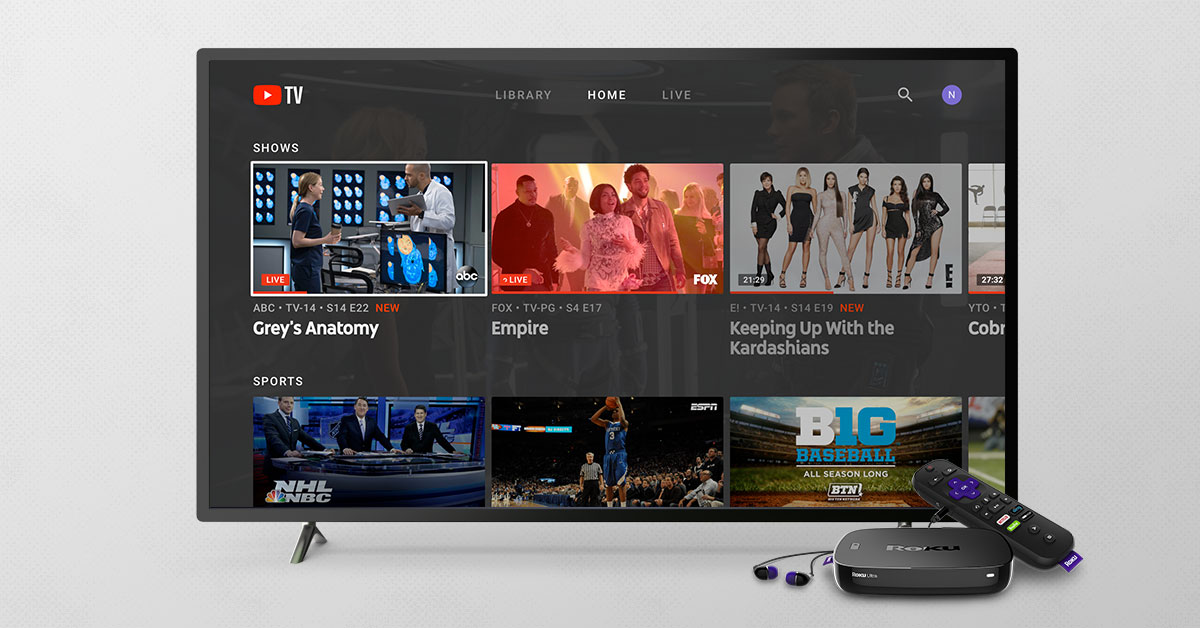
As we look toward the future of digital media consumption, the integration between Roku and YouTube is likely to become even more sophisticated. We are seeing the rise of YouTube TV—a separate subscription-based service that provides live broadcast channels—which integrates deeply with the Roku OS “Live TV” zone. This blur between traditional cable and internet-based streaming represents a significant shift in the technical architecture of home entertainment.
Furthermore, as AI-driven recommendation engines become more complex, the metadata exchange between YouTube’s servers and Roku’s interface will likely provide even more personalized “Continue Watching” prompts and content discoveries directly on the Roku Home screen. The hardware is also evolving, with newer Roku processors designed specifically to handle the AV1 codec, which offers even better compression than VP9, allowing for 8K potential and smoother streams on slower connections.
In summary, watching YouTube on Roku is a multi-layered technical process that spans hardware selection, network optimization, and software configuration. By mastering the installation, leveraging the advanced casting features, and understanding the nuances of video codecs and network bands, users can transform their Roku device into a powerful portal for the world’s most diverse video ecosystem. Whether you are a casual viewer or a tech enthusiast seeking the pinnacle of 4K performance, the synergy between these two platforms offers an unparalleled digital experience.
aViewFromTheCave is a participant in the Amazon Services LLC Associates Program, an affiliate advertising program designed to provide a means for sites to earn advertising fees by advertising and linking to Amazon.com. Amazon, the Amazon logo, AmazonSupply, and the AmazonSupply logo are trademarks of Amazon.com, Inc. or its affiliates. As an Amazon Associate we earn affiliate commissions from qualifying purchases.