
Understanding the specific version of Microsoft Outlook you are using is more than just a trivial detail; it’s a fundamental piece of information crucial for troubleshooting, accessing new features, ensuring compatibility, and maintaining robust digital security. Whether you’re a seasoned IT professional, a busy executive, or a casual user, pinpointing your Outlook version empowers you to navigate the complexities of email management and collaboration more effectively. With multiple iterations, licensing models (perpetual vs. subscription), and platform variations, the process might seem daunting at first, but with a few simple steps, you can quickly uncover the essential details.
The Criticality of Knowing Your Outlook Version
In the rapidly evolving landscape of software and digital communication, knowing your Outlook version isn’t just about curiosity—it’s a necessity that impacts nearly every aspect of your experience.
Troubleshooting and Support
When an issue arises with your Outlook client, the first question your IT support desk or an online forum will likely ask is, “What version of Outlook are you running?” This isn’t to be difficult; it’s because solutions and known bugs are often version-specific. A fix for Outlook 2016 might not apply to Microsoft 365 Apps, and an add-in might only be compatible with a specific build. Providing accurate version information expedites the diagnostic process, leading to quicker resolutions and less downtime. It also helps support personnel identify if you’re experiencing a known issue already patched in a newer version.
Feature Availability and Updates
Microsoft continuously rolls out new features, security enhancements, and performance improvements to Outlook. These updates are typically tied to specific versions or build numbers. For instance, advanced AI capabilities, enhanced calendar views, or new integration options with Microsoft Teams might only be available to users on the latest Microsoft 365 builds. If you’re missing a promised feature, checking your version is the first step to determine if it’s simply not available for your current client or if an update is needed. Perpetual license versions (like Outlook 2019 or 2021) have a fixed feature set and do not receive new capabilities, only security and stability updates, reinforcing the importance of understanding your software’s lifecycle.
Compatibility with Add-ins and Integrations
Many businesses and individuals rely on third-party add-ins or integrate Outlook with other software, such as CRM systems, project management tools, or specialized archiving solutions. These integrations are highly sensitive to the Outlook version. An outdated client might not support a critical add-in, or a new add-in might require a very specific build number to function correctly. Knowing your version helps you verify compatibility before investing time or resources into new tools.
Security and Performance
Older versions of Outlook, especially those past their end-of-life support, may contain unpatched security vulnerabilities that cybercriminals could exploit. Running an unsupported version puts your data and organization at significant risk. Furthermore, newer versions often come with performance enhancements and bug fixes that can lead to a smoother, more reliable user experience. Regularly checking your version ensures you are aware of your security posture and can plan necessary upgrades to maintain a robust and efficient communication platform.
Identifying Your Outlook Version on Windows
The method for finding your Outlook version on Windows depends largely on which iteration of the software you’re running. Microsoft has evolved its user interface significantly over the years, streamlining access to account information in newer versions.
The ‘File > Office Account’ Method (Outlook 2013 and Newer)
This is the most common and comprehensive method for modern versions of Outlook, particularly those included with Microsoft 365 subscriptions or standalone perpetual licenses from Outlook 2013 onwards.
- Open Outlook: Launch the Outlook application on your Windows machine.
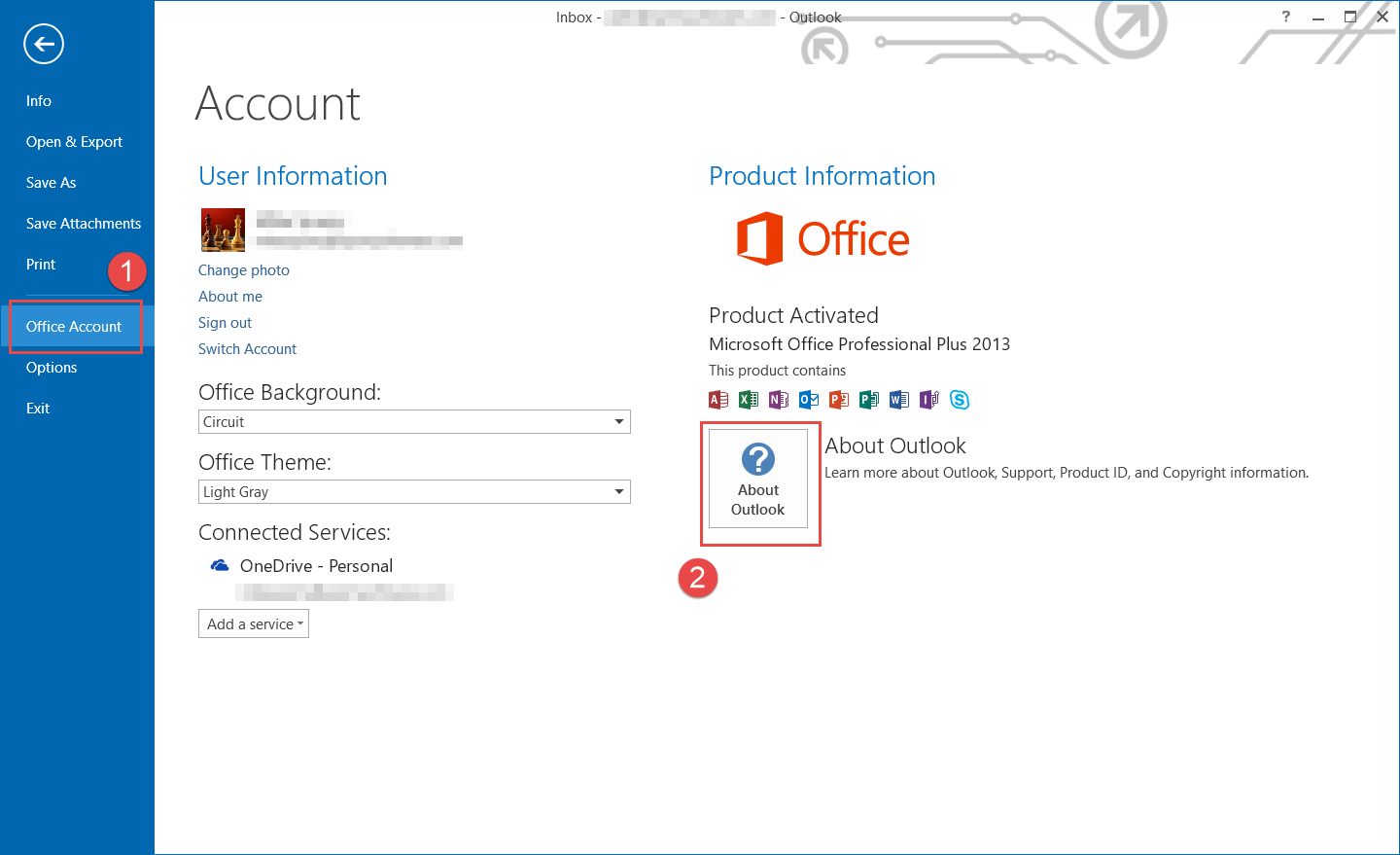
- Click ‘File’: In the top-left corner of the Outlook window, click on the ‘File’ tab. This will open the Backstage view.
- Select ‘Office Account’ (or ‘Account’): From the left-hand navigation pane in the Backstage view, select ‘Office Account’. If you have a standalone Outlook 2013 or 2016 without a full Office suite, this might simply be labeled ‘Account’.
- Locate Product Information: On the ‘Office Account’ page, you’ll see a section titled “Product Information.” Here, you’ll find:
- Product Name: This tells you your specific Outlook license, e.g., “Microsoft 365 Apps for business,” “Microsoft Outlook 2021,” “Microsoft Office Home & Business 2019.”
- Version Number: Under the “About Outlook” section (often to the right of “Product Information”), click the “About Outlook” button. A dialog box will appear displaying the full version number, including the build number and architecture (32-bit or 64-bit). The format usually looks like “Version 2308 (Build 16731.20170 Click-to-Run).”
- Licensing Details: You might also see activation status and user information associated with your Microsoft account or organization.
This method provides the most detailed information, including whether your Outlook is a ‘Click-to-Run’ installation (typical for Microsoft 365) or an MSI-based install (common for older perpetual licenses).
The ‘Help > About Microsoft Outlook’ Method (Outlook 2010 and Older)
For significantly older versions of Outlook, the interface differs, and the version information is typically found through the ‘Help’ menu.
- Open Outlook: Launch your older Outlook application.
- Click ‘Help’: In the top menu bar, click on the ‘Help’ tab.
- Select ‘About Microsoft Outlook’: From the dropdown menu, choose ‘About Microsoft Outlook’.
- View Version Details: A dialog box will appear, showing the full version number, including the major version (e.g., 14.0 for Outlook 2010) and any service pack information.
Using ‘Apps & Features’ or ‘Programs and Features’ (Less Precise)
While not as detailed as the in-application methods, you can often find the major version of Outlook installed on your system via the Windows Control Panel or Settings.
- Windows 10/11:
- Right-click the Start button and select ‘Apps and Features’ (or navigate to Settings > Apps > Apps & features).
- Scroll through the list or use the search bar to find “Microsoft Outlook” or “Microsoft Office.” The listed version will usually indicate the major release (e.g., Microsoft Office Professional Plus 2019). This typically won’t show the detailed build number.
- Older Windows Versions (e.g., Windows 7):
- Open the Control Panel and select ‘Programs and Features’.
- Locate “Microsoft Office” or “Microsoft Outlook” in the list of installed programs. The version displayed here will give you the primary release year.
Advanced Method: Registry Editor (For IT Professionals)
For IT professionals needing to programmatically check versions or for bulk deployments, the Windows Registry holds this information. However, directly modifying the Registry carries risks and should only be performed by experienced users. You can find version information under paths like HKEY_LOCAL_MACHINESOFTWAREMicrosoftOffice[VersionNumber]OutlookInstallRoot where [VersionNumber] corresponds to the Office release (e.g., 16.0 for Office 2016/Microsoft 365, 15.0 for Office 2013). This path typically points to the installation directory, and further values within the Office key can reveal build specifics.
Identifying Your Outlook Version on macOS
Outlook for Mac has its own distinct interface and versioning scheme. The process is straightforward and consistent across recent macOS iterations.
The ‘Outlook > About Outlook’ Method
This is the standard way to find your Outlook version on a Mac.
- Open Outlook: Launch the Outlook application on your macOS device.
- Click ‘Outlook’ in the Menu Bar: In the top-left corner of your screen, next to the Apple logo, click on the ‘Outlook’ menu.
- Select ‘About Outlook’: From the dropdown menu, choose ‘About Outlook’.
- View Version Details: A small window will appear, displaying:
- Version Number: The primary version number (e.g., “Version 16.78”).
- Build Number: A more granular build identifier (e.g., “(23100803)”).
- License Information: Details about your license type (e.g., “Microsoft 365 Subscription”).
This dialog box also often indicates whether you are using the “New Outlook” experience (the revamped, web-centric interface) or the “Legacy Outlook” experience.
Checking the Microsoft AutoUpdate Tool (MAU)
Microsoft AutoUpdate (MAU) is a utility that keeps Microsoft applications on macOS up to date. While not directly showing your Outlook version, it indicates the available updates and can help infer if your Outlook is current.
- Open an Office App: Launch any Microsoft Office application (Word, Excel, PowerPoint, or Outlook).
- Check for Updates: Go to the ‘Help’ menu and select ‘Check for Updates’. This will open the Microsoft AutoUpdate tool.
- Review Update History: Within MAU, you can often see a history of updates installed, which can indirectly confirm your current version if you know the typical update cadence.
Identifying Your Outlook Version on Web and Mobile Platforms
Outlook’s accessibility extends beyond desktop clients to web browsers and mobile devices, each with its own versioning.
Outlook on the Web (OWA) / Outlook.com
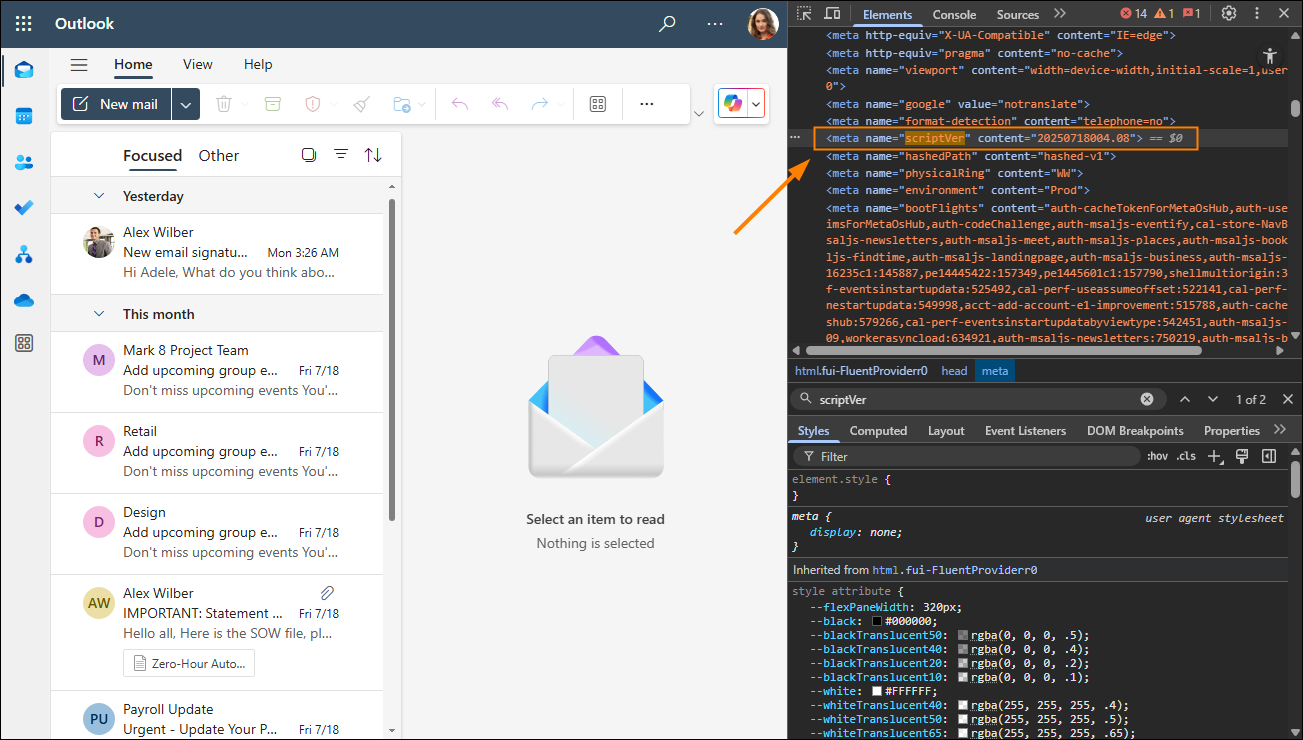
When you access Outlook through a web browser (e.g., outlook.office.com for corporate accounts or outlook.com for personal accounts), you’re using Outlook on the Web (OWA). As a cloud-based service, OWA doesn’t have a traditional “version” in the same way a desktop application does, as it’s continuously updated by Microsoft. However, you can find build information that reflects the underlying server version.
- Log In to Outlook on the Web: Open your preferred web browser and navigate to outlook.office.com or outlook.com.
- Click the ‘Settings’ Gear Icon: In the top-right corner, click the gear-shaped ‘Settings’ icon.
- Select ‘About Outlook’: Scroll to the very bottom of the Settings pane and click ‘About Outlook’.
- View Version and Build: A panel will appear showing the client version, build number, and other session-specific details. This information helps developers and support staff diagnose issues with the web interface.
Outlook Mobile App (iOS and Android)
The Outlook mobile app is a distinct client from its desktop and web counterparts, designed for touch interfaces and on-the-go productivity.
- Open the Outlook Mobile App: Launch the Outlook app on your iOS or Android device.
- Tap the Profile Icon: In the top-left corner of the app, tap your profile picture or the three-line ‘hamburger’ menu icon.
- Tap ‘Settings’: Scroll down the menu that appears and tap on the ‘Settings’ gear icon.
- Scroll to ‘Help & Feedback’ or ‘About’: In the Settings menu, scroll down until you find ‘Help & Feedback’ or an ‘About’ section.
- View Version Information: Within this section, you will find the specific version number of your Outlook mobile app (e.g., “Version 4.2346.0” on iOS or “4.2346.0” on Android). Mobile app versions are updated frequently via their respective app stores (Apple App Store, Google Play Store).
Interpreting Your Outlook Version and Staying Current
Once you’ve identified your Outlook version, understanding what those numbers mean and how to act on that information is crucial.
Understanding Version Numbering
Microsoft uses different numbering schemes depending on the Outlook product:
- Microsoft 365 (Click-to-Run): These versions are typically identified by a year-month format (e.g., “Version 2308” for August 2023) followed by a build number (e.g., “Build 16731.20170”). These are continuously updated and receive new features regularly, as long as your Microsoft 365 subscription is active. The underlying product often shows “Microsoft 365 Apps for Enterprise” or “Microsoft 365 Apps for Business.”
- Perpetual Licenses (Outlook 2016, 2019, 2021): These versions have a fixed major version number (e.g., Outlook 2019 might have an internal version 16.0.xxxxx.xxxxx). They receive security and stability updates but do not get new features post-release.
- Outlook for Mac: Uses a simpler “Version 16.xx.x (Build xxxxxxxx)” format.
- Mobile Apps: Follow standard mobile app versioning (e.g., 4.x.x).
- OWA: Identifies with a client version and build number, representing the cloud service’s current iteration.
Knowing if you’re on a “Click-to-Run” or a perpetual license helps set expectations for new features and update cadence.
The Importance of Regular Updates
Regardless of your platform or licensing model, keeping your Outlook client updated is paramount. Updates deliver:
- Security Patches: Critical fixes for newly discovered vulnerabilities, protecting your data and system.
- Bug Fixes: Resolving issues that could cause crashes, data corruption, or unexpected behavior.
- Performance Improvements: Optimizations that make Outlook run faster and more efficiently.
- New Features: For Microsoft 365 subscribers, updates are the gateway to the latest productivity tools and integrations.
To update:
- Windows/macOS Desktop: Go to ‘File’ > ‘Office Account’ (Windows) or ‘Help’ > ‘Check for Updates’ (macOS) and initiate the update process. Ensure your IT policy allows user-initiated updates if in an enterprise environment.
- Web: Outlook on the Web is automatically updated by Microsoft; no user action is needed.
- Mobile: Enable automatic updates in your device’s app store settings, or manually check for updates in the Apple App Store or Google Play Store.
When to Upgrade or Consider a New License
If your Outlook version is significantly old (e.g., Outlook 2010, 2013), it’s likely reached its end-of-life for support. This means no more security updates or technical assistance, posing a serious risk. In such cases, upgrading to a newer perpetual license (like Outlook 2021) or, more commonly, transitioning to a Microsoft 365 subscription is highly recommended. Microsoft 365 offers the benefit of always being on the latest version, receiving continuous feature updates, and benefiting from cloud-based integration with services like OneDrive, SharePoint, and Teams, providing a more cohesive and modern productivity experience.
By understanding how to identify your Outlook version and why this information matters, you empower yourself to manage your digital communications more securely, efficiently, and effectively in an ever-changing technological landscape.
aViewFromTheCave is a participant in the Amazon Services LLC Associates Program, an affiliate advertising program designed to provide a means for sites to earn advertising fees by advertising and linking to Amazon.com. Amazon, the Amazon logo, AmazonSupply, and the AmazonSupply logo are trademarks of Amazon.com, Inc. or its affiliates. As an Amazon Associate we earn affiliate commissions from qualifying purchases.