
In the modern digital landscape, YouTube has evolved from a simple video-sharing repository into a sophisticated ecosystem of content, community, and personalized data. To access the full breadth of its capabilities—from curated recommendations to channel management—the “Sign In” process is the primary gateway. While it may seem like a basic task, the technical architecture behind YouTube’s authentication is part of a broader, unified Google identity system. Understanding how to navigate this process across various hardware platforms while maintaining robust digital security is essential for any contemporary internet user.

1. The Architecture of the Google Unified Login System
Before diving into the “how-to,” it is crucial to understand the “what.” YouTube does not operate on an isolated login system; instead, it utilizes the Google Account infrastructure. This unified login system means that your YouTube identity is inextricably linked to your Gmail, Google Drive, and Google Chrome profiles.
The Power of Synchronization
When you sign into YouTube, you are essentially authenticating your Google Identity Token. This allows for seamless synchronization. For instance, a video you pause on your desktop can be resumed at the exact same timestamp on your mobile device. This level of technical continuity is made possible by cloud-based data caching that tracks user metadata in real-time.
Personalization and the Recommendation Engine
From a technical standpoint, signing in allows YouTube’s machine learning algorithms to map your preferences. Without signing in, you are presented with a generic homepage based on regional trends. Once authenticated, the system accesses your “Watch History” and “Search History” to construct a neural network of content that matches your specific interests. This deep learning process is what makes the platform so addictive and useful for niche discovery.
2. Technical Walkthrough: Signing in on Primary Devices
The process of signing into YouTube varies slightly depending on the operating system and hardware you are utilizing. Whether you are on a high-end workstation or a mobile device, the goal is to establish a secure handshake between your device and Google’s servers.
Accessing YouTube via Desktop Browsers
For users on Windows, macOS, or Linux, the browser is the primary portal.
- Navigate to the Site: Open your preferred web browser (Chrome, Firefox, Safari, or Edge) and enter
www.youtube.com. - Locate the Interface: In the top-right corner of the interface, you will find a blue “Sign In” button.
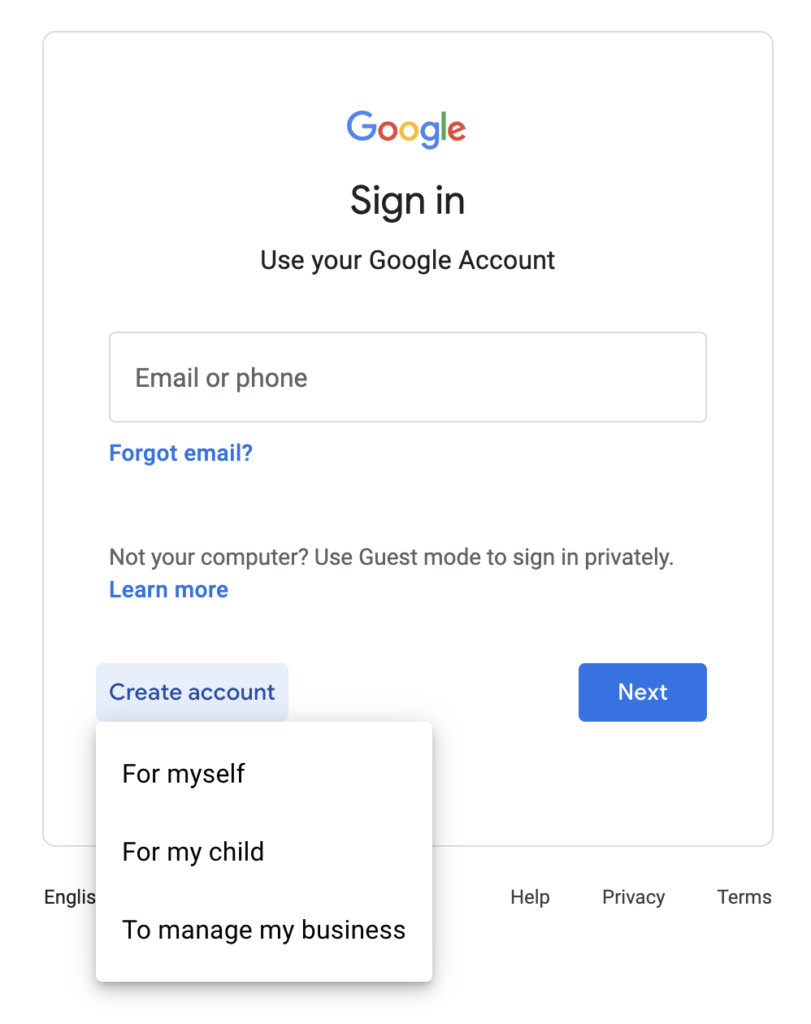
- Credential Entry: You will be redirected to the Google Accounts login page. Enter your email address or phone number associated with your Google account.
- Password and Verification: Enter your password. If you have enabled Two-Factor Authentication (2FA)—which is highly recommended for digital security—you will be prompted to verify your identity via a mobile prompt, SMS code, or hardware security key.
Integration on Mobile Devices (Android and iOS)
On mobile devices, YouTube usually functions as a dedicated application rather than through a mobile browser.
- Android Devices: Since Android is a Google-owned operating system, your device is likely already signed into a Google account. When you open the YouTube app, it will often automatically detect your primary system account. If you need to switch accounts, tap the profile icon in the bottom-right or top-right (depending on the version) and select “Switch Account.”
- iOS Devices: On iPhones and iPads, the process requires manual authentication the first time. Tap the profile silhouette, select “Sign In,” and use the “Add Account” feature. This utilizes the “Sign in with Google” API, which securely transfers your credentials from a web overlay to the app.
3. The Connected Home: Signing in on Smart TVs and Consoles
One of the most common technical hurdles users face is signing into YouTube on “Leanback” devices, such as Smart TVs, Roku, Apple TV, or gaming consoles like the PlayStation 5 and Xbox Series X. Typing complex passwords with a remote control is cumbersome and prone to error. To solve this, Google employs a “Device Pairing” protocol.
Using the Activation Code Method
Most TV-based applications will provide a 7-to-9-digit alphanumeric code.
- Launch the App: Open YouTube on your TV and navigate to the left-hand sidebar to find the “Sign In” option.
- The Code Screen: The TV will display a code and a URL (usually
youtube.com/activate). - The Bridge Device: On your smartphone or laptop (where you are already signed in), navigate to the activation URL.
- Authorization: Enter the code displayed on your TV screen into your phone. Once you click “Allow,” the TV app will receive a secure token from the server, and you will be instantly signed in without ever having to type your password on the television.
Signing in via Wi-Fi Proximity
In newer versions of the YouTube mobile app, if your phone and TV are on the same Wi-Fi network, the phone may automatically detect the TV’s sign-in request. A pop-up will appear on your mobile device asking if you want to “Connect as [Your Name].” This represents a shift toward “frictionless authentication,” using local network discovery protocols to verify proximity and intent.
4. Security First: Protecting Your Account and Troubleshooting Access
Signing in is only half the battle; maintaining the integrity of that access is the other. Given that a YouTube account is often a gateway to a user’s entire digital life (via Google), security must be a priority.
Managing Two-Factor Authentication (2FA)
In the realm of digital security, 2FA is the most effective defense against unauthorized access. Even if a malicious actor obtains your password through a data breach or phishing attempt, they cannot sign into your YouTube account without the second factor. You can manage this in your Google Account settings under the “Security” tab. Options include:
- Google Prompts: A “Yes/No” notification sent directly to your smartphone.
- Authenticator Apps: Time-based One-Time Passwords (TOTP) generated by apps like Google Authenticator or Authy.
- Security Keys: Physical USB or NFC devices (like YubiKeys) that provide the highest level of cryptographic protection.
Troubleshooting Common Login Failures
If you find yourself unable to sign in, the issue usually falls into one of three categories:
- Credential Mismanagement: If you have forgotten your password, use the “Forgot Password” link. This triggers a recovery flow via a backup email or phone number.
- Cache and Cookie Corruption: Browsers store “tokens” to keep you signed in. If these files become corrupted, the sign-in process may loop or fail. Clearing your browser’s cache or using an Incognito window can often resolve this.
- Account Suspensions: If you violate YouTube’s Community Guidelines or Terms of Service, your account may be suspended. In this case, attempting to sign in will result in an error message directing you to an appeal form.
5. The Benefits of Authenticated Access: Algorithms and Data Management
Why go through the effort of signing in? From a technical perspective, an authenticated session transforms YouTube from a video player into a personalized data engine.
Subscription Management and Notifications
Signing in allows you to “Subscribe” to creators. This populates your “Subscriptions” feed, a curated list that bypasses the general algorithm. Furthermore, it enables “Push Notifications,” which use Firebase Cloud Messaging (FCM) to alert your device the moment a creator uploads new content.
Library and History Management
When signed in, every video you interact with is logged in your personal “Library.” This includes “Watch Later” lists, custom playlists, and “Liked Videos.” For researchers and professionals, this history acts as a searchable database of previously consumed information.
Privacy and Incognito Mode
While being signed in offers many features, there are times when you may want to browse without affecting your algorithm or history. YouTube offers an “Incognito Mode” within its mobile apps. Technically, this pauses the data-logging API for that session. Once you turn off Incognito or close the session, no record of your viewing is stored in your Google Account, effectively providing a “clean slate” for that specific timeframe.

Conclusion
Signing into YouTube is a fundamental gateway to the modern digital experience. By leveraging Google’s unified authentication architecture, users gain access to a highly personalized, cross-platform environment. Whether you are utilizing the convenience of the TV activation code or the robust security of hardware-based 2FA, the process is designed to be both accessible and secure. As technology continues to evolve toward biometric authentication and passwordless logins (Passkeys), the way we sign into platforms like YouTube will become even more seamless, further integrating our digital identities with the content we consume every day.
aViewFromTheCave is a participant in the Amazon Services LLC Associates Program, an affiliate advertising program designed to provide a means for sites to earn advertising fees by advertising and linking to Amazon.com. Amazon, the Amazon logo, AmazonSupply, and the AmazonSupply logo are trademarks of Amazon.com, Inc. or its affiliates. As an Amazon Associate we earn affiliate commissions from qualifying purchases.