
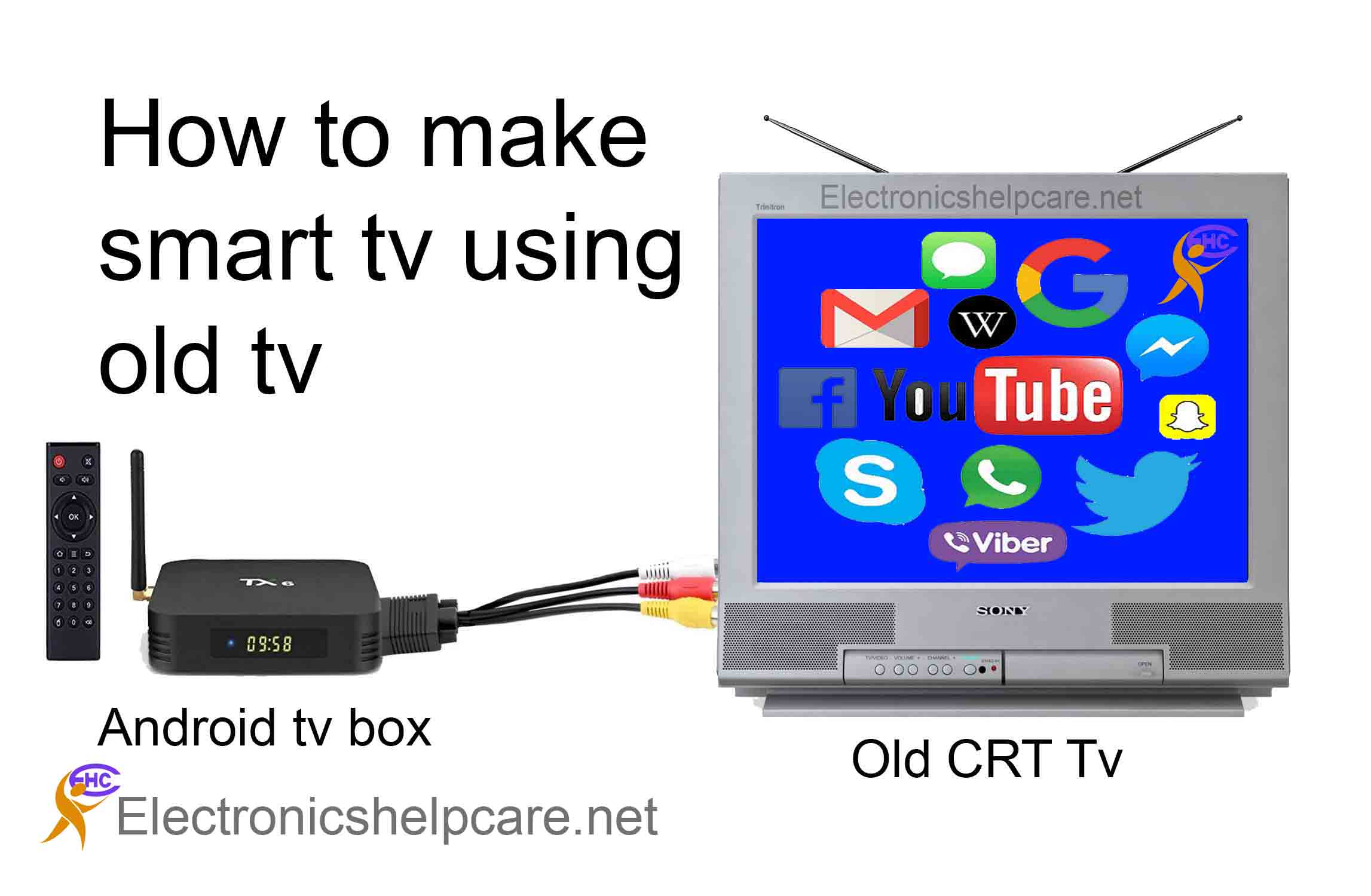
In an increasingly connected world, the “smart” prefix has become ubiquitous, transforming everything from phones to homes. At the heart of our entertainment hubs, the television has undergone a similar revolution, evolving from a simple display into an interactive portal to a vast universe of content. For many, the idea of replacing a perfectly good television with a new “smart” model can seem unnecessary or costly. Fortunately, thanks to a myriad of innovative technological solutions, transforming your existing, non-smart TV into a fully functional smart entertainment center is not only possible but often surprisingly simple and affordable. This guide will walk you through the essential steps and devices, firmly rooting our discussion in the realm of technology, gadgets, and practical tutorials.
Understanding the “Smart” in Smart TVs
Before diving into the “how,” it’s crucial to grasp what makes a television “smart.” It’s more than just having a nice picture; it’s about connectivity, accessibility, and an integrated user experience that leverages the internet.
What Defines a Smart TV?
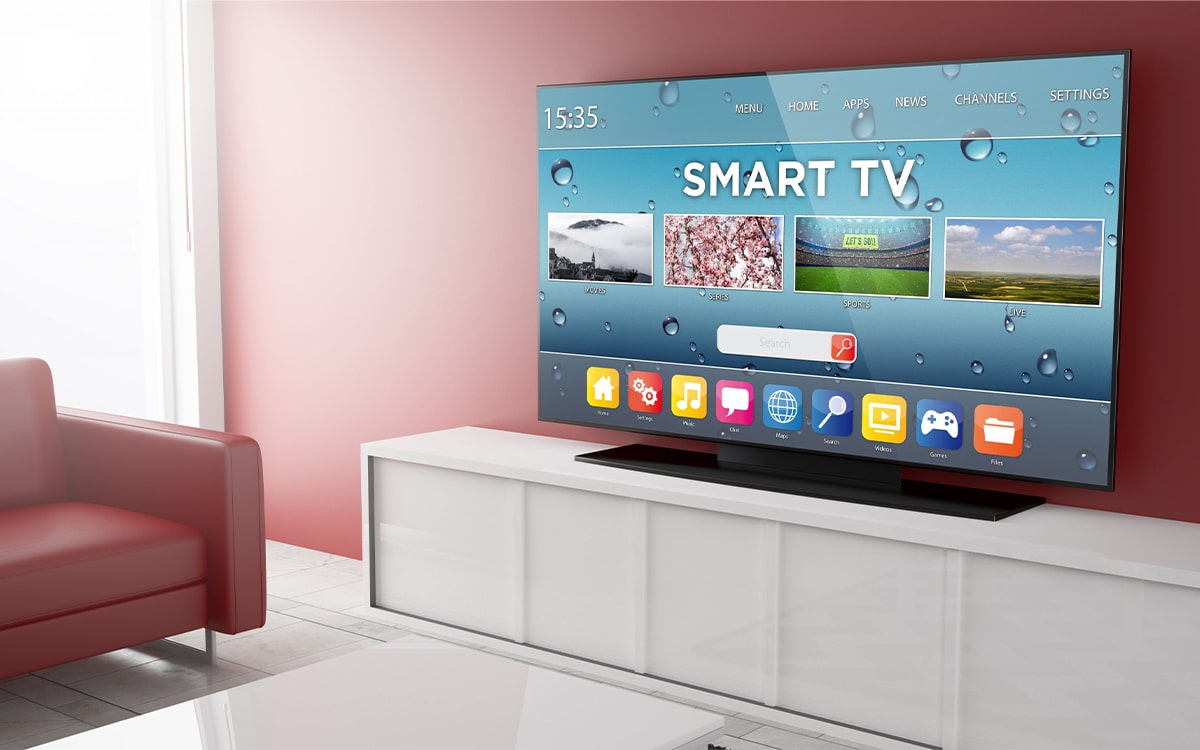
At its core, a smart TV is an internet-connected television that comes with an operating system (OS) and built-in apps, much like a smartphone or computer. This connectivity allows users to:
- Stream On-Demand Content: Access services like Netflix, Hulu, Disney+, Prime Video, YouTube, and countless others directly from the TV.
- Browse the Web: Some smart TVs offer basic web browsing capabilities, though typically not as robust as a computer.
- Run Applications: Download and use various apps for news, weather, games, fitness, and more from a dedicated app store.
- Connect to Smart Home Devices: Integrate with smart speakers (like Amazon Echo or Google Home) for voice control, or display feeds from smart cameras.
- Screen Mirroring/Casting: Wirelessly display content from a smartphone, tablet, or computer onto the TV screen.
- Receive Over-the-Air Updates: The TV’s operating system and apps can be updated to add new features or improve performance, extending the device’s lifespan and capabilities.
The primary differentiator from a traditional TV is this inherent ability to connect to the internet and provide an interactive, app-driven experience without requiring an external device beyond the TV itself.
Why Upgrade to a Smart TV Experience?
The reasons for wanting a smart TV experience are manifold and primarily center on convenience and content access. Modern media consumption has largely shifted from linear broadcast television to on-demand streaming. A smart TV experience provides instant access to an unparalleled library of movies, TV shows, documentaries, live sports, and news, often at your fingertips or with a simple voice command.
Beyond entertainment, the integration with smart home ecosystems means your TV can become a central hub for managing other connected devices. Imagine dimming the lights, adjusting the thermostat, or checking who’s at the front door—all from your TV remote or voice. For many, it’s about future-proofing their entertainment setup, ensuring they have access to the latest content and technological conveniences without needing to replace a perfectly functional display.
Essential Devices for Smart TV Conversion
The market is rich with various devices designed to inject smart capabilities into any TV with an HDMI port. These gadgets range in price and features, offering solutions for every budget and requirement.
Streaming Sticks and Dongles
These are perhaps the most popular and cost-effective solutions for converting a non-smart TV. Small, discreet, and powered typically by a USB port on the TV or an external adapter, they plug directly into an HDMI port.
- Amazon Fire TV Stick: Runs Amazon’s Fire OS, offering deep integration with Prime Video, Amazon Music, and Alexa voice control. It boasts a vast app library and supports various streaming services.
- Google Chromecast (with Google TV): While earlier versions were purely casting devices, the modern Chromecast with Google TV comes with a remote and a full Android TV interface. It prioritizes Google services but offers a broad app selection and excellent integration with Google Assistant.
- Roku Streaming Stick: Roku devices are renowned for their user-friendly interface and comprehensive “Channel Store,” offering thousands of apps. They are platform-agnostic, supporting virtually all major streaming services.
These devices are ideal for users primarily interested in streaming video content and basic app functionality. Their simplicity and portability make them excellent choices for secondary TVs or travel.
Streaming Boxes and Media Players
For those seeking more robust features, better performance, or specific ecosystem integration, streaming boxes offer an elevated experience compared to their stick counterparts.
- Apple TV: Geared towards Apple ecosystem users, Apple TV offers seamless integration with iTunes, Apple Music, Apple Arcade, and other Apple services. Its powerful processor provides a smooth user experience, supports high-quality video and audio formats, and functions as a HomeKit hub.
- Nvidia Shield TV: Often lauded as the most powerful Android TV device, the Nvidia Shield is a favorite among gamers and media enthusiasts. It excels at 4K HDR streaming, includes AI upscaling, and supports advanced gaming features, including cloud gaming services. It’s also an excellent Plex media server.
- Roku Ultra: As Roku’s premium offering, the Ultra provides enhanced performance, an Ethernet port for stable wired connections, and often includes features like a lost remote finder and private listening via the remote’s headphone jack.
These boxes typically offer more processing power, greater storage, and additional connectivity options (like Ethernet ports), making them suitable for primary living room setups where performance and advanced features are paramount.
Gaming Consoles
Modern gaming consoles have evolved far beyond just playing video games. PlayStation (PS4, PS5) and Xbox (Xbox One, Series X/S) systems are powerful entertainment hubs that come equipped with comprehensive app stores for streaming services.
- PlayStation/Xbox: Both platforms offer dedicated apps for Netflix, Hulu, YouTube, Disney+, Spotify, and many more. Their high-performance hardware ensures smooth playback of 4K content and often supports advanced audio formats. They are an excellent dual-purpose solution if you already own one for gaming.
While not their primary function, utilizing a gaming console can effectively turn your TV into a smart TV, providing access to most popular streaming platforms without needing an additional device.
Connectivity and Setup: Getting Started
Once you’ve chosen your preferred smart TV conversion device, the next steps involve connecting it, ensuring you have the necessary internet access, and going through the initial setup process.
Internet Connection Requirements
A stable internet connection is the backbone of any smart TV experience. Without it, your device can’t access streaming services, download apps, or perform updates.
- Wi-Fi vs. Ethernet: Most streaming sticks and boxes support Wi-Fi (2.4GHz and 5GHz bands). For critical setups or if your Wi-Fi signal is weak, consider devices that offer an Ethernet port for a more stable, wired connection, especially for 4K streaming.
- Speed Recommendations: For standard definition (SD), 3-5 Mbps is usually sufficient. For high definition (HD), aim for 5-15 Mbps. For 4K Ultra HD streaming, 25 Mbps or higher is recommended per stream. Ensure your home network can support these speeds, especially if multiple devices are streaming simultaneously.
Physical Connections
This is usually the simplest part. Almost all smart TV conversion devices connect via an HDMI cable.
- Plug into an HDMI Port: Insert the streaming stick directly into an available HDMI port on your TV, or connect the streaming box/console to the TV using an HDMI cable.
- Power Up: Connect the device to a power source. Many sticks can be powered by a USB port on your TV, but for optimal performance, using the provided wall adapter is often recommended. Streaming boxes and consoles always require their own dedicated power adapter.
- Select Input: Use your TV remote to select the correct HDMI input (e.g., HDMI 1, HDMI 2) that your device is connected to.

Initial Setup and Account Creation
Upon powering on your device for the first time, you’ll be guided through a series of on-screen prompts.
- Language and Region: Select your preferred language and geographical region.
- Network Connection: Connect the device to your home Wi-Fi network by selecting your network name and entering the password.
- Account Login: You’ll typically need to log in or create an account specific to the device’s ecosystem (e.g., Google account for Chromecast, Amazon account for Fire TV, Apple ID for Apple TV, Roku account for Roku devices). This account manages your apps, purchases, and settings.
- Software Updates: The device may check for and download the latest software updates. Allow this process to complete to ensure you have the most stable and feature-rich experience.
- App Installation: You can usually select and install popular streaming apps during the initial setup or browse the app store afterward.
Navigating the User Interface
Each platform (Fire OS, Android TV, Roku OS, tvOS) has its unique interface, but they share common navigational principles. You’ll use the provided remote control (or a linked smartphone app) to browse menus, launch apps, and control playback. Most modern remotes include dedicated buttons for popular streaming services and often feature voice control capabilities.
Exploring the Smart TV Ecosystem
With your device set up, the real fun begins: diving into the vast array of content and features that define the smart TV experience.
Popular Streaming Services
This is arguably the primary reason most users want a smart TV. The landscape of streaming services is incredibly diverse:
- Video-on-Demand (VOD): Netflix, Hulu, Disney+, Max, Prime Video, Apple TV+, Paramount+, Peacock, and countless niche services offer expansive libraries of movies, TV shows, and original content.
- Live TV Streaming: Services like YouTube TV, Sling TV, Hulu + Live TV, and FuboTV offer bundles of live cable channels over the internet, often at a lower cost than traditional cable.
- Free Streaming: Platforms like Pluto TV, Tubi, The Roku Channel, and Freevee provide ad-supported movies and TV shows without a subscription.
These services are easily accessible via their dedicated apps, allowing you to subscribe, log in, and start watching within moments.
Music Streaming and Photo Sharing
Beyond video, smart TV devices also serve as excellent platforms for audio entertainment and displaying personal memories.
- Music Apps: Spotify, Apple Music, Pandora, YouTube Music, and Amazon Music are all typically available, allowing you to stream your favorite tunes through your TV’s speakers or connected sound system.
- Photo Sharing: Google Photos, Amazon Photos, and iCloud Photos can often be integrated, turning your TV into a digital photo frame or allowing you to share vacation slideshows with family and friends on the big screen.
Web Browsing and Screen Mirroring
While not always as comfortable as using a computer, some devices offer basic web browsing capabilities. More universally useful is screen mirroring or casting:
- Screen Mirroring: This feature allows you to wirelessly duplicate the screen of your smartphone, tablet, or computer onto your TV. It’s perfect for showing presentations, displaying web pages, or sharing photos and videos that don’t have a dedicated app.
- Casting: Specific apps (like YouTube, Netflix, Spotify) allow you to “cast” content from your mobile device to your streaming device. The mobile device acts as a remote, while the streaming device directly pulls the content from the internet, saving mobile battery and bandwidth.
Voice Control and Smart Home Integration
Many modern streaming devices come with voice-enabled remotes or integrate directly with smart assistants like Amazon Alexa, Google Assistant, or Apple’s Siri.
- Voice Commands: You can use your voice to search for movies, open apps, control playback, check the weather, or even get answers to general questions.
- Smart Home Hub: Devices like Apple TV and Nvidia Shield TV can act as smart home hubs, allowing you to control other connected devices (lights, thermostats, security cameras) from your TV interface or through voice commands. This seamless integration further blurs the lines between entertainment and home automation.
App Stores and Customization
Each platform features its own app store, offering thousands of applications spanning various categories—news, fitness, games, productivity, and more. You can download and arrange apps to customize your home screen, ensuring your most-used services are always within easy reach. The ability to add or remove apps gives you complete control over your entertainment ecosystem, making it truly personal.
Optimizing Your Smart TV Experience
To ensure your newly smart TV setup performs at its best and remains secure, a few maintenance and optimization practices are beneficial.
Software Updates and Maintenance
Just like your smartphone or computer, streaming devices receive periodic software updates.
- Automatic Updates: Most devices are configured to update automatically. It’s generally best to allow these updates, as they often include bug fixes, performance improvements, security patches, and new features.
- Manual Checks: Periodically check for updates manually in the device’s settings menu, especially if you notice any unusual behavior or if new features are announced that you haven’t received.
Performance Tips
If your streaming device starts to feel sluggish, there are a few simple steps you can take:
- Restart the Device: A simple restart can often resolve temporary performance issues by clearing out memory and background processes.
- Clear App Caches: Over time, app caches can accumulate and slow down performance. Check your device’s settings for an option to clear the cache for individual apps or the entire system.
- Close Background Apps: Some devices allow apps to run in the background. Manually closing unused apps can free up resources.
- Check Internet Speed: Use a speed test app on your phone or computer to verify your internet connection speed. If it’s consistently low, restarting your router or contacting your ISP might be necessary.
Troubleshooting Common Issues
While generally reliable, you might encounter minor issues.
- No Signal: Double-check your HDMI connection and ensure your TV is on the correct input.
- App Crashing/Freezing: Try restarting the app, clearing its cache, or restarting the device. If the problem persists, uninstalling and reinstalling the app can help.
- Remote Not Responding: Check battery levels. For Bluetooth remotes, you might need to re-pair it with the device following manufacturer instructions.
Digital Security and Privacy Considerations
As an internet-connected device, your smart TV setup is part of your digital footprint.
- Strong Passwords: Use strong, unique passwords for your streaming service accounts and the main account for your streaming device.
- Two-Factor Authentication (2FA): Enable 2FA whenever available for an added layer of security.
- Privacy Settings: Review the privacy settings on your device and individual apps. You can often control data sharing, ad tracking, and voice assistant permissions.
- Wi-Fi Security: Ensure your home Wi-Fi network is secured with WPA2 or WPA3 encryption and a strong password.
By embracing these technological solutions and maintaining them properly, you can easily transform your existing television into a dynamic, feature-rich smart entertainment hub, opening up a world of content and connectivity without the need for a brand new TV. The future of television is smart, and with these gadgets, your current TV can be too.
aViewFromTheCave is a participant in the Amazon Services LLC Associates Program, an affiliate advertising program designed to provide a means for sites to earn advertising fees by advertising and linking to Amazon.com. Amazon, the Amazon logo, AmazonSupply, and the AmazonSupply logo are trademarks of Amazon.com, Inc. or its affiliates. As an Amazon Associate we earn affiliate commissions from qualifying purchases.