
In the modern digital landscape, our identity is often tied to a single, centralized account that acts as a gateway to our files, communications, and hardware. For users within the Apple ecosystem, this cornerstone is the Apple ID. It is more than just a username; it is the master key to iCloud, the App Store, iMessage, FaceTime, and the seamless integration between iPhones, Macs, and iPads. However, given the sheer number of digital accounts we manage daily, it is surprisingly common to forget the specific email address associated with an Apple account.
Finding out what your Apple ID is—and ensuring it remains secure—is a fundamental skill in digital literacy. This guide explores the technical avenues for retrieving your Apple ID, the architectural importance of this account within the macOS and iOS frameworks, and the best practices for maintaining digital security.
1. Locating Your Apple ID Through Local Device Settings
The quickest way to identify a forgotten Apple ID is to look at the devices you are currently using. Because Apple’s ecosystem relies on persistent authentication, your ID is usually cached or active in several layers of the operating system.
Checking Apple ID on iOS and iPadOS
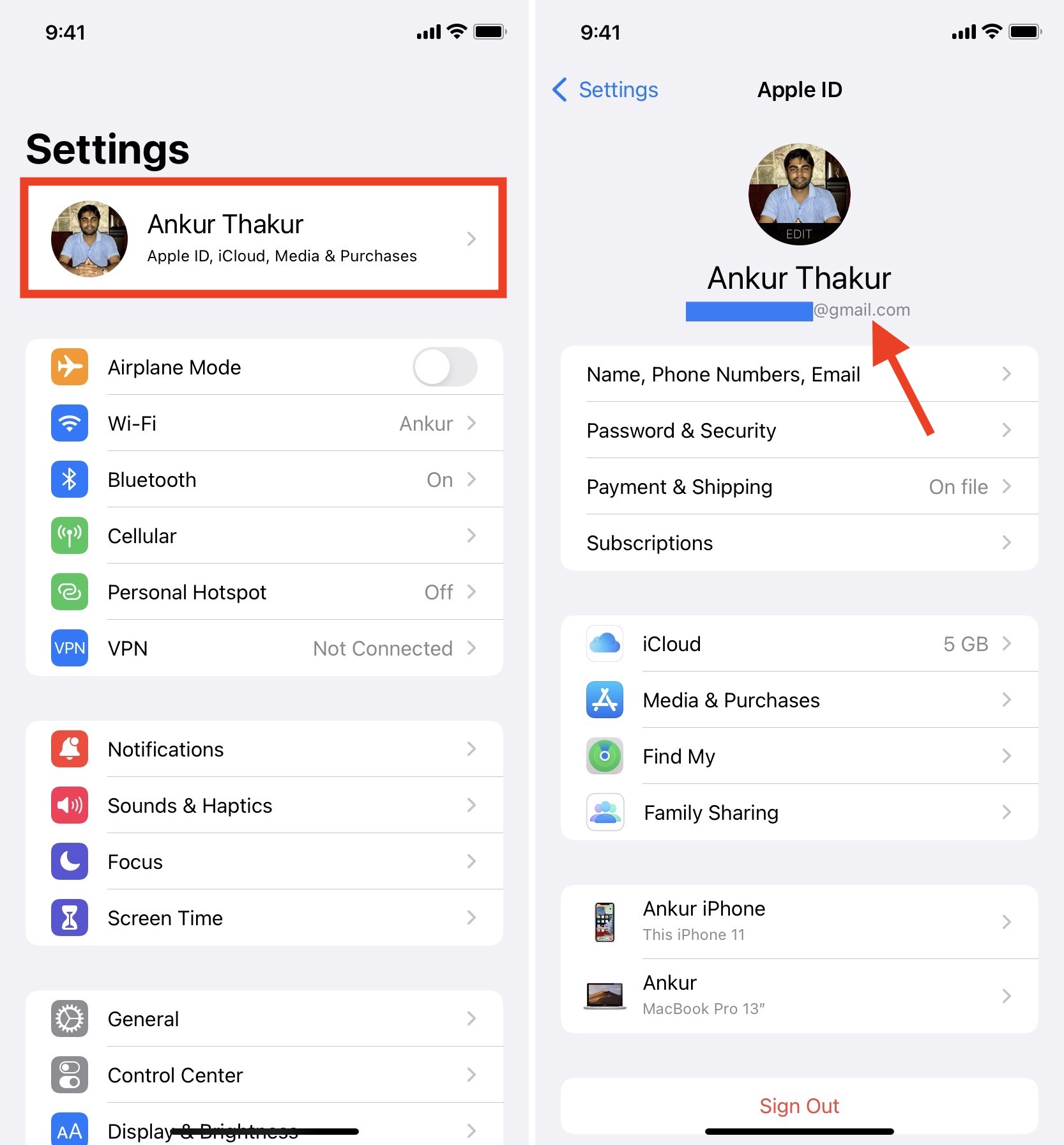
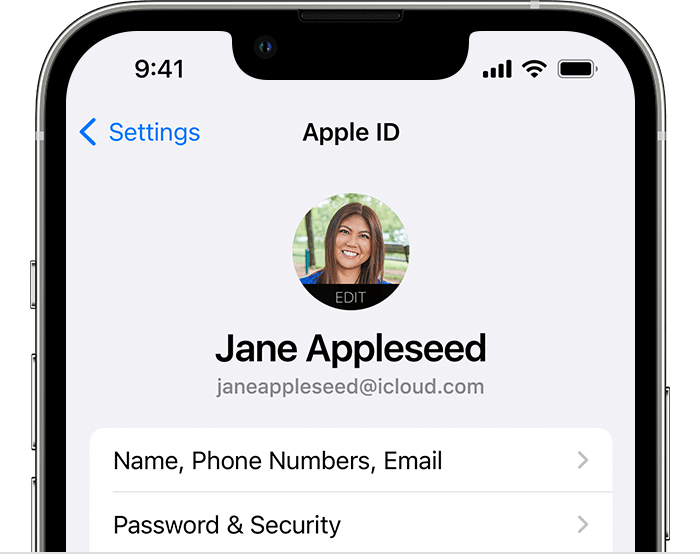
If you have an iPhone or iPad, your Apple ID is integrated into the “Settings” architecture. To find it, open the Settings app. At the very top of the menu, you will see your name and profile picture. Tapping this section opens your Apple ID card. The email address displayed directly under your name is your Apple ID.
If it is not there, or if you are signed out of the main account, you can often find the ID in specific service settings. Navigate to Settings > App Store or Settings > Messages > Send & Receive. Often, users use different IDs for iCloud and the App Store, though this is less common now than it was a decade ago. Checking these sub-menus can reveal if a legacy email address is still powering your purchases or communications.
Retrieving the ID on macOS
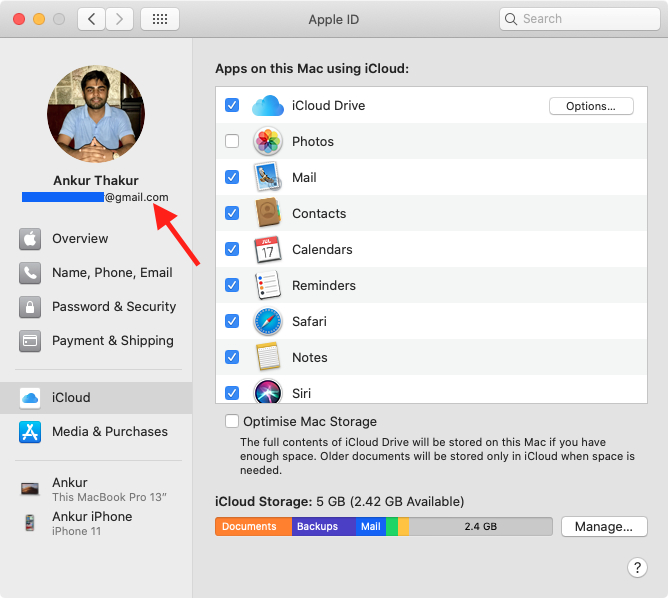
For Mac users, the process is similarly straightforward but follows the macOS System Settings logic. On modern versions of macOS (Ventura and later), click the Apple Menu () > System Settings, and your name and Apple ID will be prominently displayed at the top of the left-hand sidebar. On older versions (Monterey or earlier), you would navigate to System Preferences > Apple ID.
Additionally, the App Store app on Mac is a reliable source. By opening the App Store and clicking on your name in the bottom left corner, or selecting “View Information” from the “Store” menu, the system will display the Apple ID associated with your software licenses and subscriptions.
Utilizing the iCloud Website and Other Services
If you do not have your primary device but have access to a web browser, you can check if your browser has saved your credentials. Many users rely on the “Autofill” feature in Safari or Google Chrome. By checking the Password Manager within your browser settings and searching for “apple.com” or “icloud.com,” you may find your Apple ID stored alongside your password.
2. Using Apple’s Online Recovery Tools
When you cannot access a device or the settings are not revealing the information, Apple provides a structured web-based recovery path. This process is designed to protect user privacy while offering a technical solution for account retrieval.
The “Look It Up” Tool
Apple hosts a dedicated portal at iforgot.apple.com. While most people associate this site with password resets, it also features a specialized lookup tool for the Apple ID itself.
- Click on the link that says “look it up” near the bottom of the sign-in prompt.
- You will be asked to enter your first name, last name, and the email address you think you might have used.
- If the system finds a match, it will confirm the Apple ID. If not, you can try alternative email addresses you have owned in the past.
This tool is particularly useful because it cross-references Apple’s internal database without requiring you to guess the password first, acting as a preliminary verification step in the recovery workflow.
Searching Your Email Archives
Because the Apple ID is inherently an email address, your various inbox archives are a goldmine for identification. Search your various email accounts for keywords such as “Apple,” “App Store,” “iCloud,” or “Your invoice from Apple.”
Apple sends a “Welcome to iCloud” or “Verify your Apple ID” email whenever an account is created or updated. Finding these historical technical communications is a foolproof way to verify which specific email address was used to register the account. Look for receipts for apps, music, or iCloud storage subscriptions; these documents always explicitly list the Apple ID used for the transaction.
3. The Architecture of Apple ID and Digital Security
Understanding what an Apple ID is from a technical perspective helps in managing it more effectively. The Apple ID serves as a unique identifier (UID) in Apple’s global database, linking your hardware’s serial number to your personal data and encrypted backups.
The Role of Two-Factor Authentication (2FA)
Once you find your Apple ID, the next technical hurdle is often the password. Apple has moved toward a mandatory Two-Factor Authentication (2FA) model for all new accounts. This means that even if you know your Apple ID and password, you need a “Trusted Device” or a “Trusted Phone Number” to gain access.
From a security standpoint, the Apple ID is the perimeter of your digital life. If someone gains access to your ID, they potentially have access to your “Find My” location data, your private photos, and your synchronized keychain of passwords. Therefore, once you have identified your Apple ID, it is critical to ensure that your recovery phone numbers are up to date within the Password & Security tab of your account settings.
Account Recovery Contacts and Legacy Contacts
Apple recently introduced “Account Recovery Contacts.” This is a technical failsafe that allows you to designate a friend or family member who can receive a code to help you get back into your account if you forget your ID or password. This does not give them access to your data; rather, it provides a cryptographic key to reset your access. Setting this up is a proactive step in ensuring you never lose your Apple ID again.
Furthermore, the “Legacy Contact” feature allows you to specify who can access your account data in the event of your passing. This highlights the Apple ID’s role not just as a login, but as a permanent digital archive of a user’s life.
4. Managing Multiple IDs and Avoiding Fragmentation
A common issue in the tech world is “account fragmentation,” where a user inadvertently creates multiple Apple IDs over several years. This usually happens when a user forgets their original ID and creates a new one to set up a new device.
The Problem with Merging Accounts
From a technical infrastructure standpoint, Apple does not allow the merging of two separate Apple IDs. If you find that you have one ID for your old iTunes purchases and another for your current iCloud storage, you are forced to manage both. This results in “siloed” data.
To manage this, Apple introduced Family Sharing. By creating a “Family” group, you can invite your other Apple ID to the group, allowing you to share purchases and subscriptions across both accounts without having to constantly sign in and out. However, the best technical practice is to identify your primary ID and stick with it to maintain a unified end-to-end encrypted backup.
Verification of Alias Emails
It is also important to understand the difference between an Apple ID and an alias. Many users have an @icloud.com or @me.com email address that acts as an alias for their primary Apple ID (which might be a Gmail or Outlook address). In the Reachable At section of your Apple ID settings, you can see all the emails and phone numbers that can be used to sign in. Knowing these aliases can save you from the “incorrect ID” error message, as any verified alias typically functions as a valid login identifier.
Conclusion: Digital Hygiene and Future-Proofing
Finding your Apple ID is the first step in maintaining a healthy relationship with your technology. In an era where digital security is paramount, your Apple ID represents your identity within one of the world’s most significant technological ecosystems. By utilizing on-device settings, online recovery portals, and email archives, you can quickly bridge the gap between a forgotten credential and full account access.
Moving forward, the best way to manage your Apple ID is through the use of a dedicated, encrypted password manager. Storing your Apple ID and its associated recovery keys in a secure vault ensures that you are never locked out of your digital life. Moreover, keeping your “Trusted Devices” list clean and your recovery contacts updated transforms the Apple ID from a potential point of failure into a robust, secure foundation for your digital existence. Understanding the technical nuances of how this ID functions allows you to navigate the Apple ecosystem with greater confidence, security, and efficiency.
aViewFromTheCave is a participant in the Amazon Services LLC Associates Program, an affiliate advertising program designed to provide a means for sites to earn advertising fees by advertising and linking to Amazon.com. Amazon, the Amazon logo, AmazonSupply, and the AmazonSupply logo are trademarks of Amazon.com, Inc. or its affiliates. As an Amazon Associate we earn affiliate commissions from qualifying purchases.