
In today’s interconnected digital landscape, safeguarding your online accounts is paramount. YouTube, as the world’s largest video-sharing platform, often holds a trove of personal viewing history, subscriptions, and for creators, an entire digital livelihood. The security of your YouTube account is intrinsically linked to the security of your Google account, which underpins access to a vast ecosystem of services from Gmail to Google Drive. Understanding how to manage and, crucially, change your YouTube password is not just a technicality; it’s a fundamental aspect of maintaining your digital hygiene and protecting your online presence. This comprehensive guide will walk you through the precise steps to update your password, delve into why this simple act is a cornerstone of cybersecurity, and equip you with best practices to fortify your entire digital footprint.
The Step-by-Step Guide to Changing Your YouTube Password
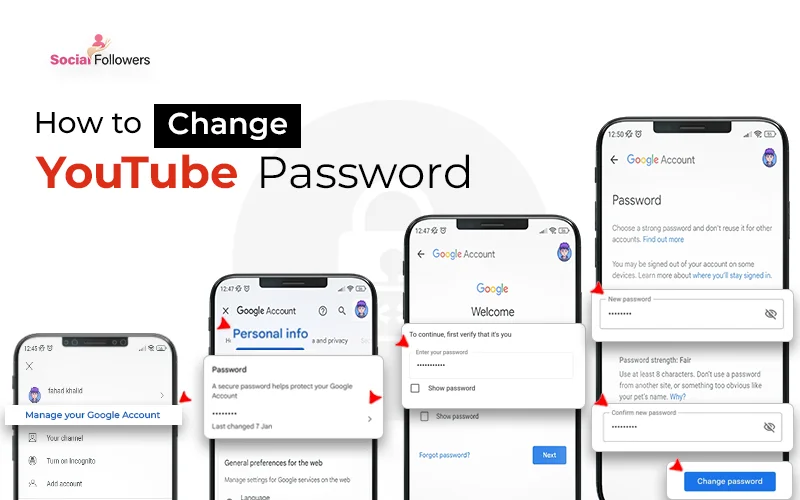
Changing your YouTube password is a straightforward process, primarily because your YouTube login credentials are the same as your Google account credentials. This integration means that any password change for your Google account automatically updates your access to YouTube, Gmail, Google Drive, and all other associated Google services.
Accessing Your Google Account Settings
The journey begins not directly within YouTube’s interface for password management, but through your overarching Google Account settings.
- Open YouTube: Navigate to youtube.com in your web browser or open the YouTube app on your mobile device.
- Locate Your Profile Picture: In the top right corner of the screen, you’ll see your profile picture (or a generic initial icon if you haven’t set one). Click or tap on it.
- Navigate to Google Account: From the dropdown menu that appears, select “Manage your Google Account.” This action will redirect you to your central Google Account management page.
Navigating to the Security Section
Once you’re on your Google Account page, you’ll find a wealth of options for managing your personal information, data, privacy, and most importantly, security settings.
- Find the Security Tab: On the left-hand navigation pane (or sometimes a horizontal menu on mobile), you’ll see several categories like “Home,” “Personal info,” “Data & privacy,” and “Security.” Click on “Security.”
- Understand the Security Overview: The Security page provides a comprehensive overview of your account’s protection status. Here, you can review recent security activity, connected devices, third-party app access, and sign-in options.
Initiating the Password Change Process
Within the Security section, you’ll find the specific option to change your password under the “How you sign in to Google” subsection.
- Locate “Password”: Under “How you sign in to Google,” you’ll see “Password” with information about when it was last changed. Click on this option.
- Verify Your Identity: For security reasons, Google will prompt you to re-enter your current password to verify that it’s genuinely you attempting to make changes. This step prevents unauthorized individuals from altering your password even if they momentarily gain access to your computer or device. Enter your current password and click “Next.”
Setting Your New, Strong Password
This is the critical juncture where you define your new layer of protection.
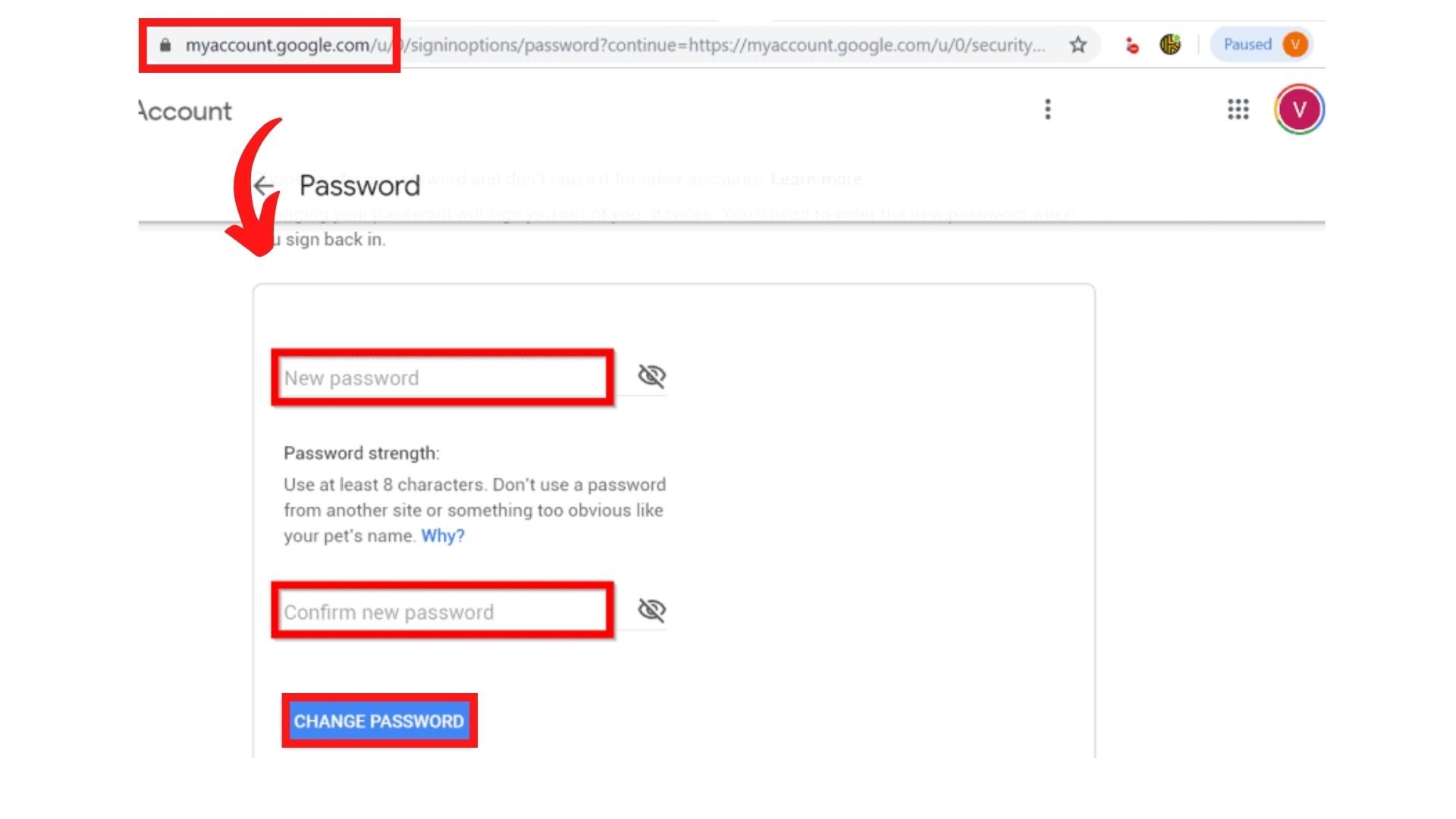
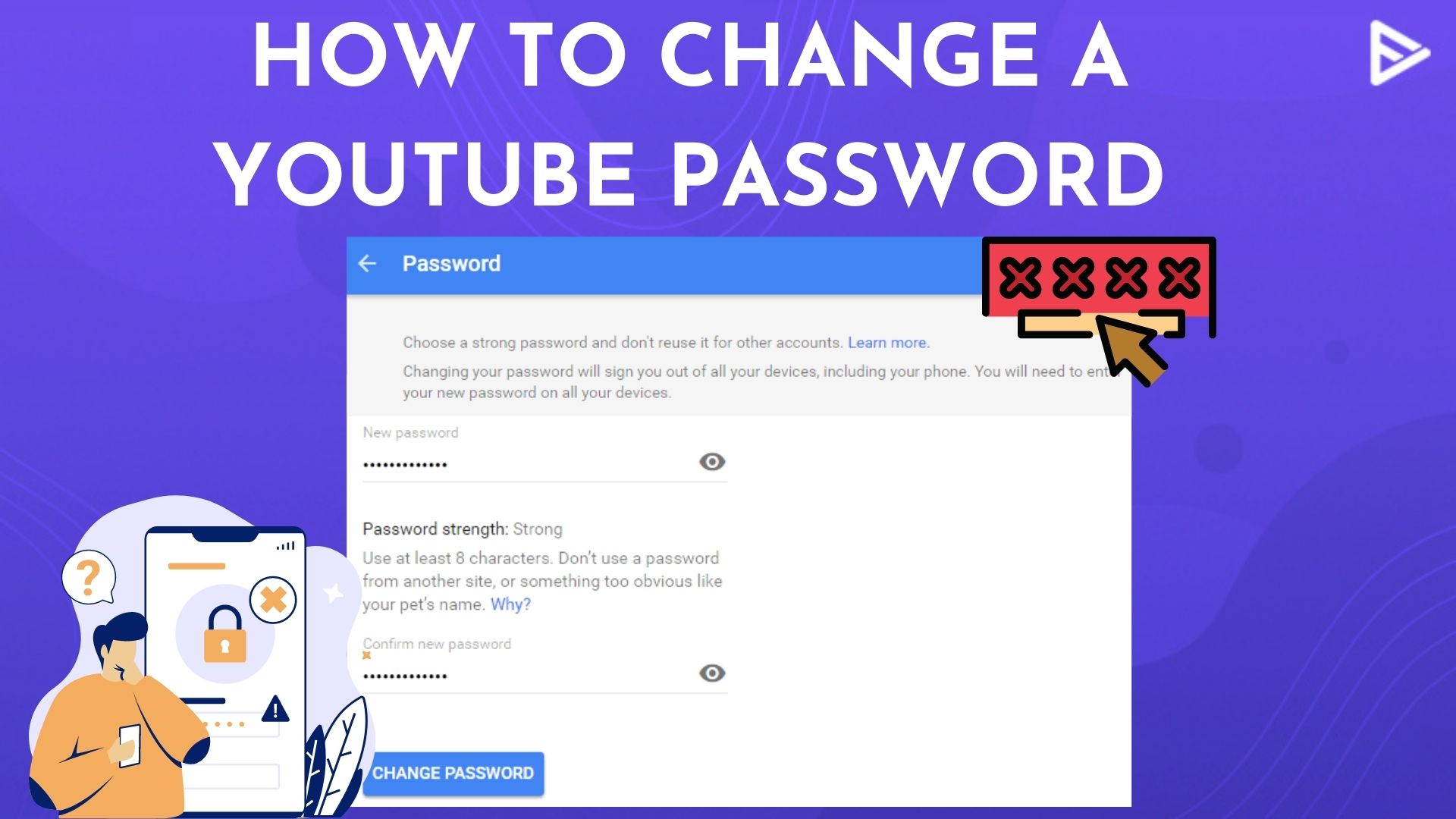
- Enter Your New Password: You will be presented with two fields: “New password” and “Confirm new password.” Carefully type your desired new password into the first field.
- Confirm Your New Password: Retype the exact same password into the “Confirm new password” field. It’s crucial that both entries match precisely to avoid typos.
- Click “Change Password”: Once you’ve entered and confirmed your new password, click the “Change Password” button.
- Confirmation: Google will confirm that your password has been successfully changed. You might also receive an email notification to your recovery email address, informing you of the password change, which is another security measure.
Troubleshooting Common Issues
- Forgot your current password? If you cannot remember your current password to verify your identity, click the “Forgot password?” link on the verification page. Google will then guide you through its account recovery process, which might involve sending a code to your recovery phone number or email, or asking security questions.
- Account Locked: If you’ve made too many incorrect attempts, Google might temporarily lock your account to prevent brute-force attacks. Wait a short period and try again, or initiate the “Forgot password” process.
Why Regular Password Changes are Crucial for Digital Security
Changing your password might seem like a chore, but it’s a vital cybersecurity practice that significantly enhances your online safety. In a world riddled with data breaches and sophisticated phishing attempts, proactivity is your best defense.
Protecting Against Data Breaches
Even the most secure online services can fall victim to data breaches. When a company’s database is compromised, user credentials – including passwords – can be stolen. If you’ve used the same password across multiple sites, a breach on one obscure website could inadvertently expose your YouTube and Google account. Regular password changes, especially after hearing about a major data breach, act as a crucial reset, rendering any previously compromised password useless. This practice helps to sever the chain of vulnerability before it can be exploited.
Mitigating Unauthorized Access Attempts
Cybercriminals employ various methods to gain unauthorized access, from sophisticated phishing campaigns that trick you into revealing your credentials to brute-force attacks that systematically guess passwords. An older, less complex, or widely known password is a far easier target. By regularly updating your YouTube/Google password, you frustrate these attempts. Each change creates a new barrier, forcing potential attackers to restart their efforts, often leading them to abandon their attempts in favor of easier targets. It’s a dynamic defense strategy against persistent threats.
Maintaining Control Over Your Digital Identity
Your YouTube channel, whether for personal viewing or content creation, is an extension of your digital identity. Unauthorized access can lead to a myriad of issues:
- Privacy Compromise: An attacker could view your private playlists, messages, or even upload/delete content.
- Reputation Damage: For creators, a compromised account could be used to upload malicious content, spam, or scam viewers, irrevocably harming their brand and trustworthiness.
- Financial Loss: If your YouTube account is monetized, unauthorized access could lead to loss of earnings or even fraudulent activities linked to your payment information.
Regular password changes are a core component of maintaining full control over your content, privacy, and digital reputation.
Best Practices for Crafting and Managing Strong Passwords
Changing your password is only half the battle; the other half is creating a strong, resilient password and managing it effectively. A weak new password is only marginally better than an old compromised one.
Characteristics of a Robust Password
A truly strong password is a digital fortress. It should possess several key characteristics:
- Length: Aim for a minimum of 12-16 characters. Longer passwords are exponentially harder to crack.
- Complexity: Incorporate a mix of uppercase letters, lowercase letters, numbers, and symbols (e.g., !, @, #, $, %, ^, &, *). This variety significantly increases the number of possible combinations.
- Unpredictability: Avoid using easily guessable information such as your name, birthdate, pet’s name, common dictionary words, or sequential numbers/letters (e.g., “password123,” “qwerty”). Think of a unique phrase or a random string of characters.
- Uniqueness: Never reuse passwords across different accounts. If one service is compromised, all accounts sharing that password become vulnerable.
The Dangers of Password Reuse
Password reuse is one of the most significant security vulnerabilities. Imagine having a single key that unlocks your house, your car, your office, and your safe deposit box. If that one key is stolen, everything you own is exposed. The same principle applies to passwords. When a hacker obtains a list of usernames and passwords from a data breach, their first move is often to try those credentials on other popular services like Google, Facebook, Amazon, and yes, YouTube. This technique, known as “credential stuffing,” is highly effective against users who recycle passwords. The simple solution: use a unique, strong password for every single online account.
Leveraging Password Managers
Remembering dozens of long, complex, and unique passwords is humanly impossible. This is where password managers become indispensable tools for modern digital security.
- What they are: Password managers are applications (desktop, mobile, browser extensions) that securely store all your passwords in an encrypted vault, protected by a single, strong master password.
- Benefits:
- Generation: They can automatically generate highly complex, random, and unique passwords for you.
- Storage: They securely encrypt and store all your login credentials.
- Auto-fill: They can automatically fill in your usernames and passwords on websites, saving time and preventing typing errors.
- Security Audits: Many managers offer features to check for weak, reused, or compromised passwords.
- Examples: Popular and reputable password managers include LastPass, 1Password, Bitwarden, and Dashlane. Investing in one of these tools dramatically elevates your password hygiene without the burden of memorization.
Enhancing Your YouTube (Google) Account Security Beyond Passwords
While a strong, regularly changed password is foundational, modern cybersecurity demands a multi-layered approach. Google offers robust tools to further secure your account, which directly impacts your YouTube safety.
Implementing Two-Factor Authentication (2FA)
Two-Factor Authentication, also known as Two-Step Verification, adds an extra layer of security beyond just your password. Even if an attacker somehow obtains your password, they cannot access your account without the second factor.
- How it works: After entering your password, Google sends a unique code to your registered mobile device (via SMS, Google Authenticator app, or a physical security key) or prompts you for a verification through a trusted device. You must provide this second factor to log in.
- Why it’s vital: 2FA is arguably the single most effective way to prevent unauthorized account access. Enabling 2FA for your Google account directly secures your YouTube access.
- How to enable: Go to your Google Account’s Security section (as detailed in the password change steps) and look for “2-Step Verification.” Follow the prompts to set it up, choosing your preferred method (e.g., Authenticator app, security key, SMS codes). Always generate and store recovery codes in a safe, offline place in case you lose access to your primary 2FA method.
Regularly Reviewing Security Activity
Google provides excellent tools to keep an eye on your account’s health.
- Google Security Checkup: Periodically visit the “Security Checkup” section in your Google Account settings. This tool guides you through reviewing:
- Recent security activity: Any unusual sign-ins or password changes.
- Third-party access: Which apps and sites have access to your Google account (and revoke any you don’t recognize or no longer use).
- Saved passwords: A review of passwords saved within Google Chrome.
- Recovery options: Ensure your recovery phone number and email are up-to-date.
- Monitoring recent devices: On the Security page, you can see a list of devices currently signed into your Google account. If you spot an unfamiliar device, you can log it out remotely.
Recognizing and Avoiding Phishing Scams
Phishing is a deceptive tactic where attackers impersonate legitimate entities (like Google or YouTube) to trick you into revealing your login credentials.
- Identify suspicious emails/links: Be wary of emails that demand urgent action, contain grammatical errors, have suspicious links (hover over them to see the actual URL), or come from unfamiliar senders.
- Verify before clicking: Never click on links in suspicious emails. Instead, if you receive an email claiming to be from YouTube or Google about your account, go directly to youtube.com or accounts.google.com in your browser and log in there to check for any notifications.
- Secure your login: Always ensure that the website you’re logging into has “https://” in the URL and a padlock icon, indicating a secure connection.
Frequently Asked Questions About YouTube Password Management
What if I forgot my YouTube password and can’t log in?
Since your YouTube password is your Google account password, you’ll need to use Google’s account recovery process. Go to the Google sign-in page, enter your email address, and when prompted for a password, click “Forgot password.” Google will then use your recovery phone number or email, or security questions, to help you regain access.
How often should I change my password?
The conventional advice used to be every 3-6 months. However, current cybersecurity wisdom suggests that if you use a strong, unique password for each account and have 2FA enabled, you might not need to change it as frequently unless there’s a specific reason (e.g., a data breach impacting a service you use). Focus on password strength, uniqueness, and 2FA over arbitrary rotation schedules.
Is it safe to save my password in my browser?
Browser-based password managers (like Chrome’s or Firefox’s) offer convenience, but they can be less secure than dedicated password manager applications. If your computer is compromised by certain types of malware, these browser-saved passwords might be more easily extracted. Dedicated password managers generally offer stronger encryption and security features.
Can YouTube change my password for me?
No. For security reasons, YouTube (or Google) cannot directly change your password without your explicit initiation and verification. The password change process must always be performed by the account holder through the verified Google Account security settings.
Changing your YouTube password is a simple yet profoundly impactful action in your personal cybersecurity strategy. By following the clear steps outlined and embracing broader security best practices like strong, unique passwords and Two-Factor Authentication, you empower yourself to navigate the digital world with greater confidence and protection. Proactive security isn’t just about reacting to threats; it’s about building a robust defense that keeps your digital life safe and secure.
aViewFromTheCave is a participant in the Amazon Services LLC Associates Program, an affiliate advertising program designed to provide a means for sites to earn advertising fees by advertising and linking to Amazon.com. Amazon, the Amazon logo, AmazonSupply, and the AmazonSupply logo are trademarks of Amazon.com, Inc. or its affiliates. As an Amazon Associate we earn affiliate commissions from qualifying purchases.