
In the current era of digital consumption, the “streaming wars” have led to an unprecedented fragmentation of content. While this provides consumers with a wealth of choices, it also creates a complex web of recurring software subscriptions that can become difficult to manage. Paramount Plus, as a major player in the Video-on-Demand (VOD) space, integrates with a variety of operating systems, third-party billing aggregates, and app stores. Consequently, the process of canceling a subscription is rarely a “one-size-fits-all” procedure. Understanding the technical architecture behind these subscriptions is the first step toward effective digital hygiene and regaining control over your software stack.
Understanding the Fragmentation of Modern Streaming Software
The difficulty in canceling a service like Paramount Plus often stems from where the initial “handshake” occurred between the user and the service provider. In software architecture, this is known as the billing gateway. Depending on whether you signed up via a web browser, a mobile app, or a smart TV interface, your subscription data lives in different silos.
The Ecosystem Problem: Why One Method Doesn’t Fit All
When you subscribe to a service through an app store, such as Apple’s App Store or Google Play, the streaming provider (Paramount) does not actually manage your billing information. Instead, they use an API (Application Programming Interface) to communicate with the platform holder. This creates a layer of abstraction. If you attempt to cancel a subscription through the Paramount Plus website when you originally signed up via an iPhone, the website’s database will simply point you back to Apple. This cross-platform dependency is a common technical hurdle for users who do not remember their initial point of entry.
Identifying Your Billing Source
Before initiating the cancellation process, you must identify the “Merchant of Record.” This is the entity that processes your payment. To find this, check your digital bank statement or search your email for the original “Welcome” or “Subscription Confirmed” message. If the merchant is “Paramount Plus,” you are billed directly. If it is “Apple,” “Google,” “Amazon,” or “Roku,” you are dealing with a third-party billing integration. Each of these paths requires a specific set of technical steps within their respective software environments.
Technical Walkthrough: Canceling Paramount Plus Across Different Platforms
Once you have identified the platform hosting your subscription, you can follow the specific UI (User Interface) paths required to terminate the recurring billing cycle. It is important to note that “deleting the app” from your device does not terminate the subscription server-side; you must modify the account status in the database.
Canceling via Desktop Browser (Direct Billing)
If you are billed directly by Paramount, the desktop interface is the most reliable way to manage your account. This bypasses the limitations often found in mobile browser wrappers.
-
Authentication: Navigate to the official Paramount Plus website and log in using your credentials.
-
Account Navigation: Click on your user profile icon in the top-right corner and select “Account” from the dropdown menu. This will take you to the administrative dashboard.
-
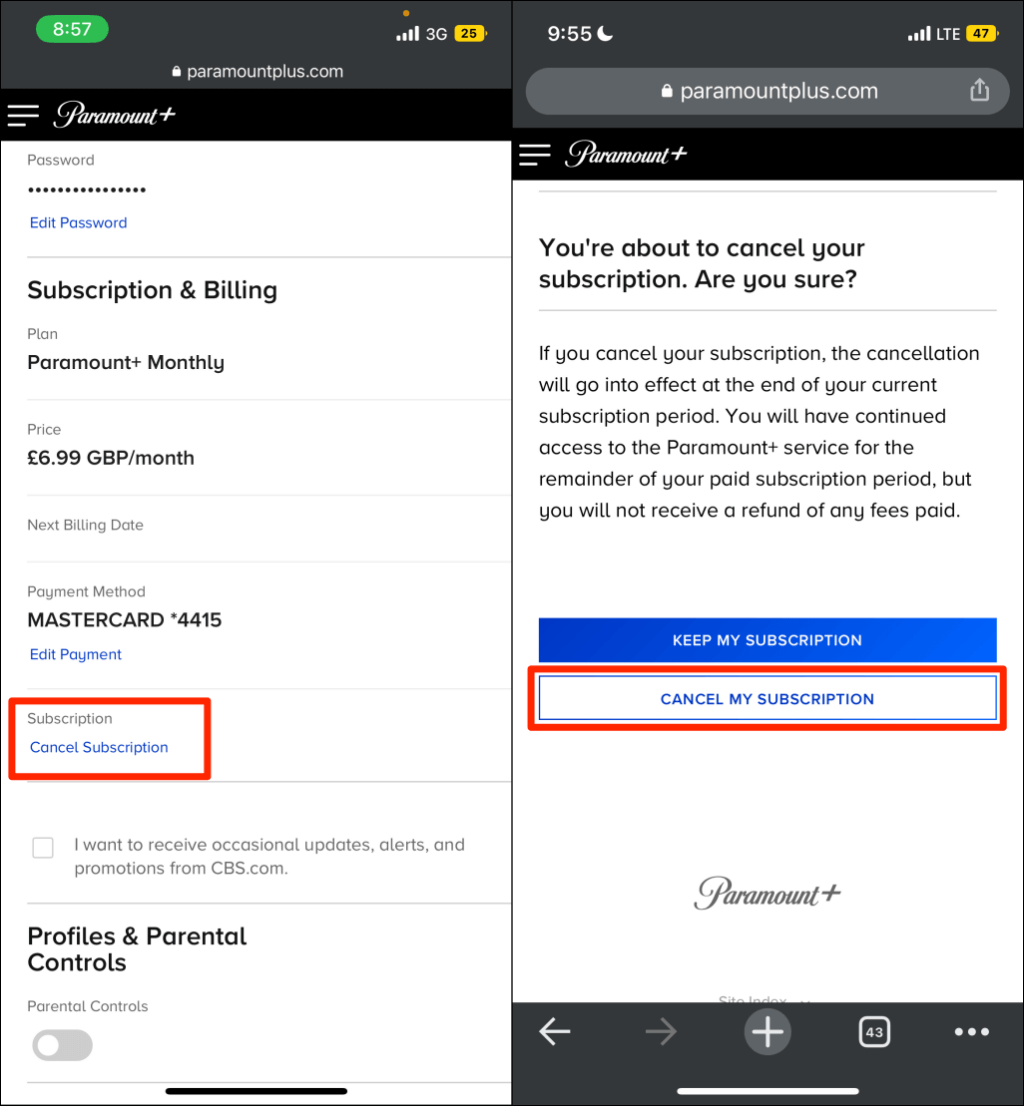
Subscription Management: Locate the “Subscription & Billing” section. Here, you will see your plan details and the next billing date.
-
Termination: Click the “Cancel Subscription” link. The software will likely trigger a “retention flow”—a series of prompts offering discounts or alternative plans. To complete the technical cancellation, you must click through these prompts until you receive a confirmation screen and a unique cancellation code.
Managing Subscriptions on iOS and Apple TV
For those within the Apple ecosystem, subscriptions are tied to the Apple ID and managed through the “Subscriptions” API in iOS or iPadOS.
-
Settings Interface: Open the “Settings” app on your iPhone or iPad.
-
Apple ID Header: Tap your name at the top of the menu to access your Apple ID settings.
-
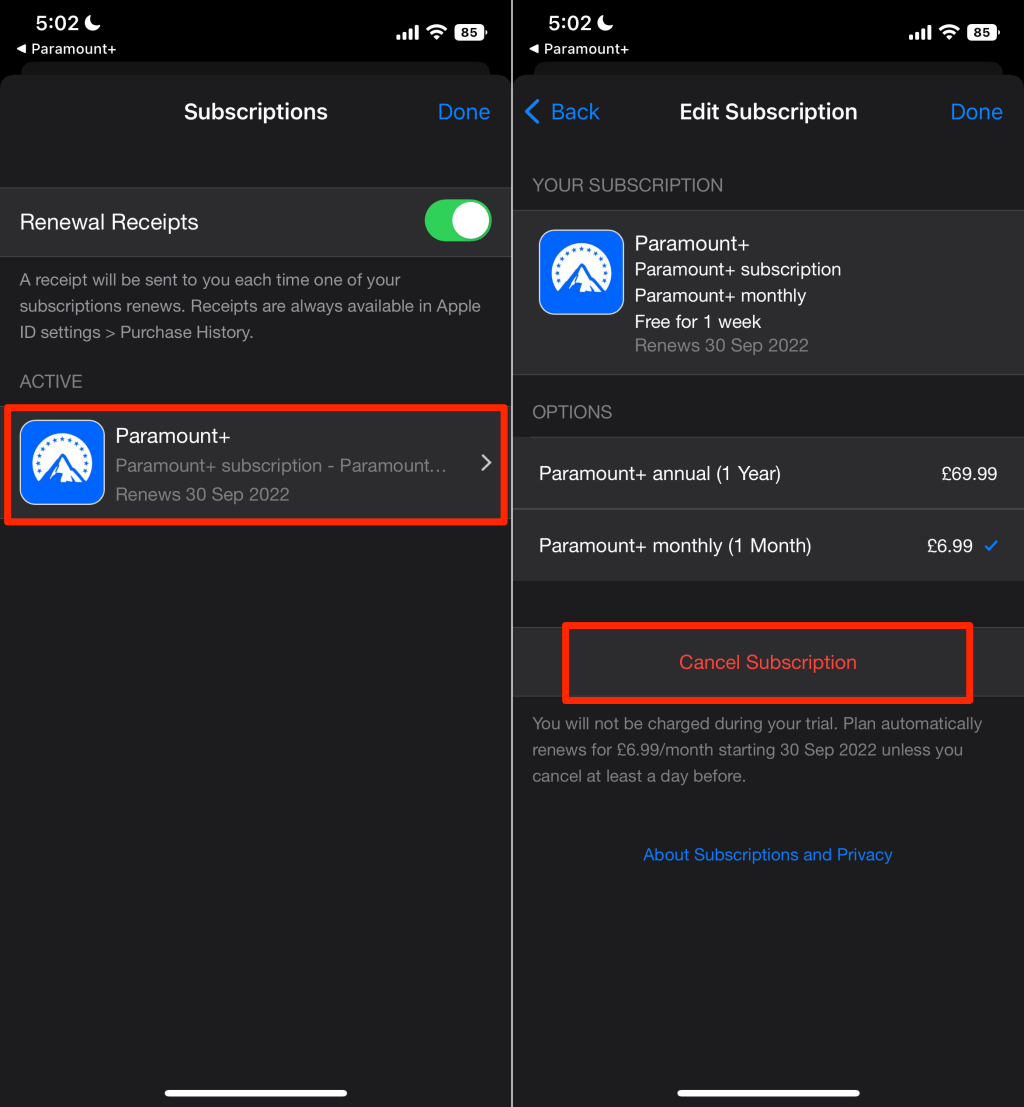
Subscriptions Menu: Tap on “Subscriptions.” This sends a request to Apple’s servers to list all active recurring charges associated with your account.
-
Modification: Find “Paramount Plus” in the list. Tap it, and select “Cancel Subscription.” Apple’s system will then update the status to “Expires on [Date],” ensuring that no further API calls for payment are made to your linked credit card or Apple Pay account.
The Android and Google Play Process
Android users manage their digital services through the Google Play Store’s billing management system.
-
Play Store Access: Open the Google Play Store app.
-
Profile Selection: Tap the profile icon at the top right of the screen.
-
Payments & Subscriptions: Navigate to “Payments & subscriptions” and then select “Subscriptions.”
-
Action: Locate Paramount Plus and select “Cancel subscription.” Google will often ask for a reason for cancellation; this is for their internal analytics. Select an option and confirm the action.
Third-Party Aggregators: Amazon Prime, Roku, and Hulu
Many users subscribe to Paramount Plus as an “Add-on Channel” through another service. This is a form of software integration where the host app (like Amazon Prime Video) manages the playback and the billing.
-
Amazon Prime: You must log in to your Amazon account via a web browser, go to “Accounts & Lists,” then “Memberships & Subscriptions,” and finally “Prime Video Channels” to find the “Cancel Channel” option.
-
Roku: On the Roku home screen, highlight the Paramount Plus channel and press the star (*) button on the remote. Select “Manage subscription” and then “Cancel subscription.”
-
Hulu: If Paramount Plus was bundled with Hulu, the cancellation must occur within the Hulu account management dashboard under the “Add-ons” section.
Solving Common Technical Discrepancies and Billing Glitches
Even when following the correct UI path, users sometimes encounter technical errors that prevent successful cancellation. These can range from “Ghost” subscriptions to synchronization errors between the app and the server.
The “Ghost” Subscription and Multiple Accounts
A common issue occurs when a user has multiple email addresses and accidentally creates two accounts. If you cancel one but continue to see charges, you are likely dealing with a secondary account. To resolve this, use the “Forgot Password” tool on all your known email addresses to see which ones have an active profile. Furthermore, if you used “Sign in with Apple” or “Sign in with Google,” the service may be linked to a masked or relayed email address, creating a disconnect in your personal records.
Clearing Cache and Cookies for Billing Updates
Sometimes, the web browser may display a “cached” version of your account page, showing that you are still subscribed even after you have hit cancel. To ensure you are seeing the live database status, perform a hard refresh (Ctrl+F5 or Cmd+Shift+R) or clear your browser’s cookies and cache. This forces the browser to pull the most recent account data from Paramount’s servers.
Confirming the Cancellation: Digital Paper Trails
In software management, an action is not considered final until there is a receipt of the transaction. Always wait for a confirmation email. If you do not receive one within 15 minutes, the server request may have timed out or failed. Keep a screenshot of the “Subscription Canceled” screen. This serves as vital metadata if you need to dispute a charge with your financial institution later.
Advanced Digital Hygiene: Tools for Managing the Subscription Lifecycle
As the number of digital tools we use grows, relying on manual cancellation becomes inefficient. Leveraging specific technology can help streamline this process and protect your digital security.
Using Privacy Tools and Virtual Cards
One of the most effective tech-forward ways to manage subscriptions is through virtual credit cards. Services like Privacy.com allow you to create a virtual card specifically for one merchant (e.g., Paramount Plus). You can set a “Spend Limit” or “Pause” the card entirely. If you want to cancel the service, you can simply “Close” the virtual card in your dashboard. This prevents the merchant’s billing software from successfully processing a charge, effectively acting as a hard-stop on the subscription regardless of the app’s cancellation UI complexity.
Automation and Apps that Track Recurring Charges
There are several fintech apps designed to scan your linked bank accounts (via secure protocols like Plaid) to identify recurring software charges. These tools provide a unified dashboard where you can see every subscription you are paying for across different ecosystems. While some of these apps offer to cancel the service for you, they essentially use automated scripts or concierge services to perform the steps outlined above. For a tech-savvy user, these dashboards are excellent for identifying “zombie” subscriptions—services you forgot to cancel after a free trial period.
Final Considerations Before Cutting the Cord
Before finalizing the technical disconnection of Paramount Plus, consider the implications for your data and future access.
Data Portability and Profile Retention
Most streaming platforms, including Paramount Plus, do not immediately delete your user profile or watch history when you cancel a subscription. Your data remains in their database in a “dormant” state. This is a strategic move to lower the friction of re-subscribing. If you plan to return later, your “My List” and preferences will likely still be there. However, if you wish to have your data completely removed for privacy reasons, you must specifically request account deletion under the “Privacy” settings or via a GDPR/CCPA request form, which is a separate technical process from subscription cancellation.
Re-subscribing and Promotional Cycles
The streaming software landscape is highly cyclical. If you are canceling to save on costs, keep an eye on your email for “win-back” campaigns. Often, the system’s CRM (Customer Relationship Management) software is programmed to trigger a discounted offer (e.g., 50% off for three months) a few weeks after a cancellation is processed. By understanding the timing of these automated marketing workflows, you can strategically manage your access to the software at a lower price point.
In conclusion, canceling Paramount Plus is a multi-faceted technical task that requires an understanding of the underlying billing ecosystem. Whether you are navigating the Apple Subscriptions API, the Google Play billing dashboard, or direct web-based account management, the key is to identify the Merchant of Record and follow the specific software path to termination. By implementing advanced digital hygiene practices like virtual cards and subscription tracking, you can transform the way you interact with the modern subscription economy, ensuring that you only pay for the software and services you actively utilize.
aViewFromTheCave is a participant in the Amazon Services LLC Associates Program, an affiliate advertising program designed to provide a means for sites to earn advertising fees by advertising and linking to Amazon.com. Amazon, the Amazon logo, AmazonSupply, and the AmazonSupply logo are trademarks of Amazon.com, Inc. or its affiliates. As an Amazon Associate we earn affiliate commissions from qualifying purchases.