
The question, “Does my Chromebook have the Google Play app installed?” is a common one, especially for those new to the Chrome OS ecosystem or considering a Chromebook as their next computing device. This isn’t a simple yes or no answer, as the functionality has evolved significantly over time. Historically, Chromebooks were designed with web-based applications in mind. However, Google’s strategic shift to integrate the vast Android app ecosystem has dramatically expanded the capabilities of these affordable and versatile laptops. This article will delve into the intricacies of the Google Play Store on Chromebooks, exploring its presence, how to enable it, and the implications for your productivity and digital life, all within the context of the broader tech landscape.

The Evolution of Chromebooks: From Web Apps to a Universe of Android Apps
Chromebooks, at their inception, were built around a streamlined, cloud-centric operating system – Chrome OS. The core idea was to provide a fast, secure, and lightweight computing experience primarily reliant on web applications and Google’s own services like Google Docs, Sheets, and Drive. This made them ideal for education and users who spent most of their time browsing the web, checking emails, and utilizing cloud-based productivity suites. However, the limitations became apparent for users accustomed to the richer functionality and wider selection of applications available on other platforms, particularly those powered by Android.
Recognizing this gap, Google embarked on a significant transformation of Chrome OS. The game-changer was the gradual integration of the Google Play Store, a move that promised to unlock a world of familiar Android applications for Chromebook users. This integration wasn’t immediate for all devices, leading to the very question we’re addressing today. The decision to bring Android apps to Chromebooks was a strategic one, aligning with Google’s broader vision of a unified ecosystem across its devices and services. It meant that a Chromebook could suddenly offer the flexibility of a tablet app with the power and keyboard of a laptop.
Understanding Chrome OS and App Compatibility
Chrome OS is fundamentally different from traditional operating systems like Windows or macOS. It’s built on the Linux kernel but heavily relies on the Chrome browser as its primary user interface. This foundation allows for exceptional speed, security updates delivered automatically, and a robust defense against malware. When the Google Play Store was introduced, it wasn’t about running Android apps natively in the same way a smartphone does. Instead, Google developed a compatibility layer, known as the ARC++ (Android Runtime for Chrome) or more recently, the Android container. This container essentially creates a virtual environment within Chrome OS where Android apps can run, allowing them to interact with the underlying system without requiring extensive modifications to the apps themselves.
This approach has been remarkably successful. Many popular Android apps, from social media giants like Instagram and TikTok to productivity tools like Microsoft Office (in its mobile app form) and creative suites like Adobe Lightroom, are now fully functional on compatible Chromebooks. This significantly broadens the appeal of Chromebooks, moving them beyond their niche origins into a more mainstream computing category.
Identifying if Your Chromebook Supports the Google Play Store
The crucial factor determining whether your Chromebook can access the Google Play Store is its hardware and software version. Google rolled out Play Store support progressively, starting with newer models and then backporting it to older devices through Chrome OS updates. Therefore, the answer to “Does my Chromebook have the Google Play app installed?” hinges on whether your specific model is on the supported list and if your Chrome OS has been updated accordingly.
Checking Your Chromebook’s Settings for Google Play Support
The most straightforward way to determine if your Chromebook has the Google Play Store is to check its settings.
- Open Settings: Click on the time in the bottom-right corner of your screen, then click on the gear icon (Settings).
- Navigate to Apps: In the left-hand menu of the Settings window, you should see an “Apps” section.
- Look for “Google Play Store”: If your Chromebook supports the Google Play Store, you will see an option that says “Google Play Store” or “Apps from the Google Play Store.” It might also say “Turn on Google Play Store.”
If you see this option, it means your Chromebook is capable of running Android apps. You’ll likely have a button to “Turn on” or “Install” the Google Play Store if it’s not already enabled.
If you do not see this option, there are a few possibilities:
- Your Chromebook is too old: Older Chromebook models, especially those released before 2016, may not have the hardware or software architecture to support Android app execution.
- Your Chrome OS is not updated: You might be running an older version of Chrome OS that predates the Play Store integration or has not yet received the necessary updates.
- Your Chromebook is not on the supported list: While Google has made significant strides, not every single Chromebook model is guaranteed to have Play Store support.
Verifying Chrome OS Version and Updates
To ensure your Chromebook has the latest features, including Google Play Store support, keeping your Chrome OS updated is paramount.
- Open Settings: As before, click the time in the bottom-right corner, then the gear icon.
- Go to “About Chrome OS”: In the left-hand menu, select “About Chrome OS.”
- Check for Updates: You will see your current Chrome OS version. Click on “Check for updates.” If an update is available, download and install it. Once the update is complete and your Chromebook restarts, re-check your Settings for the Google Play Store option.
Google maintains a comprehensive list of Chromebook models that support Android apps. You can often find this list by searching online for “Chromebooks with Google Play Store support” or similar terms. Checking this list can provide definitive confirmation if your hardware is inherently compatible.
Enabling and Using the Google Play Store on Your Chromebook
Once you’ve confirmed your Chromebook supports the Google Play Store and it’s enabled, the next step is to dive into the world of Android apps.
The Process of Enabling the Google Play Store
The process is typically very straightforward.
- Locate the Option: Navigate to Settings > Apps.
- Turn On: You’ll see the option for the Google Play Store. Click “Turn on.”
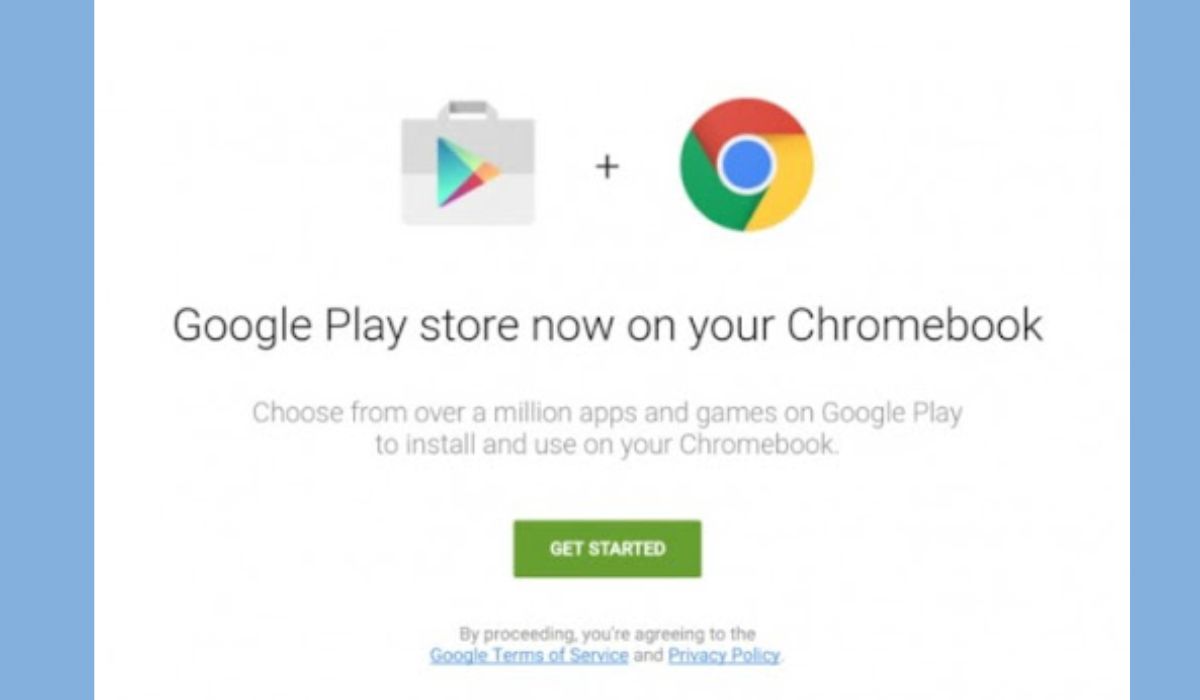
- Accept Terms: A pop-up will appear outlining the terms of service for the Google Play Store. Read through them and click “More” followed by “Accept” to proceed.
- Installation: The Google Play Store will then begin to install or enable itself. This may take a few moments.
- Launch: Once installed, you’ll find the Google Play Store icon in your app launcher, just like any other application.
Upon launching the Play Store for the first time, you’ll be prompted to sign in with your Google account, the same one you use on your Android phone or tablet. This links your purchases and app library across devices.
Navigating and Installing Apps
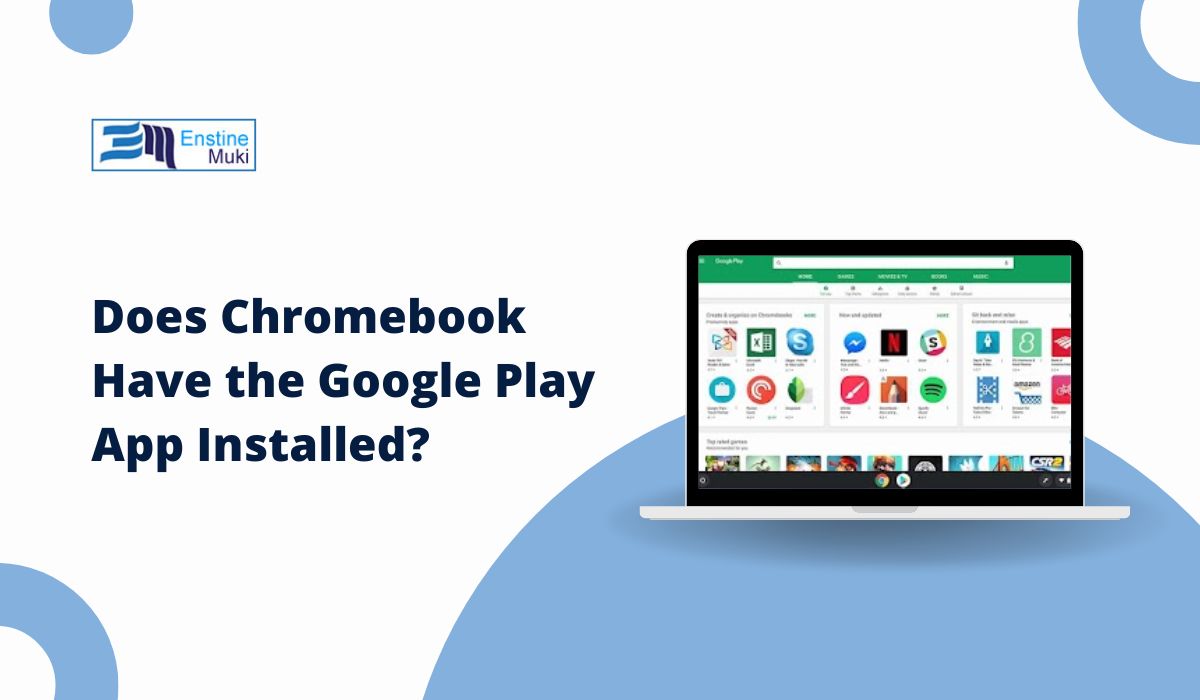
The Google Play Store on your Chromebook functions almost identically to its mobile counterpart. You can browse categories, search for specific apps, and view app ratings and reviews.
- Search Bar: Use the search bar at the top to find apps by name or keyword.
- Categories: Explore different categories like “Games,” “Productivity,” “Social,” “Entertainment,” and more.
- App Details: Clicking on an app will take you to its dedicated page, where you can see screenshots, read descriptions, check permissions, and view user reviews.
- Install Button: To install an app, simply click the “Install” button. The app will download and install in the background.
Once installed, the app’s icon will appear in your Chromebook’s app launcher. You can then click it to open and use the app.
Understanding App Behavior and Limitations
While the integration is impressive, it’s important to be aware of how Android apps behave on Chrome OS.
- Windowed Environment: Most Android apps will open in their own resizable windows. You can move, resize, and even maximize these windows, offering a desktop-like experience.
- Touchscreen vs. Keyboard/Trackpad: Apps designed primarily for touchscreens might have slightly different interactions when used with a keyboard and trackpad. Developers are increasingly optimizing their apps for this hybrid environment.
- Performance: The performance of Android apps can vary depending on the Chromebook’s hardware specifications. More demanding apps will require more processing power and RAM.
- Permissions: When you install an app, you’ll be asked to grant it certain permissions (e.g., access to your camera, microphone, or location). This is similar to how Android apps function on phones.
- App Availability: While the Play Store offers millions of apps, not all apps are guaranteed to be compatible or optimized for Chrome OS. Some apps might not install, may crash, or might not function as expected. This is less common for popular apps but can occur with niche or older applications.
Beyond Basic Apps: Leveraging Android for Productivity and More
The ability to run Google Play Store apps transforms a Chromebook from a simple web browsing machine into a much more versatile computing device. This opens up a wealth of opportunities for both personal and professional use.
Enhancing Productivity with Android Apps
The productivity landscape has been significantly enriched by the advent of Android apps on Chromebooks. For users who relied on specific mobile-first productivity tools or wanted to access their favorite task management or note-taking apps on their laptop, this integration has been a boon.
- Office Suites: While Google’s own Workspace apps (Docs, Sheets, Slides) are native and highly integrated, you can also install mobile versions of Microsoft Office, allowing for greater document compatibility and flexibility.
- Note-Taking and Organization: Apps like Evernote, OneNote, Todoist, and Notion are readily available, offering robust features for organizing thoughts, managing projects, and keeping track of tasks.
- Communication and Collaboration: Popular messaging apps like WhatsApp and Telegram, along with project management tools, can seamlessly integrate into your workflow.
- Creative Tools: For those who dabble in design or photo editing, apps like Adobe Lightroom Mobile, Snapseed, and even more advanced drawing applications provide powerful creative outlets.
The beauty of using these apps on a Chromebook lies in their often lightweight nature compared to their desktop counterparts, coupled with the familiarity of their mobile interfaces. This can lead to a more efficient and enjoyable user experience, especially for tasks that don’t require the full power of a dedicated desktop application.
Entertainment and Lifestyle on Your Chromebook
Beyond work, Chromebooks have become increasingly capable entertainment devices thanks to the Google Play Store.
- Streaming Services: Access to streaming apps like Netflix, Hulu, Disney+, YouTube Premium, and Spotify provides a rich media consumption experience.
- Gaming: The gaming potential of Chromebooks has exploded. From casual puzzle games to more graphically intensive titles, the Play Store offers a vast library of games that can be played with touch controls or a connected gamepad.
- Social Media: Stay connected with friends and family through apps like Facebook, Instagram, Twitter, and TikTok.
- Reading and Media: Kindle apps, e-book readers, and podcast players are all readily available, making your Chromebook a portable library and entertainment hub.
This convergence of productivity and entertainment capabilities makes Chromebooks a compelling option for a wide range of users, from students to professionals to casual users who want a single device for multiple purposes.
The Broader Implications: Tech, Brand, and Money
The integration of the Google Play Store into Chromebooks is a prime example of how technology trends evolve and impact other aspects of our lives, including brand perception and personal finance.
Tech: A Unified Ecosystem and the Future of Computing
From a technology perspective, the move signifies Google’s commitment to a more unified ecosystem. By bridging the gap between its mobile and desktop operating systems, Google aims to provide a more seamless and interconnected experience for its users. This approach is crucial in the increasingly competitive tech landscape, where device interoperability and app availability are key differentiators.
The success of Android app integration on Chromebooks has also influenced the broader development of Chrome OS. Google continues to refine the compatibility layer, improve performance, and ensure better integration with hardware features like touchscreens and stylus support. This evolution means that Chromebooks are no longer seen as limited devices but as capable, adaptable computing platforms with a bright future. The ongoing advancements in areas like AI integration within apps and cloud-based services further solidify the Chromebook’s position as a relevant and evolving device.
Brand: Enhancing Chromebook’s Appeal and Market Share
For the “Brand” aspect, the Google Play Store integration has been a significant boost to the Chromebook brand. Historically, Chromebooks were often perceived as budget-friendly devices primarily suited for basic tasks. The ability to run a vast array of Android apps instantly elevated their perceived value and versatility. This has helped them gain market share, particularly in the education sector and among consumers seeking an affordable yet capable alternative to traditional laptops.
Companies that manufacture Chromebooks have benefited from this enhanced appeal, as it broadens their target audience. The marketing of Chromebooks has shifted to highlight the extensive app library and the “best of both worlds” experience – the speed and security of Chrome OS combined with the functionality of Android apps. This strategic branding has been instrumental in repositioning Chromebooks as a mainstream computing choice.
Money: Affordability, Value, and New Income Streams
From a “Money” perspective, Chromebooks have long been lauded for their affordability. The addition of the Google Play Store amplifies their value proposition. Users can now accomplish a wider range of tasks on a less expensive device, potentially saving them money compared to purchasing a more powerful, costly laptop.
Furthermore, the availability of various income-generating apps on the Play Store can also be leveraged on a Chromebook. Whether it’s managing side hustles, engaging in online trading platforms (through their respective apps), or utilizing productivity tools that enhance personal finance management, the Play Store opens up avenues for users to interact with and manage their finances more effectively. For developers, it also presents another platform to reach a growing user base with their applications, creating potential income streams. The accessibility of these tools on an affordable platform democratizes access to digital productivity and financial management.
In conclusion, the question of whether your Chromebook has the Google Play app installed is no longer a matter of simple hardware capability for most modern devices. It’s about ensuring your Chrome OS is updated and your specific model is supported. The integration of the Google Play Store has been a transformative development, significantly enhancing the functionality, appeal, and overall value of Chromebooks, making them a more compelling choice for a diverse range of users and use cases.
aViewFromTheCave is a participant in the Amazon Services LLC Associates Program, an affiliate advertising program designed to provide a means for sites to earn advertising fees by advertising and linking to Amazon.com. Amazon, the Amazon logo, AmazonSupply, and the AmazonSupply logo are trademarks of Amazon.com, Inc. or its affiliates. As an Amazon Associate we earn affiliate commissions from qualifying purchases.