
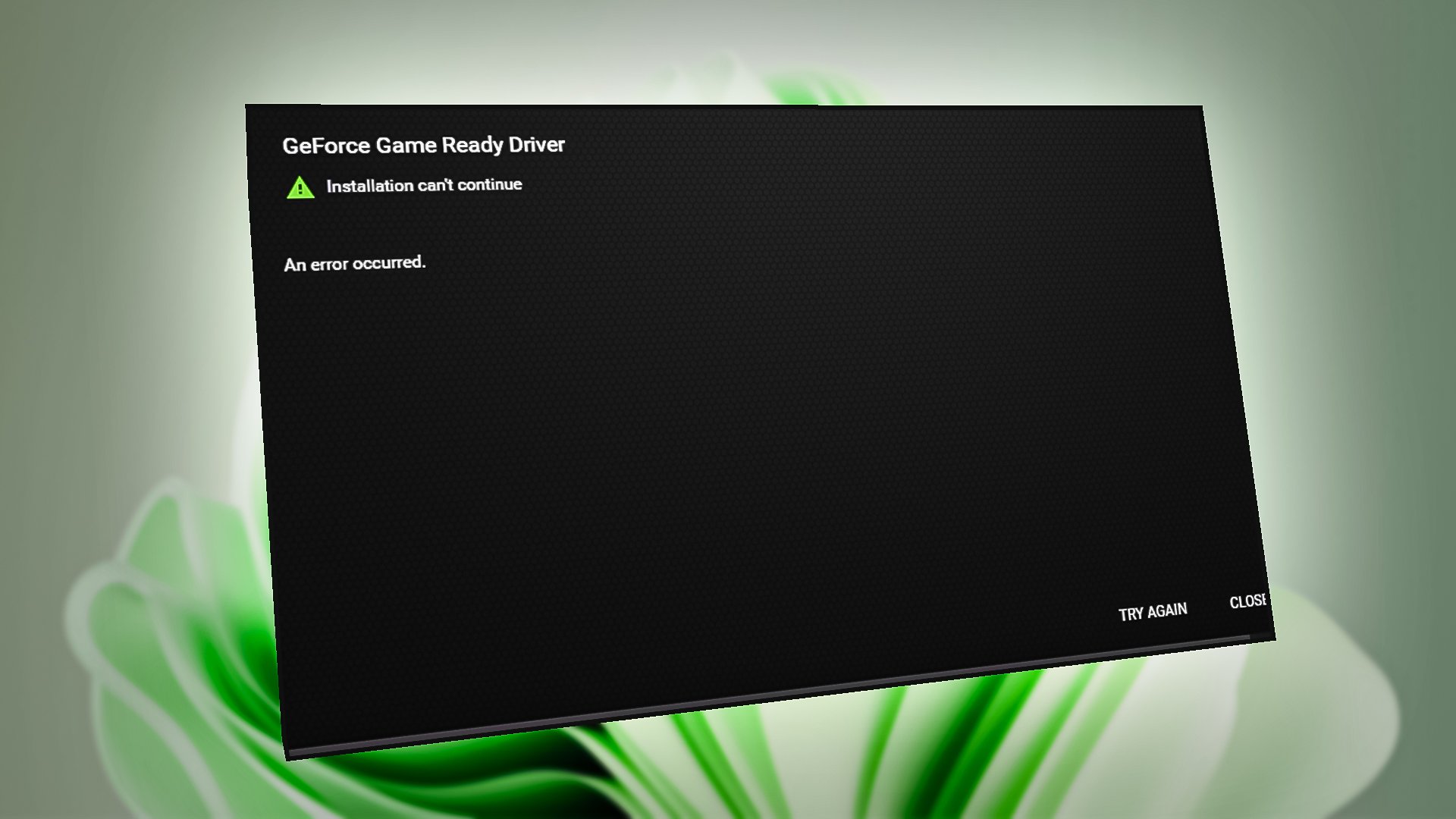
Encountering a persistent error when trying to install your NVIDIA graphics driver can be one of the most frustrating experiences for any computer user, whether you’re a hardcore gamer, a professional designer, or simply someone who relies on their PC for daily tasks. A functional graphics driver isn’t just a nicety; it’s the critical bridge between your powerful NVIDIA GPU and your operating system, unlocking everything from buttery-smooth gameplay and high-resolution video playback to accelerated performance in demanding applications like CAD, video editing, and AI development. Without it, your system might limp along on basic display drivers, or worse, refuse to display anything at all.
This guide is designed to navigate you through the labyrinth of NVIDIA driver installation issues. We’ll delve into the common culprits behind installation failures, provide a detailed, step-by-step resolution process focusing on a “clean slate” approach, and finally, discuss the broader implications of proper driver management for your technology, your budget, and even your brand identity in the digital world. By systematically addressing potential problems, you can transform a seemingly insurmountable technical hurdle into a manageable task, ensuring your NVIDIA hardware performs at its peak.
Diagnosing the Root Cause: Why Your NVIDIA Driver Installation Fails
Before diving into solutions, it’s crucial to understand why your NVIDIA driver might be refusing to install. The problem often isn’t a single, straightforward issue but a confluence of factors. Identifying the specific error message, the exact point of failure, and any recent system changes can provide invaluable clues.
The Usual Suspects: Common Pitfalls
Several common scenarios typically lead to NVIDIA driver installation failures. Recognizing these can significantly narrow down your troubleshooting efforts:
- Incorrect Driver Version: This is perhaps the most frequent oversight. Users might download a driver for the wrong GPU model (e.g., a desktop driver for a laptop GPU, or a GeForce driver for a Quadro card), the wrong operating system version (Windows 10 vs. Windows 11), or the incorrect architecture (32-bit vs. 64-bit). NVIDIA’s driver selection tool on their website is robust, but a simple misclick can lead to incompatibility errors.
- Conflicting Drivers or Leftover Files: One of the most common and stubborn issues arises from remnants of previous driver installations. If you’ve recently upgraded your GPU, switched from an AMD card, or even just had a previous NVIDIA driver installation go awry, old files and registry entries can conflict with the new installation. These “ghost” files often prevent the new driver from installing correctly, leading to cryptic error messages or installation freezes. Windows Update can also be a culprit here, sometimes automatically installing an older or generic driver that conflicts with the official NVIDIA package.
- Windows Update Interference: Windows Update has a habit of sometimes pushing its own generic or slightly outdated graphics drivers. While this is often helpful in getting a basic display working, it can interfere with the installation of the official, performance-optimized NVIDIA drivers. During the installation process, Windows Update might try to reinstall its version, leading to conflicts.
- Corrupted Download or Installer: A partially downloaded or corrupted driver file is another common cause. This can happen due to network interruptions during download, or even issues with the storage medium. The installer might extract incorrectly or fail validation checks, leading to an aborted installation.
- Administrative Privileges and Security Software: NVIDIA driver installation requires full administrative rights to modify system files and registry entries. If you’re not running the installer as an administrator, it will likely fail. Similarly, overzealous antivirus software or firewalls can sometimes mistake the driver installer for malicious software, blocking critical components from being installed or executed.
- System Compatibility Issues: While less common for modern systems, older hardware or specific motherboard BIOS/UEFI configurations can sometimes present challenges. For instance, issues with Secure Boot, CSM (Compatibility Support Module) settings, or even outdated motherboard chipsets can occasionally hinder a smooth driver installation.
- Hardware Issues (Less Common): While usually manifesting as post-installation problems (crashes, artifacts), severe hardware problems with the GPU itself or the PCIe slot it’s seated in can, in rare cases, prevent the driver installer from even recognizing the card or completing the setup.
Decoding Error Messages and Event Viewer
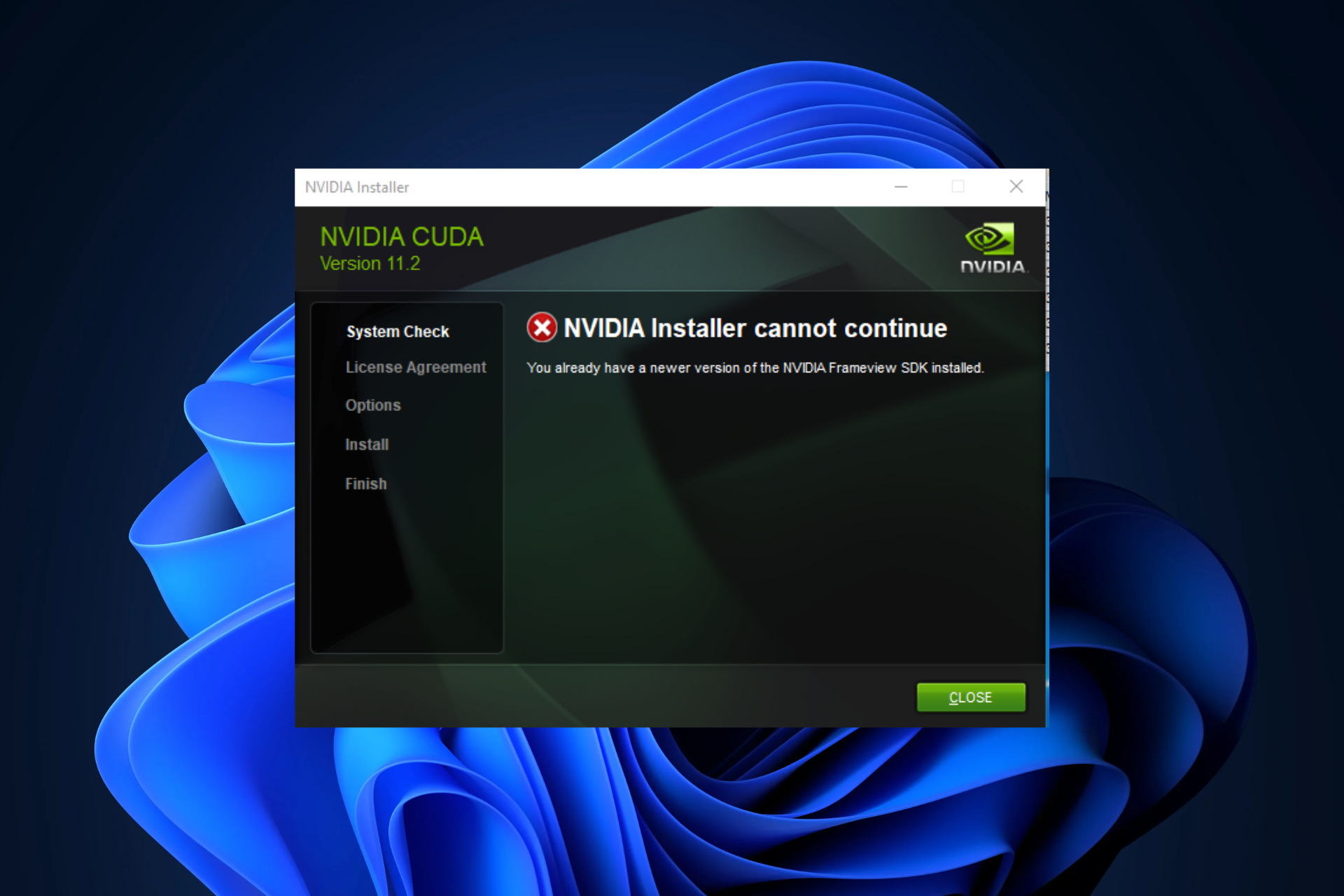
When an installation fails, don’t just click “OK” and restart. Pay close attention to any error messages displayed. These messages, though sometimes vague, can offer critical insights. Common messages include “NVIDIA Installer failed,” “No compatible graphics hardware found,” or specific error codes.
For a deeper dive, the Windows Event Viewer is an invaluable diagnostic tool. To access it, press Win + R, type eventvwr.msc, and hit Enter. Navigate to Windows Logs > System and Windows Logs > Application. Look for critical errors or warnings that occurred around the time of your failed driver installation. These entries often provide more technical details, including specific component failures or conflicting processes, which can be pivotal in understanding the underlying problem. While interpreting Event Viewer logs can be complex, even noting down the Event ID or source of the error can be helpful for online searches or seeking further assistance.
The Step-by-Step Resolution: A Clean Slate Approach
The most reliable method for resolving NVIDIA driver installation issues is to adopt a “clean slate” approach. This involves meticulously removing all traces of previous drivers before attempting a fresh installation. This method minimizes conflicts and provides the best chance for a successful setup.
Preparing Your System for a Flawless Installation
Before you even touch the installer, a few preparatory steps can save you a lot of headache:
- Download the Correct Driver: This cannot be stressed enough. Go directly to NVIDIA’s official driver download page (www.nvidia.com/drivers). Use their dropdown menus to accurately select your Product Type (e.g., GeForce, Quadro), Product Series (e.g., GeForce RTX 40 Series, GeForce GTX 16 Series), Product (your specific GPU model, e.g., RTX 4090), Operating System (e.g., Windows 11 64-bit), and Download Type (Game Ready Driver or Studio Driver, depending on your primary use). Ensure you download the latest recommended version.
- Disconnect from the Internet: Once the correct driver is downloaded, disconnect your computer from the internet (unplug Ethernet cable or disable Wi-Fi). This crucial step prevents Windows Update from automatically downloading and installing its own generic or outdated drivers, which can conflict with your manual installation process.
- Disable Antivirus/Firewall (Temporarily): Your security software, while vital, can sometimes interfere with driver installations by flagging legitimate system changes as suspicious. Temporarily disable your antivirus and firewall for the duration of the installation process. Remember to re-enable them immediately afterward.
- Backup Your System (Optional but Recommended): As a precaution, especially if you’re dealing with persistent issues, create a System Restore Point. Search for “Create a restore point” in the Windows search bar, then click “Create.” This allows you to revert your system to its current state if anything goes wrong during the troubleshooting or installation process.
The Power of a Clean Uninstall: Using DDU in Safe Mode
The Display Driver Uninstaller (DDU) is an indispensable tool created by Wagnardsoft. It’s designed to thoroughly remove graphics driver remnants from your system, ensuring a truly clean slate.
Here’s how to use DDU effectively:

- Download and Extract DDU: Get the latest version of DDU from its official download page (often hosted on Guru3D or Wagnardsoft’s forum). Extract the contents of the downloaded archive to a folder you can easily find, like your desktop.
- Boot into Safe Mode: Running DDU in Safe Mode is critical. In Safe Mode, Windows loads with a minimal set of drivers and services, preventing any lingering graphics drivers or related processes from interfering with DDU’s cleaning operation.
- Windows 10/11:
- Press
Win + Ito open Settings. - Go to
System > Recovery. - Under “Recovery options,” find “Advanced startup” and click “Restart now.”
- Your PC will restart into the Advanced Startup environment.
- Go to
Troubleshoot > Advanced options > Startup Settings. - Click “Restart.”
- After restarting again, you’ll see a list of options. Press
4orF4for “Enable Safe Mode.”
- Press
- Windows 10/11:
- Run DDU:
- Once in Safe Mode, navigate to the folder where you extracted DDU and run
Display Driver Uninstaller.exe. - In the DDU interface, you’ll see a dropdown menu labeled “Select device type.” Choose “GPU.”
- Another dropdown will appear for “Select Vendor.” Choose “NVIDIA.”
- Click the “Clean and Restart” button. DDU will now systematically remove all NVIDIA-related drivers, files, and registry entries. Let it complete its process without interruption. Your system will then restart into normal Windows mode.
- Once in Safe Mode, navigate to the folder where you extracted DDU and run
Installing the New Driver (and What to Do If It Fails Again)
With a clean system, you’re ready to attempt the new driver installation.
- Run as Administrator: Locate the NVIDIA driver installer file you downloaded earlier. Right-click on it and select “Run as administrator.” This ensures the installer has the necessary permissions.
- Custom Installation & Clean Install: When prompted by the NVIDIA installer, choose “Custom (Advanced)” installation. On the next screen, crucially, check the box for “Perform a clean installation.” Even though you used DDU, this option within the NVIDIA installer acts as an extra layer of precaution, ensuring no old profiles or settings cause issues. Deselect any components you don’t need (e.g., GeForce Experience if you prefer not to use it, or NVIDIA HD Audio if you’re not using HDMI audio from your GPU).
- Monitor Installation: Allow the installer to complete. Your screen might flicker or go black momentarily; this is normal as the new display driver takes effect. Once finished, restart your computer.
- Post-Installation Checks: After restarting, verify the installation:
- Device Manager: Press
Win + Xand select “Device Manager.” Expand “Display adapters” and ensure your NVIDIA GPU is listed without any yellow exclamation marks or error symbols. - NVIDIA Control Panel: Right-click on your desktop and look for “NVIDIA Control Panel” in the context menu. If it’s there and opens correctly, your driver is likely installed.
- Device Manager: Press
If the Installation Still Fails After a Clean Install:
Even with a meticulous clean install, some stubborn issues can persist. Here are further troubleshooting steps:
- Try an Older, Stable Driver Version: Sometimes, the very latest driver might have a bug or compatibility issue with your specific system configuration. Go back to NVIDIA’s driver download page and search for slightly older “Game Ready” or “Studio” drivers for your GPU. Repeat the DDU + clean install process with an older version.
- Check BIOS/UEFI Settings:
- Secure Boot: If Secure Boot is enabled, it can sometimes interfere with driver installations, especially if you’re using a beta or unsigned driver. Try temporarily disabling Secure Boot in your motherboard’s BIOS/UEFI settings. Remember to re-enable it afterward for security.
- CSM (Compatibility Support Module): For older GPUs or motherboards, ensuring CSM is enabled (or disabled, depending on the specific setup and whether you’re using UEFI or Legacy boot) can sometimes resolve issues. This is more relevant for very specific legacy hardware.
- Manual Driver Update via Device Manager: If the NVIDIA installer continues to fail, you can try to install the driver manually.
- Run the NVIDIA installer to extract the driver files (it will usually extract them to
C:NVIDIADisplayDriver<version><OS>). Note this location. - Go to Device Manager, right-click your NVIDIA graphics card (it might be listed as “Microsoft Basic Display Adapter” or similar), and choose “Update driver.”
- Select “Browse my computer for drivers.”
- Click “Let me pick from a list of available drivers on my computer” (if applicable), then “Have Disk…”
- Browse to the folder where the NVIDIA installer extracted its files (specifically the
Display.Driversubfolder) and select the.inffile. - Follow the prompts to install.
- Run the NVIDIA installer to extract the driver files (it will usually extract them to
- Windows System File Checker: Corrupted Windows system files can sometimes lead to installation failures. Open Command Prompt as administrator and run
sfc /scannow. Let it complete and fix any found issues, then try the driver installation again. - Consider a Windows Reset (Last Resort): If all else fails and you suspect deep-seated OS corruption, a Windows Reset (keeping your files, but reinstalling Windows) might be the ultimate solution. This is a significant step, so ensure all other options are exhausted.
Beyond the Fix: Optimizing Your NVIDIA Experience and Protecting Your Investment
Successfully installing your NVIDIA driver is more than just fixing an annoyance; it’s about unlocking your system’s full potential and safeguarding your technological investment. Understanding the ongoing importance of driver management touches upon all aspects of digital life, from raw performance to financial prudence and brand perception.
The Tech Advantage: Why Driver Maintenance Matters
In the fast-paced world of technology, software and hardware are constantly evolving. Your NVIDIA GPU is a powerful piece of engineering, but its capabilities are only fully realized when paired with optimized, up-to-date drivers.
- Performance Boost: New drivers frequently include performance optimizations for the latest games and professional applications. NVIDIA’s “Game Ready Drivers” are specifically tuned to provide the best possible experience on day one for major game releases, offering significant frame rate improvements and stability enhancements. Similarly, “Studio Drivers” are rigorously tested for creative applications, ensuring maximum reliability and performance for tasks like 3D rendering, video editing, and graphic design. Neglecting driver updates means leaving raw performance on the table.
- Stability & Security: Drivers aren’t just about speed; they’re about system stability. Updates often contain crucial bug fixes that resolve crashes, visual glitches, and compatibility issues. Furthermore, security vulnerabilities can sometimes be patched through driver updates, protecting your system from potential exploits. Staying current is a vital part of maintaining a secure and reliable computing environment.
- New Features & Compatibility: NVIDIA frequently introduces new technologies and features through its drivers, such as DLSS (Deep Learning Super Sampling) for AI-powered performance boosts, Ray Tracing enhancements, and new functionalities in the NVIDIA Control Panel. Regular updates ensure you have access to these innovations and maintain compatibility with the latest software and hardware standards. This keeps your system current with technology trends, allowing you to leverage cutting-edge advancements.
The Brand and Money Perspective: Long-term Value and Productivity
The implications of proper driver management extend beyond technical performance, subtly influencing your perception of the NVIDIA brand and having tangible financial benefits.
- NVIDIA’s Brand and Your Experience: NVIDIA has built a powerful brand reputation on cutting-edge GPU technology and driver quality. When you encounter installation issues, it naturally impacts your immediate experience with that brand. However, understanding the troubleshooting process and successfully resolving issues reinforces the value of using official, well-supported drivers. It underscores the importance of a brand that consistently provides updates and support, even if the user experience can sometimes be complex. The reliability and performance delivered by properly installed drivers are key differentiators for the NVIDIA brand.
- Protecting Your Investment: A high-end NVIDIA GPU is a significant investment. Ensuring it operates with the correct, up-to-date drivers directly protects that investment. A poorly maintained or improperly installed driver can lead to suboptimal performance, system instability, or even perceived hardware failure, potentially prompting unnecessary and costly repairs or premature upgrades. By taking the time to properly manage your drivers, you maximize the lifespan and utility of your hardware, extracting the full value you paid for.
- Productivity & Financial Impact: For professionals who rely on GPU acceleration for their work—from architects using CAD software to video editors rendering projects or researchers running AI models—downtime due to driver issues translates directly into lost productivity and, consequently, lost income. Even for gamers, a non-functional system means lost leisure time and a compromised entertainment experience. Proactive driver maintenance and swift troubleshooting prevent these financial and time-related costs, serving as a critical aspect of business finance for freelancers and small businesses, and a smart personal finance decision for home users. Avoiding professional IT repair costs by learning to fix these issues yourself also contributes to financial savings.
By taking a systematic approach to NVIDIA driver installation and maintenance, you’re not just solving a temporary problem; you’re adopting best practices that will keep your system performing optimally, secure, and ready to tackle whatever technological demands you throw at it.
Conclusion
The inability to install an NVIDIA driver can feel like hitting a technological brick wall, but as this guide illustrates, most issues are resolvable with a methodical approach. By first diagnosing the specific cause—be it incorrect driver versions, conflicting files, or system interference—and then meticulously following a clean installation process using tools like DDU in Safe Mode, you can overcome these common hurdles.
Beyond the immediate fix, understanding the importance of driver management is key to unlocking the full potential of your NVIDIA hardware. Regular updates ensure peak performance, system stability, enhanced security, and access to the latest technological innovations. This diligence not only maximizes your return on investment in high-performance hardware but also safeguards your productivity, embodying a wise approach to both personal finance and the utilization of cutting-edge technology. Embrace these practices, and you’ll ensure your NVIDIA-powered system remains a reliable and powerful companion for all your digital endeavors.
aViewFromTheCave is a participant in the Amazon Services LLC Associates Program, an affiliate advertising program designed to provide a means for sites to earn advertising fees by advertising and linking to Amazon.com. Amazon, the Amazon logo, AmazonSupply, and the AmazonSupply logo are trademarks of Amazon.com, Inc. or its affiliates. As an Amazon Associate we earn affiliate commissions from qualifying purchases.