
The allure of Minecraft is undeniable. From creative building to epic survival adventures, millions of players worldwide dive into its blocky realms daily. However, the gateway to this expansive universe, the Minecraft Launcher, can sometimes present frustrating installation hurdles. If you’ve found yourself staring at an error message or a perpetually loading screen, you’re not alone. This comprehensive guide will delve into the common reasons why the Minecraft Launcher might refuse to install and provide practical, step-by-step solutions to get you back in the game.
The process of installing the Minecraft Launcher, while generally straightforward, can be impacted by a myriad of factors. These range from simple system requirements and network connectivity issues to more complex software conflicts and corrupted system files. Understanding these potential roadblocks is the first step towards a successful installation.
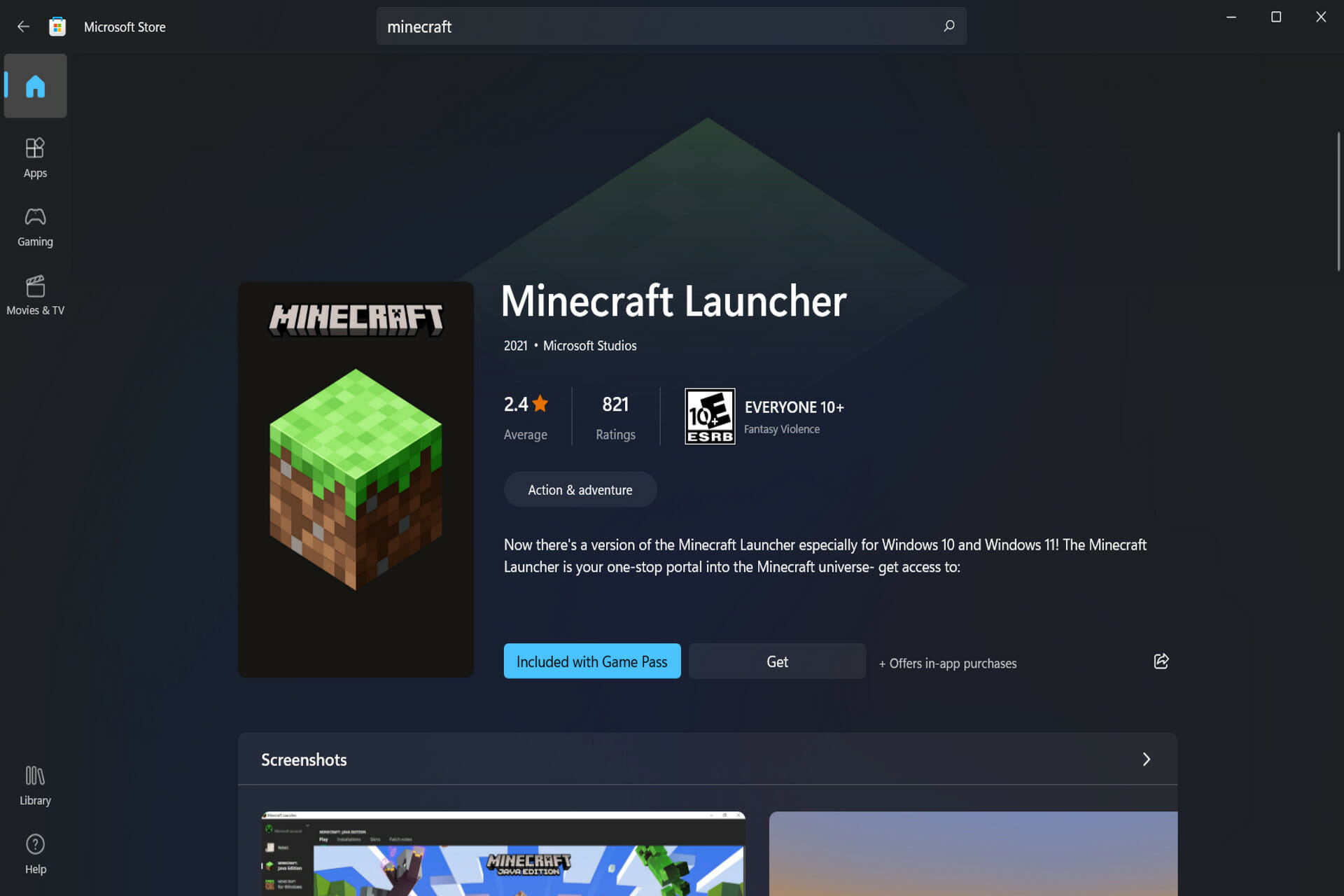
Understanding the Prerequisites for a Smooth Installation
Before we dive into troubleshooting, it’s crucial to ensure your system is adequately prepared for the Minecraft Launcher. Skipping these initial checks can lead to unnecessary frustration.
Ensuring System Compatibility and Updates
Minecraft, like any modern software, has specific system requirements. While the launcher itself is relatively lightweight, ensuring your operating system and hardware meet the minimum specifications is paramount.
-
Operating System: The Minecraft Launcher is compatible with Windows, macOS, and Linux. For Windows, ensure you are running a supported version, typically Windows 10 or newer. Older versions of Windows might encounter compatibility issues. Regularly updating your operating system is also vital, as updates often include performance enhancements and security patches that can resolve underlying conflicts. Navigate to “Settings” > “Update & Security” > “Windows Update” on Windows, or “System Preferences” > “Software Update” on macOS to check for and install the latest updates.
-
Hardware: While not as demanding as some AAA titles, Minecraft does have minimum hardware requirements. An outdated graphics card, insufficient RAM, or a slow processor can sometimes interfere with the installation process, especially if system resources are already strained. While you might not need to upgrade for basic gameplay, ensuring your hardware isn’t actively hindering the installation is a good practice.
-
Java Runtime Environment (JRE): Historically, Minecraft relied heavily on a specific Java Runtime Environment. While the modern launcher often bundles its own Java, ensuring you have a reasonably up-to-date and properly configured JRE can sometimes resolve obscure issues, particularly if you’re trying to install older versions of Minecraft or experiencing launcher-specific bugs. You can download the latest version from the official Oracle Java website.
Verifying Network Connectivity and Permissions
A stable internet connection is non-negotiable for downloading and installing software, and the Minecraft Launcher is no exception. Furthermore, your system’s permissions play a significant role.
-
Stable Internet Connection: A weak or intermittent internet connection can cause the download to fail or become corrupted. Try restarting your router and modem, and if possible, connect your computer directly to the router via an Ethernet cable to rule out Wi-Fi issues. Running a speed test can also help diagnose potential connectivity problems.
-
Antivirus and Firewall Exclusions: Antivirus software and your operating system’s firewall are designed to protect your computer from malicious threats. However, they can sometimes be overly aggressive and mistakenly identify legitimate software installations as suspicious. Temporarily disabling your antivirus and firewall during the installation process only can help determine if they are the source of the problem. Remember to re-enable them immediately after the installation is complete. If disabling them allows the installation to proceed, you’ll need to configure your security software to create an exception for the Minecraft Launcher and its associated files. Consult your antivirus software’s documentation for instructions on how to add exceptions.
-
Administrator Privileges: Many software installations require administrator privileges to make changes to system files and folders. Ensure you are running the Minecraft Launcher installer as an administrator. To do this, right-click on the installer file and select “Run as administrator.”
Common Installation Errors and Their Solutions
When the installation process falters, specific error messages or behaviors often emerge. Understanding these common scenarios can significantly speed up your troubleshooting.
Dealing with Corrupted Downloads and Installation Files
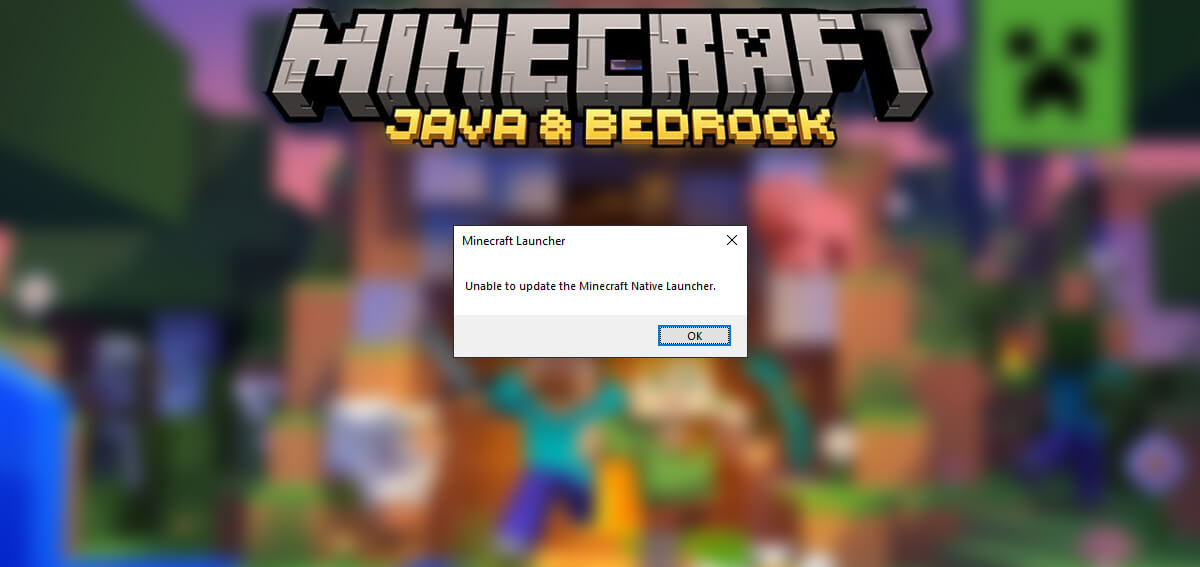
A corrupted download is one of the most frequent culprits behind installation failures. This can happen due to network interruptions, disk errors, or incomplete downloads.
-
Re-downloading the Installer: The simplest solution is often to download a fresh copy of the Minecraft Launcher installer from the official Minecraft website. Ensure your internet connection is stable during the download.
-
Clearing Temporary Files: Sometimes, residual temporary files from previous failed attempts can interfere with a new installation.
- Windows: Press
Windows Key + R, type%temp%and press Enter. Delete all files and folders within this temporary directory. You can also use the Disk Cleanup tool (search for it in the Start menu) to clear temporary internet files and other system junk. - macOS: Open Finder, click “Go” in the menu bar, select “Go to Folder,” type
~/Library/Cachesand press Enter. Delete the contents of theMinecraftfolder within Caches, if it exists.
- Windows: Press
- Checking Disk Space and Health: Ensure you have sufficient free disk space on the drive where you’re attempting to install the launcher. Running a disk check can also identify and repair any file system errors on your hard drive that might be causing corruption. On Windows, you can do this by right-clicking on the drive in File Explorer, selecting “Properties,” then going to the “Tools” tab and clicking “Check.”
Resolving Software Conflicts and Registry Issues
Beyond direct download issues, other software on your system can sometimes clash with the Minecraft Launcher installation.
-
Clean Boot Environment: A clean boot starts Windows with a minimal set of drivers and startup programs. This helps you identify if a background program is interfering with the installation.
- Press
Windows Key + R, typemsconfig, and press Enter. - In the “System Configuration” window, go to the “Services” tab.
- Check the box that says “Hide all Microsoft services.”
- Click “Disable all.”
- Go to the “Startup” tab and click “Open Task Manager.”
- In Task Manager, disable all startup items.
- Close Task Manager and click “OK” in System Configuration.
- Restart your computer.
- Attempt to install the Minecraft Launcher. If it works, you’ll need to re-enable services and startup items one by one to find the culprit.
- Press
-
Registry Editor (Advanced Users): In rare cases, corrupted registry entries related to previous Minecraft installations or related software can cause problems. Proceed with extreme caution when editing the registry, as incorrect changes can severely damage your system. It is highly recommended to back up your registry before making any modifications. You can search online for specific registry cleaning tools or guides related to Minecraft installation issues, but always use reputable sources.
-
Uninstalling Previous Minecraft Versions: If you’ve had previous versions of Minecraft installed, especially if they were not uninstalled cleanly, remnants of those installations could be interfering. Use your system’s “Add or Remove Programs” (Windows) or “Applications” folder (macOS) to ensure all previous Minecraft-related software is thoroughly uninstalled. Consider using a third-party uninstaller tool for a more comprehensive cleanup.
Advanced Troubleshooting and Workarounds
When the standard fixes don’t yield results, there are more advanced strategies and alternative approaches to consider.
Checking for and Resolving Corrupted System Files
The integrity of your operating system’s core files is crucial for software installations. Corrupted system files can manifest in various ways, including installation failures.
-
System File Checker (SFC) Tool: Windows has a built-in tool called the System File Checker that scans for and repairs corrupted Windows system files.
- Open Command Prompt as an administrator (search for
cmdin the Start menu, right-click, and select “Run as administrator”). - Type
sfc /scannowand press Enter. - Let the scan complete. It will report any found issues and attempt to repair them. Restart your computer afterwards.
- Open Command Prompt as an administrator (search for
-
Deployment Image Servicing and Management (DISM) Tool: If SFC doesn’t resolve the issue, DISM can be used to repair the Windows image that SFC uses to restore corrupted files.
- Open Command Prompt as an administrator.
- Type
DISM /Online /Cleanup-Image /RestoreHealthand press Enter. - This process can take some time. Once complete, run
sfc /scannowagain.
Exploring Alternative Launcher Options
While the official Minecraft Launcher is the standard, in some persistent cases, players have found success with alternative launchers. These often offer more customization and can sometimes bypass issues that plague the official installer.
-
Third-Party Launchers: Popular alternatives like the MultiMC launcher allow you to manage multiple instances of Minecraft with different mods and settings. They often have their own installation processes that might circumvent the issues you’re facing with the official launcher. Always download third-party software from trusted sources to avoid malware.
-
Using the Minecraft.net Website: For older versions of Minecraft (Java Edition), you might be able to download and install the game directly from the Minecraft.net website without relying on the separate launcher installation. Navigate to the “Games” section and look for the Java Edition download.
Seeking Further Assistance
If you’ve exhausted all the troubleshooting steps and are still unable to install the Minecraft Launcher, it’s time to seek help from the community or official support channels.
-
Minecraft Support Forums and Community: The official Minecraft forums and communities on platforms like Reddit are invaluable resources. Many players have encountered and solved similar installation issues. Searching these forums for your specific error message or problem description can often lead to a direct solution.
-
Mojang/Microsoft Support: If community solutions fail, reaching out to Mojang or Microsoft support is the next logical step. They can provide official guidance and may have knowledge of specific bugs or workarounds. Be prepared to provide details about your system, the error messages you’re receiving, and the troubleshooting steps you’ve already taken.
Installing the Minecraft Launcher, while occasionally challenging, is a surmountable hurdle. By systematically working through these troubleshooting steps, understanding the potential causes, and not being afraid to explore alternative solutions, you’ll be well on your way to joining the millions enjoying the boundless creativity and adventure that Minecraft offers. Happy gaming!
aViewFromTheCave is a participant in the Amazon Services LLC Associates Program, an affiliate advertising program designed to provide a means for sites to earn advertising fees by advertising and linking to Amazon.com. Amazon, the Amazon logo, AmazonSupply, and the AmazonSupply logo are trademarks of Amazon.com, Inc. or its affiliates. As an Amazon Associate we earn affiliate commissions from qualifying purchases.