
Chromebooks, with their streamlined Chrome OS, have carved out a significant niche in the computing landscape. Renowned for their speed, simplicity, and affordability, they excel at web-based tasks, cloud productivity, and offer robust security. However, for many users, the question lingers: “Can you install Linux on a Chromebook?” The answer is a resounding yes, and it’s a revelation that can transform your Chromebook from a capable web appliance into a versatile powerhouse, capable of handling tasks that were once the exclusive domain of traditional Windows or macOS machines. This exploration will delve into why you might want to install Linux on your Chromebook, the different methods available, and what you can achieve once this powerful operating system is up and running.
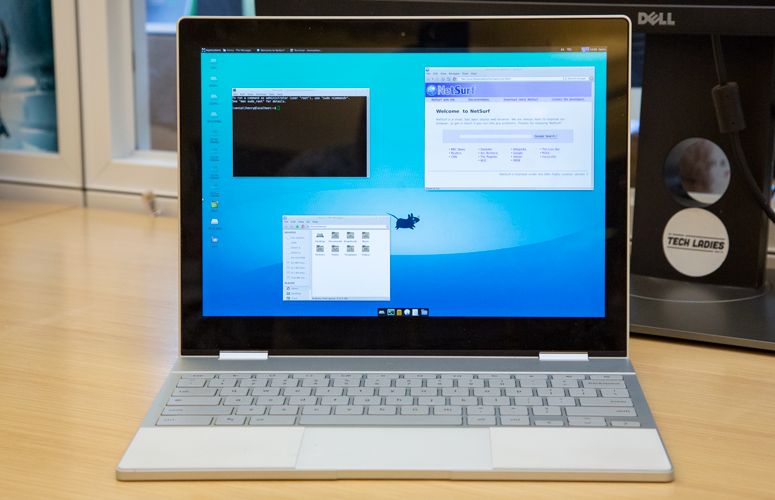
Why Consider Linux on Your Chromebook? Expanding Capabilities Beyond the Browser
The allure of Chrome OS lies in its focused design. It’s built for the web, and for many, that’s more than enough. However, the inherent limitations of Chrome OS, particularly for more advanced or specialized software, can be frustrating. This is where Linux steps in, offering a gateway to a vast universe of applications and functionalities that are either unavailable or clunky to access on a stock Chromebook.
Bridging the Software Gap
While Google has made strides in bringing Android and Linux app support to Chromebooks, the integrated experience isn’t always seamless. Installing a full Linux distribution directly addresses this by providing native access to a wealth of software. Think about it:
- Development Tools: Programmers, web developers, and data scientists will find a treasure trove of tools readily available. From robust IDEs (Integrated Development Environments) like VS Code, PyCharm, and Eclipse, to version control systems like Git, and powerful command-line utilities for scripting and automation, Linux is the de facto standard for many development workflows. This allows Chromebook users to engage in serious coding, build applications, and manage projects without needing a separate, more powerful machine.
- Creative Suites: While web-based creative tools are plentiful, for those who require more sophisticated, offline applications, Linux offers compelling alternatives. Graphics designers can explore tools like GIMP (a powerful image editor akin to Photoshop), Inkscape (for vector graphics), and Blender (for 3D modeling and animation). Audio engineers and musicians can utilize DAWs (Digital Audio Workstations) like Ardour or LMMS. Video editors will find options like Kdenlive or Shotcut, providing a level of control and functionality often missing in web-based solutions.
- Productivity Powerhouses: Beyond the familiar Google Workspace, Linux boasts an array of powerful desktop applications. For example, LibreOffice provides a comprehensive suite of office productivity tools, including word processing, spreadsheets, and presentations, that are highly compatible with Microsoft Office formats. For advanced note-taking and knowledge management, Obsidian or Joplin offer robust offline capabilities.
- System Administration and Networking: For IT professionals or enthusiasts, Linux is indispensable. Installing it on a Chromebook allows for hands-on experience with server administration, network configuration, and cybersecurity tools. This opens up possibilities for learning and practicing skills that are in high demand.
- Gaming: While Chrome OS and Android offer some gaming options, a full Linux installation can unlock a much larger library of PC games, especially those available through platforms like Steam for Linux. This can turn your Chromebook into a surprisingly capable gaming machine, particularly for less graphically demanding titles or indie games.
Enhanced Customization and Control
Linux is synonymous with customization. Installing it on your Chromebook allows you to tailor your computing experience to an unprecedented degree. You can:
- Choose Your Desktop Environment: Unlike Chrome OS’s singular interface, Linux offers a plethora of desktop environments (DEs) like GNOME, KDE Plasma, XFCE, LXQt, and many more. Each DE offers a distinct look, feel, and set of features, allowing you to personalize your workspace to match your preferences and workflow. Want a minimalist setup? Prefer something feature-rich and visually stunning? You have the choice.
- Fine-tune System Settings: Linux provides deep access to system configurations. You can tweak performance settings, manage startup applications, customize keyboard shortcuts, and install specialized drivers or software that might not be compatible with Chrome OS.
- Experiment with Different Distributions: The beauty of Linux is its diversity. You can choose from various “distros” (distributions) like Ubuntu, Debian, Fedora, Arch Linux, and many others. Each distro has its own package management system, community support, and philosophy, allowing you to pick one that best suits your technical skill level and intended use.
Learning and Skill Development
For students, aspiring developers, or anyone interested in understanding how operating systems work, installing Linux on a Chromebook is an invaluable learning experience. It offers a hands-on introduction to:
- The Command Line Interface (CLI): Mastering the Linux terminal is a fundamental skill for many tech roles. Installing Linux provides a safe and accessible environment to learn and practice commands, scripting, and command-line utilities.
- Package Management: Understanding how to install, update, and remove software using package managers like
apt(Debian/Ubuntu) ordnf(Fedora) is a core Linux concept. - System Internals: You can delve deeper into how your computer operates, understanding file systems, processes, and system services, which fosters a more profound understanding of technology.
Methods for Installing Linux on Your Chromebook
The process of installing Linux on a Chromebook has become significantly more accessible over the years, thanks to advancements in Chrome OS itself and the development of user-friendly tools. There are generally two primary approaches:
1. Using the Built-in Linux (Beta) Feature (Crostini)
This is the most straightforward and officially supported method for enabling Linux on most modern Chromebooks. Introduced by Google, the Linux (Beta) feature, often referred to as Crostini, allows you to run a Debian-based Linux environment directly within a virtual machine on your Chrome OS.
How it Works:
- Virtualization: Crostini utilizes containerization and virtualization technologies to isolate a Linux container from your main Chrome OS environment. This means that Linux applications run in a sandboxed environment, ensuring your main operating system remains stable and secure.
- Seamless Integration: Once enabled, you can install Linux applications directly from the Chrome OS app launcher. These applications will appear alongside your Android and Chrome apps, offering a relatively seamless user experience. You can even copy and paste text between Chrome OS and Linux apps.
- Debian Base: The Linux environment provided by Crostini is typically based on Debian, a stable and widely-used Linux distribution. This gives you access to a vast repository of Debian packages.
Enabling Linux (Beta):
The steps to enable Linux (Beta) are usually as follows:
- Check for Updates: Ensure your Chromebook is running the latest version of Chrome OS.
- Access Settings: Open the Settings app.
- Find Linux (Beta): Navigate to the “Advanced” section and look for “Linux (Beta).”
- Turn On: Click the “Turn on” button and follow the on-screen prompts. This will download and set up the necessary components.
- Installation: The system will guide you through a brief installation process, typically requiring you to set a username and allocate disk space for the Linux environment.
Pros of Crostini:
- Easy Setup: The simplest and most user-friendly method.
- Official Support: Backed by Google, ensuring better compatibility and security updates.
- Integration: Linux apps appear within the Chrome OS launcher.
- No Data Loss: Does not erase your existing Chrome OS data.
- Security: The containerized environment provides a good level of isolation.

Cons of Crostini:
- Performance Limitations: Being a virtualized environment, it might not offer the same raw performance as a bare-metal installation for highly demanding applications.
- Hardware Access: Direct hardware access can sometimes be limited for certain peripherals or advanced hardware features.
- Limited Distribution Choice: You are generally tied to the Debian-based environment provided by Google.
- Resource Intensive: Running a VM requires system resources, which can impact performance on lower-end Chromebooks.
2. Installing a Full Linux Distribution (Advanced Methods)
For users who desire more control, a complete Linux experience, or wish to run distributions other than Debian, more advanced methods are available. These often involve replacing or dual-booting Chrome OS with a full Linux distribution. These methods are generally more complex and may carry a higher risk of data loss or system instability if not performed carefully.
a) Replacing Chrome OS with Linux
This involves wiping Chrome OS entirely and installing a Linux distribution directly onto the Chromebook’s internal storage. This offers the best performance and full hardware access but means you lose Chrome OS functionality.
- Developer Mode: This is a prerequisite for most advanced installations. Enabling Developer Mode on a Chromebook puts it in a state where its security features are relaxed, allowing you to boot from external media and modify the system. Crucially, enabling Developer Mode will wipe all local data on your Chromebook.
- Firmware Modification (UEFI): Many Chromebooks have proprietary firmware that prevents standard operating systems from booting. Tools like MrChromebox.tech provide custom UEFI firmware that can replace the stock firmware, allowing you to boot and install standard Linux distributions as you would on any other PC.
- Installation Media: You will typically create a bootable USB drive with your chosen Linux distribution (e.g., Ubuntu, Fedora, Mint).
- Partitioning: You’ll need to partition your Chromebook’s storage to accommodate the Linux installation.
b) Dual-Booting Linux with Chrome OS
This method allows you to have both Chrome OS and a Linux distribution installed on your Chromebook, giving you the flexibility to choose which operating system to boot into at startup.
- Similar Prerequisites: This also requires enabling Developer Mode and often installing custom UEFI firmware to manage dual-booting.
- Separate Partitions: You’ll need to carefully partition your storage to create space for both Chrome OS and your Linux distribution. This can be a delicate process, and errors can lead to data loss or boot issues.
- Boot Manager: A boot manager will be installed to allow you to select your operating system upon startup.
Pros of Full Linux Installation (Replacing or Dual-Booting):
- Full Performance: Direct hardware access and no virtualization overhead lead to the best possible performance.
- Complete Control: You have full control over the system and can install any software or configure any setting.
- Hardware Compatibility: Generally better compatibility with a wider range of hardware.
- Distribution Choice: Freedom to choose any Linux distribution you prefer.
Cons of Full Linux Installation:
- Complexity: Significantly more technical and requires a deeper understanding of Linux and system administration.
- Risk of Data Loss: Enabling Developer Mode and modifying firmware carries a risk of data loss. Incorrect partitioning can also lead to issues.
- Potential for Bricking: While less common with established tools, improper firmware flashing or installation can potentially render your Chromebook unusable (“brick” it).
- Loss of Chrome OS Features: If replacing Chrome OS, you lose the simplicity and specific functionalities of that operating system.
- Warranty Concerns: Modifying firmware or replacing the OS might void your Chromebook’s warranty.
- Updates Can Be Tricky: Updating your firmware or managing dual-boot setups can sometimes be complex.
What You Can Do with Linux on Your Chromebook
Once Linux is successfully installed, the possibilities are vast. The specific applications and workflows you can adopt depend on the method of installation and your personal needs.
For Developers and Tech Enthusiasts
- Compile Software: Build and compile applications from source code.
- Run Servers: Host your own web servers, databases, or game servers.
- Experiment with Containers: Explore Docker and Kubernetes for application deployment.
- Network Analysis: Utilize tools like Wireshark for network traffic analysis.
- Ethical Hacking Practice: Learn and practice cybersecurity skills in a controlled environment.
- Machine Learning and AI: Install and run frameworks like TensorFlow or PyTorch for data science projects.
For Creatives and Content Creators
- Video Editing: Produce high-quality videos with Kdenlive, Shotcut, or DaVinci Resolve (if your hardware supports it).
- Audio Production: Record and mix music with DAWs like Ardour.
- 3D Modeling and Animation: Create 3D models and animations with Blender.
- Graphic Design: Design logos, illustrations, and graphics with GIMP and Inkscape.
- Digital Art: Draw and paint with applications like Krita.
For General Productivity and Customization
- Advanced File Management: Utilize powerful file managers and command-line tools for complex file operations.
- System Monitoring: Keep an eye on system performance and resource usage with tools like
htop. - Automation: Write scripts to automate repetitive tasks.
- Custom Themes and Icons: Personalize your desktop environment to your heart’s content.
- Run Legacy Software: Access older applications that may only be available on Linux.
Conclusion: Unleashing Your Chromebook’s True Potential
The question of whether you can install Linux on a Chromebook has evolved from a niche query to a practical reality. For users seeking to expand their device’s capabilities beyond web browsing and Android apps, Linux offers a compelling solution. The built-in Linux (Beta) feature provides an accessible entry point for most users, offering a safe and integrated way to run Linux applications. For those who crave deeper control, maximum performance, or the freedom to choose their preferred distribution, more advanced installation methods exist, albeit with a steeper learning curve and inherent risks.
By installing Linux, you are not just adding another operating system; you are unlocking a world of possibilities, transforming your Chromebook into a versatile tool for development, creativity, learning, and advanced productivity. Whether you’re a student exploring computer science, a hobbyist tinkering with new software, or a professional seeking more power from your hardware, the answer to “Can you install Linux on a Chromebook?” is a resounding yes, and the rewards are well worth the effort.
aViewFromTheCave is a participant in the Amazon Services LLC Associates Program, an affiliate advertising program designed to provide a means for sites to earn advertising fees by advertising and linking to Amazon.com. Amazon, the Amazon logo, AmazonSupply, and the AmazonSupply logo are trademarks of Amazon.com, Inc. or its affiliates. As an Amazon Associate we earn affiliate commissions from qualifying purchases.