
The quest for a cleaner, faster, and more efficient Windows system often leads to a common question: “Can I remove Windows installer files?” For many users, these files represent a confusing clutter of data on their hard drives, seemingly occupying valuable space without a clear purpose. This article delves into the nature of Windows installer files, their purpose, the risks associated with their deletion, and the safe methods you can employ to reclaim disk space without compromising your operating system’s stability.
Whether you’re a seasoned tech enthusiast aiming for peak performance or a casual user looking to optimize your digital workspace, understanding these files is crucial. We’ll explore the different types of installer-related files you might encounter and provide actionable advice grounded in the principles of good digital hygiene, drawing parallels to effective brand management and sound financial practices where applicable.

Understanding Windows Installer Files: What Are They and Why Do They Exist?
Before we consider deletion, it’s imperative to understand what Windows installer files are and their role in the ecosystem of your operating system and installed applications. Essentially, these files are the building blocks and remnants of software installations. They serve various functions, from facilitating the initial setup of programs to enabling future updates, repairs, and uninstalls.
The Anatomy of Installation: From Download to Execution
When you download and install a new application or a significant Windows update, a complex process unfolds behind the scenes. This process often involves temporary files, setup executables, and cached data that the installer program uses to unpack, configure, and integrate the software onto your system.
- Setup Executables (.exe, .msi): These are the primary files that initiate the installation process. They contain the instructions and code necessary to copy application files to their designated locations, create registry entries, and configure system settings.
- Temporary Installation Files: During installation, many applications create temporary directories to store extracted files, configuration data, and other essential components before they are permanently placed. These are often found in folders like
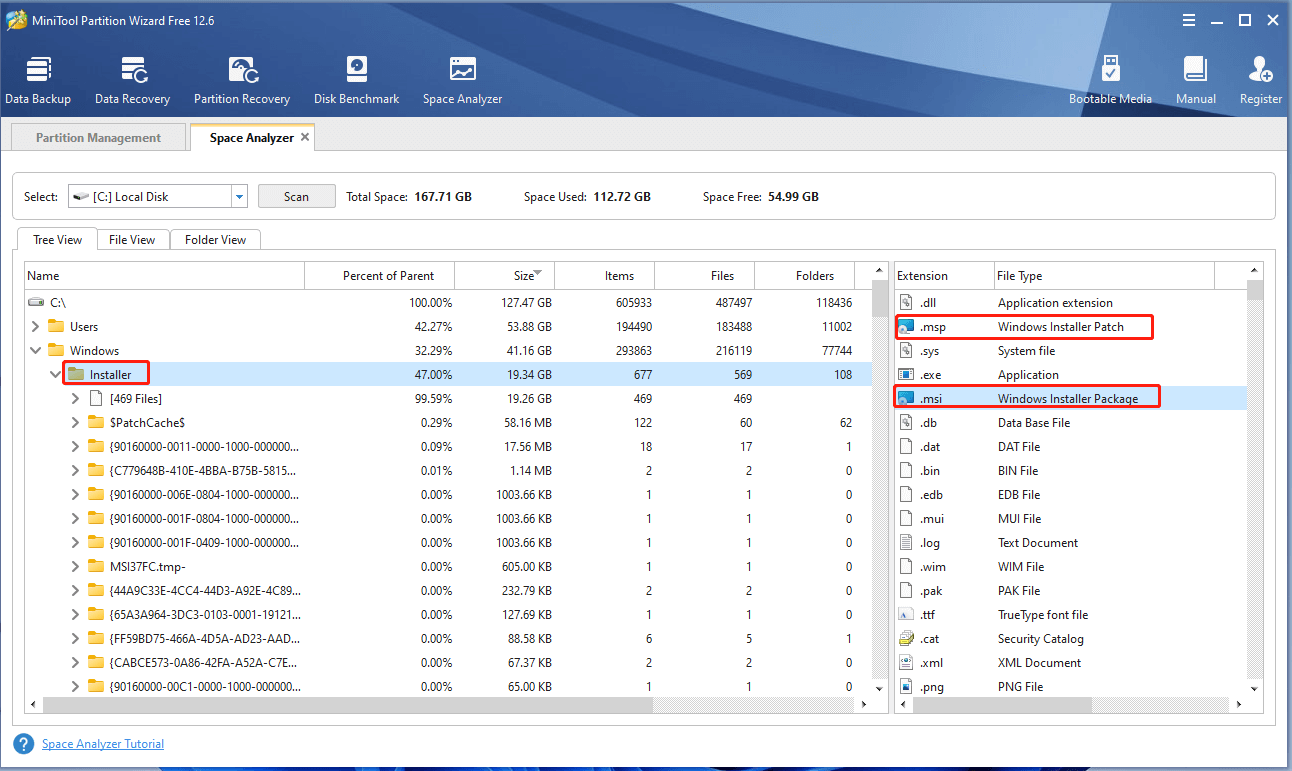
C:WindowsTempor within the application’s own temporary directories. - Cached Installer Packages: Windows Installer (MSIEXEC) itself maintains a cache of installer packages. This cache is crucial for repairing corrupted installations, uninstalling programs cleanly, and applying updates. When you install a program using an MSI package, a copy of that package is often stored in the Windows Installer cache, typically located within
C:WindowsInstaller. - Update Files: Windows Updates, in particular, download and store large files that are used to patch and upgrade your operating system. These can include service packs, cumulative updates, and feature updates.
The existence of these files is not arbitrary. They are integral to the robust and dynamic nature of the Windows operating system. Just as a well-established brand maintains its integrity through consistent messaging and a traceable history, these installer files contribute to the structural integrity and maintainability of your software.
The Temptation of Deletion: Why You Might Want to Remove Installer Files
The primary motivation for asking “Can I remove Windows installer files?” is almost always the desire to free up disk space. Modern operating systems and applications can consume a significant portion of your storage, and seeing large, seemingly dormant files can be frustrating.
Reclaiming Precious Disk Space
Hard drive space is a finite resource. As you install more software, download media, and create documents, your storage capacity dwindles. Installer files, especially those related to older applications, uninstalled programs, or large Windows updates, can accumulate over time, contributing to a cluttered and potentially slower system. Removing them can feel like a quick and effective way to boost your available storage.
This mirrors the principles of personal finance where decluttering unnecessary expenses frees up capital for investment or savings. In the digital realm, freeing up disk space can lead to improved performance, faster boot times, and the ability to install new applications or store more important data.
Potential Performance Improvements
While not a direct cause of slowdowns for most modern systems, a heavily fragmented hard drive with numerous temporary files can, in some edge cases, contribute to slightly reduced read/write speeds. The theoretical benefit of removing these files is a cleaner file system, which could, in turn, lead to minor performance gains.
However, it’s crucial to differentiate between the theoretical benefit and a significant, noticeable improvement. For most users, the performance impact of removing cached installer files will be negligible compared to other optimization techniques.
The Risks and Pitfalls of Aggressive Deletion
While the allure of free disk space is strong, directly deleting Windows installer files without proper knowledge can lead to significant problems. Understanding these risks is paramount before you even consider reaching for the delete key.
System Instability and Application Malfunctions
The Windows Installer cache, for instance, is not just a repository of old files; it contains crucial components that Windows needs to manage your installed software.
- Uninstallation Failures: If you attempt to uninstall a program and Windows needs the original installer package from the cache to complete the process, it will fail if the files have been deleted.
- Repair Operations: Similarly, if an application becomes corrupted or malfunctions, Windows might attempt to repair it by accessing files in the installer cache. Without these files, the repair mechanism will be ineffective.
- Update Problems: Some updates might require access to cached installation components for verification or rollback purposes. Deleting these could interfere with future update processes.
Think of it like a brand abruptly removing key elements of its historical branding or marketing materials. This can confuse its audience and undermine its established identity. Similarly, removing installer files can disrupt the operational “identity” of your installed software.
The Paradox of Reinstallation
In some scenarios, attempting to remove these files might inadvertently trigger issues that force you to reinstall applications or even Windows itself. This creates a paradox where the effort to save space ironically leads to more work and potential data loss if backups are not in place.
False Positives: Mistaking Important Files for Junk
Many temporary files, particularly those in the C:WindowsTemp directory, are genuinely temporary and safe to delete. However, some applications might still be actively using certain files within this directory, or other critical system files might reside there. Without a clear understanding of what each file is, there’s a risk of deleting something essential.
Safe and Effective Methods for Managing Windows Installer Files
Fortunately, you don’t have to resort to risky manual deletion to manage Windows installer files. Windows provides built-in tools and best practices that allow for safe and effective cleanup.
1. Disk Cleanup: The First Line of Defense
The Windows Disk Cleanup utility is your primary tool for safely removing temporary files, including many installer-related remnants.
- How to Use Disk Cleanup:
- Search for “Disk Cleanup” in the Windows search bar and open the application.
- Select the drive you want to clean (usually C:).
- Disk Cleanup will scan your drive and present a list of file types that can be safely removed.
- Crucially, look for options like “Downloaded Program Files,” “Temporary Internet Files,” and “Temporary Files.”
- For more thorough cleaning, click the “Clean up system files” button. This will re-scan with administrator privileges and often reveal additional options, including “Windows Update Cleanup” and “Previous Windows installations” (if applicable and safe to remove after a major upgrade).
- Select the checkboxes for the categories you wish to clear and click “OK.”
Disk Cleanup is designed to identify files that are no longer actively needed by the system or running applications. It’s akin to a professional brand audit that identifies outdated marketing collateral or inefficient campaign elements, allowing for a streamlined brand presentation.
2. Windows Update Cleanup
This specific option within Disk Cleanup is particularly relevant for managing the disk space consumed by Windows Updates. When you install cumulative updates, Windows often keeps older versions of system files as a fallback. The “Windows Update Cleanup” option safely removes these redundant files, freeing up significant space. This is a safe and recommended procedure after a few successful updates have been applied.
3. Managing Application Installers and Cache
For specific applications, you might have downloaded installer files (.exe, .msi) that are no longer needed.
- Manual Deletion of Downloaded Installers: Once an application is successfully installed, the downloaded installer file is typically no longer required. You can safely delete these files from your Downloads folder or wherever you saved them.
- Third-Party Uninstaller Tools: For stubborn applications or to ensure a clean uninstall, consider using reputable third-party uninstaller tools. These tools often scan for and remove leftover files, including cached installer components, more thoroughly than the standard Windows Add/Remove Programs feature. However, exercise caution and only use well-vetted software.
- Windows Installer Cache (Advanced Users with Caution): The
C:WindowsInstallerfolder contains cached MSI packages. Directly deleting files from this folder is highly discouraged and can lead to severe system instability. If you absolutely need to clean this cache, specialized tools and techniques are required, and it’s generally recommended to avoid this unless you are an experienced user with a solid understanding of Windows component management and have performed a full system backup. Microsoft has provided some guidance on managing this cache, but it’s complex and often not necessary for most users.
This aspect of managing application remnants is akin to managing financial assets. You wouldn’t just withdraw money indiscriminately; you’d follow a financial plan. Similarly, manage installer files with a plan and understanding, not just by impulse.
4. Regularly Uninstall Unused Programs
The most effective way to prevent installer file bloat is to regularly review and uninstall programs you no longer use.
- Control Panel or Settings: Go to “Add or Remove Programs” (in Control Panel) or “Apps & features” (in Settings) to see a list of installed applications.
- Uninstall Unneeded Software: If you haven’t used a program in months and have no intention of using it again, uninstall it. This removes not only the application files but also any associated installer components and temporary data.
This practice aligns with the principle of simplifying one’s financial portfolio or personal brand by removing underperforming or irrelevant assets. A leaner system is generally a healthier and more efficient system.
5. Scheduled Maintenance and System Optimization
Incorporating regular system maintenance into your routine can prevent the accumulation of unnecessary files.
- Automate Disk Cleanup: You can schedule Disk Cleanup to run automatically.
- Regular Backups: Always maintain regular backups of your important data and system. This provides a safety net in case any cleanup operation goes awry.
Treating your computer system with consistent care, much like nurturing a brand’s reputation or managing personal finances diligently, ensures long-term health and optimal performance.

Conclusion: A Balanced Approach to a Cleaner System
So, can you remove Windows installer files? Yes, but with significant caveats. The key lies in understanding which files are safe to remove and employing the correct methods.
For the average user, the most effective and safest approach is to rely on the Windows Disk Cleanup utility, especially the “Clean up system files” option which includes “Windows Update Cleanup.” Regularly uninstalling unused programs and deleting downloaded installer files from your Downloads folder are also straightforward and beneficial practices.
Avoid the temptation to manually delete files from the Windows Installer cache (C:WindowsInstaller) or other system directories without expert guidance, as this can lead to serious system issues. A balanced approach, prioritizing system stability over aggressive space reclamation, will ensure your Windows experience remains smooth and reliable. By adopting these practices, you can effectively manage installer files, free up valuable disk space, and maintain a healthy, optimized computing environment, much like a well-managed brand maintains its integrity or a savvy investor manages their portfolio.