
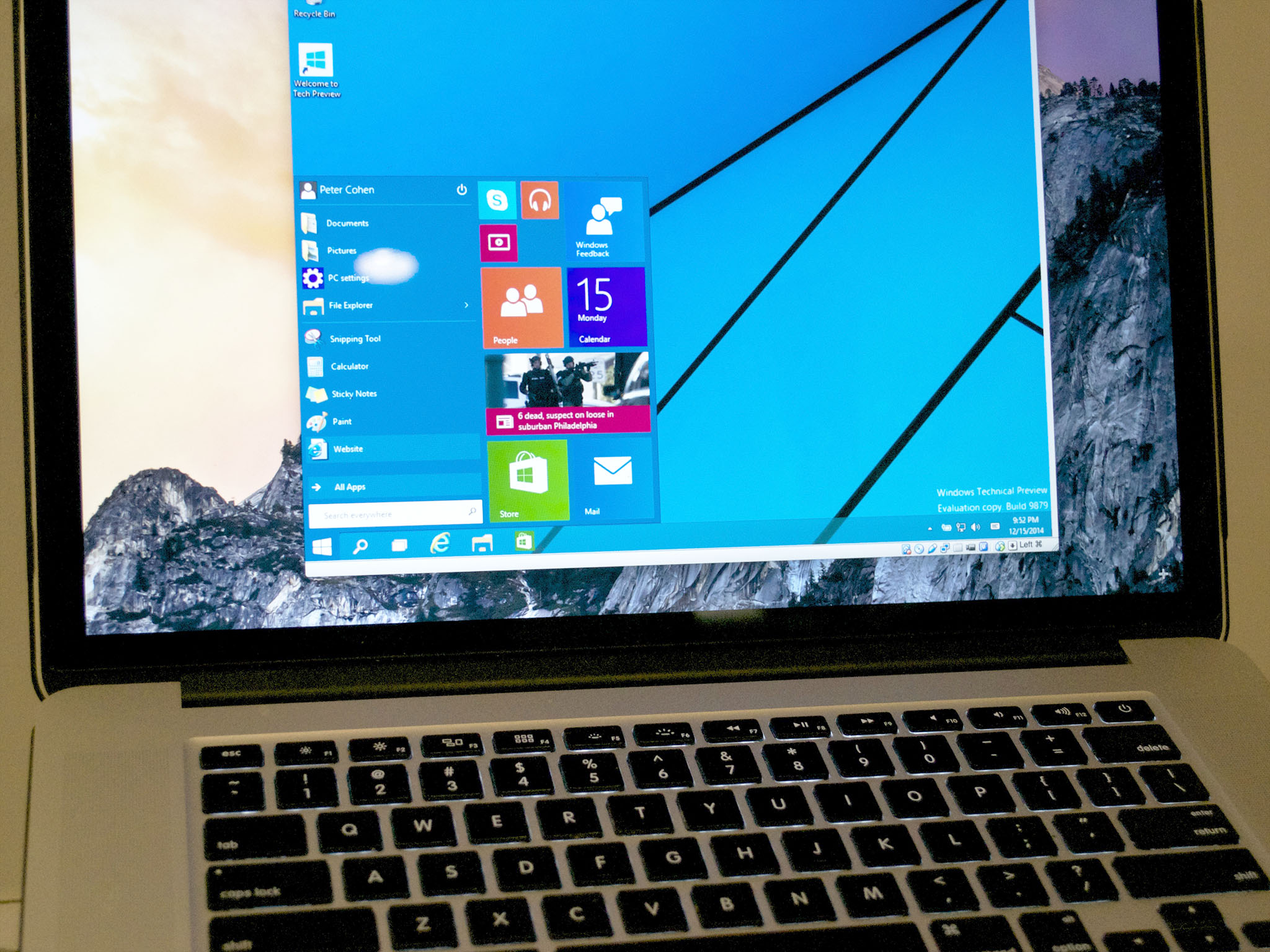
The iconic Apple logo, a symbol of sleek design and user-friendly interfaces, often conjures up images of macOS. However, for many users, the question arises: “Can I install Windows on a Mac?” The answer, unequivocally, is yes. While Macs are renowned for their integrated ecosystem and robust operating system, the desire to run Windows applications or experience its familiar environment on Apple hardware is a common one. This article will delve into the various methods available for installing and running Windows on your Mac, exploring the technicalities, benefits, and considerations involved, all within the broader context of technology, brand strategy, and financial implications.
Understanding Your Options: The Paths to Windows on Your Mac
When the thought of running Windows on your Mac enters the picture, it’s crucial to understand that there isn’t a single, one-size-fits-all solution. The best approach for you will depend on your specific needs, technical comfort level, and the intended use of Windows. Broadly, there are two primary methods: native installation and virtualization. Each offers a distinct experience and comes with its own set of advantages and disadvantages.
Boot Camp: The Native Approach for Seamless Performance
For users who require the full power and native performance of Windows, Apple’s Boot Camp utility is the go-to solution. Boot Camp allows you to partition your Mac’s hard drive and install a separate copy of Windows. This means that when you boot up your Mac, you can choose to load either macOS or Windows.
How Boot Camp Works
Boot Camp Assistant, a built-in macOS application, guides you through the entire process. It handles partitioning your drive, downloading necessary Windows support software (drivers for your Mac’s hardware), and initiating the Windows installation. Once Windows is installed, you’ll have a fully functional Windows environment running directly on your Mac’s hardware, without any intermediary software.
Advantages of Boot Camp
- Native Performance: This is the most significant advantage. Because Windows is running directly on the hardware, you get the absolute best performance possible. This is ideal for demanding applications like high-end gaming, intensive video editing, or complex software development environments that require direct access to your Mac’s processing power and graphics capabilities.
- Full Hardware Compatibility: Boot Camp ensures that all your Mac’s hardware components – the graphics card, Wi-Fi, Bluetooth, webcam, keyboard, trackpad, and even the Touch Bar (on compatible models) – function optimally with Windows. Apple provides specific drivers for this purpose.
- No Performance Overhead: Unlike virtualization, there’s no performance penalty associated with running Windows natively. Your Mac is essentially a Windows PC when booted into that operating system.
Disadvantages of Boot Camp
- Requires a Reboot to Switch: The major drawback of Boot Camp is that you cannot run macOS and Windows simultaneously. To switch between operating systems, you must restart your Mac and select the desired OS from the startup menu. This can be inconvenient if you frequently need to switch between Mac-specific and Windows-specific applications.
- Disk Space Allocation: You need to allocate a specific portion of your hard drive to Windows during the Boot Camp setup. This partition cannot be easily resized later without potentially complex procedures. Therefore, you need to carefully consider how much space Windows and its applications will require.
- Not Supported on All Macs: Boot Camp is primarily available on Intel-based Macs. Newer Macs equipped with Apple Silicon (M1, M2, etc.) do not support Boot Camp for installing Windows directly. This is a significant limitation for users with the latest generation of Mac hardware.
- Windows License Required: Boot Camp itself is free, but you will need a valid license for a copy of Windows to install.
Virtualization: Running Windows Within macOS
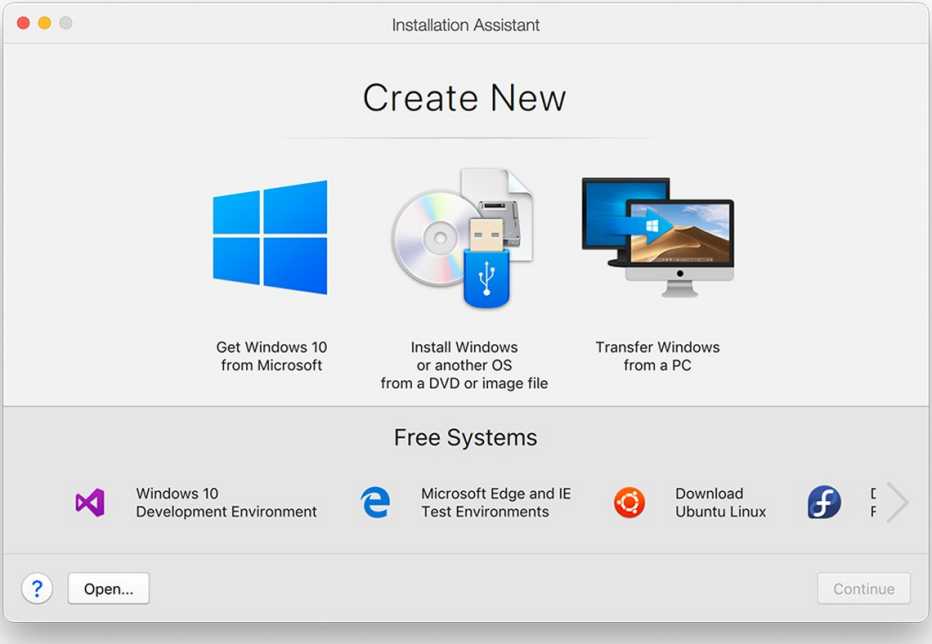
For users who need to run Windows applications alongside macOS applications, or who don’t require the absolute peak performance of native Windows, virtualization offers a more flexible solution. Virtualization software creates a virtual machine (VM) – essentially a software-based computer – within your macOS environment. You can then install Windows (or other operating systems) onto this virtual machine.
Popular Virtualization Software
Several robust virtualization applications are available for macOS, each with its own strengths and pricing models:
- Parallels Desktop: This is arguably the most popular and feature-rich virtualization software for Mac. Parallels Desktop is renowned for its seamless integration between macOS and Windows, allowing you to run Windows apps side-by-side with Mac apps, drag and drop files between them, and even use Mac keyboard shortcuts within Windows. It’s a paid application.
- VMware Fusion: Another powerful and well-established virtualization solution. VMware Fusion offers a comprehensive set of features for running Windows and other operating systems on your Mac. It’s also a paid product with different licensing options.
- VirtualBox: Developed by Oracle, VirtualBox is a free and open-source virtualization platform. While it might not offer the same level of seamless integration as Parallels or VMware, it’s a capable option for many users, especially those on a budget or with less demanding virtualization needs.
How Virtualization Works
Once you’ve installed your chosen virtualization software, you’ll create a new virtual machine. The software will then guide you through installing Windows onto this VM, usually by mounting an ISO image of the Windows installer. After installation, you’ll have a fully functional Windows operating system running in a window on your macOS desktop.
Advantages of Virtualization
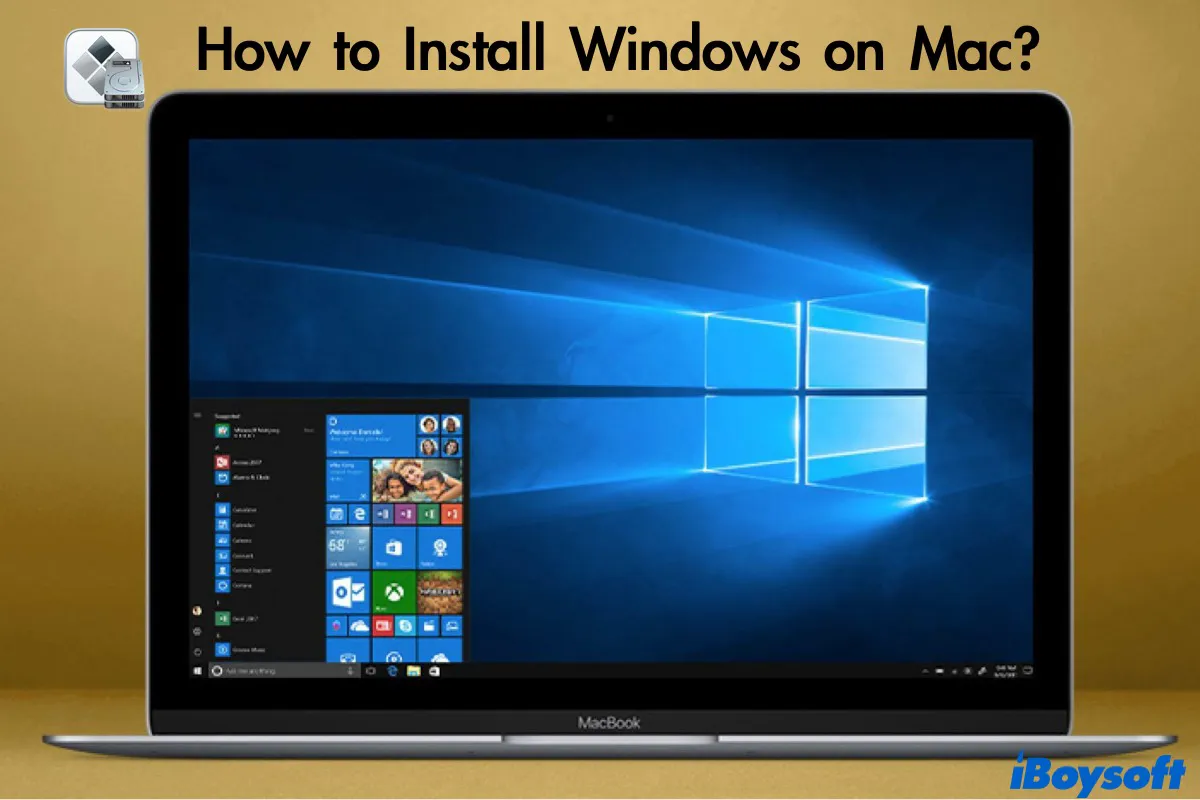
- Simultaneous Operation: The biggest advantage is the ability to run macOS and Windows simultaneously. You can switch between them instantly without rebooting, allowing for efficient multitasking and workflows that involve both operating systems.
- Flexibility and Ease of Use: Virtual machines are incredibly flexible. You can create snapshots of your VM at any given point, allowing you to revert to a previous state if something goes wrong during software installation or configuration. VMs can also be easily moved, copied, or deleted.
- No Partitioning Required: Unlike Boot Camp, virtualization doesn’t require you to permanently partition your hard drive. The virtual machine takes up disk space, but it’s managed by the virtualization software and can be dynamically adjusted or removed.
- Support for Apple Silicon Macs: Virtualization software like Parallels Desktop and VMware Fusion have versions that are compatible with Apple Silicon Macs, allowing you to run Windows (specifically Windows on ARM) virtually.
Disadvantages of Virtualization
- Performance Overhead: Because Windows is running on top of macOS through a layer of virtualization software, there will always be some performance overhead. This means that demanding applications, particularly graphics-intensive games or resource-heavy professional software, might not perform as well as they would under Boot Camp or on a native Windows machine.
- Hardware Access Limitations: While virtualization software has improved significantly, direct hardware access can sometimes be a limitation. Certain specialized hardware devices might not be fully supported or might require additional configuration within the VM.
- Cost of Software: The most popular and user-friendly virtualization solutions, like Parallels Desktop and VMware Fusion, are paid applications, adding to the overall cost of running Windows on your Mac.
Beyond the Technical: Brand, Marketing, and Financial Considerations
The decision to install Windows on your Mac extends beyond just the technical execution. It touches upon broader themes of brand and money.
Brand Synergy and User Experience
From a brand perspective, running Windows on a Mac can be seen as a pragmatic choice that prioritizes functionality and workflow over strict adherence to a single operating system. Apple has built its brand around a premium, integrated experience. However, the reality for many users is that their professional or personal lives necessitate the use of Windows-specific software.
- Personal Branding: For individuals who maintain a personal brand as tech-savvy or adaptable, being able to seamlessly navigate between macOS and Windows demonstrates a breadth of technical skill and a focus on getting things done. It suggests a user who is not limited by platform choices but rather embraces the best tools for the job.
- Corporate Identity: Businesses often rely on a mix of software. If a company uses macOS for design and marketing but relies on Windows-based enterprise software for accounting or project management, enabling employees to run both on their Macs can streamline operations and reduce the need for multiple devices. This can be a key aspect of their operational brand strategy.
- Marketing and Design Tools: Many marketing and design professionals use industry-standard software that may be Windows-only or perform better on Windows. By installing Windows, they ensure they have access to the full suite of tools required to execute their creative vision, upholding the quality of their work and thus their professional brand.
Financial Implications and Return on Investment
The financial aspects of installing Windows on a Mac are multifaceted, impacting both the initial investment and the ongoing costs. This falls squarely within the realm of money.
- Cost of Windows License: A significant initial cost is purchasing a legitimate license for Windows. While there are often upgrade paths or different editions, this is a non-negotiable expense for a legal installation.
- Software Costs: Beyond the operating system itself, the applications you intend to run on Windows will likely have their own licensing fees. This is a crucial consideration for personal finance planning.
- Hardware Investment: You’ve already invested in a Mac. The decision to run Windows means you are leveraging that existing hardware investment rather than purchasing a separate Windows PC. This can be a cost-effective strategy, especially if your Mac is powerful enough to handle the demands of Windows applications. This is a form of maximizing your investment.
- Time is Money: The time spent setting up Boot Camp or virtualization software, and then configuring Windows and its applications, can be considered an investment of your time. For professionals, this time is directly linked to their earning potential. A smooth and efficient setup that allows them to work effectively can yield a significant return on investment in terms of productivity.
- Avoiding Redundancy: For some, the ability to run Windows on their Mac negates the need to purchase a separate Windows computer, saving significant capital outlay. This is a direct benefit to business finance and personal finance alike.
- Potential for Online Income: If your “side hustle” or primary income stream involves specific Windows-based software (e.g., certain trading platforms, specialized design software, or game development tools), being able to run it on your Mac can be essential for generating online income.
Choosing the Right Method for Your Needs
Ultimately, the decision of whether and how to install Windows on your Mac boils down to a careful evaluation of your specific requirements.
For Performance-Intensive Tasks and Gaming: Boot Camp
If your primary motivation is to run demanding Windows applications, play the latest games with optimal graphics, or require direct hardware access for professional tasks, Boot Camp is the superior choice. Its native performance ensures that you’re getting the most out of your Mac’s hardware. However, remember that this option is generally not available for newer Apple Silicon Macs. You’ll need to be comfortable with restarting your Mac to switch between operating systems.
For Multitasking and Seamless Integration: Virtualization
If you need to run Windows applications alongside macOS applications, appreciate the flexibility of switching between operating systems without rebooting, or have an Apple Silicon Mac, virtualization is likely the better path. Parallels Desktop and VMware Fusion offer excellent integration, making it feel almost as if Windows is an extension of your Mac. VirtualBox provides a free alternative for those with simpler needs. While there’s a slight performance hit, for most everyday tasks and many professional applications, virtualization provides a smooth and efficient experience.
The Hybrid Approach: Leveraging Both
It’s also worth noting that for some users, a hybrid approach might be the most effective. They might use Boot Camp for heavy-duty gaming or specific performance-critical software, while using a virtual machine for everyday Windows tasks that require quick switching and integration with their macOS workflow.
Conclusion: Empowering Your Mac Experience
The question “Can I install Windows on a Mac?” is no longer a hypothetical. With robust tools like Boot Camp and sophisticated virtualization software, you can indeed run Windows on your Apple hardware. This capability opens up a world of possibilities, allowing you to overcome software limitations, expand your productivity, and tailor your computing experience to your exact needs. Whether you prioritize raw performance through Boot Camp or the flexibility of simultaneous operation via virtualization, the ability to integrate Windows into your Mac workflow is a powerful testament to the evolving landscape of personal computing and the increasing convergence of different technological ecosystems. By understanding the technical options and considering the broader brand and financial implications, you can make an informed decision that empowers your Mac to do even more.
aViewFromTheCave is a participant in the Amazon Services LLC Associates Program, an affiliate advertising program designed to provide a means for sites to earn advertising fees by advertising and linking to Amazon.com. Amazon, the Amazon logo, AmazonSupply, and the AmazonSupply logo are trademarks of Amazon.com, Inc. or its affiliates. As an Amazon Associate we earn affiliate commissions from qualifying purchases.