
Chromebooks have carved out a significant niche in the computing world, celebrated for their simplicity, security, affordability, and seamless integration with Google’s ecosystem. Running on Chrome OS, a lightweight, cloud-centric operating system, they offer an excellent experience for web browsing, document editing, and light productivity tasks. However, the question “Can I install Windows on a Chromebook?” is a frequently asked one, highlighting a common desire among users to bridge the gap between Chrome OS’s streamlined efficiency and Windows’ unparalleled software compatibility.
For many, the appeal of a Chromebook lies in its straightforward nature – turn it on, and you’re ready to go. Yet, for others, the robust application ecosystem of Microsoft Windows, essential for everything from professional-grade software to specific gaming titles, feels like a missing piece. This article delves deep into the feasibility, methods, and implications of attempting to install Windows on a Chromebook, offering a comprehensive guide for anyone contemplating this significant modification. We’ll explore the technical challenges, weigh the benefits against the drawbacks, and consider alternative solutions, all while keeping in mind the broader considerations of technology, personal branding, and financial implications.

The Allure of Windows on a Chromebook: Why Make the Switch?
The journey to installing Windows on a Chromebook often begins with a compelling need or a simple curiosity. While Chrome OS excels in many areas, its limitations can become apparent for users with specific requirements. Understanding these motivations is key to appreciating why someone would undertake such a technical endeavor.
Bridging the Software Gap
The most significant driver for wanting Windows on a Chromebook is undoubtedly software compatibility. Many industry-standard applications, particularly in fields like graphic design, video editing, CAD, and advanced data analysis, are exclusively designed for Windows. For professionals whose personal or corporate brand relies heavily on specific software suites (e.g., Adobe Creative Cloud, AutoCAD, Microsoft Office desktop versions beyond web apps), a Chromebook’s inability to natively run these programs can be a deal-breaker. Even casual users might miss specific desktop utilities, legacy games, or proprietary software unique to Windows.
This desire to run powerful, specialized applications isn’t just about convenience; it’s often about unlocking productivity and, by extension, economic opportunities. For freelancers running a side hustle, or small business owners whose income depends on specific Windows-only software, the ability to consolidate their computing needs onto a single, often more portable and affordable Chromebook, could represent a significant boost to their financial efficiency. The “Money” aspect here is clear: access to essential software can directly translate into earning potential or cost savings by not needing a separate Windows machine.
Familiarity and Ecosystem Preferences
Beyond specific applications, many users have spent decades immersed in the Windows ecosystem. The muscle memory of its user interface, the familiarity with its file management, and the comfort of its vast array of settings and customization options are powerful draws. Transitioning to Chrome OS, while generally intuitive, can present a learning curve for some, making the idea of bringing Windows to their new hardware appealing.
This preference often extends to the entire software ecosystem. Windows users are accustomed to a specific way of installing programs, managing peripherals, and interacting with their system. Chrome OS, with its app-centric, browser-first approach, is fundamentally different. For individuals who have built their entire digital life and even their personal brand around the Windows experience, reverting to or integrating with that environment can feel like coming home.
Gaming and Specialized Applications
While cloud gaming services have made strides, native PC gaming on Windows still offers the broadest library and often the best performance. Chromebooks are generally not designed for intensive gaming, and the limited app store cannot compete with the sheer volume of games available for Windows. Similarly, niche applications like specific development tools, virtual reality software, or highly specialized business applications often remain Windows-exclusive. For students, hobbyists, or professionals whose work or leisure activities involve these specific applications, a Windows installation on a Chromebook might seem like the only way to merge their desired computing environment with their existing hardware investment.
Navigating the Technical Landscape: Methods and Challenges
Installing Windows on a Chromebook is not a straightforward process. Unlike traditional laptops that are designed to be OS-agnostic, Chromebooks are optimized for Chrome OS and come with specific hardware and firmware configurations that can complicate the process. However, there are several methods, each with its own set of technical requirements, advantages, and limitations.
Option 1: Dual-Booting – The Advanced Approach
Dual-booting involves installing Windows alongside Chrome OS, giving you the choice of which operating system to boot into each time you start your device. This method, often achieved through projects like “GalliumOS” (which facilitated Linux installs) or more direct firmware modifications, requires significant technical expertise.
Process: This typically involves flashing custom firmware (like UEFI firmware from “MrChromebox.tech”) to replace the stock Chrome OS firmware. This allows the Chromebook to boot non-Chrome OS operating systems. After flashing, you partition your hard drive to create space for Windows, and then proceed with a standard Windows installation.
Challenges: This is by far the most complex and riskiest method. It can void your warranty, potentially “brick” your device if not done correctly, and requires deep knowledge of BIOS/UEFI settings, partitioning, and driver management. Finding compatible Windows drivers for the Chromebook’s specific hardware (touchpad, Wi-Fi, audio, keyboard shortcuts) can be a major hurdle, often requiring extensive searching or even custom driver compilation. The internal storage of many Chromebooks is also limited, making a dual-boot setup difficult with adequate space for both OSs and user data. This method strongly impacts digital security, as custom firmware might have unknown vulnerabilities.
Option 2: Virtualization – Running Windows Within Chrome OS
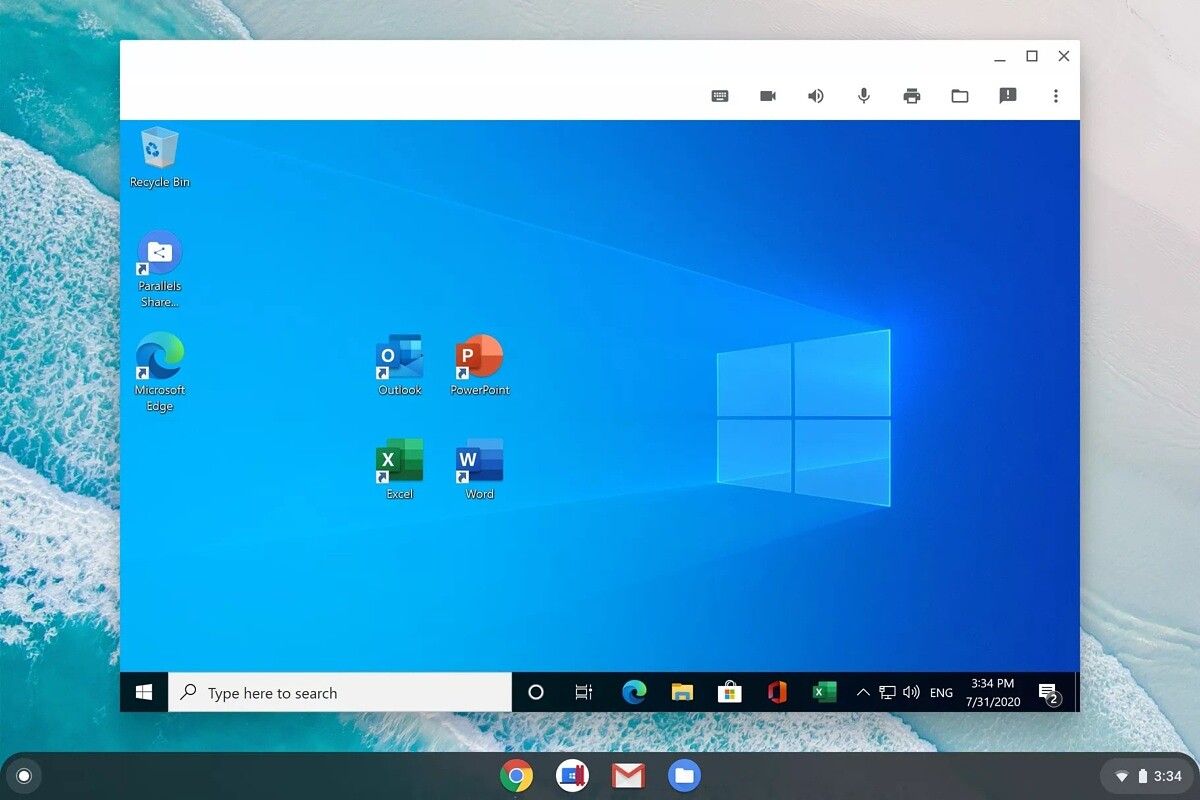
Virtualization allows you to run Windows as a “guest” operating system within Chrome OS using software like Parallels Desktop for Chrome OS (for enterprise users) or less officially, through Linux virtual machines (VMs) on specific Chromebooks. This method creates a virtual environment that emulates a full PC, allowing Windows to run inside a window on your Chrome OS desktop.
Process: For enterprise users, Parallels Desktop offers a relatively seamless experience, allowing full-featured Windows applications to run alongside Chrome OS apps. For others, the process might involve enabling Linux (Beta) on your Chromebook, installing a virtualization solution like VirtualBox within the Linux environment, and then installing Windows 10/11 within VirtualBox.
Challenges: Performance is the primary concern here. Running a full operating system within another OS consumes significant resources (RAM, CPU, storage). Most Chromebooks, designed for lightweight tasks, may struggle to provide a smooth Windows experience. Graphics-intensive applications or gaming will likely be unplayable. While generally safer than dual-booting as it doesn’t modify the core OS, it still requires a relatively powerful Chromebook. The “Money” aspect arises here in terms of needing a premium Chromebook (often more expensive) to handle virtualization effectively, and potentially a Parallels license for commercial use.
Option 3: Cloud Desktops – Windows as a Service
This is arguably the easiest and safest way to “run” Windows applications on a Chromebook without installing anything locally. Cloud desktop services (also known as Desktop-as-a-Service or DaaS) provide access to a full Windows desktop running on remote servers, streamed directly to your Chromebook over the internet.
Process: You subscribe to a service like Windows 365, Amazon WorkSpaces, Microsoft Azure Virtual Desktop, or similar providers. You then access your personalized Windows desktop environment through a web browser or a dedicated client application on your Chromebook.
Challenges: The main drawbacks are reliance on a stable and fast internet connection, and the recurring subscription costs. Performance can also be affected by network latency. However, it offers access to powerful Windows applications without any hardware modification or performance strain on the Chromebook itself. This method perfectly aligns with the “Tech” trend of cloud computing and offers a flexible “Money” model through subscriptions, making powerful Windows capabilities accessible even on basic Chromebook hardware. It’s also excellent for “Digital Security” as the processing happens off-device, reducing local data risks.
Option 4: Replacing Chrome OS Entirely – The Full Conversion
This method is the most extreme, involving completely wiping Chrome OS from your Chromebook and installing Windows as the sole operating system. This is essentially turning your Chromebook into a very specific, often underpowered, Windows laptop.
Process: This follows a similar path to dual-booting, starting with flashing custom UEFI firmware. However, instead of partitioning, you format the entire drive and perform a clean installation of Windows.
Challenges: All the risks of dual-booting (voided warranty, bricking, driver issues) are present here, often amplified because there’s no Chrome OS fallback. You permanently lose the simplicity and security benefits of Chrome OS. The hardware limitations of a Chromebook, such as typically slower eMMC storage, limited RAM, and power-efficient but less powerful processors, mean the Windows experience will likely be subpar compared to a machine designed for it. This is generally only recommended for very old, unsupported Chromebooks or for users who have a specific, highly niche project in mind and are prepared for a potentially frustrating experience.
Crucial Considerations Before You Begin
Before embarking on any of these installation methods, it’s vital to assess a range of practical, technical, and financial factors. Rushing into the process without due diligence can lead to frustration, lost data, or even a damaged device.
Hardware Compatibility and Driver Woes
Chromebooks are built with specific, often custom, hardware components that are tightly integrated with Chrome OS. When attempting to install Windows, finding compatible drivers for crucial components like Wi-Fi cards, touchpads, audio chipsets, and even graphics processors can be incredibly difficult, if not impossible. Many “Windows on Chromebook” projects rely on reverse-engineered or community-developed drivers, which may not be fully stable, regularly updated, or secure. A non-functional Wi-Fi adapter or touchpad can severely cripple the usability of your new Windows installation, impacting your “Productivity” directly.
Performance Expectations and Limitations
Most Chromebooks are designed for efficiency and lightweight tasks. They typically feature lower-power processors (like Intel Celeron/Pentium or ARM-based chips), limited RAM (4-8GB), and eMMC storage (slower than SSDs). Windows, especially modern versions like Windows 10 or 11, demands more robust hardware to run smoothly. Expecting a budget Chromebook to perform like a dedicated Windows laptop is unrealistic. You’re likely to encounter slow boot times, sluggish application performance, and general system lag. This can lead to a significant hit on your “Productivity” and overall user experience, making the entire endeavor feel like a step backward rather than an upgrade.
Security Implications and Data Protection
Chrome OS is renowned for its robust security features, including verified boot, automatic updates, and sandboxing. Flashing custom firmware or installing an alternative OS bypasses many of these built-in protections, potentially exposing your device to new vulnerabilities. Maintaining “Digital Security” on a custom Windows installation requires more effort, including manual updates, antivirus software, and vigilant browsing habits. Furthermore, the risk of data loss during the installation process is high. Always back up all important data before attempting any significant OS modification.
Warranty and Support
Any unofficial modification to your Chromebook’s firmware or operating system will almost certainly void its warranty. If something goes wrong, either during installation or afterwards, you will be solely responsible for repairs or replacement. This carries a direct “Money” implication, as you lose the safety net of manufacturer support. You’ll also be relying on community forums and online guides for troubleshooting, rather than official customer support channels.
Beyond Native Windows: Exploring Viable Alternatives
While the allure of a full Windows experience on a Chromebook is strong, the challenges often outweigh the benefits for most users. Fortunately, there are several powerful and often more practical alternatives that can address many of the motivations for wanting Windows, without the technical headaches and risks. These solutions leverage the strengths of Chrome OS while expanding its capabilities, often aligning perfectly with modern “Tech” trends.
Embracing Linux: A Powerful Open-Source Solution
Many modern Chromebooks offer robust support for Linux (Beta), allowing you to run a full Linux distribution alongside Chrome OS. This opens up a vast world of open-source software, including powerful programming environments, development tools, image editors (like GIMP), office suites (like LibreOffice), and even some specialized applications that might bridge the gap towards Windows-only functionality.
Benefits: Linux is highly customizable and offers access to powerful command-line tools. Many professional “Tech” users and developers find Linux an indispensable environment for their work, allowing them to expand their “Brand” identity through open-source contributions or specialized skills. It’s also free, offering significant “Money” savings compared to Windows licenses or cloud subscriptions. Performance is generally better than a Windows VM on typical Chromebook hardware.
Limitations: While extensive, the Linux software library doesn’t cover all Windows-exclusive applications. There’s also a learning curve for those unfamiliar with the Linux ecosystem. However, for many needs, it’s a superior alternative to a struggling Windows installation.
Leveraging Android Apps and Web Services
Chrome OS natively supports Android apps, greatly expanding the software available beyond web applications. Many popular mobile productivity apps, games, and utilities are available, offering a familiar experience for smartphone users. Furthermore, the power of modern web applications has grown exponentially. SaaS (Software as a Service) solutions for everything from graphic design (Canva, Figma) to project management (Asana, Trello) and comprehensive office suites (Google Workspace, Office 365 web) eliminate the need for local desktop installations.
Benefits: This approach maximizes the Chromebook’s strengths – speed, security, and cloud integration. It’s cost-effective (many web apps have free tiers), and requires no technical modifications. For personal “Branding” or “Money” generating activities like content creation or social media management, these web and Android apps are often perfectly sufficient, and sometimes even optimized for cloud-first workflows.
Limitations: Some advanced features of desktop-grade software may be absent in their web or Android counterparts. Offline functionality can also be limited for purely web-based solutions.
Cloud-Based Productivity and Gaming
As discussed under cloud desktops, services like Windows 365 or Amazon WorkSpaces offer full Windows environments streamed to your Chromebook. For gaming, cloud gaming platforms like NVIDIA GeForce NOW, Google Stadia (though sunsetting), or Xbox Cloud Gaming allow you to stream high-end PC games directly to your Chromebook, often at impressive quality, without needing powerful local hardware.
Benefits: This is the ultimate solution for accessing Windows-exclusive software or demanding games without any local installation hassles. It leverages the Chromebook’s internet connectivity and offloads all the heavy processing to remote servers. This is excellent for users who need access to specific powerful “Tech” applications for “Money”-making ventures or “Productivity” bursts, without the high upfront cost of a powerful Windows machine.
Limitations: Requires a strong, consistent internet connection. Cloud services often come with recurring subscription costs, which need to be factored into your “Money” budget.
The Final Verdict: Is Installing Windows on Your Chromebook Worth It?
The question “Can I install Windows on a Chromebook?” has a technical answer of “yes,” but a practical answer that is far more nuanced. While the technical possibility exists through various methods, the viability and desirability of such an undertaking depend heavily on your specific needs, technical comfort level, and the limitations you’re willing to accept.
Weighing the Benefits Against the Hurdles
Benefits:
- Access to Windows-exclusive software, critical for many professional roles and specialized applications.
- Familiarity for users accustomed to the Windows ecosystem.
- Potential to consolidate computing devices, especially if you already own a Chromebook.
Hurdles:
- Technical Complexity & Risk: High chance of encountering driver issues, performance bottlenecks, or even “bricking” your device, especially with dual-booting or full replacement.
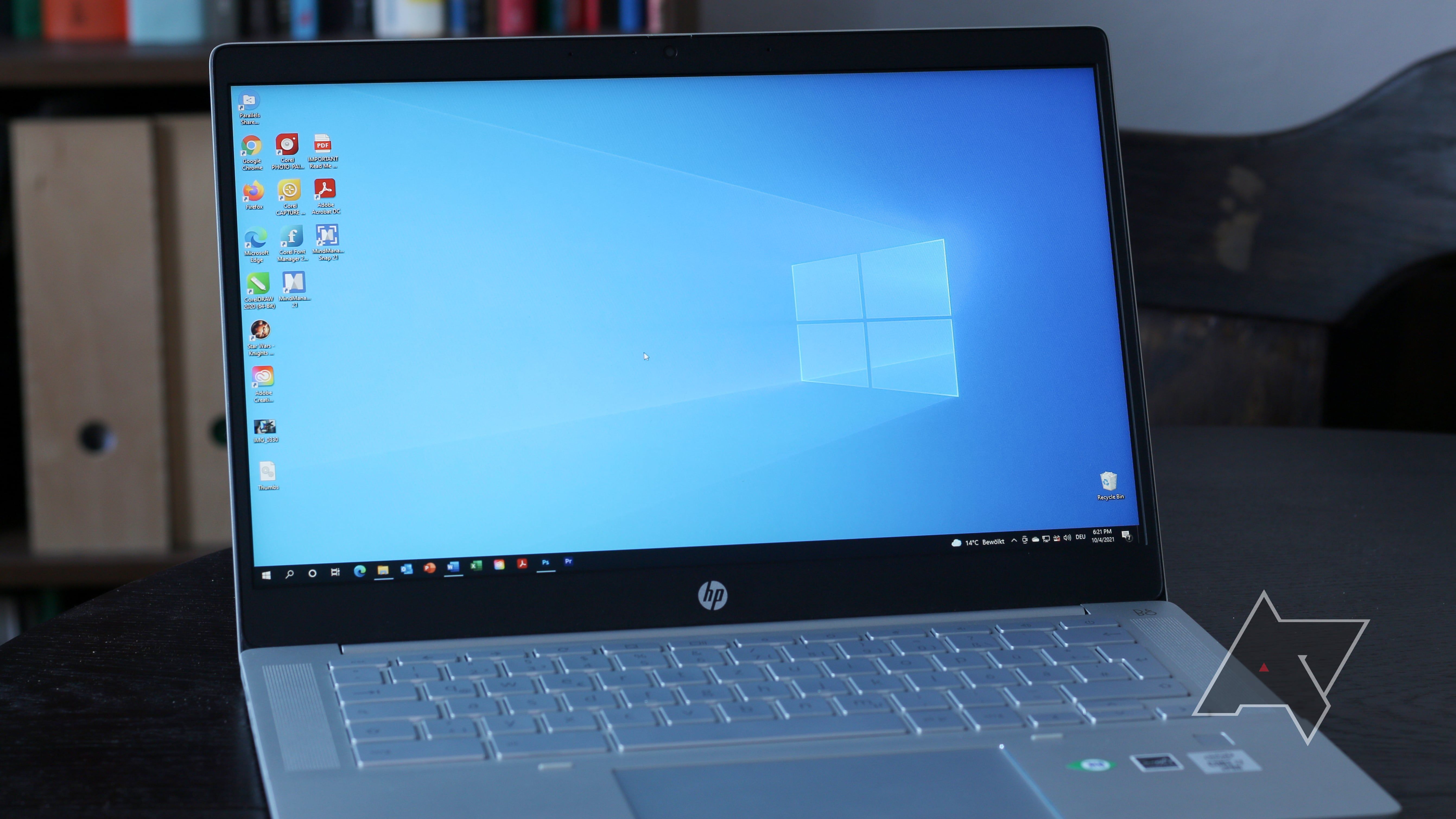
- Performance Degradation: Chromebook hardware is rarely optimized for Windows, leading to a sluggish and frustrating user experience.
- Security Concerns: Bypassing Chrome OS’s built-in security features can expose your device to new vulnerabilities.
- Warranty Void: Modifications will almost certainly void your manufacturer’s warranty.
- Cost Implications: Potential for buying new Windows licenses, cloud service subscriptions, or even replacing a damaged Chromebook.
Recommendations for Different User Profiles
- For the Average User (Web browsing, G Suite, light productivity): Absolutely not recommended. The risks and complexity far outweigh any potential benefits. Embrace Chrome OS’s strengths and leverage web apps or Android apps.
- For the Casual Gamer or Specific Software User (non-critical): Consider cloud streaming services. This provides access to Windows apps or games without modifying your Chromebook and with minimal fuss. It’s the safest and often most effective compromise.
- For the Tech-Savvy Hobbyist (with specific Linux/open-source needs): Explore Linux (Beta) on Chrome OS. This offers a powerful and flexible environment for development or open-source software without the risks associated with Windows installations.
- For the Advanced User/IT Professional (who understands hardware and OS internals, with a non-critical device): Proceed with extreme caution, only if necessary. If you absolutely must have native Windows on an older, expendable Chromebook, and possess the skills to troubleshoot complex driver issues and firmware modifications, dual-booting or full replacement might be an option. But be prepared for a project, not a simple installation.
In conclusion, while installing Windows on a Chromebook is technically achievable, it is rarely the optimal solution. The unique architecture and design philosophy of Chromebooks make them ill-suited to run a full-fledged Windows operating system without significant compromises in performance, stability, and security. For most users, exploring the increasingly powerful ecosystem of web apps, Android applications, Linux environments, or cloud-based Windows solutions offers a far more practical, secure, and financially sensible path to extending their Chromebook’s capabilities. Remember, choosing the right tool for the job – or in this case, the right operating system for your hardware – is paramount for both “Productivity” and peace of mind.
aViewFromTheCave is a participant in the Amazon Services LLC Associates Program, an affiliate advertising program designed to provide a means for sites to earn advertising fees by advertising and linking to Amazon.com. Amazon, the Amazon logo, AmazonSupply, and the AmazonSupply logo are trademarks of Amazon.com, Inc. or its affiliates. As an Amazon Associate we earn affiliate commissions from qualifying purchases.