
In an age where technology evolves at breakneck speed, the allure of extending the life of our beloved devices rather than contributing to the ever-growing pile of e-waste is increasingly strong. For many Apple enthusiasts, a MacBook Air represents a significant investment, often outliving its initial “peak performance” years while still possessing robust hardware. As macOS updates become more demanding, older MacBook Air models can begin to feel sluggish, leading users to ponder alternatives. One intriguing solution that has gained considerable traction is the installation of ChromeOS, specifically ChromeOS Flex, on these classic machines. This guide delves into the feasibility, benefits, challenges, and practical steps involved in giving your MacBook Air a new lease on life with Google’s lightweight, secure, and cloud-first operating system.
Why Consider ChromeOS Flex for Your MacBook Air? A Modern Repurposing Strategy
The decision to move away from macOS on an Apple device might seem counter-intuitive to some, but for a growing segment of users, it’s a pragmatic choice driven by performance, security, and financial considerations. ChromeOS Flex offers a compelling proposition, transforming potentially obsolete hardware into a highly functional, secure, and efficient web-centric workstation.
Extending Device Lifespan and Embracing Sustainability
One of the primary motivators for installing ChromeOS Flex on an older MacBook Air is the desire to extend the device’s useful life. As macOS versions advance, they often require more powerful processors, increased RAM, and newer graphics capabilities, rendering older models increasingly incompatible or agonizingly slow. Rather than relegating a perfectly good piece of hardware to a drawer or landfill, ChromeOS Flex, with its minimal system requirements, allows these machines to perform snappy web browsing, document editing, and video streaming. This aligns perfectly with modern sustainability trends, reducing electronic waste and maximizing the return on your initial investment. It’s a proactive step towards a more eco-conscious approach to personal technology.
Enhanced Security and Streamlined Simplicity
ChromeOS Flex inherits the formidable security architecture of ChromeOS. This includes automatic, background updates, sandboxing for all applications, verified boot, and built-in protection against viruses and malware. For users concerned about digital security in an increasingly complex online landscape, ChromeOS Flex offers peace of mind with minimal effort. Furthermore, its user interface is renowned for its simplicity and ease of use. Stripped of the complexities of traditional operating systems, it provides a clean, fast, and intuitive experience that minimizes distractions and optimizes productivity. For those seeking a straightforward computing experience without the overhead of heavy software, this simplicity is a major draw.
Cost-Effectiveness and Maximizing Financial Value
From a financial perspective, repurposing an existing MacBook Air with ChromeOS Flex is an incredibly cost-effective strategy. The alternative would be to purchase a new laptop, which can range from several hundred to several thousand dollars. By breathing new life into older hardware, users save money while still gaining access to a modern, supported operating system. This economic advantage extends beyond the initial hardware purchase; ChromeOS Flex is free to install and use, and its reliance on cloud applications often means lower software licensing costs. For budget-conscious students, small business owners, or individuals looking to set up a secondary computer without breaking the bank, this approach offers significant financial benefits. It’s a smart personal finance move, transforming an aging asset into a renewed productive tool.
The Core Method: ChromeOS Flex Explained
Before diving into the installation process, it’s crucial to understand what ChromeOS Flex is, how it works, and how it differs from the ChromeOS found on traditional Chromebooks. This insight will help manage expectations and ensure a smoother transition.
What is ChromeOS Flex? Google’s Solution for Legacy Hardware
ChromeOS Flex is Google’s official, free-to-download version of ChromeOS designed to run on a wider range of non-Chromebook PCs and Macs. It essentially replaces the CloudReady operating system, which Google acquired through Neverware. The core idea behind ChromeOS Flex is to provide an easy way to convert older, slower machines into fast, modern, and secure ChromeOS devices. It’s cloud-centric, meaning most applications and data reside in the cloud, leveraging Google services like Google Workspace (Docs, Sheets, Slides, Drive) and web-based applications. This reliance on the cloud is what allows it to be so lightweight and efficient, making it ideal for hardware that might struggle with more demanding operating systems.
Key Differences from Standard ChromeOS
While ChromeOS Flex provides the core ChromeOS experience, there are a few notable distinctions when compared to the version pre-installed on dedicated Chromebook hardware:
- Android App Support: Crucially, ChromeOS Flex does not guarantee support for Android apps or the Google Play Store on all devices. While some certified models might offer it, it’s not a universal feature as it is on most modern Chromebooks. This means users primarily rely on web applications (Progressive Web Apps or PWAs) and Linux applications (if enabled).
- Hardware Optimization: Because ChromeOS Flex is designed for a diverse range of hardware, it may not be as finely tuned for specific components as standard ChromeOS is for official Chromebooks. This can sometimes lead to minor compatibility quirks with certain drivers, such as Wi-Fi, Bluetooth, or trackpad gestures, though Google continues to expand its list of certified models.
- Boot Performance: While fast, ChromeOS Flex might not always achieve the “instant-on” boot times seen on highly optimized Chromebooks, especially on older MacBook Air models. However, it will still be significantly faster than an aging macOS installation.
- Firmware and Updates: ChromeOS Flex handles firmware updates differently than official Chromebooks, relying more on the underlying device’s BIOS/UEFI firmware rather than tightly integrated ChromeOS firmware.
Understanding these differences helps set realistic expectations for the user experience on your revitalized MacBook Air.
Step-by-Step: Preparing Your MacBook Air for ChromeOS Flex
The installation process for ChromeOS Flex is relatively straightforward, but careful preparation is key to a successful and risk-free transition. This section outlines the essential steps from preparation to installation.
Essential Pre-Installation Checks and Backups
Before you even think about creating a bootable USB, data backup is paramount. Installing ChromeOS Flex, especially if you plan to fully replace macOS, will erase your entire hard drive. Therefore, performing a complete backup of all important documents, photos, videos, and other files to an external drive or cloud service (like iCloud, Google Drive, or Dropbox) is non-negotiable.
Next, verify your MacBook Air’s compatibility. While ChromeOS Flex supports many Macs, very old models (pre-2010) might struggle, and some newer ones with Apple’s T2 Security Chip might present more complex challenges (though many older MacBook Airs don’t have this chip). Generally, any MacBook Air from 2011 to 2017 should be a good candidate. Ensure your MacBook Air has at least 4GB of RAM and 16GB of storage for optimal performance. It’s also advisable to update your MacBook Air’s firmware (if available) before proceeding.
Creating the Bootable USB Drive
The installation of ChromeOS Flex begins with creating a bootable USB drive. This process requires a USB flash drive with at least 8GB of storage.
- Download the Chromebook Recovery Utility: On a working computer (it can be another Mac, a Windows PC, or even an existing Chromebook), open the Google Chrome browser and install the “Chromebook Recovery Utility” extension from the Chrome Web Store.
- Launch the Utility: Once installed, launch the utility.
- Select ChromeOS Flex: When prompted to select your Chromebook model, click “Select a model from a list” and then choose “Google ChromeOS Flex” from the manufacturer list, and “ChromeOS Flex” from the product list.
- Insert USB and Create: Insert your 8GB+ USB drive when prompted. The utility will then download the ChromeOS Flex image and write it to your USB drive, making it bootable. This process can take some time depending on your internet speed.
The Installation Process on Your MacBook Air

With the bootable USB drive ready, you can now proceed to install ChromeOS Flex on your MacBook Air.
- Boot from USB: Power down your MacBook Air. Insert the bootable USB drive. Power on the MacBook Air and immediately hold down the
Option(Alt) key. This will bring up the boot manager. - Select the USB Drive: From the boot manager screen, select your USB drive (it might appear as “EFI Boot” or “Windows” in some cases, but it should represent your USB drive).
- Start ChromeOS Flex (Live Mode): The MacBook Air will boot into ChromeOS Flex. You’ll have the option to “Try it first” or “Install ChromeOS Flex.” Trying it first allows you to test compatibility with your hardware (Wi-Fi, trackpad, etc.) without making any permanent changes to your hard drive. This is highly recommended.
- Install ChromeOS Flex: If you’re satisfied with the live experience, proceed with the installation. The installer will guide you through the process, prompting you to erase your internal drive and install ChromeOS Flex. Be absolutely certain you have backed up all your data before proceeding with this step.
- Setup and First Boot: Once the installation is complete, the MacBook Air will restart. Remove the USB drive when prompted. You will then go through the initial ChromeOS setup, connecting to Wi-Fi, logging in with your Google account, and customizing basic settings.
Congratulations! Your MacBook Air is now running ChromeOS Flex.
Navigating Potential Challenges and Maximizing the Experience
While the promise of ChromeOS Flex is appealing, users should be aware of potential challenges and how to best optimize their experience.
Hardware Compatibility and Driver Issues
As mentioned, ChromeOS Flex is designed for broad compatibility, but it cannot guarantee perfect functionality across all components of every non-Chromebook device. MacBook Airs, with their specific Apple hardware and proprietary drivers, can sometimes present unique challenges:
- Wi-Fi and Bluetooth: While often functional, ensure these work during the “Try it first” phase. In rare cases, specific Wi-Fi chipsets might require workarounds or external dongles.
- Trackpad Gestures: Advanced multi-touch gestures might not be as smooth or fully supported as they are in macOS. The basic two-finger scroll and click should work, but complex gestures might be missing.
- Webcam and Audio: Most integrated webcams and speakers/microphones should function, but it’s worth testing during the live boot.
- Keyboard Backlight and Function Keys: Some MacBook-specific function keys (like brightness controls, keyboard backlight toggle) might not map correctly or require manual configuration if supported.
Checking Google’s certified models list for ChromeOS Flex can give you an idea of general compatibility, though MacBook Airs are often good candidates due to their widely used components.
Performance Expectations and Real-World Usage
While ChromeOS Flex will undoubtedly make your older MacBook Air feel snappier for web-centric tasks, it’s essential to set realistic performance expectations. It transforms your Mac into a powerful web browser and cloud client, not a high-end gaming machine or a video editing workstation.
- Strengths: Excellent for web browsing, Google Workspace applications (Docs, Sheets, Slides), email, streaming video (Netflix, YouTube), and basic photo editing.
- Limitations: Not ideal for intensive local applications, professional creative software (e.g., Adobe Creative Suite, Final Cut Pro), or demanding PC games, especially given the lack of robust Android app support and the nature of web-based OS.
The experience will be smooth for what it’s designed to do, breathing new life into a machine that might otherwise be struggling with modern macOS.
Reversibility and Risks: What if You Change Your Mind?
The installation process, when done correctly, is generally safe. However, there are inherent risks involved with any operating system installation that wipes the primary drive. Data loss is the most significant risk if backups are not performed. “Bricking” your device, while rare with ChromeOS Flex, is theoretically possible if the installation is interrupted or if there’s a severe hardware incompatibility that prevents any OS from booting.
If you decide ChromeOS Flex isn’t for you, reverting to macOS is possible but requires another full reinstallation. You would need to create a bootable macOS installer (using another Mac) and wipe the drive again to reinstall macOS. This underscores the importance of backups and making an informed decision before committing to the full installation.
Beyond Installation: The ChromeOS Flex MacBook Air in Practice
Once ChromeOS Flex is installed, your MacBook Air transforms into a highly capable machine for a specific set of tasks. Understanding its strengths in daily use, security, and long-term value will help maximize your experience.
Everyday Usability and Productivity
For the vast majority of users whose daily computing revolves around web browsing, email, document creation, and online collaboration, a ChromeOS Flex-powered MacBook Air becomes a productivity powerhouse.
- Seamless Google Ecosystem Integration: If you’re invested in Google Workspace, ChromeOS Flex offers an unparalleled experience. Gmail, Google Drive, Docs, Sheets, and Calendar are deeply integrated and run flawlessly.
- Web-First Approach: The browser is the primary interface, making it ideal for web developers, digital marketers, online students, or anyone who spends most of their time in a browser. Progressive Web Apps (PWAs) from services like Twitter, Spotify, and even some light photo editors can be installed and run like native applications, providing a rich, app-like experience.
- Lightweight and Responsive: The speed and responsiveness of ChromeOS Flex, even on older hardware, significantly enhance the user experience, eliminating the frustrating lag often associated with aging macOS installations. This boost in performance can directly impact productivity by reducing wait times and allowing for smoother multitasking within the web environment.
Security Advantages Reconsidered
The security posture of ChromeOS Flex is one of its strongest selling points, especially for users who value digital security and privacy.
- Automatic, Seamless Updates: ChromeOS Flex updates in the background, ensuring your system always has the latest security patches without user intervention.
- Verified Boot: At every startup, ChromeOS Flex verifies the integrity of the operating system, protecting against tampering and ensuring a secure boot process.
- Sandboxing: Each web tab and application runs in its own isolated environment (sandbox), preventing malicious code from affecting the rest of the system.
- Cloud-Centric Security: With most data stored in the cloud, physical theft or damage to the device doesn’t necessarily mean data loss, provided strong passwords and two-factor authentication are in place for your Google account. This offers robust protection against common threats, allowing users to focus on their work without constant worry about malware.
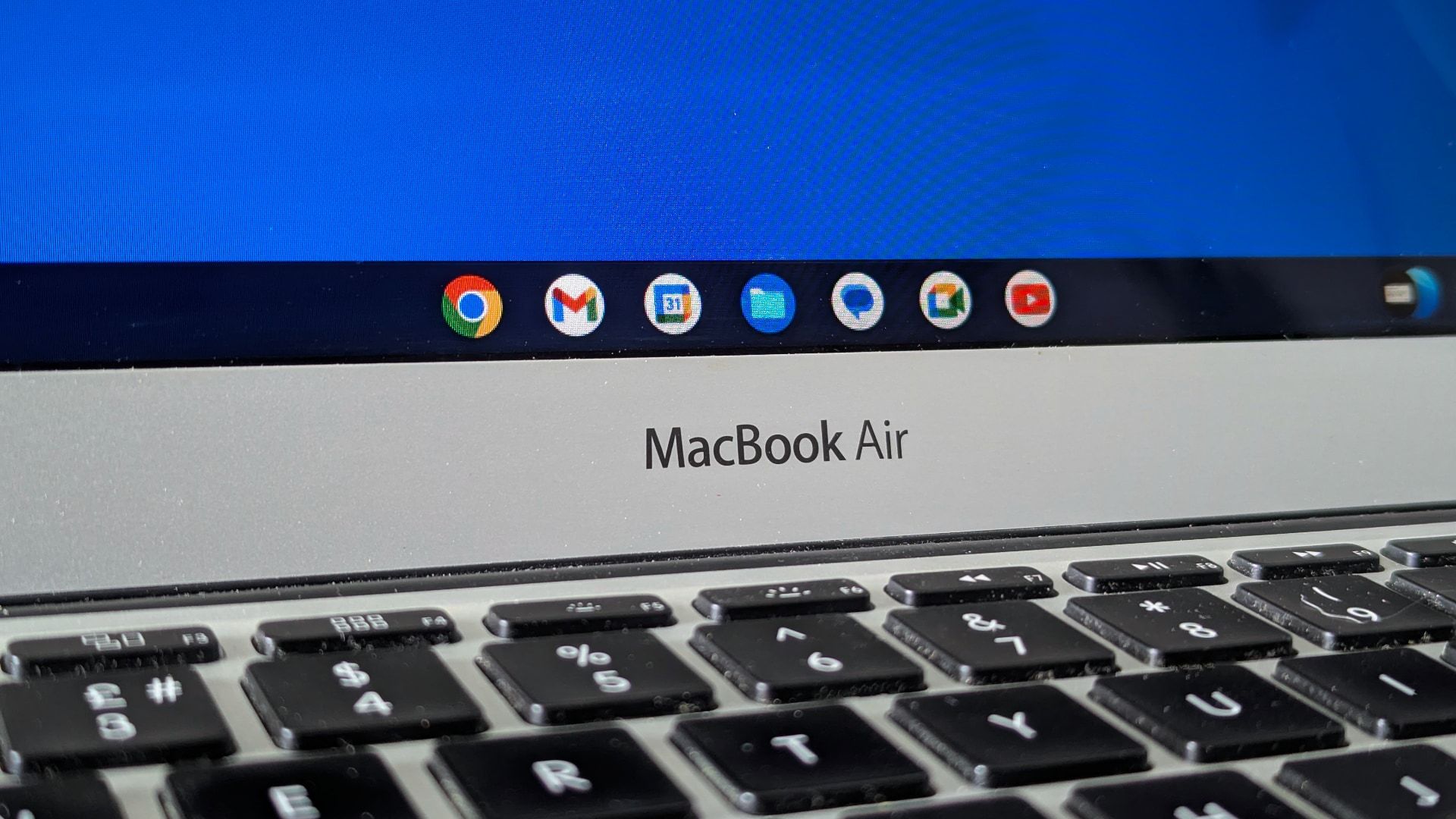
The Longevity Argument and Environmental Impact
The decision to install ChromeOS Flex on a MacBook Air is not just about technical functionality or personal finance; it also carries significant environmental implications. By extending the operational life of hardware that might otherwise be discarded, users actively participate in reducing electronic waste.
- Reduced E-Waste: Globally, e-waste is a rapidly growing problem. Repurposing old laptops directly contributes to mitigating this issue, aligning with broader tech trends towards sustainability and responsible consumption.
- Maximizing Resource Utilization: Manufacturing new electronics requires significant resources and energy. By making existing devices useful for longer, we reduce the demand for new production, lessening our collective carbon footprint.
- A “Green” Computing Choice: For individuals and organizations looking to make more environmentally conscious technology choices, ChromeOS Flex provides a practical and effective pathway to “green” computing without compromising on functionality for everyday tasks.
In conclusion, installing ChromeOS Flex on a MacBook Air is a viable, rewarding project for those looking to breathe new life into an aging machine. It transforms a potentially sluggish device into a fast, secure, and highly efficient cloud-centric computer, offering a compelling blend of performance, security, cost savings, and environmental responsibility. While there are considerations regarding hardware compatibility and feature sets, the overall benefits make it an excellent choice for a wide range of users eager to repurpose their technology effectively.
aViewFromTheCave is a participant in the Amazon Services LLC Associates Program, an affiliate advertising program designed to provide a means for sites to earn advertising fees by advertising and linking to Amazon.com. Amazon, the Amazon logo, AmazonSupply, and the AmazonSupply logo are trademarks of Amazon.com, Inc. or its affiliates. As an Amazon Associate we earn affiliate commissions from qualifying purchases.