
Understanding Your MacBook Screen: A Delicate Display
Your MacBook’s screen is a marvel of modern engineering, a vibrant window into your digital world. Whether it’s a stunning Retina display, an XDR panel, or an older generation, these screens are designed for visual fidelity and typically feature advanced coatings. However, this sophistication also means they require specific care, especially when it comes to cleaning. Improper methods can easily lead to irreversible damage, compromising both aesthetics and functionality.
The Anatomy of a MacBook Screen
Modern MacBook screens, particularly those with Retina or Liquid Retina XDR displays, are built with several layers, each serving a crucial purpose. The outermost layers are often the most sensitive to cleaning agents and abrasive materials. Key features include:
- Anti-reflective Coating: Designed to minimize glare and reflections, this microscopic layer can be easily stripped or scratched by harsh chemicals or rough cloths, leading to iridescent splotches or a patchy appearance.
- Oleophobic Coating: This oil-repellent layer helps resist fingerprints and smudges, making the screen easier to wipe clean. Aggressive cleaning solutions or abrasive actions can degrade this coating over time, causing fingerprints to stick more readily and making the screen feel less smooth.
- Backlight and LCD/OLED Panel: Beneath these coatings lies the actual display technology. While less susceptible to surface cleaning, liquid ingress from excessive spraying or dripping can cause permanent damage, leading to dead pixels, backlighting issues, or complete screen failure.
Risks of Improper Cleaning
Ignoring the delicate nature of these components can lead to several common pitfalls:
- Scratches: Using paper towels, tissue paper, or cloths made from rough materials can introduce microscopic scratches that accumulate over time, dulling the screen and becoming more noticeable when the screen is off or viewed in direct light.
- Coating Damage: Alcohol-based window cleaners, ammonia-based solutions, or other household chemicals are notorious for dissolving or degrading the anti-reflective and oleophobic coatings. This results in permanent blemishes that look like stained patches or irremovable smudges.
- Liquid Intrusion: Spraying liquid directly onto the screen, or using an excessively wet cloth, risks liquid seeping into the display’s edges or vent openings. This can short-circuit internal components, causing water damage that is often costly to repair and may void your warranty.
- Static Buildup: Rubbing vigorously with certain materials can generate static electricity, which, while usually harmless, can potentially attract more dust or, in rare cases, interfere with sensitive electronics.
Understanding these risks is the first step toward adopting a safe and effective cleaning regimen that preserves your MacBook’s pristine display.
Approved Cleaning Solutions for Optimal Clarity
When it comes to cleaning your MacBook screen, less is often more. The goal is to remove dirt, dust, and smudges without compromising the delicate coatings or introducing moisture into sensitive electronics. Apple itself provides guidance, which largely revolves around gentle, non-abrasive methods.
Distilled Water: The Gold Standard
For most everyday cleaning, distilled water is the safest and most recommended option. Unlike tap water, distilled water has been purified to remove minerals and impurities that can leave streaks or mineral deposits on your screen.
- Why it’s preferred: It’s non-reactive, leaves no residue, and is gentle on all screen coatings.
- How to use: Lightly dampen a soft, lint-free microfiber cloth with distilled water. The cloth should be moist, not wet. Never spray water directly onto the screen.
Isopropyl Alcohol (IPA) Solutions: When and How
While Apple generally advises against using cleaning solutions containing alcohol, there are specific contexts where a very dilute isopropyl alcohol (IPA) solution can be cautiously employed for stubborn grime. Always refer to Apple’s latest support documents for your specific model, as recommendations can change. For most modern MacBooks, Apple recommends using a 70% isopropyl alcohol wipe only to disinfect hard, nonporous surfaces. For screens, they typically stick to water.
However, if you encounter extremely stubborn, greasy marks that distilled water alone cannot remove, and you choose to deviate from Apple’s strict advice with caution:
- Low Concentration: Use a solution that is 70% isopropyl alcohol at most, and preferably diluted further with distilled water to 50% or even 30%.
- Application: Apply a tiny amount to a corner of a microfiber cloth, then gently wipe the affected area. Avoid letting the liquid touch the screen’s bezels or edges.
- Caution: This should be a last resort and used very sparingly, as even dilute IPA can potentially degrade oleophobic coatings over extended periods or with aggressive application.
Specialized Screen Cleaners: The Commercial Option
There are numerous commercial screen cleaning solutions available, often marketed as “electronics safe” or “anti-static.” When considering these products:
- What to look for: Choose cleaners specifically formulated for electronics screens, clearly stating they are alcohol-free, ammonia-free, and anti-static. Many use mild surfactants or deionized water.
- What to avoid: Any cleaner containing ammonia (common in window cleaners like Windex), acetone, ethyl alcohol (ethanol), toluene, or strong solvents. These will inevitably damage your screen’s coatings.
- Application: Always spray the cleaner onto your microfiber cloth first, never directly onto the screen. Follow the product’s instructions, but err on the side of caution with quantity.
The “Forbidden” List: What NOT to Use
This list is critical for preventing irreversible damage:
- Window Cleaners (e.g., Windex): Contain ammonia, which will strip screen coatings.
- Household Sprays/Aerosols: These often contain harsh chemicals, propellants, or leave residues.
- Kitchen Cleaners: Designed for grease and grime on hard surfaces, far too aggressive for screens.
- Abrasive Cleaners/Pads: Any cleaner with abrasive particles or scrubbing pads will scratch the screen.
- Paper Towels, Tissue Paper, Napkins: These are made of wood pulp and are surprisingly abrasive, leaving micro-scratches and lint.
- Rubbing Alcohol (pure or high concentration): Too strong for delicate screen coatings.
- Dish Soap: Can leave streaks and residues, and the chemical composition is not optimized for screens.
Adhering to these guidelines ensures you’re using substances that will clean effectively without causing harm to your valuable MacBook display.
Essential Tools for a Spotless Finish
Having the right tools is just as important as using the correct cleaning solutions. The effectiveness and safety of your cleaning process heavily rely on the quality and type of materials you use. Investing in proper cleaning accessories is a small price to pay to protect your MacBook’s screen.
Microfiber Cloths: Your Best Ally
A high-quality microfiber cloth is, without a doubt, the most essential tool for cleaning your MacBook screen.
- Why Microfiber? Microfiber is composed of extremely fine synthetic fibers (typically polyester and polyamide) that are significantly smaller than a human hair. This allows them to effectively pick up and trap dust, dirt, oils, and moisture without scratching delicate surfaces. They are also highly absorbent and lint-free.
- Types to look for:
- High-GSM (Grams per Square Meter): A higher GSM indicates a denser, softer, and more absorbent cloth. Look for cloths in the 250-400 GSM range for screen cleaning.
- “Optical Grade” or “Lens Cloth”: These are specifically designed for sensitive optics and electronics, often having an even finer weave.
- Lint-Free: Ensure the packaging explicitly states “lint-free.” Even small fibers can be annoying to remove.
- How to care for your cloth:
- Wash Regularly: A dirty microfiber cloth can scratch your screen. Wash it frequently.
- Gentle Cycle, Cold Water: Use a mild detergent (free of fabric softeners, bleach, or harsh dyes) on a gentle cycle with cold water.
- Air Dry: Tumble drying on high heat can melt the synthetic fibers, reducing their effectiveness and potentially making them abrasive. Air dry or use a very low heat setting.
- Separate Wash: Wash microfiber cloths separately from other laundry items (especially cotton) to prevent lint transfer.
Air Blowers vs. Canned Air
Before any wiping, it’s crucial to remove loose dust and debris to prevent scratching.
- Manual Air Blower (e.g., Giottos Rocket Blaster): This is a small, hand-pumped rubber bulb that provides a strong burst of air.
- Pros: Safe, reusable, environmentally friendly, and doesn’t contain propellants or moisture. Provides precise control over airflow.
- Cons: Requires manual effort.
- Canned Air (Compressed Gas Dusters):
- Pros: Powerful burst of air.
- Cons:
- Moisture/Chemical Residue: Can expel cold liquid propellant if used improperly (e.g., held at an angle or for too long), which can leave a residue or even damage sensitive electronics.
- Environmental Impact: Contains greenhouse gases.
- Static Charge: Can generate a static charge if the nozzle is too close to the screen.
- Usage Precaution: If you must use canned air, hold the can upright, use short bursts, and keep the nozzle several inches away from the screen. Never invert the can.

Given the potential risks, a manual air blower is generally the safer and preferred option for screen dusting.
Cotton Swabs
For very tight corners where dust or grime can accumulate, a plain cotton swab (Q-tip) lightly dampened with distilled water can be useful. Be extremely gentle to avoid pressing too hard or leaving cotton fibers behind. These are best for the bezels and very edges of the screen rather than the main display area itself.
By equipping yourself with these proper tools, you’re well-prepared to maintain your MacBook screen’s clarity and extend its life without accidental damage.
A Step-by-Step Guide to Cleaning Your MacBook Screen
Cleaning your MacBook screen effectively and safely is a straightforward process when approached systematically. Follow these steps to achieve a pristine, smudge-free display without risk.
Preparation is Key
Before you even touch your screen, ensure your MacBook is in the right state:
- Power Down: Completely shut down your MacBook. Do not just put it to sleep. This eliminates any electrical activity and ensures the screen is cool, preventing streaks from evaporating liquids.
- Unplug: Disconnect the power adapter and any peripherals.
- Cool Down: Allow the MacBook to cool down completely if it’s been in use. A warm screen can cause liquids to evaporate too quickly, leaving streaks.
- Wash Hands: Ensure your hands are clean and free of oils or lotions before handling the cleaning cloth.
Gentle Dust Removal
The first step is always to remove loose dust and particles to prevent scratching during the wiping process.
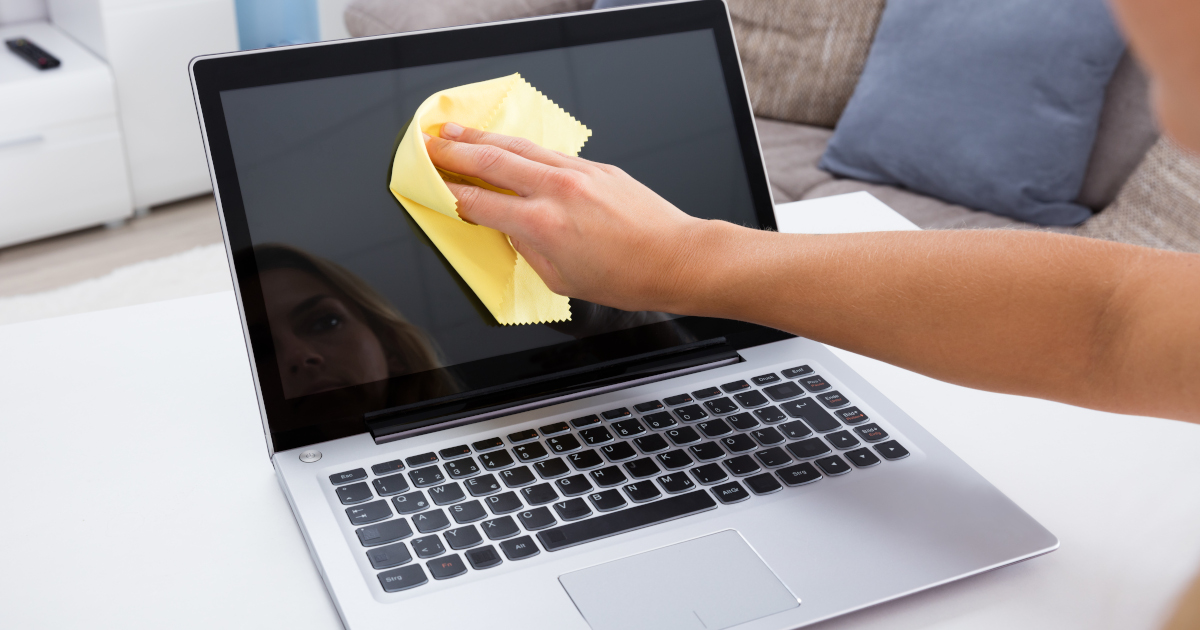
- Dry Microfiber: Take a clean, dry microfiber cloth and gently wipe the entire screen in one direction, then the other, applying minimal pressure. The goal is to lift dust, not embed it.
- Air Blower: Use a manual air blower (recommended over canned air) to puff away any remaining dust from the screen surface and around the edges of the display. Hold the blower at an angle to help dislodge particles.
Tackling Smudges and Fingerprints
Once the loose dust is gone, it’s time to address the more persistent marks.
- Dampen Cloth: Lightly dampen a different clean section of your microfiber cloth with distilled water. The cloth should be just barely moist, not dripping wet. You should not see any visible water droplets on the cloth. Never spray water directly onto the screen.
- Gentle Wiping Technique:
- Start at the top of the screen and work your way down.
- Wipe in broad, consistent strokes across the screen, either horizontally or vertically. Avoid circular motions, which can sometimes leave swirl marks or uneven cleaning.
- Apply very light, even pressure. Let the microfiber and water do the work.
- For stubborn spots, gently rub the area with your damp cloth. Resist the urge to press hard.
- Inspect: After a pass, turn the screen to catch the light from different angles to check for any remaining smudges or streaks.
Stubborn Marks (Use with Extreme Caution if Using IPA)
If, after multiple passes with distilled water, there are still very stubborn greasy marks (e.g., from food, makeup, or strong residues), you might consider using a very diluted isopropyl alcohol solution only if absolutely necessary and with caution, as detailed in the “Approved Cleaning Solutions” section.
- Minimal IPA Solution: Apply an extremely small amount of a highly diluted IPA solution (e.g., 30-50% IPA, 70-50% distilled water) to a tiny, fresh section of your microfiber cloth.
- Targeted Wipe: Gently wipe only the specific stubborn mark. Avoid spreading the solution or letting it touch the screen bezels.
- Follow with Water: Immediately follow up by gently wiping the area with a clean, dampened with distilled water only section of your microfiber cloth to remove any potential IPA residue.
This step should be a rare exception, not a regular practice. For most users, distilled water is sufficient.
The Drying Process
- Air Dry: Allow the screen to air dry for a moment.
- Final Buff (Optional): If you notice any slight streaks or want an extra shine, use a third clean, completely dry microfiber cloth (or a very dry section of your existing cloth) to gently buff the screen. Again, use light pressure and consistent strokes.
By following these steps, you can achieve a sparkling clean MacBook screen, protecting its delicate surface and ensuring an optimal viewing experience for years to come.
Maintaining Screen Hygiene and Longevity
Regular maintenance and protective habits extend beyond just cleaning. By integrating a few simple practices into your daily routine, you can significantly reduce the frequency of deep cleaning and prolong the pristine condition of your MacBook screen.
Regular Maintenance Schedule
Consistency is key to keeping your screen in top shape.
- Daily Dusting: Make it a habit to quickly wipe your screen with a dry, clean microfiber cloth each day (or whenever you finish using your MacBook). This removes surface dust before it can accumulate or mix with oils to form stubborn smudges. A quick puff from a manual air blower can also be helpful.
- Weekly Wipe-Down: Once a week, perform a more thorough clean using a lightly dampened (with distilled water) microfiber cloth to remove fingerprints and minor smudges that accumulate from regular use. This proactive approach prevents grime from building up and becoming harder to remove.
- As-Needed Spot Cleaning: Address any accidental spills or noticeable marks as soon as they occur, using the appropriate gentle method, rather than letting them set in.
Protective Measures
Prevention is often the best strategy when it comes to screen care.
- Screen Protectors: Consider applying a high-quality screen protector, especially if you frequently travel with your MacBook or are prone to accidental bumps. Ensure it’s specifically designed for your MacBook model and is easy to apply without trapping air bubbles. While some argue against them due to potential impact on display quality, a good matte protector can also reduce glare and provide an additional layer of oleophobic coating.
- Keyboard Covers: When closing your MacBook, ensure no debris is on the keyboard, as this can press against the screen and cause pressure marks or scratches. A thin keyboard cover can offer a slight buffer, though Apple sometimes advises against them due to potential hinge stress or heat dissipation issues with some models. If you use one, choose a very thin, flexible option.
- Safe Transport: Always carry your MacBook in a padded sleeve or bag. This protects it from external pressure and prevents internal components (like the keyboard) from pressing against the screen during transit.
- Clean Hands: Before using your MacBook, especially if you’re about to touch the screen (e.g., to point at something, or if you have a touch-enabled external monitor), ensure your hands are clean and free of oils, food residue, or lotions.

Environmental Factors
The environment in which you use and store your MacBook can also impact screen longevity.
- Avoid Direct Sunlight: Prolonged exposure to direct sunlight can cause screen discoloration or even “burn-in” on some display types. It also makes existing dust and smudges more apparent, tempting you to clean more often.
- Extreme Temperatures: Avoid leaving your MacBook in extreme hot or cold conditions (e.g., a hot car dashboard or freezing garage). Extreme temperatures can affect display components and adhesives.
- Dusty Environments: If you work in a particularly dusty environment, increase the frequency of your dry dusting routine. Consider using an air purifier in your workspace to reduce airborne particles.
By integrating these habits and considerations into your daily routine, you’ll not only keep your MacBook screen looking impeccable but also contribute to its overall durability and lifespan, ensuring your technological investment continues to serve you effectively for years to come.
aViewFromTheCave is a participant in the Amazon Services LLC Associates Program, an affiliate advertising program designed to provide a means for sites to earn advertising fees by advertising and linking to Amazon.com. Amazon, the Amazon logo, AmazonSupply, and the AmazonSupply logo are trademarks of Amazon.com, Inc. or its affiliates. As an Amazon Associate we earn affiliate commissions from qualifying purchases.