
To “rip a CD” is to engage in a foundational act of digital media conversion, a process that bridges the physical world of optical discs with the boundless realm of digital files. It’s a technical procedure where audio data from a compact disc (CD) is extracted and encoded into a computer-readable digital format, allowing for playback, storage, and manipulation on various electronic devices without the need for the original disc. This process, once a commonplace activity for music enthusiasts, remains a vital method for preserving and modernizing personal audio libraries.
The Core Concept: Digitizing Audio
At its heart, ripping a CD is about transforming analog or physically stored digital audio into a portable, universally compatible digital file. Before the advent of streaming services and widespread digital downloads, CDs were the primary medium for high-quality music distribution. Ripping provided the critical pathway to liberate this audio from its physical constraints.
From Physical to Digital
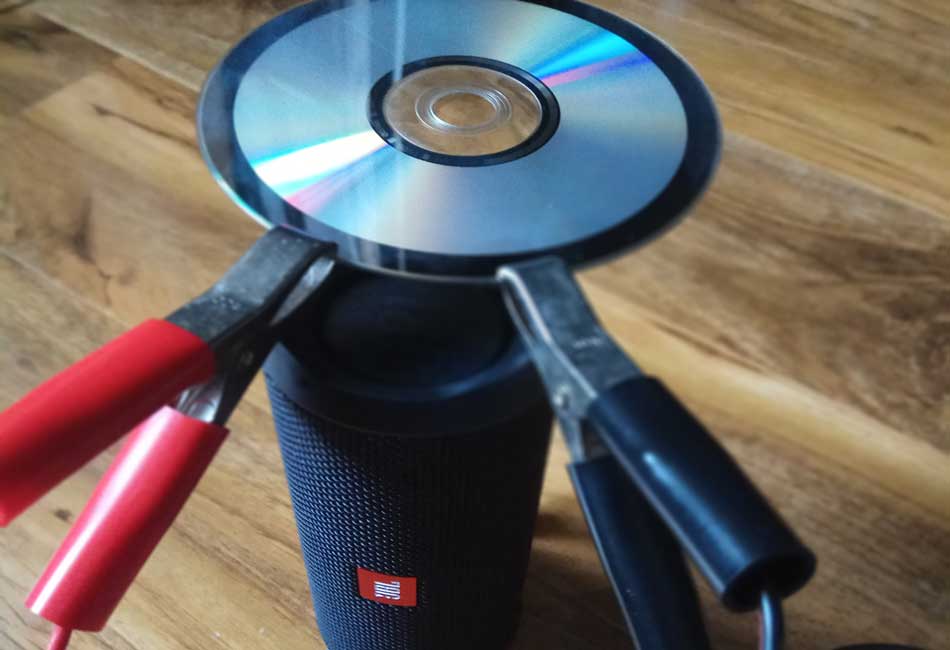
A compact disc stores audio information as a series of microscopic pits and lands on its reflective surface. A laser in a CD player reads these variations, converting them into an electrical signal that is then processed into audible sound. When a CD is ripped, a computer’s optical drive performs a similar reading function. However, instead of sending the data directly to an audio output, it translates the digital information—the raw 1s and 0s representing the audio—into a structured file format that can be stored on a hard drive, solid-state drive, or flash memory. This makes the audio accessible on devices like smartphones, digital audio players, and media servers.
The “Rip” in Ripping
The term “rip” itself implies a forceful extraction, a tearing away. In this context, it accurately conveys the act of pulling data directly from the disc, bypassing traditional playback methods to access the raw digital information. Unlike simply copying files from a flash drive, ripping a CD involves specialized software that not only reads the audio tracks but also converts them into a chosen file format, often with options for compression and metadata tagging.
The Technology Behind the Process
Ripping a CD involves a synergistic interplay of hardware and software components, each performing a specific role in the conversion pipeline. Understanding these elements is crucial for achieving optimal results and managing a digital music collection effectively.
Hardware Requirements
The primary piece of hardware required is an optical disc drive capable of reading CDs. While internal CD/DVD drives were standard in desktop computers and many laptops for decades, external USB optical drives are now more common, especially with the decline of internal drives in modern, sleek computing devices. The drive’s quality can subtly influence the ripping process, particularly in its ability to read discs with minor imperfections or its speed. Beyond the drive, a computer with sufficient processing power and storage space is necessary to handle the conversion and house the resulting audio files.
Software Essentials: Encoders and Codecs
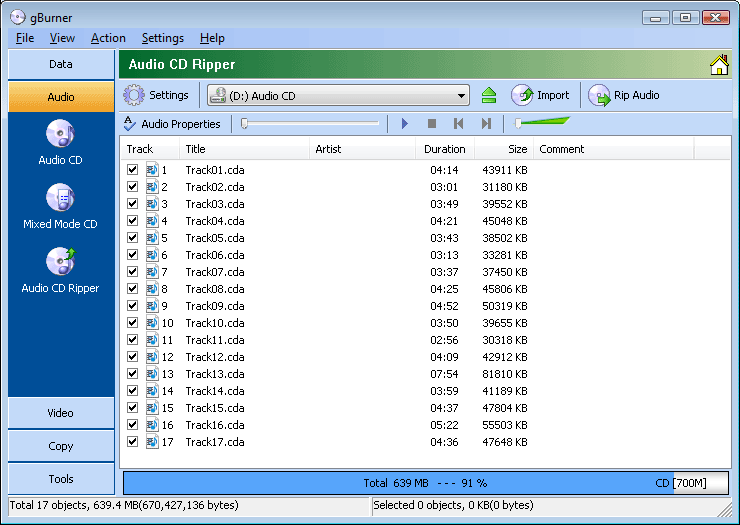
The true magic of ripping lies in the software. Dedicated CD ripping applications (such as Exact Audio Copy (EAC), dBpoweramp, iTunes/Music app, Windows Media Player, VLC) are designed to interact with the optical drive, read the audio tracks, and then encode them into a desired digital format.
Central to this encoding process are codecs (coder-decoder). A codec is an algorithm used to compress and decompress digital media files. During ripping, an encoder (part of the ripping software) uses a specific codec to convert the uncompressed audio from the CD into a chosen file format. Common audio codecs include:
- MP3 (MPEG-1 Audio Layer III): The most ubiquitous lossy compression format, offering a good balance of file size and perceived audio quality.
- AAC (Advanced Audio Coding): Another lossy format, often considered more efficient than MP3 at similar bitrates, used by Apple for its ecosystem.
- FLAC (Free Lossless Audio Codec): A lossless compression format that reduces file size without discarding any audio information, preserving CD-quality sound.
- WAV (Waveform Audio File Format): An uncompressed, raw audio format that is an exact digital copy of the CD data, resulting in very large files.
File Formats: MP3, FLAC, WAV, and More
The choice of file format dictates the balance between file size and audio fidelity.
- Lossy formats (MP3, AAC, Ogg Vorbis): These formats achieve smaller file sizes by intelligently discarding audio information that is deemed less perceptible to the human ear. The bitrate (e.g., 128 kbps, 256 kbps, 320 kbps) determines the amount of data retained per second and thus the perceived quality. Higher bitrates generally mean better quality but larger files.
- Lossless formats (FLAC, ALAC (Apple Lossless Audio Codec)): These formats compress the audio data without any loss of information. When decompressed, the audio is identical to the original CD source. While file sizes are larger than lossy formats, they are still significantly smaller than uncompressed WAV files. This is often preferred by audiophiles or those wanting future-proof archives.
- Uncompressed formats (WAV, AIFF): These formats store audio data exactly as it appears on the CD, bit for bit, resulting in the highest fidelity but also the largest file sizes. They are typically used for professional audio editing or mastering where no data loss can be tolerated.
Why Rip a CD? Benefits and Motivations
Despite the dominance of streaming services, ripping CDs remains a relevant practice for several compelling reasons, offering advantages in terms of control, preservation, and accessibility.
Portability and Accessibility
Once ripped, music is no longer tethered to a physical disc. It can be loaded onto portable media players, smartphones, tablets, or stored on network-attached storage (NAS) devices. This digital freedom allows users to create vast, custom music libraries accessible anywhere, anytime, without carrying bulky jewel cases or being dependent on an internet connection for streaming. It empowers users to listen to their music on any compatible device, from a car stereo to a home theater system.
Digital Preservation and Backup
CDs, like all physical media, are susceptible to wear, scratches, and degradation over time. Ripping a CD creates a digital backup, safeguarding the music against physical damage to the disc. This is particularly important for rare, out-of-print, or sentimental albums that may not be available on streaming platforms or as digital downloads. A well-organized digital archive ensures that a cherished music collection can endure for decades.
Customization and Playlist Creation
Digital audio files offer unparalleled flexibility in organization and playback. Users can create custom playlists, mix tracks from different albums, and organize their music by artist, album, genre, or mood. Metadata tagging (artist, album, track title, genre, year, album art) is often automatically retrieved during the ripping process from online databases like FreeDB or MusicBrainz, enriching the digital library experience. This level of personalization far exceeds what is possible with physical media.
The Technicalities of Quality and Fidelity
Achieving the desired audio quality is a key consideration when ripping a CD. Understanding factors like bit rate, sampling frequency, and compression types helps users make informed decisions that align with their listening preferences and storage capabilities.
Bit Rate and Sampling Frequency
A CD’s audio is typically encoded at a 16-bit depth and a 44.1 kHz sampling frequency. This means 44,100 samples are taken per second, with each sample containing 16 bits of information about the amplitude of the sound wave. When ripping to a lossy format like MP3, the bit rate (e.g., 256 kbps) represents the amount of data used per second of audio after compression. A higher bit rate generally correlates with higher perceived quality because less information has been discarded. For lossless formats, the bit rate is variable, depending on the complexity of the audio, but it will always reconstruct the original 16-bit, 44.1 kHz data perfectly.
Lossless vs. Lossy Compression
The choice between lossless and lossy compression is perhaps the most significant decision when ripping.
- Lossy compression sacrifices some audio data to achieve smaller file sizes. This is acceptable for most casual listeners and for portable devices where storage is a concern. The perceived difference in quality compared to the original CD can be minimal, especially at higher bit rates.
- Lossless compression reduces file size without removing any audio information. It’s ideal for archiving, for audiophiles, or for those who want to retain the absolute highest fidelity for future playback or potential re-encoding. While files are larger than lossy counterparts, they are still smaller than uncompressed formats, making them a popular choice for high-quality digital libraries.
Error Correction and Digital Accuracy
A critical aspect of quality ripping is ensuring data accuracy. CDs can have minor scratches or manufacturing defects that might lead to read errors. Advanced ripping software employs sophisticated error correction and verification techniques. For instance, programs like Exact Audio Copy (EAC) or dBpoweramp use AccurateRip technology, which compares the ripped audio data to an online database of millions of other rips of the same CD. If a match is found, it confirms the rip is bit-perfect, ensuring digital accuracy and preventing subtle audio glitches or dropouts that might otherwise go unnoticed. This dedication to accuracy elevates ripping from a simple copy operation to a precise digital preservation effort.
A Step-by-Step Tutorial: How to Rip a CD
Ripping a CD is a straightforward process, though the specific steps can vary slightly depending on the software used. Here’s a general outline.
Choosing Your Software
Select a reputable CD ripping application. Popular choices include:
- Windows: Exact Audio Copy (EAC) for advanced users prioritizing accuracy; dBpoweramp for its comprehensive features and codec support; Windows Media Player for basic functionality.
- macOS: Apple Music app (formerly iTunes) for integrated library management; XLD (X Lossless Decoder) for high-quality lossless ripping.
- Cross-platform: VLC Media Player can also rip CDs, though its interface is less dedicated to the task.
For critical archival or audiophile-grade rips, software with AccurateRip integration is highly recommended.
Configuring Settings
Once the software is installed, configure its settings:
- Output Format: Choose between lossy (MP3, AAC) or lossless (FLAC, ALAC) based on your priorities for file size versus audio fidelity.
- Quality/Bitrate: If opting for a lossy format, select a bitrate (e.g., 320 kbps for high-quality MP3) or a variable bitrate (VBR) setting. For lossless, no quality setting is needed as it preserves all data.
- Destination Folder: Specify where the ripped files will be saved on your computer.
- Naming Convention: Most software allows customization of file and folder naming (e.g.,
Artist - Album/Track Number - Track Title.flac). - Metadata Tagging: Ensure the software is set to automatically retrieve track information (artist, album, title, genre, year, album art) from online databases.
Initiating the Rip
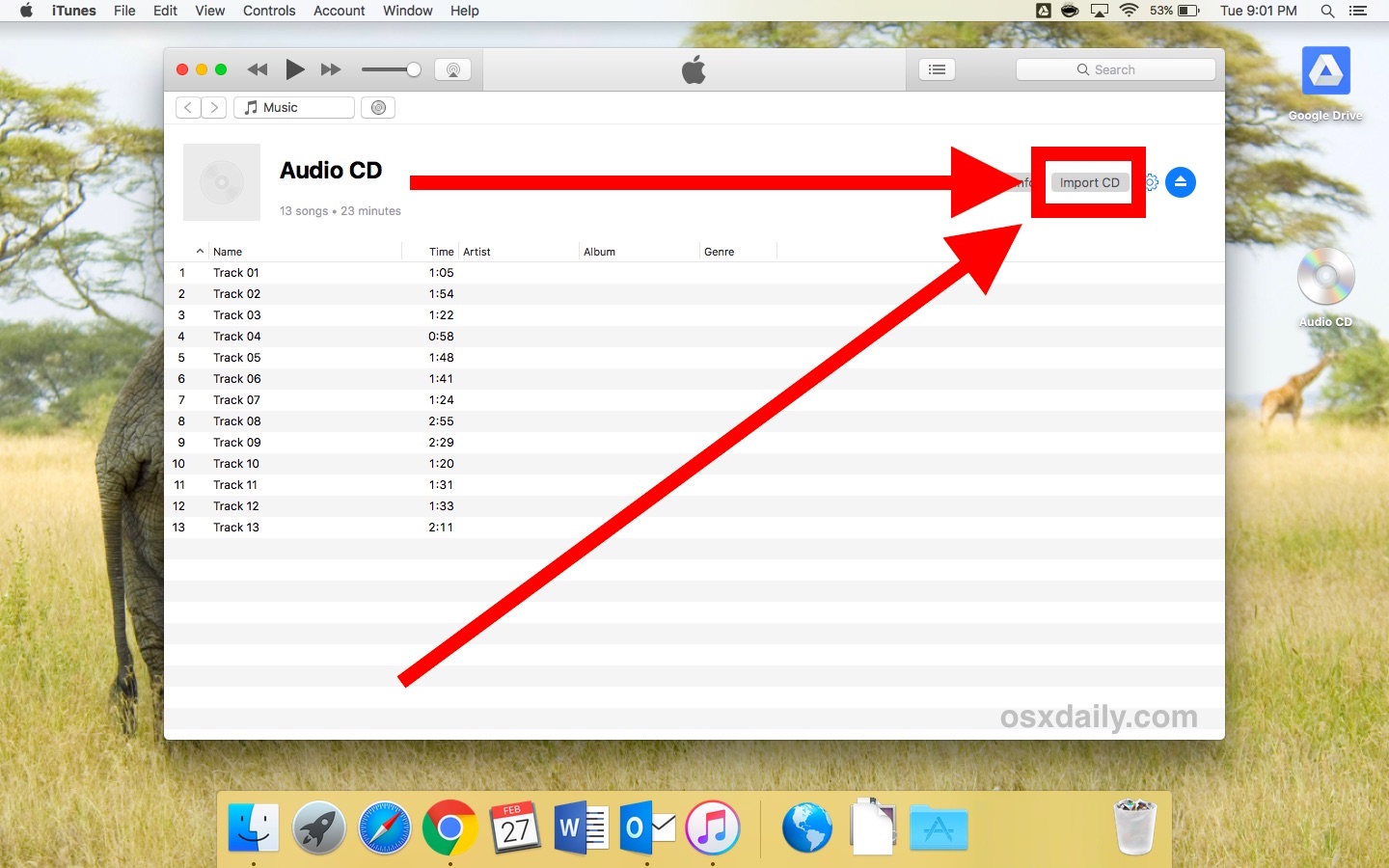
Insert the audio CD into your computer’s optical drive. The ripping software should detect the CD and display its tracks. Review the track information retrieved from online databases; sometimes minor corrections are needed. Select the tracks you wish to rip (usually all of them). Click the “Rip” or “Encode” button to start the process. The software will then read the disc, convert the audio data according to your settings, and save the resulting files to your designated folder. This process can take several minutes per CD, depending on your drive speed, computer’s processing power, and the chosen file format.
Organizing Your Digital Library
After ripping, the final step is to ensure your new digital music files are well-organized. Verify that all metadata tags are correct and consistent. Consider using a dedicated music library manager (like Plex, Kodi, Roon, or even the built-in Music/iTunes app) to catalog and browse your collection. Consistent folder structures (e.g., Music/Artist/Album/Track.flac) and accurate tags are paramount for a usable and enjoyable digital music experience.